How to show hidden files and folders? Windows 11 makes keeping your computer tidy easier than ever, but sometimes you need to dig a little deeper than the usual documents and pictures. Whether you’re trying to fix an application error, delete old program settings, or just curious about what’s really lurking on your hard drive, you’ll need to know how to reveal those hidden files and folders.
This guide will walk you through the easiest and quickest ways to display these concealed items, explaining why they’re hidden in the first place and giving you a couple of different methods so you can pick the one you like best. Don’t worry, you don’t need to be a tech genius to do this—we’re keeping it simple and straightforward!
🤷 Why Are Files and Folders Hidden Anyway?
Before we jump into the “how-to,” let’s quickly talk about the “why.” Windows (and most operating systems) hides certain files and folders for a few very good reasons:
- System Protection: The most important reason is safety. Many hidden files are crucial system files or configuration files for Windows itself. Messing with these files can cause your operating system to stop working correctly, which is a headache no one wants. By hiding them, Windows prevents accidental deletion or modification.
- Decluttering: Imagine if every single temporary file, program setting, and system log was visible in your main folders. It would be a chaotic mess! Hiding these files keeps your regular folders like “Documents” and “Downloads” clean and easy to navigate.
- Application Data: Programs you install often have hidden folders where they store settings, cache data, and other vital information. A prime example is the
AppDatafolder, which holds user-specific application data. You usually don’t need to see this, but it’s often the main reason people search for how to show hidden files and folders? Windows 11 makes it easy to reveal it when necessary.
So, while it can be frustrating not seeing what you’re looking for, the hidden files feature is actually designed to help keep your PC running smoothly and safely.
🚀 The Easiest Way: Using File Explorer’s ‘View’ Menu
This is, without a doubt, the fastest and simplest way to reveal hidden files and folders in Windows 11. It’s a quick toggle switch right inside the program you use to browse your files.
Step 1: Open File Explorer
First, you need to open File Explorer. You can do this in a few easy ways:
- Click the folder icon on your taskbar.
- Press the Windows Key + E on your keyboard (the fastest way!).
Step 2: Go to the View Menu
Once File Explorer is open, look at the top toolbar of the window.
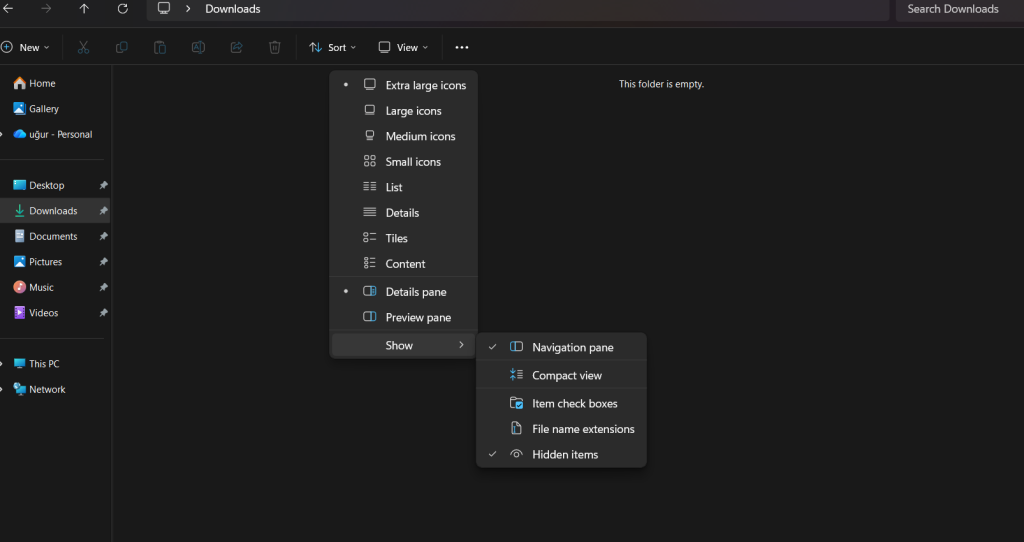
- Click on the “View” menu option.
Step 3: Reveal the Hidden Items
Clicking “View” will open a small dropdown menu.
- Hover your mouse over the “Show” option in that menu.
- In the sub-menu that appears, click on “Hidden items”.
That’s it! As soon as you click it, any hidden files and folders in your current view (and all other folders you browse) will instantly become visible. You’ll notice they look a little different—they’ll be slightly transparent or faded compared to your regular files, which is Windows’ way of reminding you that these are usually hidden items.
To hide them again, just go back to the same spot and uncheck the “Hidden items” box. It’s a quick toggle for instant visibility.
⚙️ The Classic Way: Using Folder Options (For Advanced Control)
While the method above is the fastest, some people prefer the classic approach, or maybe they want to tweak other file-related settings at the same time. This method involves the “Folder Options” window, which gives you more control over what is displayed.
Step 1: Open File Explorer Options
There are a couple of ways to get here:
Option A (Using the File Explorer Menu):
- Open File Explorer.
- Click the three-dot menu (labeled “See more”) on the right side of the top toolbar.
- Select “Options” from the dropdown menu.
Option B (Using Search):
- Click the Search icon (magnifying glass) on your taskbar.
- Type “File Explorer Options” and click on the result that appears.
Step 2: Navigate to the View Tab
Once the “File Explorer Options” window pops up:
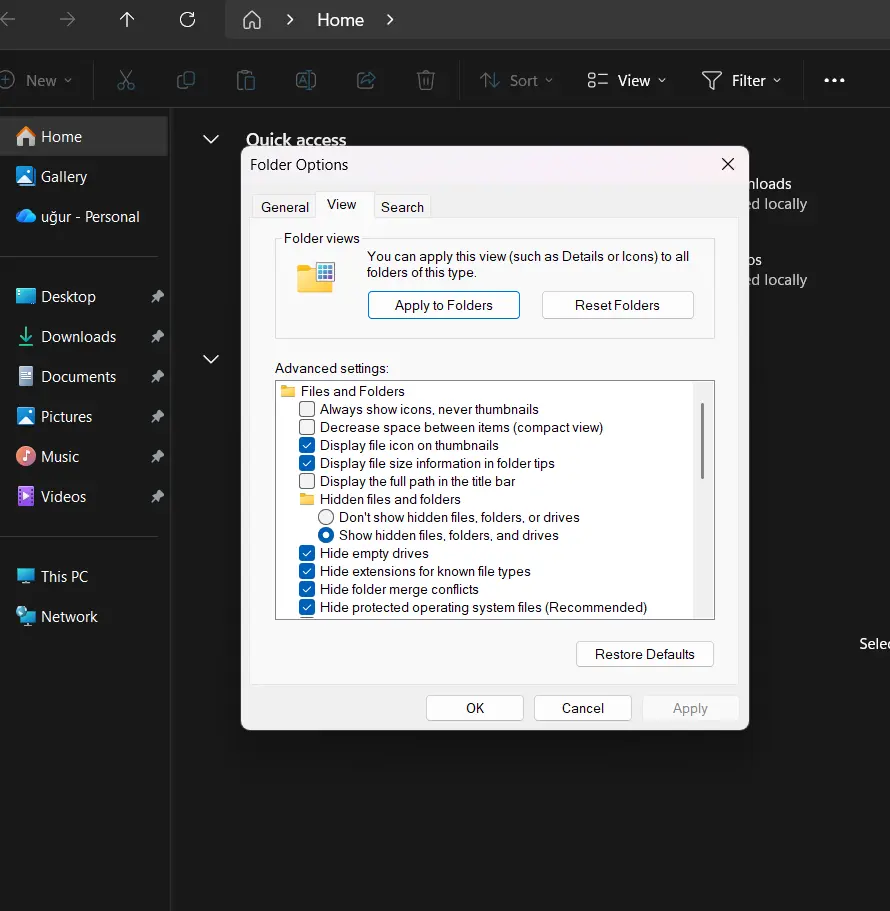
- Click on the “View” tab at the top. This is where all the advanced file visibility settings live.
Step 3: Change the Hidden Files Setting
Scroll down the long list of “Advanced settings” until you find the “Hidden files and folders” section.
- Click the radio button next to “Show hidden files, folders, and drives.”
Step 4: Apply and Confirm
You’re almost done!
- Click the “Apply” button at the bottom of the window to make the changes take effect.
- Click “OK” to close the window.
Just like the first method, your hidden files and folders will now be visible. The advantage of this method is that it also lets you see other settings, like whether or not to show file extensions (the .exe or .docx at the end of a file name), which is another common tweak users like to make.
⚠️ A Note on System Files
When you reveal the regular hidden files using either of the methods above, you still might not see everything. Windows 11 has an even deeper layer of concealment for the most important system files. These are often the ones you really shouldn’t touch.
If you are absolutely sure you need to see these, you must follow the steps for the “Classic Way” (File Explorer Options) and perform an extra action:
- In the File Explorer Options window, go to the View tab.
- Under Advanced settings, find the option labeled “Hide protected operating system files (Recommended).”
- Uncheck this box.
- Windows will give you a warning message confirming you want to proceed. Read it carefully and click “Yes” only if you understand the risks.
- Click “Apply” and then “OK.”
Only do this if you are performing a very specific, advanced troubleshooting task. These files are hidden for a reason, and they are essential for your computer to run. It’s best practice to re-check the “Hide protected operating system files (Recommended)” box as soon as you are done with your task.
📍 Where Are the Most Common Hidden Folders?
Now that you know how to show hidden files and folders? Windows 11 reveals a lot of new items, but where are the most common ones that people are looking for?
1. The AppData Folder
This is, by far, the most searched-for hidden folder. It’s where your applications store their individual settings, temporary files, and data specific to your user profile.
- Location: You will find it inside your user profile folder. For example,
C:\Users\YourUserName\AppData. - Contents: It contains three main sub-folders:
- Local: For data that is too large or changes frequently (like app caches).
- Roaming: For data that you might want to be synced across different computers if you are on a network (like browser bookmarks).
- LocalLow: For data with a lower access level (usually used by browsers and secure applications).
- Why you might need it: You often go here to delete corrupted program settings to force an app to reset, or to manually backup a game’s save files.
2. The ProgramData Folder
This is another folder where programs store data, but unlike AppData, which is specific to a single user, ProgramData stores data that is shared by all users on the computer.
- Location: Directly on your main drive, usually
C:\ProgramData. - Why you might need it: Similar to
AppData, you might need to access it for advanced troubleshooting or configuration for certain software, especially enterprise-level programs.
3. $Recycle.Bin (The Real Recycle Bin)
This is a hidden system folder that you will find at the root of every drive (C:\, D:\, etc.).
- Location:
C:\$Recycle.Bin - Why you might need it: You don’t usually interact with this folder directly, as the Recycle Bin icon on your desktop is the user-friendly gateway. But it’s the actual place where deleted items sit before they are permanently removed.
🔒 Security and Best Practices
Making the choice to show hidden files and folders? Windows 11 gives you the control, but with great power comes great responsibility. Here are a few quick tips to keep in mind:
- Be Careful What You Delete: Only delete a hidden file or folder if you are absolutely certain of what it does and that it is safe to remove. If you’re following a guide online, make sure it’s from a reputable source. When in doubt, don’t delete it.
- Re-Hide When Done: Once you are finished with your task (like accessing the
AppDatafolder to fix a setting), it’s highly recommended to go back and hide the items again. Keeping them hidden reduces the risk of accidentally deleting a critical system file in the future. - Run a Virus Scan: In rare cases, some malware will hide itself or even disable the “Show hidden files” option to prevent you from finding it. If you find that the setting keeps resetting itself or you can’t see the files you know are there, it’s a good idea to run a full system scan with your antivirus program just to be safe.
By knowing how to show hidden files and folders? Windows 11 allows you to become a more advanced user of your PC, giving you the ability to troubleshoot problems and customize your experience beyond the normal settings. Just remember the advice: look but don’t touch unless you know exactly what you’re doing!
