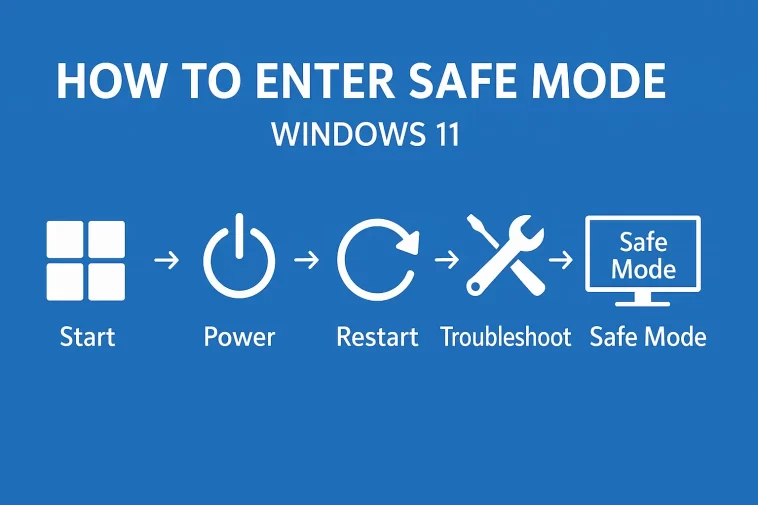
Has your computer started acting weird lately? Maybe you installed a new driver and suddenly your screen is flickering, or perhaps you suspect a virus is slowing everything down. When things go wrong with your PC, the best place to start troubleshooting is Safe Mode Windows 11.
It can be a little intimidating if you’ve never done it before, especially since Microsoft changed the way we boot into these modes compared to the old Windows 7 days. You can’t just mash the F8 key anymore!
Don’t worry, though. In this guide, I’m going to walk you through exactly how to access Safe Mode in Windows 11 using several different methods. Whether you can access your desktop or you’re stuck on a black screen, I’ve got a solution for you.
What Exactly is Safe Mode?
Before we dive into the “how,” let’s quickly touch on the “why.”
Think of Safe Mode as a “stripped-down” version of your computer. When you boot Windows 11 in Safe Mode, it only loads the absolute bare minimum files and drivers necessary to run the system.
- No third-party apps: That startup program slowing you down? It won’t run.
- Basic graphics: Your fancy video card drivers are disabled, so the screen might look a bit fuzzy, but it works.
- Standard settings: It ignores your custom configurations that might be causing conflicts.
If your computer runs perfectly fine in Safe Mode Windows 11, you know the problem isn’t the hardware or the core Windows files—it’s likely a program or driver you installed recently.
Method 1: The Settings Menu (The Standard Way)
If you can still log into your computer and use your mouse, this is the most reliable way to get where you need to go. It takes a few clicks, but it’s very straightforward.
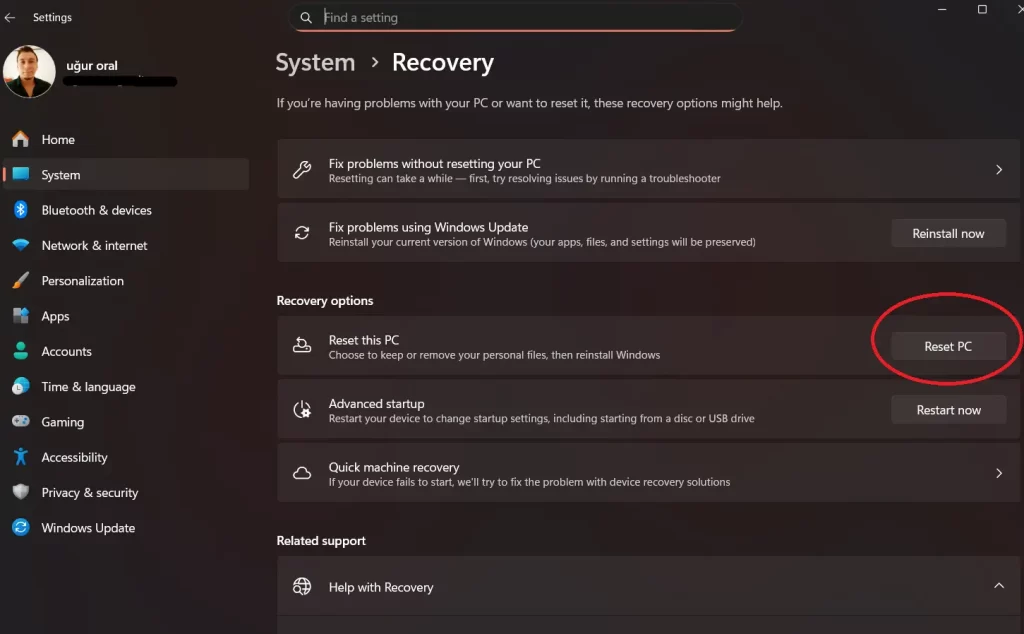
- Click on the Start button and select Settings (the gear icon).
- Make sure you are on the System tab in the left sidebar.
- Scroll down the main list until you find Recovery. Click on it.
- Look for the option that says Advanced startup.
- Click the Restart now button next to it.
- Windows will ask if you are sure. Click Restart now again.
Once your PC restarts, you won’t go straight to Safe Mode yet. You will see a blue screen with options. Follow this path:
- Click Troubleshoot.
- Click Advanced options.
- Click Startup Settings.
- Finally, click Restart.
When your PC reboots one more time, you’ll see a list of numbered options. Press 4 or F4 on your keyboard to start Safe Mode Windows 11.
Method 2: The “Shift + Restart” Trick (The Fastest Way)
This is my personal favorite method because it is fast and easy to remember. You can do this from the Start menu or the lock screen.
- Open the Start menu.
- Click on the Power icon.
- Press and hold the Shift key on your keyboard.
- While holding Shift, click Restart.
Don’t let go of the Shift key until you see the blue screen that says “Choose an option.” From there, just like the method above, go to Troubleshoot > Advanced options > Startup Settings > Restart, and then press 4 for Safe Mode.
Method 3: From the Sign-In Screen (If You Can’t Log In)
Sometimes, the problem is so bad you can’t even get past the password screen. Maybe your login loop is broken, or the desktop freezes immediately.
You can still access Safe Mode Windows 11 right from the login screen.
- Look at the bottom right corner of your login screen. You should see the Power button icon.
- Just like the method above, hold down your Shift key.
- Click the Power button on the screen and select Restart.
- Keep holding Shift until the computer reboots into the recovery environment.
Once you are in the recovery menu, follow the standard path: Troubleshoot > Advanced options > Startup Settings.
Method 4: The “Black Screen” Method (Automatic Repair)
This is the “emergency brake” method. Use this if your computer won’t boot at all—if you turn it on and it just sits on a black screen or freezes at the manufacturer’s logo.
You need to interrupt the startup process three times in a row to trigger Microsoft’s Automatic Repair mode.
- Press the power button to turn on your PC.
- As soon as you see the Windows logo or your PC manufacturer’s logo (Dell, HP, etc.), press and hold the power button for about 10 seconds to force it to turn off.
- Turn it on again.
- As soon as the logo appears, force it off again.
- Turn it on a third time.
- This time, let it boot completely.
You should see a message saying “Preparing Automatic Repair.” Once it loads, click Advanced options. This takes you to the familiar blue menu. From there, navigate to Troubleshoot > Advanced options > Startup Settings > Restart to find Safe Mode.
Method 5: Using System Configuration (The “Msconfig” Way)
If you want to stay in Safe Mode for several restarts in a row (for example, if you are doing deep virus scanning), this method is great.
- Press the Windows Key + R on your keyboard to open the Run box.
- Type
msconfigand hit Enter. - A window called System Configuration will pop up.
- Click on the Boot tab at the top.
- Under “Boot options,” check the box that says Safe boot.
- Click OK and then Restart.
Important Warning: Your computer will keep booting into Safe Mode Windows 11 every single time you restart until you go back into this menu and uncheck that box. Don’t forget to turn it off when you’re done!
Which Version Should You Choose?
When you finally get to the “Startup Settings” screen, you’ll actually see three different Safe Mode options. Which one do you need?
- 4) Enable Safe Mode: This is the standard version. No internet, no extra drivers. Best for offline troubleshooting.
- 5) Enable Safe Mode with Networking: This loads the drivers for your Wi-Fi or Ethernet. Use this if you need to download drivers or antivirus updates while fixing the PC.
- 6) Enable Safe Mode with Command Prompt: This is for advanced techies who prefer typing commands rather than using the Windows interface. You probably won’t need this one.
How to Exit Safe Mode
I’ve seen people panic because they think they are stuck in this mode forever. Getting out is usually simple.
For most people, simply restarting your computer normally will fix it. Windows 11 usually resets to normal boot automatically.
However, if you used Method 5 (System Configuration), you are “locked” in. You must:
- Open the Run box (Win + R) and type
msconfig. - Go to the Boot tab.
- Uncheck the “Safe boot” box.
- Click Apply/OK and restart.
Final Thoughts
Troubleshooting computer issues can be frustrating, but knowing how to access Safe Mode Windows 11 is the most powerful tool in your arsenal. It helps you rule out complicated software conflicts and gives you a quiet environment to fix your PC.
I recommend trying the Shift + Restart method first—it’s the quickest and easiest way to get the job done.
