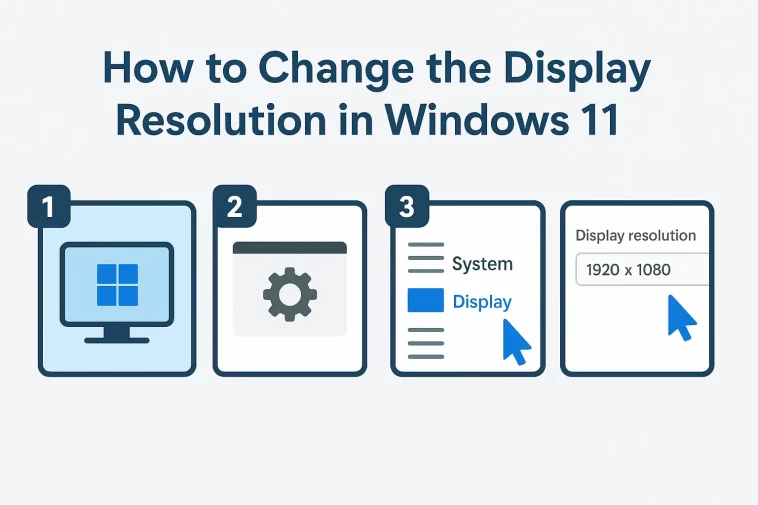
The right display resolution can make a massive difference in how you use your computer. Whether you’re working on documents, browsing the web, or diving into a game, having the screen perfectly suited to your needs is essential. Learning how to change the display resolution in Windows 11 is one of the quickest and easiest ways to improve your computing experience.
If your text and icons look too small, or maybe everything feels a bit too big and blurry, adjusting your resolution is the fix you need. Windows 11 makes this process straightforward, letting you find the perfect balance between clarity, screen real estate, and visual comfort.
In this guide, we’ll walk you through the simple steps to adjust your screen resolution, explain why you might want to change it, and cover what to do if you run into any common issues.
What Exactly Is Display Resolution?
Before we dive into the “how-to,” let’s quickly cover what display resolution is. In simple terms, your screen resolution is the number of individual tiny dots, or pixels, that your screen displays. It is always expressed as two numbers: the number of pixels across (width) and the number of pixels down (height)—for example, 1920 x 1080.
- Higher Resolution (More Pixels): Choosing a higher resolution means more pixels are packed onto your screen. This results in a sharper image, smaller text and icons, and more space on your desktop for open windows.
- Lower Resolution (Fewer Pixels): A lower resolution means fewer pixels are used. This makes everything—text, icons, and windows—appear larger, which can be great for readability, especially if you have a larger monitor or need some visual assistance.
Every monitor has a Native Resolution. This is the physical number of pixels it was built with and is almost always the “Recommended” setting in Windows. For the clearest, sharpest picture, you should generally stick to this native resolution. However, sometimes you might need to adjust it for specific applications or comfort.
The Simple Way: Changing Resolution via Windows Settings
The easiest and most common way to change your display settings in Windows 11 is right from your desktop. This method works for single or multiple monitors (you just need to select which monitor you want to adjust first).
Step 1: Access Display Settings
You have a couple of simple ways to get here:
- The Quick Way: Find an empty area on your desktop, right-click your mouse, and select “Display settings” from the menu that appears.
- The Settings App Way: Click the Start button (the Windows logo on your taskbar), type “settings,” open the Settings app, click on System in the left sidebar, and then select Display on the right.
Step 2: Locate the Resolution Dropdown
Once you are in the Display settings window:
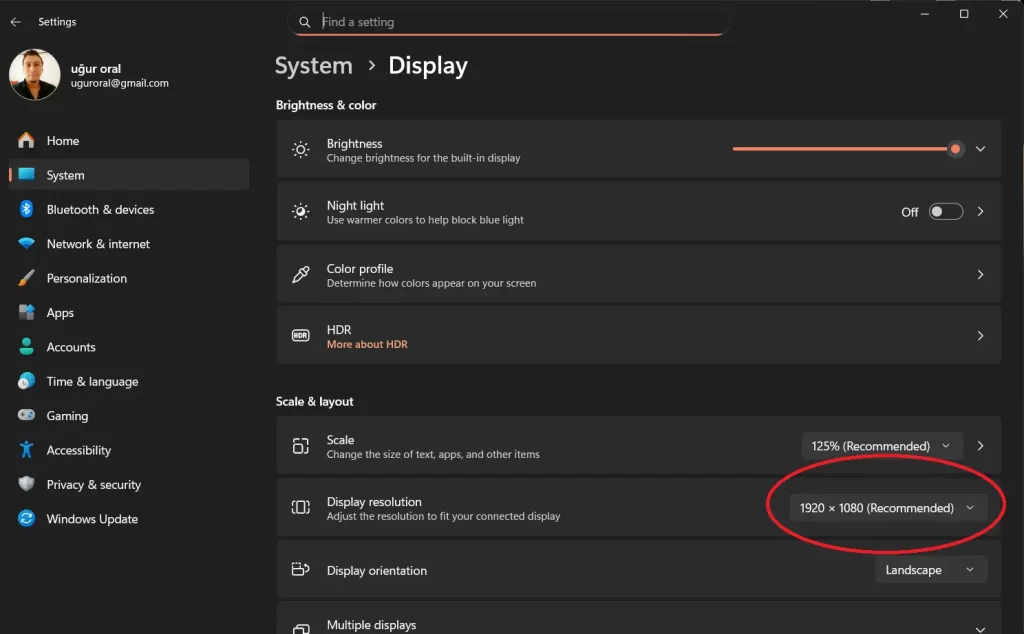
- Scroll down to the “Scale & layout” section.
- Look for the setting labeled “Display resolution.” It will show the currently active resolution.
- If you have multiple monitors connected, make sure you have the correct display selected at the very top of the settings window before adjusting the resolution.
Step 3: Select Your New Resolution
- Click the dropdown menu next to “Display resolution.”
- A list of supported resolutions for your monitor will appear.
- Click on the resolution you want to try. Windows will typically mark one as (Recommended); this is your monitor’s native resolution and usually offers the best clarity.
Step 4: Keep or Revert the Changes
As soon as you select a new resolution, your screen will change, and a pop-up box will appear asking you to confirm the change.
- If the new resolution looks right and you’re happy with it, click “Keep changes.”
- If the screen goes black, looks distorted, or you simply don’t like the new look, you can click “Revert” to go back to the previous setting. Windows will automatically revert the setting after about 15 seconds if you don’t click anything, which is a great safety feature!
That’s all there is to it! In just a few clicks, you now know how to change the display resolution in Windows 11.
Troubleshooting Common Resolution Issues
Sometimes, you might try to change the resolution only to find that your desired option isn’t available, or the screen looks fuzzy after you make a change. Here are a few common problems and solutions:
Problem 1: The Resolution Looks Blurry or Fuzzy
- The Fix: This almost always means you are not using the monitor’s Native Resolution (the one marked “Recommended”). Try switching back to the recommended setting for the sharpest image. If you need things to be larger, you should adjust the Scaling instead of the resolution. Back in the Display settings, look for the “Scale” dropdown, and choose a higher percentage (like 125% or 150%) to make text and icons bigger without losing clarity.
Problem 2: The Resolution I Want is Missing
- The Fix: If you can’t find a common resolution like 1920×1080, it’s often a sign that your graphics card drivers are outdated or corrupted. Windows 11 relies on these drivers to communicate with your monitor.
- Press Windows Key + I to open Settings, then go to Windows Update.
- Check for and install any available updates.
- If that doesn’t work, you might need to manually update your graphics card driver through the Device Manager or by visiting the website of your PC manufacturer (Dell, HP, Lenovo) or graphics card maker (NVIDIA, AMD, Intel).
Problem 3: Dealing with Multiple Monitors
- The Fix: When using more than one monitor, remember that each screen can (and usually should) have its own resolution and scaling settings.
- At the top of the Display settings window, you will see numbered squares representing each monitor.
- Click on the number for the screen you want to adjust.
- Then, follow the steps above to change the resolution for that specific display.
