If you’ve ever received a PDF in a language you don’t understand, you know how frustrating it can be. You can’t just paste the text into a translator — it’s locked inside the file. That’s exactly where Bing Translator PDF comes in handy. Microsoft’s free translation tool has quietly become one of the most practical options for getting your documents translated without spending a single dollar.
In this guide, I’ll walk you through everything you need to know about using Bing Translator to translate PDF files for free — including what it can do, what it can’t, and a few tips to get better results.
Recently, Bing Translator has become one of the most widely used tools, making our work easier in the business world and in many other areas.
What Is Bing Translator?
Bing Translator (now officially called Microsoft Translator) is Microsoft’s free online translation service. It supports over 100 languages and works across text, speech, images, and — importantly for us — documents including PDF files.
Most people know it as the little “Translate” button that shows up in Microsoft Edge or on Bing search results. But the full tool at translator.microsoft.com is much more powerful than that. You can upload entire documents, switch between languages with one click, and download the translated version — all without creating an account.
It’s not a niche tool either. Microsoft Translator powers translations across Teams, Office, Edge, and dozens of third-party apps. So the engine behind it is the same one used by millions of people every day.
Why Use Bing Translator for PDF Files?
There are plenty of translation tools out there. So why Bing Translator specifically?
A few reasons:
It’s completely free. No subscription, no credits, no “free trial” that expires in 7 days. You go to the website, upload your PDF, and get a translation. That’s it.
No account required. Unlike some services that ask you to sign up before you can do anything, Microsoft Translator lets you translate documents without logging in.
It supports a huge number of languages. Whether you need to translate from Spanish, French, German, Arabic, Chinese, Japanese, or dozens of other languages, Bing Translator has you covered.
It keeps the formatting. This one is a big deal. When you translate a PDF using Bing Translator, it makes a solid effort to maintain the original layout — headings, paragraphs, and general structure are preserved in the output file.
It’s fast. For most documents, you’ll have a translated version ready in under a minute.
How to Translate a PDF File Using Bing Translator (Step by Step)
Let’s get into the actual process. It’s simpler than you might think.
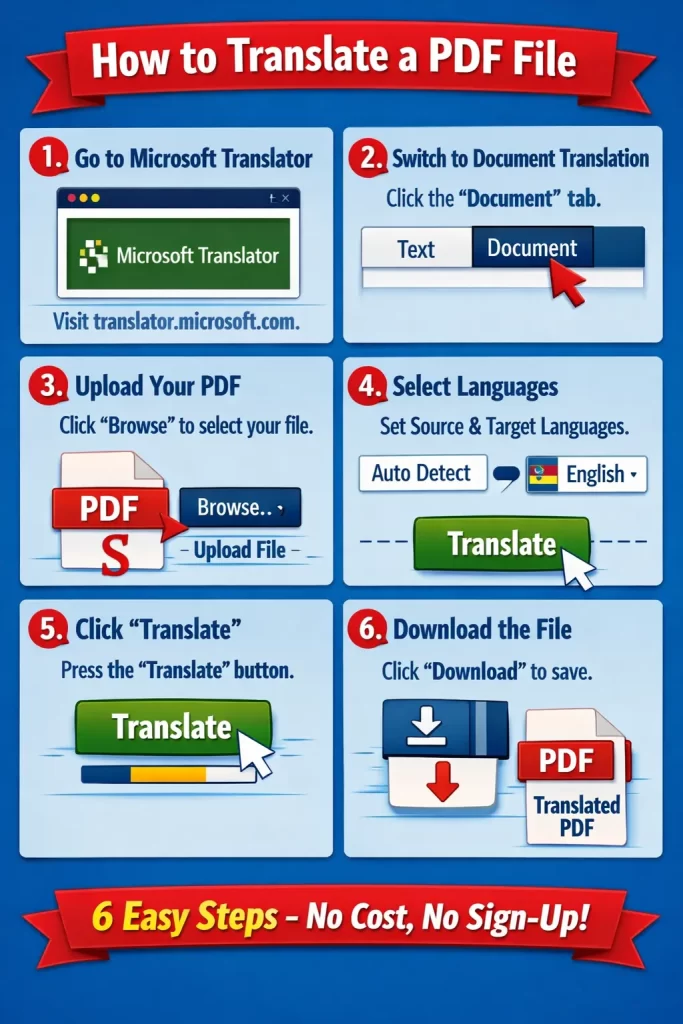
Step 1: Go to Microsoft Translator
Open your browser and go to translator.microsoft.com. You’ll land on the main translation page, which defaults to text translation mode.
Step 2: Switch to Document Translation
At the top of the page, you’ll see two tabs: Text and Document. Click on Document. This is the section that lets you upload files, including PDFs.
Step 3: Upload Your PDF
Click the Browse button (or drag and drop your file into the upload area). Select the PDF file you want to translate from your computer.
Keep in mind: the file size limit for the free version is 10 MB and up to 300 pages. For most regular documents — contracts, articles, reports, letters — this is more than enough. If your PDF is massive, you might need to split it first.
Step 4: Choose Your Languages
Select the source language (the language the PDF is currently in) and the target language (the language you want it translated into). If you’re not sure what language the original is in, you can leave the source set to Auto-detect and Bing Translator will figure it out.
Step 5: Click Translate
Hit the Translate button and wait. For a standard document, this usually takes between 10 and 30 seconds. Longer or more complex files may take a bit more time.
Step 6: Download the Translated File
Once the translation is complete, a Download button will appear. Click it, and you’ll get the translated version of your PDF saved to your device.
That’s it. Six steps, no payment, no registration.
Tips to Get Better Results
Bing Translator does a good job overall, but there are things you can do to improve the quality of your translated PDFs.
Use Text-Based PDFs, Not Scanned Ones
This is the biggest factor. Bing Translator works with text-based PDFs — files where the text is actually selectable when you open them. If your PDF is a scanned image (a photo of a document), Bing Translator won’t be able to read the text properly, and the translation will either fail or produce garbage output.
If you have a scanned PDF, you’ll need to run it through an OCR (Optical Character Recognition) tool first — like Adobe Acrobat, Google Drive, or a free OCR website — to convert it into a text-based PDF before uploading.
Avoid Heavy Formatting
PDFs with complex layouts — multi-column text, lots of graphics, tables inside tables — can sometimes come out a bit messy after translation. This isn’t really Bing Translator’s fault; it’s just the nature of translating complex layouts. For simple, clean documents, the output is usually very clean too.
Check Technical or Specialized Terms
Like any machine translation tool, Bing Translator can sometimes struggle with highly technical content — legal language, medical terminology, engineering jargon. The translation will still be useful, but you may want to double-check specific terms if accuracy is critical.
Download and Review Before Sharing
Always read through the translated document before you send it to someone or use it officially. Machine translation has come a long way, but it’s not perfect. A quick review can catch any awkward phrasing or mistranslated sentences.
What File Formats Does Bing Translator Support?
While we’re focused on PDFs here, it’s worth knowing that Microsoft Translator’s document translation feature supports several other formats too:
- .pdf — the main one we’re talking about
- .docx — Microsoft Word documents
- .pptx — PowerPoint presentations
- .xlsx — Excel spreadsheets
- .txt — plain text files
- .html — web pages
So if you have the same document in Word format, you might get slightly cleaner results by uploading the .docx version instead of the PDF, since Word files are easier to parse and reformat.
Bing Translator vs. Google Translate for PDFs
The obvious question: why not just use Google Translate?
Google Translate also offers document translation, and it’s also free. The quality between the two is generally very similar for common language pairs. There are a few differences worth knowing:
Google Translate has a file size limit of 10 MB as well, so that’s a tie. However, Google’s document translation can sometimes produce cleaner output for PDFs with mixed content. On the other hand, Microsoft Translator tends to do better with Word-heavy documents and integrates more naturally into Microsoft products if you’re already in that ecosystem.
Honestly, for most everyday use cases, both tools will give you a usable translation. If one gives you a bad result for a particular document, try the other — it’s free either way.
When Should You Use a Professional Translator Instead?
Bing Translator PDF translation is fantastic for personal use, general understanding, and informal situations. But there are times when you really should use a professional human translator:
- Legal documents — contracts, court filings, immigration papers. Machine translations of legal text can miss critical nuances that change the meaning entirely.
- Medical records — if you’re sharing health information with a doctor, you want accuracy you can count on.
- Official certifications — many governments, universities, and employers require certified human translations for official documents.
- Marketing or publishing — if your translation will be read by native speakers as a finished product, a human translator will produce much more natural-sounding text.
For everything else? Bing Translator PDF does the job well and saves you both time and money.
Privacy: What Happens to Your PDF?
This is a reasonable concern. When you upload a file to any online tool, you’re trusting that company with your data.
Microsoft’s privacy policy states that documents uploaded through the translator are not used to train the translation models and are deleted after the translation is complete. That said, if you’re dealing with highly confidential documents — sensitive business files, personal data, classified information — you may want to consider offline translation tools or dedicated enterprise solutions with stricter data handling agreements.
For general everyday use, it’s fine.
Final Thoughts
Translating a PDF doesn’t have to be complicated or expensive. Bing Translator PDF gives you a quick, reliable, and completely free way to get your documents translated into over 100 languages — no account needed, no software to install, no hidden fees.
Whether you’re a student trying to read a research paper in another language, a professional reviewing a foreign-language contract, or someone who just received an email attachment they can’t read — this tool gets the job done in seconds.
Give it a try the next time a PDF lands in your inbox and you don’t know what language it’s in. You might be surprised at how good it is.
