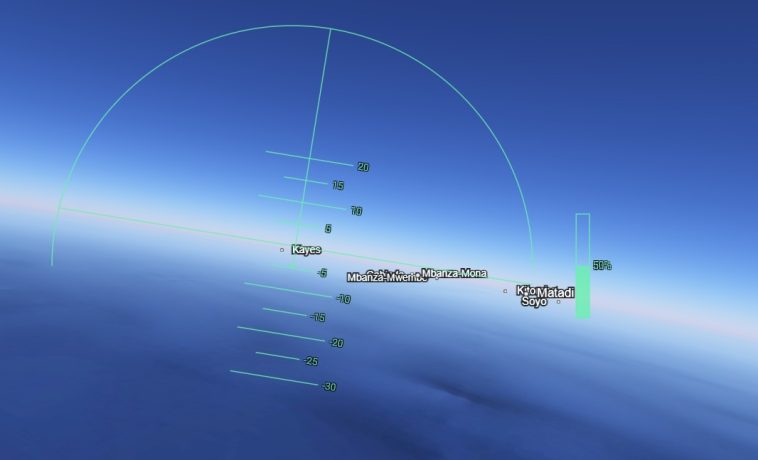
I’ve spent more hours than I’d like to admit just clicking around Google Earth, zooming into random cities and imagining what it would feel like to fly over them. So when Google quietly announced that its built-in flight simulator is now available directly in the browser, I genuinely got excited. No app to download. No setup. Just open a tab, click a few options, and you’re airborne over satellite imagery of the real Earth.
This is a bigger deal than it might sound — and if you haven’t tried it yet, you should. Here’s everything you need to know.
What Is the Google Earth Flight Simulator?
The Google Earth flight simulator is a free, browser-based tool that lets you fly a virtual aircraft over real satellite imagery of the planet. You can soar over cities, coastlines, mountains, and landmarks — all rendered using the same high-resolution satellite data that powers Google Earth itself.
What makes it stand out from other casual flight tools is the scenery. You’re not flying over procedurally generated terrain or artist-made landscapes. You’re flying over the actual Earth, with 3D buildings streaming in dynamically as you move.
The simulator is described as experimental and is designed for casual exploration rather than high-fidelity aerodynamic training. Google is very clear about that distinction. This isn’t a replacement for Microsoft Flight Simulator if you’re serious about virtual aviation. But if you want to cruise over the Grand Canyon, buzz past the Eiffel Tower, or just see your hometown from the sky, it’s genuinely fantastic.
It’s Not New — But Browser Access Is
Here’s something most people don’t realize: the Google Earth flight simulator has been around since 2007. That’s nearly two decades of a hidden feature sitting quietly inside the desktop version of the app.
For years, accessing it required a secret keyboard shortcut — pressing Ctrl+Alt+A on Windows or Cmd+Option+A on Mac while inside Google Earth Pro. Most users never discovered it. The feature existed but stayed largely invisible to anyone who didn’t already know to look for it.
What changed in June 2026 is that Google officially surfaced the simulator on the web version of Google Earth and made it globally available to all users. No desktop app needed. No secret keystroke. It’s now sitting in a proper menu, ready for anyone to find and use. That shift from hidden Easter egg to mainstream browser feature is what makes this launch genuinely significant.
How to Access the Google Earth Flight Simulator
You’ll be up in the air in less than a minute. Here’s how to get started:
- Open your browser and go to earth.google.com
- Click the Explore Earth button at the top of the home screen
- In the top menu bar, click Tools
- Select Flight Simulator from the dropdown menu
- The view will switch to a cockpit perspective, positioned over the location you were viewing before you launched
That’s it. You’re flying.
One important tip before you take off: by default, the simulator uses an abstract map view. To get the full photorealistic satellite experience, go to the View menu in the menu bar and change the basemap type from Map to Satellite. That single change transforms the experience completely — suddenly you’re flying over real terrain, real cities, and real geography instead of a flat diagram of the world.
Controls and How to Fly
The controls are keyboard-based and straightforward once you learn them. Here’s a quick breakdown:
Speed:
- Page Up — Increase throttle / speed up
- Page Down — Decrease throttle / slow down
Direction:
- Arrow keys — Steer and control pitch (left/right to turn, up/down to climb or descend)
Other:
- Spacebar — Pause and resume the flight
- You can also click on the power gauge manually to adjust throttle without using the keyboard
One thing to keep in mind: the experience works best at slower speeds. As you fly, Google Earth streams 3D buildings and high-resolution imagery in real time. If you push the speed too hard, especially over dense urban areas, the terrain may not load fast enough to keep up. Flying at lower speeds gives the imagery time to render properly and makes the whole thing feel much more immersive.
Mountainous terrain tends to load quickly because the shapes are large and obvious even at altitude. Dense city environments take longer — detailed buildings in places like New York or Tokyo can take a moment to fully appear as you approach.
What Happens When You Crash
If your aircraft makes direct contact with the ground terrain, the simulation pauses automatically. You won’t just fly through the earth or hit a hard game-over screen. Instead, you’ll get an option to restart from a safe altitude and keep flying.
This makes the simulator much more forgiving for beginners. You can experiment with sharp turns, steep dives, and aggressive maneuvers without fear of permanently losing your session. Crash, restart, keep going.
Tips for the Best Experience
Here are a few things worth knowing before your first flight:
Pick your starting location carefully. When you launch the simulator, it places you above whatever part of the map you were last viewing. Before you click into flight mode, navigate to somewhere interesting — a coastal city, a famous landmark, a mountain range — so you start somewhere visually compelling rather than over a blank ocean.
Switch to Satellite mode immediately. As mentioned above, the default map view is flat and abstract. The moment you switch to Satellite, the experience becomes genuinely impressive. The satellite imagery Google has assembled over the years is detailed enough that low-altitude flights feel like looking at the real thing.
Go slow over cities. Urban areas like London, Tokyo, Paris, and New York have dense 3D building data. Flying at low altitude and moderate speed over these areas gives the renderer time to pull in the detailed geometry, and the result is spectacular.
Use the pause button freely. If you want to take in a view, just hit the spacebar. The flight freezes in place and you can look around without the aircraft continuing to move.
Expect some terrain quirks. Google notes that flying near sea-level regions below sea level — such as Badwater Basin in California’s Death Valley — can cause occasional visual glitches like flashing or clipping. These are known issues with the experimental feature and are likely to improve over time.
How Does It Compare to Other Flight Simulators?
The honest answer is that it doesn’t compete with dedicated flight simulators. Microsoft Flight Simulator, for example, is so detailed that it’s been used for actual pilot training. It models real aerodynamics, weather systems, real-world air traffic, and thousands of airports with precision.
The Google Earth flight simulator isn’t trying to do any of that. Its physics are simplified by design, and Google acknowledges it openly. What it offers instead is something different: the ability to fly over a photorealistic model of the actual Earth with zero setup cost, zero download, and zero subscription fee.
Think of it less like a game and more like a sightseeing tour you happen to be piloting yourself. For casual users who want to explore the world from above — or for kids who’ve ever wanted to feel what flying looks like — it’s a surprisingly satisfying experience.
Why This Matters
Google Earth has been one of the internet’s most quietly beloved tools since it launched. Over the years it’s added features like historical imagery, Street View integration, elevation profiles, and Voyager tour experiences. The flight simulator fits naturally into that tradition of making the planet feel accessible and explorable.
The decision to move it from a hidden desktop feature to a prominent browser tool is part of a broader pattern Google has followed recently — bringing its most powerful Earth tools to the web version so anyone can use them without friction. Elevation profiles and expanded data import options arrived around the same time.
Making the flight simulator findable and browser-native means millions of users who never knew it existed will discover it for the first time. That’s a meaningful expansion for a feature that spent nearly 20 years as a secret.
FAQ: Google Earth Flight Simulator
Is the Google Earth flight simulator free? Yes, completely free. You don’t need a Google account, a subscription, or any paid software. Just open earth.google.com in a browser and access it through the Tools menu.
Does it work on mobile? Currently, the flight simulator is available on the web version of Google Earth on desktop browsers only. Mobile access has not been announced as of this writing.
What aircraft can you fly? The web-based simulator currently offers simplified flight physics without aircraft selection options like the desktop version. The desktop version of Google Earth historically offered two aircraft — the Cessna SR22 and the F-16 fighter jet — but the browser version keeps things streamlined for casual users.
Do I need a powerful computer? Not particularly. Since the imagery streams from Google’s servers rather than rendering locally, the demand on your computer is relatively modest. A stable internet connection matters more than raw computing power, especially at higher speeds where imagery needs to load quickly.
Is the flight simulator accurate enough to practice real flying? No. Google specifically states the simulator is designed for casual exploration, not aerodynamic training. It uses simplified physics and is not suitable as a pilot training tool.
What should I do if the terrain looks flat and grey? Switch the basemap from Map to Satellite. Go to the View menu in the top bar and change the basemap type. This immediately activates photorealistic satellite imagery.
Can I use a joystick? The desktop version of Google Earth supports joystick input for the flight simulator. The browser version is primarily designed around keyboard controls, though this may change as the feature develops.
The Google Earth flight simulator won’t replace your favourite aviation game. But it doesn’t need to. What it does — letting anyone fly over the real Earth for free, in a browser, right now — is genuinely cool. Give it five minutes and you’ll understand why people are talking about it.
