This guide explains everything clearly and simply. I will show you the new location of Developer Mode in Windows 11, how to enable it, what each feature does, and when you should use it. The goal is to make this topic easy for anyone—from beginners to advanced users.
⭐ What Are Developer Settings in Windows 11?
Developer Settings, also known as Developer Mode, are special features inside Windows 11 designed for software developers, testers, IT professionals, and advanced users. These settings unlock tools that are not available in the normal Windows experience.
Some of the things Developer Settings allow you to do:
- Install apps from outside the Microsoft Store
- Test applications during development
- Enable Device Portal and Device Discovery
- Use SSH, diagnostics, remote tools, and debugging services
- Deploy apps directly from Visual Studio
- Allow advanced scripting and command-line tools
- Configure symbolic links and file system permissions more easily
Most everyday Windows users never use these features. However, if you develop apps, test software, work in IT, or simply enjoy exploring deeper system controls, you will benefit from learning How to Access Developer Settings Windows 11 correctly.
⭐ Why Microsoft Moved Developer Settings to System > Advanced
✅ Settings → System → Advanced
Inside this page, you will find:
- Developer Mode
- Device Portal
- Device Discovery
- Remote Diagnostics
- Optional development features
- Package deployment options
Because of this change, many guides online are now outdated. That is why this updated article explains the correct path clearly.
⭐ How to Access Developer Settings Windows 11 (Correct Updated Path)
Below are the exact steps that match the newest Windows 11 interface.
✔ Step 1: Open Windows Settings
You can open Settings in several ways:
- Press Windows + I
- Right-click the Start button → choose Settings
- Or search “Settings” in the Start menu
✔ Step 2: Click on “System”
On the left side of the Settings window, click System.
This section contains all essential system functions of Windows 11.
✔ Step 3: Scroll Down and Open “Advanced”
Inside the System page, scroll until you see an option named:
Advanced
Click it.
This is the new home of all developer-related features.
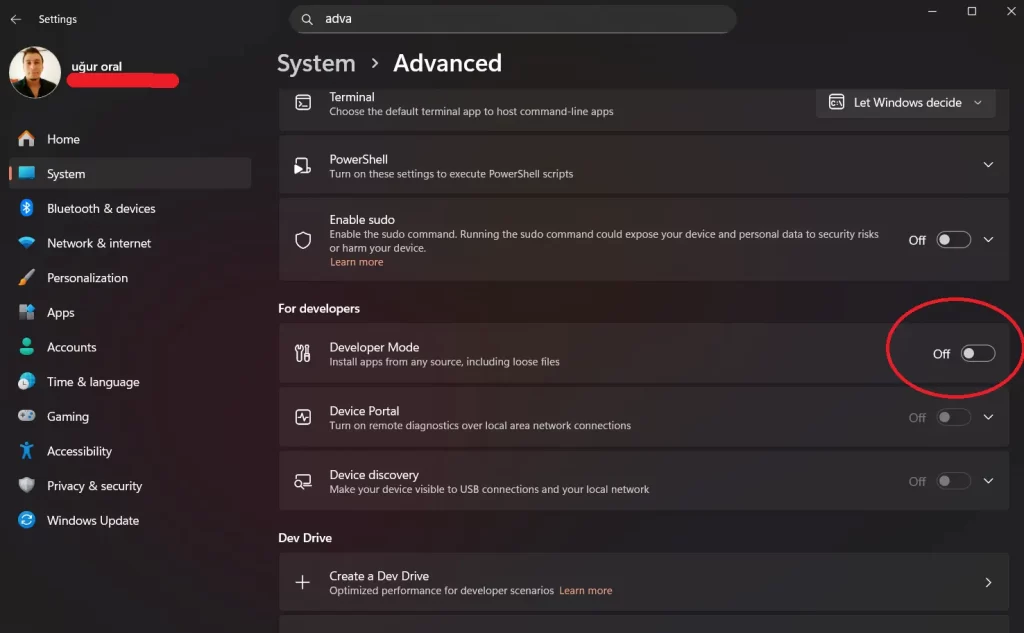
✔ Step 4: Locate Developer Settings Inside “Advanced”
Inside the System → Advanced page, you will now see:
- Developer Mode
- Device Portal
- Device Discovery
- Remote diagnostics and deployment
- Optional developer tools
✔ Step 5: Turn On Developer Mode
You will see a toggle switch labeled Developer Mode.
Turn it ON.
A warning will appear saying that enabling Developer Mode can expose your device to security risks. This is normal.
Click Yes to confirm.
Your system will now install any required packages needed for Developer Mode.
⭐ Alternative Ways to Open Developer Settings
If you do not want to navigate through menus, there are two fast shortcuts.
✔ Method 1: Open Developer Settings from Windows Search
- Click the Start Menu
- Type: Developer Settings
- Click the result named Developer Mode Settings or For Developers Settings
This works on most updated builds.
✔ Method 2: Use Run Command (Works on All Versions)
This is the most direct shortcut.
- Press Windows + R
- Type this command:
ms-settings:developers - Press Enter
Windows will open the Developer Settings page instantly, no matter where Microsoft moves it in the future.
⭐ What You Can Do with Developer Mode Enabled
Once you learn How to Access Developer Settings Windows 11, you unlock several powerful tools.
Below are the most common ones, explained simply.
✔ 1. Install Apps from Any Source (Sideloading)
Windows normally allows apps only from the Microsoft Store.
Developer Mode lets you install apps from:
- GitHub
- Websites
- Internal company servers
- Packages created in Visual Studio
This is essential for developers who test apps before publishing.
✔ 2. Enable Windows Device Portal
Device Portal is a powerful web-based interface that allows you to:
- Monitor system performance
- Check memory usage
- View running apps
- Use debugging tools
- Control your PC remotely
- Access advanced logs and diagnostics
✔ 3. Use Device Discovery
If you work with multiple devices, this setting helps you:
- Pair devices
- Connect from Visual Studio
- Test apps across different hardware
✔ 4. Allow Remote App Deployment
You can deploy an app from one PC to another using Wi-Fi or USB.
This is very useful for developers testing apps on tablets, laptops, or other machines.
✔ 5. Enable Advanced File System Access
Developer Mode makes it easier to work with symbolic links, hidden system files, and development folders.
You can also run scripts and developer commands without restrictions.
✔ 6. Improve App Testing Inside Visual Studio
Visual Studio integrates directly with Developer Mode and allows:
- One-click app deployment
- Debugging without packaging
- Real-time code testing
- Faster compile/run cycles
⭐ When Should You Enable Developer Mode?
You should enable Developer Mode if you:
- Develop Windows apps
- Use Visual Studio for debugging
- Need to test applications not from the Store
- Work with Windows Subsystem for Linux
- Use command line tools and scripts
- Need remote diagnostics or Device Portal
- Want full control over your system
If you are a normal everyday user, you probably do not need it.
⭐ Is Developer Mode Safe?
Yes, but with caution.
When Developer Mode is enabled:
- You can install apps from unknown sources
- Some security restrictions are removed
- Advanced system features become unlocked
So here are safety tips:
- Install apps only from trusted sources
- Disable Developer Mode when you no longer need it
- Keep Windows updated
- Do not install random scripts from the internet
If you use it responsibly, there is no danger.
⭐ How to Disable Developer Mode in Windows 11
If you want to turn Developer Mode off:
- Go to Settings
- Click System
- Open Advanced
- Turn Developer Mode OFF
Windows will then re-enable normal security restrictions.
⭐ Troubleshooting Developer Mode Issues
Some users run into small problems when trying to enable Developer Mode. Here are quick fixes.
✔ Problem: “Some settings are managed by your organization”
This happens if Group Policy blocks sideloading.
Fix:
- Press Win + R
- Type
gpedit.msc - Go to:
Computer Configuration → Administrative Templates → Windows Components → App Package Deployment - Make sure sideloading options are NOT set to Disabled
✔ Problem: Developer Mode Package Failed to Install
Fix:
- Run Windows Update
- Restart your PC
- Enable Developer Mode again
✔ Problem: Device Portal Not Working
Fix:
- Open Windows Firewall settings
- Allow Device Portal through Firewall
