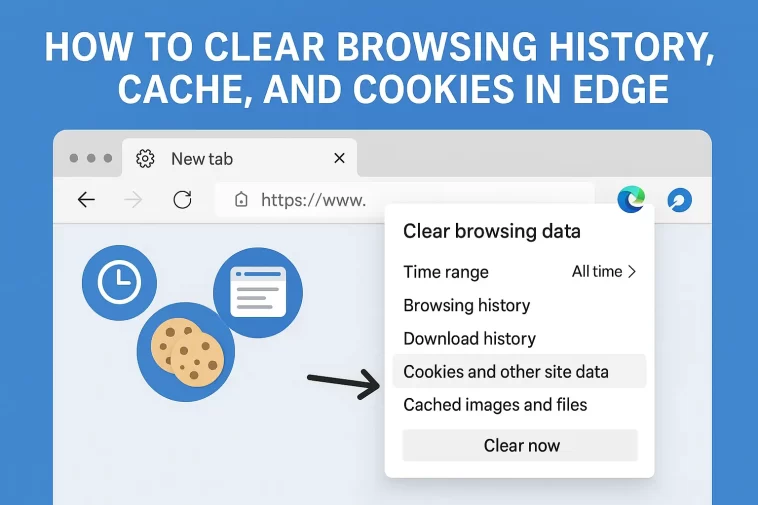
Ever felt like your browser was getting a little sluggish, or maybe you’re just a fan of keeping your digital footprint tidy? Whatever the reason, knowing how to manage your data is a basic but essential “tech hygiene” skill.
If you’re using Microsoft Edge, you’ve probably noticed it’s a fast, modern browser, but even the best tools need a bit of a spring cleaning every now and then. In this guide, we’ll walk through exactly how to clear browsing history, cache, and cookies in Microsoft Edge, why it actually matters, and a few pro tips to keep things running smoothly.
Why Should You Clear Your Browser Data?
Before we jump into the “how,” let’s talk about the “why.” You might wonder why browsers collect this stuff in the first place.
- Browsing History: This is just a list of every site you’ve visited. It’s helpful when you want to find that one recipe you saw three days ago, but it can also clutter your privacy.
- Cookies: These are small files sites put on your computer to “remember” you. They keep you logged in or remember what’s in your shopping cart. However, they are also used for tracking your habits across the web.
- Cache: Your browser saves images and parts of websites so they load faster the next time you visit. The downside? If a website updates but your browser is still looking at the “cached” old version, the site might look broken or glitchy.
How to Clear Browsing History, Cache, and Cookies in Microsoft Edge
Microsoft has made this process fairly straightforward. Whether you are on a Windows PC or a Mac, the steps are nearly identical.
Step 1: Open the Settings Menu
Launch Microsoft Edge. In the top-right corner of the window, you’ll see three horizontal dots (...). Click on those, and a menu will drop down. Near the bottom of that list, click on Settings.
Step 2: Navigate to Privacy and Services
Once the Settings tab opens, look at the left-hand sidebar. You’ll see an option labeled Privacy, search, and services. Click that. This is the “control center” for your data.
Step 3: Choose What to Clear
Scroll down until you see a section titled Clear browsing data. You’ll see a button that says Choose what to clear. Click it.
Step 4: Select Your Time Range and Data Types
A pop-up window will appear. This is where you get to be specific:
- Time Range: You can choose to clear data from the “Last hour,” “Last 24 hours,” or “All time.” If you’re trying to fix a bug or do a deep clean, “All time” is usually the best bet.
- Check the Boxes: Ensure “Browsing history,” “Cookies and other site data,” and “Cached images and files” are selected.
Step 5: Clear Now
Hit the blue Clear now button. Depending on how much data you have, it might take a second or two. Once it’s done, your browser is officially refreshed!
The “Quick Way” (Keyboard Shortcuts)
If you’re a fan of efficiency, you don’t need to click through all those menus. You can jump straight to the “Clear browsing data” window by using a simple keyboard shortcut while Edge is open:
- Windows:
Ctrl+Shift+Delete - Mac:
Command+Shift+Delete
This is a lifesaver if you find yourself clearing your cache frequently for work or troubleshooting.
Automation: Let Edge Do the Work for You
Did you know you can tell Edge to delete this information every single time you close the browser? This is great for people who share a computer or just want maximum privacy without thinking about it.
- Go back to Settings > Privacy, search, and services.
- Under the “Clear browsing data” section, click on Choose what to clear every time you close the browser.
- Toggle the switches for History, Cookies, and Cache.
Now, every time you hit that ‘X’ at the top of your window, Edge will wipe the slate clean for you.
What Happens After You Clear Everything?
It’s important to manage expectations. When you clear your cookies and cache:
- You’ll be logged out: Since cookies handle your login sessions, you’ll need to sign back into your email, social media, and favorite shops.
- Initial loading might be slower: Because you deleted the cached images, the browser has to download them all over again. After the first visit, it will be fast again.
- Search suggestions change: Edge won’t suggest sites from your history in the address bar until you start visiting them again.
Troubleshooting: When Clearing Data Doesn’t Work
Sometimes, even after clearing your cache, a website might still act weird. Here are two things to try:
1. Hard Refresh
A “Hard Refresh” forces the browser to ignore the cache for just that specific page.
- Windows:
Ctrl+F5 - Mac:
Command+Shift+R
2. Use InPrivate Browsing
If you don’t want to delete all your saved passwords and logins but need to see if a site works without cookies, use InPrivate mode (Ctrl + Shift + N). This opens a window that doesn’t save any history or cookies to begin with.
Summary Table: Quick Reference
| Action | Keyboard Shortcut (Win) | When to Use |
| Clear All Data | Ctrl + Shift + Del | For privacy and fixing glitches. |
| Hard Refresh | Ctrl + F5 | To update a single messy page. |
| InPrivate Mode | Ctrl + Shift + N | To browse without saving anything. |
Final Thoughts
Learning how to clear browsing history, cache, and cookies is a bit like changing the oil in your car. You don’t need to do it every single day, but doing it occasionally keeps everything running smoothly and protects your personal information.
