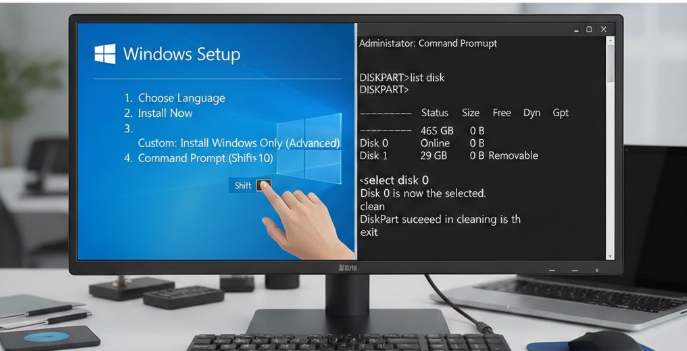
Completely Wipe a Disk with DiskPart is often the cleanest and most effective solution when you encounter frustrating partitioning errors, remnants of old installations, or corrupted partition tables during a Windows setup. Errors like “Windows cannot be installed to this disk” or warnings about MBR/GPT incompatibility can halt your progress. When these issues arise, using the powerful DiskPart utility to fully sanitize the drive provides a fresh start.
This detailed, step-by-step guide will show you exactly how to use the DiskPart command-line tool, accessible via the $Shift + F10$ shortcut on the Windows installation screen, to completely wipe a disk with DiskPart. This method is fast, powerful, and effective—but be warned: misuse can lead to irreversible data loss. Therefore, reading every step carefully is crucial!
⚠️ Critical Warning Before You Begin: The Risk of Data Loss
The $clean$ command within DiskPart performs an action far more severe than simply deleting files to the Recycle Bin. When executed, it instantly and permanently deletes:
- All existing partitions.
- The entire disk partition table.
- All data stored on the selected disk.
There is no undo or recovery option for this action.
Essential Precautionary Steps:
- Back up your data immediately if the disk contains any files you wish to keep.
- If you have multiple drives (e.g., an SSD and an HDD), double-check the disk number; selecting the wrong one will permanently erase everything on it.
- This technique is only suitable for conscious users who are fully aware of what they are doing.
Treating this warning seriously is arguably the most critical step in this entire guide.
What is DiskPart and Why Use It?
DiskPart is a command-line utility built into Windows for managing disk drives, partitions, and volumes. It can perform most tasks offered by the graphical “Disk Management” tool, and often much more, using simple text commands:
- Creating and deleting partitions.
- Activating disks.
- Converting between MBR and GPT partition styles.
- And most relevant to this guide: Completely wiping the entire disk.
When the graphical installer interface fails, throws errors, or simply refuses to work correctly, DiskPart is often the only reliable tool left to solve the problem and pave the way for a successful installation.
Step-by-Step Guide to Completely Wipe a Disk with DiskPart
Step 1: Get to the Windows Installation Screen
First, you need to initiate the Windows installation process:
- Boot your computer using the USB installation media or DVD.
- Pass the initial screens for language, time, and keyboard layout.
- Click “Install now” and proceed until you reach the screen where you are asked where to install Windows, which displays a list of available disks and partitions.
We will interrupt the process right here to launch DiskPart.
Step 2: Open the Command Prompt with $Shift + F10$
While you are on the disk selection screen:
- Press the key combination: $Shift + F10$
A black Command Prompt (CMD) window will immediately pop up over the installation screen. All DiskPart operations will be performed in this window.
Step 3: Launch DiskPart
In the Command Prompt window, type the following command and press Enter:
diskpart
The DiskPart utility is now active, and the prompt will change to DISKPART>. This signifies that the tool is ready to accept its specific commands.
Step 4: List the Disks in Your System
Before you delete anything, you must identify the correct disk. Use the following command:
list disk
This command will output a table containing crucial information:
- Disk number (Disk 0, Disk 1, Disk 2, etc.)
- Size (e.g., 476 GB, 931 GB)
- Status
You must identify the disk you want to erase based primarily on its size.
For example: Your primary system SSD might be Disk 0, and a secondary storage drive might be Disk 1. Always verify the size!
Step 5: Select the Correct Disk
Once you have identified the disk number (let’s use $X$ as a placeholder), use the following command to select it:
select disk X
For instance, if you want to wipe Disk 0:
select disk 0
Press Enter. DiskPart will confirm the selection with a message, such as “Disk 0 is now the selected disk.”
FINAL WARNING: From this point forward, the critical commands you issue will ONLY affect this selected disk. If you made a mistake, type
list diskagain to verify before proceeding!
Step 6: Use the Clean Command to Completely Wipe the Disk
If you are 100% certain you have selected the correct disk, type the most critical command:
clean
Press Enter. This single command will:
- Delete all partitions on the selected disk.
- Reset the partition table.
- Turn the disk into a raw, “unallocated” space.
The process usually takes only a few seconds, and DiskPart will confirm with: “DiskPart succeeded in cleaning the disk.”
Note: For advanced users, the $clean all$ command writes zeros to the entire disk, offering a more secure (but much, much slower) wipe. For a standard Windows installation fix, $clean$ is sufficient.
Step 7: Exit DiskPart and Return to Setup
Once the cleaning is complete, sequentially type the following commands to close the tools:
exit(to exit DiskPart)exit(to close the Command Prompt window)
You will now be back on the Windows installation disk selection screen.
Click the “Refresh” button. The disk you just cleaned will now appear as a single block of unallocated space. You can now:
- Select the unallocated space and click “New” to let Windows automatically create the required system partitions.
- Or, simply select the unallocated space and click “Next” to continue with the installation.
You should now be able to proceed with a clean, error-free Windows installation.
Common Issues Solved by DiskPart Clean
- MBR/GPT Errors: The $clean$ command removes the old partition style completely, allowing Windows to initialize the disk correctly for the setup mode (GPT for UEFI, MBR for Legacy).
- Old Partition Remnants: It eradicates tiny, hidden partitions from previous setups that sometimes conflict with a new installation.
- Boot Sector Problems: By wiping the partition table, you eliminate issues related to corrupted boot sectors.
In conclusion, using the $clean$ command with DiskPart is the ultimate way to resolve disk-based installation problems. It provides a surgically clean slate. Just remember the crucial tradeoff: power requires precision. Always verify your disk number twice before executing the $clean$ command.
