Have you ever had that moment? A friend comes over, they ask for your Wi-Fi password, and suddenly your mind goes blank. Or maybe you’ve just bought a new device and you need to type in that complicated string of letters and numbers, but you can’t remember where you wrote it down.
If you’re a Windows 11 user, you’re in luck! There are a few straightforward ways to solve the mystery of how to find your Wi-Fi password. Forget scrambling around the house looking for a faded sticky note—Windows 11 actually saves this information for you. We’re going to walk through the most reliable methods, step-by-step, so you can retrieve that elusive key in no time.
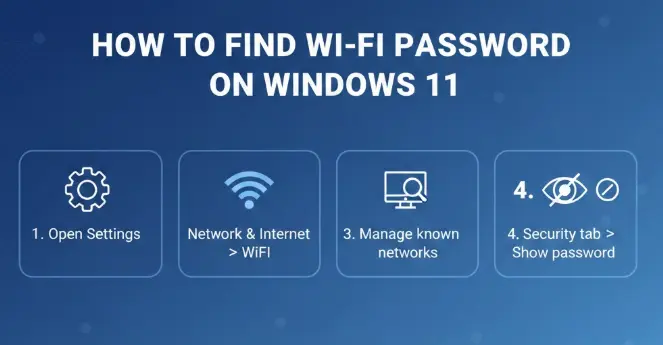
This guide will show you two main ways to find your Wi-Fi password on your Windows 11 computer: the simple Graphical User Interface (GUI) method and the slightly more advanced, but super fast, Command Prompt method.
The Fastest Method: Using the Network and Sharing Center
This is usually the quickest way for most people. It uses the familiar Windows settings screens and doesn’t require you to type any special commands.
Step 1: Open Network Settings
First, you need to get to the main network settings area.
- Click the Start Button (the Windows logo) or press the windows logo key on your keyboard.
- Type “Control Panel” and click on the result to open it.
Note: While the Settings app is the modern way to manage things in Windows 11, the Control Panel still has the dedicated features we need for this task.
Step 2: Navigate to the Network and Sharing Center
Once the Control Panel is open:
- Make sure your “View by” setting in the top right is set to “Category.”
- Click on “View network status and tasks” under the “Network and Internet” heading.
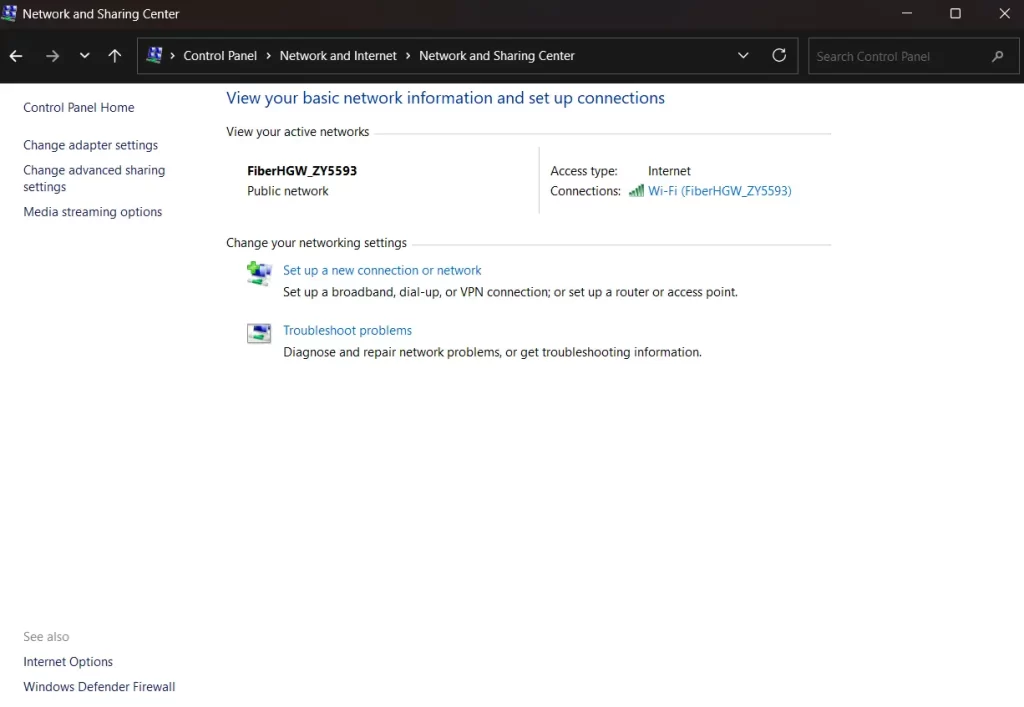
This will open the Network and Sharing Center. This is the hub that shows you all the connections your computer is currently using.
Step 3: Access Your Wi-Fi Connection Details
In the Network and Sharing Center, you should see the name of your currently connected Wi-Fi network next to “Connections.”
- Click on the blue link that shows your Wi-Fi network name (SSID). This will open a new small window called “Wi-Fi Status.”
Step 4: Find the Wireless Properties
In the “Wi-Fi Status” window:
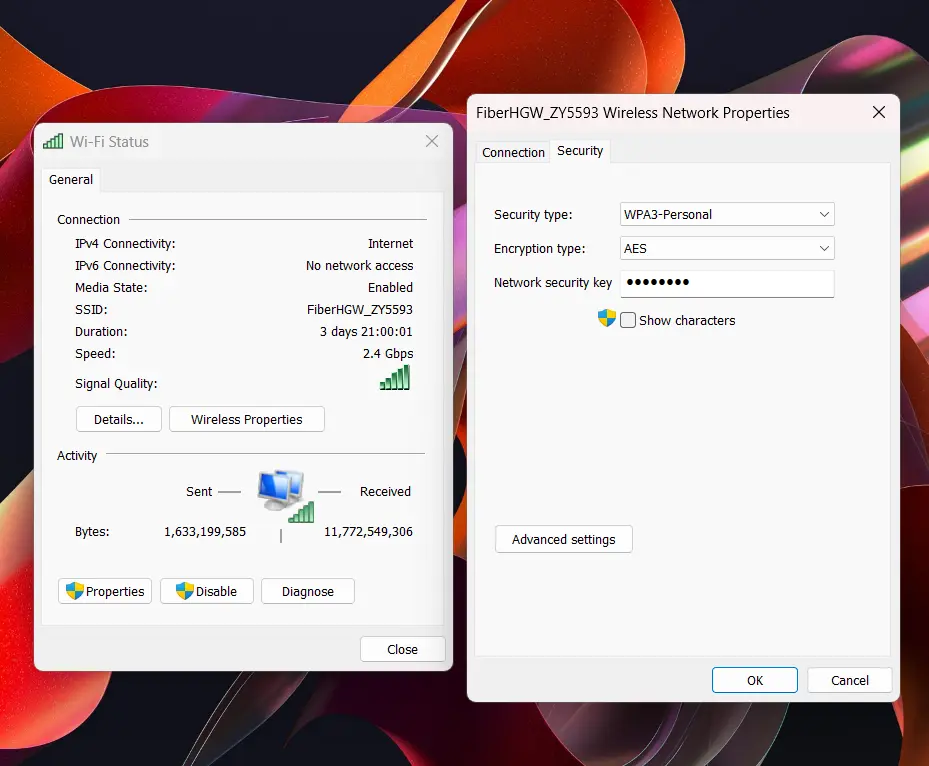
- Click the “Wireless Properties” button. This opens yet another window specific to your network.
Step 5: Reveal the Password!
You are now in the “Wireless Network Properties” window. This window has two tabs: “Connection” and “Security.”
- Click on the “Security” tab.
- You will see a field labeled “Network security key.” This is your Wi-Fi password.
- It will be hidden by dots by default. To see the actual password, simply check the box that says “Show characters.”
Voila! You have successfully found your Wi-Fi password using the Windows 11 graphical interface. Write it down, take a screenshot, or just read it out to your friend.
The Power User Method: Using Command Prompt (CMD)
If you prefer to get things done with a few quick commands, the Command Prompt method is incredibly powerful. It’s also useful if you need to find the password for a network you’ve connected to in the past but are not currently connected to.
Step 1: Open Command Prompt as Administrator
You need to run the command prompt with elevated privileges (as an administrator) to access this protected network information.
- Click the Start Button or press windows key your keyboard.
- Type “CMD”.
- In the search results, Right-click on “Command Prompt” and select “Run as administrator.”
- If a User Account Control (UAC) prompt appears, click “Yes.”
Step 2: List All Saved Wi-Fi Profiles
To see a list of all the networks (profiles) your computer remembers, type the following command exactly as it appears and press $\text{Enter}$:
netsh wlan show profiles
You will see a list of all the Wi-Fi networks you’ve ever connected to under the heading “User Profiles.” Scan this list and note the exact name of the Wi-Fi network you need the password for. Pay attention to capitalization and spaces, as the name must be entered exactly right in the next step.
Step 3: Find Your Wi-Fi Password
Now, use the following command, but you must replace “Your_WiFi_Name” with the exact name you noted in Step 2.
- Type the command and press $\text{Enter}$:
netsh wlan show profile name="Your_WiFi_Name" key=clear
For example, if your Wi-Fi network is named “TheBatcave5G”, the command would be:
netsh wlan show profile name="TheBatcave5G" key=clear
Step 4: Locate the Password
The command prompt will spit out a lot of information about that network profile. You are looking for the section labeled “Security settings.”
- Under that section, look for the line that says “Key Content.”
The text next to “Key Content” is your Wi-Fi password!
This method is fantastic because it lets you easily retrieve the password for any saved network, not just the one you are currently using.
What if My Wi-Fi Password Isn’t Saved? (The Router Method)
Sometimes, neither of the above methods works, perhaps due to a fresh Windows installation or a security policy. If your Windows 11 PC can’t show you the password, your router is the final, ultimate source of truth.
The Wi-Fi password is almost always printed on a label on the router itself.
Where to Look on the Router
- The Bottom: Most manufacturers place the sticker on the very bottom of the router.
- The Back: Sometimes, it’s on the back panel.
- Look for Labels: The password will be labeled as:
- “Wireless Key”
- “WPA Key”
- “Pre-Shared Key”
- “Password”
- “Network Key”
If you have never changed your Wi-Fi password, this default password is the one you need. If you have changed it, you’ll need to remember where you saved the new one, or log into the router’s configuration page (usually by typing $\text{192.168.1.1}$ or $\text{192.168.0.1}$ into your web browser) to view or reset it.
Why Is This Information Saved on My PC?
You might wonder why Windows 11 keeps your Wi-Fi password so readily available. It’s all about convenience and seamless user experience.
When you first connect to a Wi-Fi network and check the box that says “Connect automatically,” Windows creates a wireless profile for that network. This profile stores all the necessary details for a quick reconnection, including:
- The Network Name (SSID): So it knows which network to look for.
- The Security Type: (e.g., WPA2-PSK).
- The Wi-Fi Password (Network Security Key): This is stored in an encrypted (scrambled) form for security, but the methods we showed allow the Windows operating system to decrypt and display it for you, the legitimate user.
This feature ensures that every time you turn on your PC, it connects instantly without you having to enter the password repeatedly. The ability to retrieve it is simply a necessary feature for managing your own network settings.
💡 Pro Tip: Never Forget Your Wi-Fi Password Again
Now that you know how to find your Wi-Fi password on Windows 11, here are a few simple tips to prevent future password panic:
- Change it to something memorable: If your router has a super-long, random default password, change it to something strong but easier to recall (a passphrase with mixed characters is best).
- Use a Password Manager: Tools like LastPass, 1Password, or even the one built into your web browser can securely store your Wi-Fi password alongside all your other logins.
- Create a QR Code: There are free online tools that can generate a QR code containing your Wi-Fi network name and password. Print it out and stick it to your fridge or the side of your router. Your guests can just scan it with their phone’s camera and connect automatically!
- Save it in a Note: Use a secure note-taking app like Microsoft OneNote or a simple text file, and name it clearly, like “Home Wi-Fi Password.”
By using one of these simple methods, you can ensure that the next time you, or a guest, needs your network key, you won’t have to stress about how to find your Wi-Fi password on Windows 11.
Frequently Asked Questions (FAQ)
Q: Why can’t I see the “Wireless Properties” button in the Network and Sharing Center?
A: If the “Wireless Properties” button is grayed out or not visible, it usually means your computer is not currently connected to any wireless network, or you are connected via an Ethernet cable (wired connection). You can only view the live properties of an active connection. However, the Command Prompt method will still work, as it retrieves the password from your saved profiles, not the active connection.
Q: Does this work on older versions like Windows 10?
A: Yes, the fundamental steps for both the Graphical User Interface method (via Control Panel) and the Command Prompt method are virtually identical on Windows 10 and Windows 11. The visual appearance of the windows might be slightly different, but the process of navigating to the Security tab or using the netsh wlan show profile... command remains the same.
Q: Is it safe to show my password using the “Show characters” option?
A: It is safe if you trust the person standing behind you. The password is only visible on your screen. The feature is intended for the computer’s owner (you) to securely retrieve the information. It is not publicly broadcast. Always be mindful of your surroundings when you reveal sensitive data on your screen.
Q: What if I need to find the Wi-Fi password for a computer I don’t have access to?
A: For security reasons, you cannot remotely or externally access a saved Wi-Fi password from a computer you don’t have physical access to and administrative credentials for. If the computer belongs to you, you must log in with an administrator account to follow the steps outlined in this guide. If it’s a friend’s computer, they must follow the steps for you.
Q: Can I use PowerShell instead of Command Prompt?
A: Absolutely. PowerShell is the modern, more powerful version of CMD. The Command Prompt command will also work within a PowerShell window. If you want a more PowerShell-specific command, you can use:
PowerShell
(netsh wlan show profile name="Your_WiFi_Name" key=clear) -Match 'Key Content'
This is a bit more advanced but quickly filters the output to only show the line you need, helping you find your Wi-Fi password even faster.
