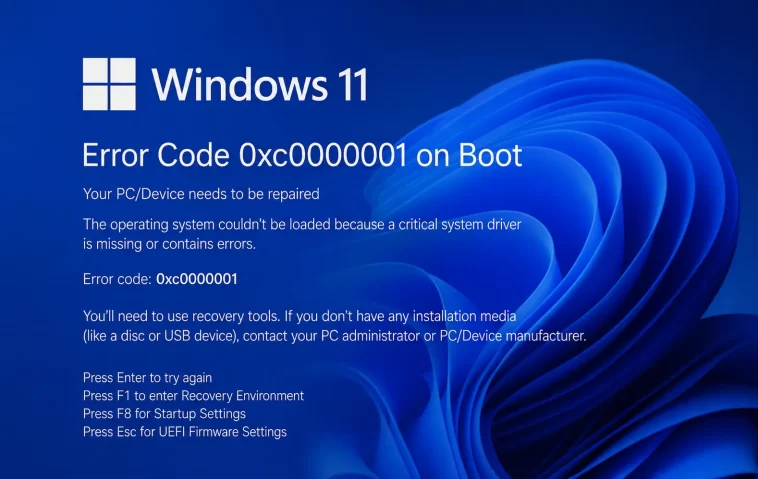
I got the blue recovery screen with error code 0xc0000001 on a Windows 11 laptop right after an overnight update, and the first thing I want to tell you is that Startup Repair probably won’t fix it — at least not on the first try. From what I’ve seen poking around forums and fixing this on a few different machines, this error is really a symptom, not a diagnosis, and the fix depends entirely on which underlying thing broke. So we’re going to work through this in order of “most likely to actually work” rather than the order Microsoft’s own documentation suggests.
Quick Answer
If you just want the short version before diving into the weeds:
- Try Safe Mode via Startup Settings (F4) first, then restart normally — this fixes a surprising number of cases on its own
- If that fails, run Startup Repair from the Recovery Environment (Troubleshoot > Advanced options)
- Still broken? Open Command Prompt from Recovery and run
bootrec /fixmbr,bootrec /fixboot,bootrec /scanos,bootrec /rebuildbcd - If you were prompted for a BitLocker recovery key, grab it from aka.ms/myrecoverykey before anything else
- Last resort: System Restore to a point before the issue started, or “Reset this PC” with “Keep my files”
Why This Actually Happens
0xc0000001 is one of those generic Windows codes that basically means “something in the boot chain is broken” — Windows doesn’t tell you what, which is annoying. After digging through a handful of cases (mine included), here’s what’s usually going on:
The system didn’t shut down cleanly. Power loss, a forced shutdown, battery died mid-update — Windows doesn’t always handle that gracefully, and on the next boot it can’t reconcile its boot state. This was my situation, and it’s honestly the most common one I keep running into.
A Windows Update half-applied. This is the second most common cause from what I’ve seen. The update process touches boot files, and if it gets interrupted (or if the update itself is buggy — it happens more than Microsoft likes to admit), you end up with mismatched boot configuration data.
Corrupt or missing BCD (Boot Configuration Data). The BCD is basically the map Windows uses to find itself on startup. If it gets corrupted — bad sector, interrupted write, third-party disk tool messing with partitions — Windows can’t locate its own boot files even though they’re sitting right there on disk.
Disk-level problems. Bad sectors on the drive holding your boot partition, especially on aging spinning HDDs, but also occasionally on SSDs with firmware issues.
BitLocker getting involved at the wrong moment. Not super common, but if BitLocker is enabled and something about the boot chain looks “different” to it (firmware update, BIOS change), it can lock the drive and contribute to boot failures that present as this error.
And one cause that gets overlooked a lot: a recently installed third-party driver or low-level utility — disk encryption tools, antivirus boot-time hooks, that kind of thing. People troubleshoot the OS for hours and never think to ask what they installed two days before the crash.
Common Scenarios
This error shows up a little differently depending on the situation:
- After a Windows Update — the most frequent trigger, especially feature updates rather than small patches
- After an unexpected power loss or hard shutdown — common on laptops with worn-out batteries that die suddenly instead of warning you
- On a brand-new PC, out of the box — rarer, but it happens, and in that case hardware diagnostics (not software fixes) should be your first move
- After enabling or modifying BitLocker — sometimes paired with a recovery key prompt that throws people off because it looks unrelated to the boot error
- On dual-boot setups — where boot priority gets confused between two OS installs and one partition’s BCD points at the wrong place
Technical Comparison: What Each Fix Actually Targets
| Fix | What it actually addresses | Risk to your data |
|---|---|---|
| Safe Mode + normal restart | Clears a “stuck” boot state, doesn’t fix underlying corruption | None |
| Startup Repair | Boot file consistency, missing boot manager entries | None |
bootrec commands | Corrupt or mismatched Boot Configuration Data (BCD) | Low — but back up first if you can |
| System Restore | Recent software/driver/update changes | None to personal files, may remove recent app installs |
| Reset this PC | Deep corruption, persistent boot failures nothing else fixes | Low with “Keep my files,” but always back up anyway |
Not every fix maps cleanly to every cause, by the way — sometimes bootrec “succeeds” and reports no errors, and the PC still won’t boot. That’s not a contradiction, it just means the actual problem is somewhere bootrec doesn’t look (a flaky disk, for instance).
Step-by-Step Fixes
Step 1: Get Into Safe Mode First
Before touching anything more invasive, try this. It sounds too simple to work, but it resolves more cases than you’d think.
- From the blue recovery screen, go to Troubleshoot > Advanced options > Startup Settings
- Click Restart
- When the list appears, press F4 to boot into Safe Mode
- If prompted, enter your BitLocker recovery key (get it from aka.ms/myrecoverykey if you don’t have it memorized — you won’t)
- Once you’re on the Safe Mode desktop, go to Start > Power > Restart to do a normal reboot
That’s it. And yes, it feels anticlimactic — you didn’t “fix” anything, you just rebooted through Safe Mode. But it clears whatever inconsistent state was blocking the normal boot path often enough that it’s worth trying before anything else.
Step 2: Run Startup Repair
If Safe Mode didn’t help, this is the next logical step.
- Power the PC off and on repeatedly (2-3 times) until the Windows Recovery Environment shows up
- Click Troubleshoot > Advanced options > Startup Repair
- Let it scan and apply fixes — this can take a few minutes, don’t interrupt it
- Restart and see if you boot normally
Startup Repair is hit or miss. Sometimes it finds and fixes the exact problem in 90 seconds. Other times it runs, says “couldn’t repair this PC,” and sends you right back to the same blue screen. Don’t take that as a dead end — it just means the problem is bigger than what this tool checks for.
Step 3: Rebuild the Boot Configuration Data
This is the fix that, in my experience, has the best actual success rate for this specific error code.
- From the Recovery Environment, go to Troubleshoot > Advanced options > Command Prompt
- Run these one at a time:
bootrec /fixmbr
bootrec /fixboot
bootrec /scanos
bootrec /rebuildbcd- Close the window and restart
A heads up: bootrec /fixboot occasionally throws an “Access is denied” error. That’s usually because the EFI system partition doesn’t have a drive letter assigned. If that happens, you’ll need to assign one with diskpart first (select the EFI partition, then assign letter=Z or similar), then re-run the command. It’s an extra annoying step that none of the basic guides mention.
Step 4: Check the Disk Itself
If steps 1-3 didn’t do anything, the drive itself might have problems.
- In Command Prompt from Recovery, type
C:and press Enter (your drive letter might differ —wmic logicaldisk get nameor justdiron a few letters will tell you) - Run
chkdsk C: /f /r - This can take a while on larger or older drives — let it finish
Step 5: System Restore or Uninstall the Update
If you started seeing this right after a Windows Update, this step is worth trying before BCD repair, honestly — I just put it later because it requires you to already have a restore point set up, which not everyone does.
- Troubleshoot > Advanced options > System Restore — pick a restore point from before the issue started
- Or: Troubleshoot > Advanced options > Uninstall Updates — remove the latest quality or feature update
What Actually Worked For Me
So here’s the honest version, not the cleaned-up tutorial version. My laptop hit this error after a power outage cut it off mid-sleep. I went in assuming it’d be a quick Startup Repair job — nope. Ran it, it said it couldn’t fix the problem, sent me right back to the blue screen.
Tried the bootrec sequence next. bootrec /fixmbr and /fixboot ran clean. /rebuildbcd found zero Windows installations to add, which is a special kind of frustrating because Windows was clearly right there on the disk. That’s not entirely accurate, actually — let me back up. It found the installation but failed to add it to the boot list, which from what I can tell happens when the BCD store itself is in a weird state rather than just missing entries.
What actually got me back in was something I half-remembered from a forum thread years ago: booting into Safe Mode via F4 on Startup Settings, then doing a normal restart from inside Safe Mode instead of restarting straight from the recovery menu. I didn’t expect it to matter. It mattered. Windows booted normally after that, no further errors, and I ran sfc /scannow and chkdsk afterward just to be safe — both came back clean.
Was I a little lucky? Probably. I’ve seen other people run the exact same sequence and still end up needing a Reset. Your mileage really will vary here.
Advanced Fixes and Edge Cases
If you’ve gone through everything above and you’re still stuck, here’s where it gets more involved.
Read srtTrail.txt Before Going Further
Startup Repair writes a log at X:\Windows\System32\LogFiles\Srt\SrtTrail.txt (where X is whatever drive letter the Recovery Environment assigns — check with dir if unsure). Open it with notepad from the Command Prompt. It’ll usually say something like “Disk metadata file is corrupt” or “Boot critical file corrupt,” which tells you whether you’re actually dealing with a disk problem or a pure boot-config problem. This one file would’ve saved me twenty minutes if I’d checked it before guessing.
Check SATA/AHCI Mode in BIOS
Not common, but real: if SATA mode in BIOS got changed (sometimes after a firmware update, sometimes a stray keypress during boot), Windows can’t find its boot drive the way it expects to and throws boot errors including this one. Go into BIOS, find SATA Configuration / SATA Mode, and check whether it’s set to AHCI (standard for most modern systems) versus RAID or IDE. If it recently changed, switching it back can resolve the issue immediately.
Damaged SAM File
This one’s rare but worth knowing about. If the SAM (Security Account Manager) file is corrupted, Windows can fail at a point that produces this same error code. The fix is replacing it with the backup copy Windows keeps:
copy C:\Windows\Repair\Sam C:\Windows\System32\Config\You’ll be prompted to overwrite — confirm it. Heads up though: this resets your local account credentials to whatever they were at the original install, so you’ll need that original username/password, not whatever you changed it to later.
Bad EFI Partition or Missing Boot Files at the Partition Level
If bootrec keeps failing no matter what you do, sometimes the EFI system partition itself is the problem — wrong attributes, missing boot folder structure. You can inspect and fix attributes with:
attrib v:\efi\microsoft\boot -h -r -s(swap v: for whatever letter your EFI partition actually has). This unhides and unlocks the boot folder so you can inspect or rebuild it manually. This is genuinely advanced territory, and if you’re not comfortable here, it’s a reasonable point to call in someone who is rather than risk making it worse.
Prevention Tips
- Don’t let your laptop battery run completely dead during an update — plug in before any major Windows Update
- Keep at least one System Restore point active (it’s on by default on most systems, but worth checking)
- Run
chkdskperiodically on older drives, especially HDDs, before they start failing outright - Back up your BitLocker recovery key somewhere outside the PC itself — a printed copy or a separate account, not a file on the same drive
- Avoid forcing shutdowns during update installs unless something is genuinely frozen for an extended period
FAQ
Will I lose my files fixing 0xc0000001? Not with any of the steps above except a full Reset with “Remove everything.” Startup Repair, bootrec, System Restore, and chkdsk all leave personal files alone.
Why does Startup Repair say it can’t fix my PC? Because Startup Repair only checks a specific, fairly narrow set of known boot issues. If your problem is disk corruption or a deeper BCD issue, it’ll report failure even though the problem is fixable by other means — it’s not telling you the PC is unfixable, just that it personally couldn’t fix it.
Is this the same as 0xc0000225? No, but they’re cousins. 0xc0000225 usually points more specifically to a missing or inaccessible boot device, while 0xc0000001 is broader. The fixes overlap a lot though.
Does this mean my hard drive is dying? Sometimes, not usually. Run chkdsk before assuming the worst — most cases here trace back to software/boot config, not failing hardware.
Can a Windows Update really cause this? Yeah. It’s actually one of the more common triggers, especially with feature updates that touch boot components.
Editor’s Opinion
honestly this error is annoying mostly because the code itself tells you nothing. windows could just say “your boot files got mismatched” and save everyone an afternoon. the bootrec commands work more often than people give them credit for, they’re just not the first thing official docs put front and center. if you’re stuck, check srtTrail.txt before anything else — i wish i had.
