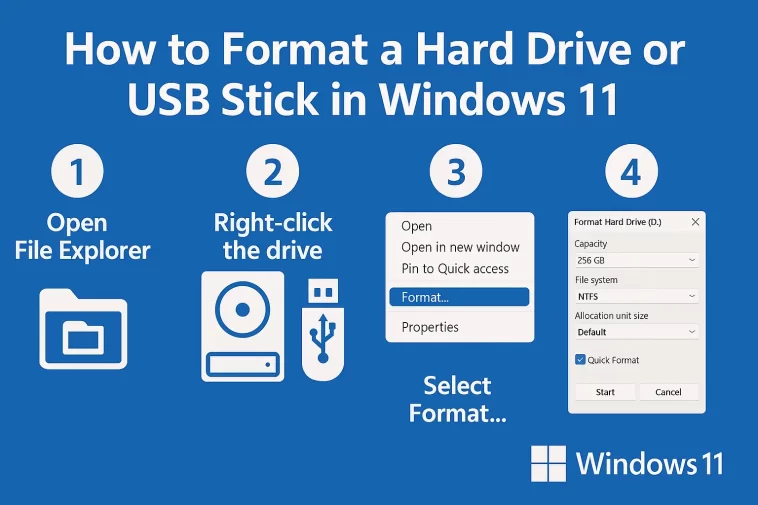
How to Format a Hard Drive or USB Stick in Windows 11 is one of the most useful skills for anyone who uses a computer. Whether you want to clean an old USB stick, prepare a new SSD, remove viruses, or simply free up space, learning how to format a drive helps you keep your storage safe and organized. In this guide, I will explain everything in very simple English so anyone can follow the steps easily.
Formatting a drive may sound like something only tech people do, but it is actually very simple once you understand how it works. Windows 11 gives you a few different ways to format a hard drive, SSD, or USB stick. In this article, I will walk you through each method one by one so you know exactly what to do.
Method 1: How to Format a Hard Drive or USB Stick in Windows 11 Using File Explorer
This is the easiest and fastest way.
Step-by-Step Guide
- Plug in your USB stick or open File Explorer
Press Windows + E to open File Explorer. - Find the drive you want to format
You will see it listed under This PC. - Right-click the drive
A menu will appear. - Click “Format”
This will open a small window. - Choose the file system
- NTFS
- FAT32
- exFAT
- Choose “Quick Format”
This makes the process faster. - Click “Start”
Windows will warn you that all data will be deleted. - Click OK
The drive will be formatted in a few seconds.
This method is perfect for USB sticks, small drives, and basic formatting tasks.
Method 2: How to Format a Hard Drive or USB Stick in Windows 11 Using Disk Management
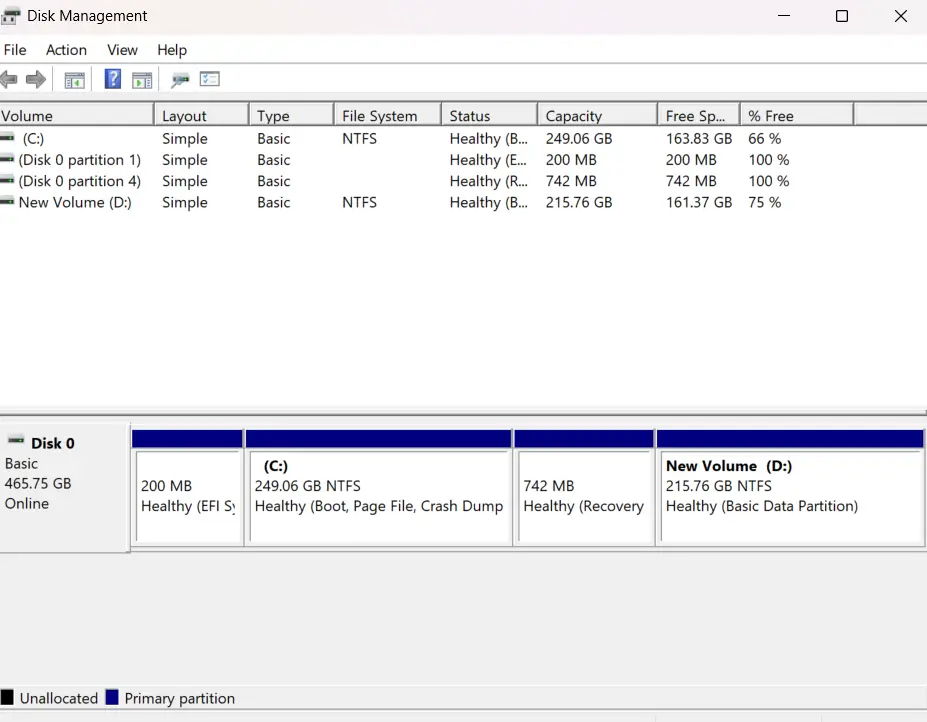
Disk Management gives you more control.
Use this method when:
- A drive does not appear in File Explorer
- The drive needs a new partition
- You want to repair a damaged drive
Steps
- Press Windows + X
- Click Disk Management
- Find your drive in the list
- Right-click the partition on the drive
- Select Format
- Choose file system and volume label
- Click OK
Disk Management is more powerful and helps fix drives that File Explorer cannot format.
Method 3: How to Format a Drive in Windows 11 Using Command Prompt
This method is for advanced users, but it is very effective.
Steps
- Open Start Menu
- Type cmd
- Right-click Command Prompt → Run as administrator
Then type these commands one by one:
diskpart
list disk
select disk X
clean
create partition primary
format fs=exFAT quick
assign
exit
Replace X with your drive number.
This method completely rebuilds the drive and is useful when everything else fails.
Method 4: How to Format a Drive in Windows 11 Using Settings
You can also format external drives through Settings.
Steps
- Open Settings
- Go to System
- Click Storage
- Click Advanced Storage Settings
- Choose Disks & Volumes
- Select the drive
- Click Format
This method is clean and simple, especially for beginners.
What Does “Format” Mean?
Before we start, it’s important to understand the meaning of formatting.
Formatting a drive means:
- Erasing all files on it
- Preparing it for use
- Setting the correct file system
- Fixing errors or corrupted files
Basically, formatting gives the drive a “fresh start.” It becomes clean, empty, and ready to store new files.
Warning: Formatting deletes everything on the drive. Before you do anything, make sure you back up any important data.
Why You May Need to Format a Hard Drive or USB Stick in Windows 11
There are many reasons why formatting may be necessary. Some common situations include:
✔️ The drive is corrupted
If your drive shows errors, crashes randomly, or opens very slowly, formatting can fix it.
✔️ You want to remove viruses
Formatting completely wipes the drive, including hidden files where viruses may hide.
✔️ You want to use the drive for a specific device
For example:
- FAT32 works well for TVs and game consoles
- exFAT works well for large files
- NTFS is the main Windows file system
✔️ You want to delete everything
If you want to give the drive to someone else or start clean, formatting is the fastest way.
File Systems You Should Know
When you format a drive in Windows 11, you will see options like NTFS, FAT32, and exFAT.
Here is what each one means in simple terms:
NTFS
- Best for Windows computers
- Supports large files
- Secure and stable
FAT32
- Works on most devices
- But cannot store files bigger than 4GB
exFAT
- Best for USB sticks and external drives
- Works on Windows, macOS, and some TVs
- Supports large files
If you are not sure which one to choose, exFAT is usually the safest option for USB drives.
How to Choose the Right Format Option
To help you pick the right file system, here is a simple guide:
| Purpose | Best File System |
|---|---|
| Windows system drive | NTFS |
| USB stick for mixed use | exFAT |
| Older devices | FAT32 |
| External SSD for Windows | NTFS |
If the drive will only be used on Windows, choose NTFS.
If you want to share it between devices, choose exFAT.
How Long Does Formatting Take?
The time depends on:
- Drive size
- Drive speed
- Whether you choose Quick Format
- The number of files previously stored
Quick Format usually takes a few seconds.
Full Format may take several minutes.
Common Problems and Simple Fixes
Windows cannot format the drive
Your drive may be write-protected or damaged.
Try using Disk Management or Command Prompt.
Drive does not show up
Check the USB port or try another cable.
Formatting takes too long
Use Quick Format unless you want a full wipe.
