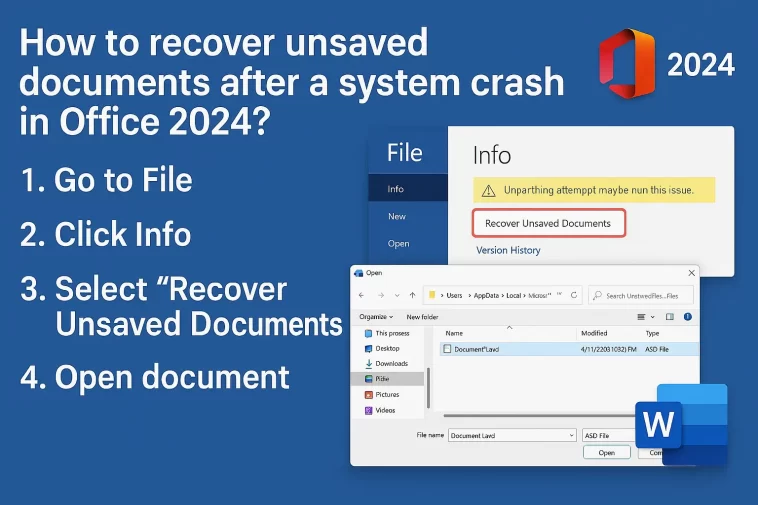
There is nothing more stressful than seeing your screen go black or an app freeze when you’ve been working on an important document for hours. Fortunately, how to recover unsaved documents after a system crash in Office 2024 is much easier than it used to be, thanks to the robust AutoRecover and “Mica” based UI tools built into the latest version.
Whether you were in the middle of a complex Excel formula or a 50-page Word report, here is the human-friendly guide to getting your data back.
Method 1: The Automatic “Document Recovery” Pane
This is the most common way to get your work back. When your computer crashes, Microsoft Office 2024 is designed to look for “abandoned” temporary files the very next time you start the app.1
- Reopen the Application: Open Word, Excel, or PowerPoint (whichever one you were using during the crash).
- Look to the Left: On the left side of the screen, a Document Recovery pane should automatically appear.2
- Check the Timestamps: It will list all the files that were open. Look for the one with the most recent “Recovered” timestamp.3
- Click and Save: Click on the file to open it.4 Important: Immediately go to File > Save As to give it a proper name and location.5 These temporary recovered files are deleted once you close the pane!+1
Method 2: Manual Recovery via “Manage Document”
If the recovery pane didn’t pop up automatically, don’t panic. The files are likely still sitting in a hidden temporary folder on your hard drive.
- Open a blank document in the app you were using.
- Go to the File tab in the top-left corner.6
- Click on Info in the sidebar.
- Look for the button labeled Manage Document (in Excel it’s Manage Workbook, in PowerPoint it’s Manage Presentation).7
- Click it and select Recover Unsaved Documents.
- A window will open showing a list of files ending in
.asd. Select your file and click Open.
Method 3: Searching the AutoRecover Folder Directly
Sometimes the built-in menus miss a file, but the file still exists in your Windows “AppData” folder. If you want to know how to recover unsaved documents after a system crash in Office 2024 when all else fails, this is the “pro” move.
- Press the Windows Key + R on your keyboard to open the “Run” box.
- Type
%AppData%\Microsoft\Word\(or replace ‘Word’ with ‘Excel’ or ‘PowerPoint’) and hit Enter. - Look for folders or files that match the date and time of your crash.
- If you find a
.asdfile, right-click it, select Open With, and choose your Office app.
Pro Tip: How to Prevent This (The 1-Minute Rule)
By default, Office 2024 saves your recovery info every 10 minutes. If your crash happened at minute 9, you lose 9 minutes of work. Let’s change that to 1 minute:
- Go to File > Options > Save.8
- Look for “Save AutoRecover information every X minutes.”9
- Change the value to 1.
- Ensure the box “Keep the last AutoRecovered version if I close without saving” is checked.
Summary of Recovery Methods
| Scenario | Best Solution |
| App just restarted | Use the Document Recovery Pane on the left. |
| No pane appeared | Go to File > Info > Manage Document. |
| File is totally missing | Check %AppData%\Microsoft\Office\UnsavedFiles. |
| Using OneDrive10 | Check Version History in the cloud.11 |
Office 2024 is smarter than previous versions, and if you have AutoSave turned on with OneDrive, your recovery chance is nearly 100%. If you’re working locally, the steps above are your best bet to avoid redoing hours of work.
