• Bob Dylan
  • Cartoon
  • Cats
  • Food & Drink
  • Football
  • Mythology
  • Science
  • Archaeology
  • Football
  • NFL
  • Google
  • Windows

NSF News

    • Home
    • News
    • Technology
      • Android
      • Artificial Intelligence (AI)
      • Google
      • iOS
      • Linux
      • macOS
      • Microsoft
      • Programming
      • Windows
    • Entertainment
      • Anime
      • Cartoon
      • Games
      • Movies
      • Music
        • Bob Dylan
      • Tv Series
      • Quiz
    • Lifestyle & Culture
      • Art & Books
      • Astrology
      • Famous People
      • Fashion
      • Food & Drink
      • Travel
    • Science & Education
      • Animals
        • Cats
      • Facts
      • History
        • Archaeology
      • Mythology
      • Quotes
      • Science
    • Sports
      • Baseball
      • Basketball
      • Football
      • Formula 1
      • hockey
      • NFL
      • Tennis
    Search

    NSF News

      Menu
      Search
      in Windows

      How to Remove a User Account Windows 11: A Simple Step-by-Step Guide

      How to remove a user account Windows 11 is a question many people ask when they share a computer, sell a device, or just want to clean things up. Windows 11 makes it fairly easy to manage user accounts, but if you’ve never done it before, the steps may not be obvious. In this guide, I’ll walk you through everything in plain language, without confusing technical terms.

      Whether you want to remove a family member’s account, delete a work profile, or get rid of an old unused login, this article will help you do it safely and correctly.


      Why You Might Want to Remove a User Account in Windows 11

      Before jumping into the steps, it helps to understand why you might want to remove a user account:

      • You no longer share your PC with someone
      • A work or school account is no longer needed
      • You’re selling or giving away your computer
      • An old account is taking up space
      • You want to improve privacy and security

      Removing unused accounts is actually a good habit. Old accounts can still store personal data, files, and settings that you may not want sitting on your system.
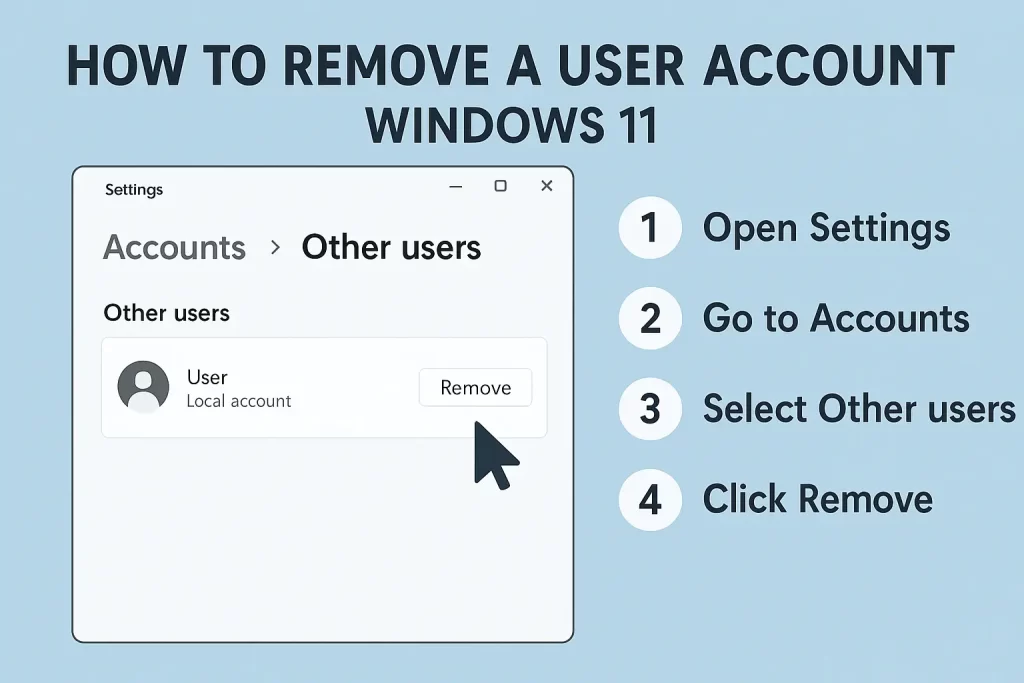
      Remove a User Account Windows 11

      Important Things to Know Before Deleting a User Account

      Before you remove any account, keep these points in mind:

      1. Deleting an account removes its files
        Documents, pictures, and downloads stored under that user will be deleted unless backed up.
      2. You must be signed in as an administrator
        Standard users cannot delete other accounts.
      3. You cannot delete the account you’re currently using
        You’ll need another admin account to remove it.

      If the account has important files, log into it first and back up the data to an external drive or cloud storage.


      How to Remove a User Account Windows 11 Using Settings

      This is the most common and easiest method.

      Step-by-step instructions:

      1. Click the Start Menu
      2. Go to Settings
      3. Select Accounts
      4. Click Other users
      5. Under “Other users,” find the account you want to remove
      6. Click on the account name
      7. Select Remove
      8. Confirm by clicking Delete account and data

      That’s it. Windows will remove the user account and all related files.


      How to Remove a Microsoft Account from Windows 11

      If the account is linked to a Microsoft email (Outlook, Hotmail, Live), the steps are almost the same.

      However, deleting it only removes it from the PC, not from Microsoft’s servers.

      To remove it:

      • Follow the same Settings → Accounts → Other users steps
      • Click Remove
      • Confirm deletion

      If you want to completely close the Microsoft account itself, you must do that from Microsoft’s official website, not from Windows settings.


      How to Delete a User Account Using Control Panel

      Some users prefer the classic Control Panel. It’s still available in Windows 11.

      Steps:

      1. Press Windows + R
      2. Type control and press Enter
      3. Go to User Accounts
      4. Click Remove user accounts
      5. Select the account
      6. Click Delete the account
      7. Choose whether to keep or delete files
      8. Confirm

      This method gives you the option to keep the user’s files, which can be useful.


      How to Remove a User Account Using Command Prompt (Advanced)

      This method is for users who are comfortable with basic commands.

      1. Press Windows + X
      2. Click Terminal (Admin) or Command Prompt (Admin)
      3. Type the following command:
      net user
      

      This shows all user accounts.

      1. To delete a specific account, type:
      net user username /delete
      

      Replace username with the actual account name.

      Press Enter, and the account will be removed instantly.


      What If You Can’t Remove a User Account?

      If Windows doesn’t allow you to delete an account, try these fixes:

      • Make sure you’re logged in as an administrator
      • Restart your PC and try again
      • Check if the account is currently signed in
      • Disable the account first, then delete it

      In rare cases, corrupted user profiles may require Safe Mode or advanced tools, but most users won’t need that.


      How to Remove a User Folder Manually (If Needed)

      Sometimes, the account is gone but the folder remains.

      1. Open File Explorer
      2. Go to C:\Users
      3. Find the old username folder
      4. Right-click and select Delete

      Only do this if you are 100% sure the account is already removed.


      Final Thoughts

      Knowing how to remove a user account Windows 11 is a useful skill that helps keep your computer organized, secure, and clutter-free. The process is straightforward, especially through the Settings app, and only takes a few minutes.

      More From: Windows

      • How to change the cursor size and color - Windows 11

        How to change the cursor size and color – Windows 11

        December 25, 2025, 10:00 am

      • How to use Narrator (screen reader) in Windows 11

        How to use Narrator (screen reader) in Windows 11

        December 25, 2025, 9:51 am

      • Task Scheduler Windows 11

        How to Schedule a Task Using Task Scheduler Windows 11

        December 25, 2025, 9:42 am

      • How to Change the Windows 11 Startup Sound

        How to Change the Windows 11 Startup Sound (Step-by-Step Guide)

        December 21, 2025, 10:45 am

      delete user Windows 11remove Microsoft account Windows 11remove user account Windows 11Windows 11 account removalWindows 11 user accounts

      Written by ugur

      Ugur is an editor and writer at Need Some Fun (NSF News), specializing in technology, world news, history, archaeology, cultural heritage, science, entertainment, travel, animals, health, and games. He produces in-depth, well-researched, and reliable stories with a strong focus on emerging technologies, digital culture, cybersecurity, AI developments, and innovative solutions shaping the future. His work aims to inform, inspire, and engage readers worldwide with accurate reporting and a clear editorial voice.
      Contact: [email protected]


      Recent Posts

      • How to change the cursor size and color – Windows 11
      • How to use Narrator (screen reader) in Windows 11
      • How to Schedule a Task Using Task Scheduler Windows 11
      • How Well Do You Know “Man In The Long Black Coat” Quiz
      • Spotify Confirms 86 Million Audio Files Copied in Massive Data Breach
      • Bob Dylan
      • Cartoon
      • Cats
      • Food & Drink
      • Football
      • Mythology
      • Science
      • Archaeology
      • Football
      • NFL
      • Google
      • Windows

      NSF Tech News & Info © USA

      • Cookie Policy
      • Contact NSF – Need Some Fun
      • Privacy Policy
      Back to Top
      Close
      • Home
      • News
      • Technology
        • Android
        • Artificial Intelligence (AI)
        • Google
        • iOS
        • Linux
        • macOS
        • Microsoft
        • Programming
        • Windows
      • Entertainment
        • Anime
        • Cartoon
        • Games
        • Movies
        • Music
          • Bob Dylan
        • Tv Series
        • Quiz
      • Lifestyle & Culture
        • Art & Books
        • Astrology
        • Famous People
        • Fashion
        • Food & Drink
        • Travel
      • Science & Education
        • Animals
          • Cats
        • Facts
        • History
          • Archaeology
        • Mythology
        • Quotes
        • Science
      • Sports
        • Baseball
        • Basketball
        • Football
        • Formula 1
        • hockey
        • NFL
        • Tennis
      • Bob Dylan
      • Cartoon
      • Cats
      • Food & Drink
      • Football
      • Mythology
      • Science
      • Archaeology
      • Football
      • NFL
      • Google
      • Windows