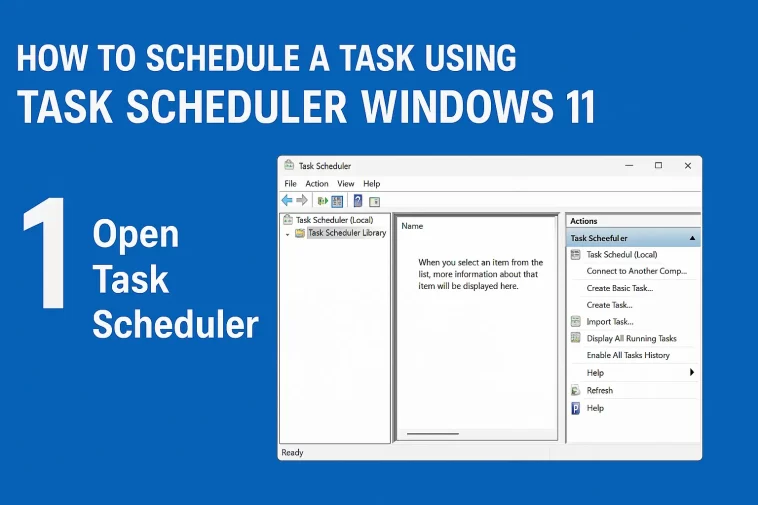
How to schedule a task using Task Scheduler Windows 11 is a question many users ask when they want their computer to work automatically without constant manual effort. Windows 11 includes a powerful built-in tool called Task Scheduler, which allows you to automate actions like opening programs, running scripts, shutting down the computer, or performing maintenance tasks at specific times or events.
Whether you are a beginner or an intermediate Windows user, learning how to schedule tasks can save time, reduce repetitive work, and help your system run more efficiently. In this guide, I will explain everything step by step, using simple language and real-world examples, so you can easily follow along.
By the end of this article, you will fully understand how Task Scheduler works in Windows 11 and how to use it confidently.
What Is Task Scheduler in Windows 11?
Task Scheduler is a Windows system tool that allows you to automate tasks. Instead of manually doing the same thing every day, you can tell Windows to do it for you.
For example, Task Scheduler can:
- Open an application at a specific time
- Run a backup script every night
- Shut down or restart the PC automatically
- Launch a program when you log in
- Perform system cleanup weekly
The best part is that Task Scheduler runs in the background, even if you forget about it.
Why Use Task Scheduler?
Here are some practical reasons to use Task Scheduler in Windows 11:
- Save time by automating repetitive tasks
- Improve productivity by starting apps automatically
- Reduce mistakes caused by forgetting manual steps
- Maintain your system with scheduled maintenance
- Work smarter, not harder
Once you learn how to schedule a task using Task Scheduler Windows 11, you will likely use it more often than you expect.
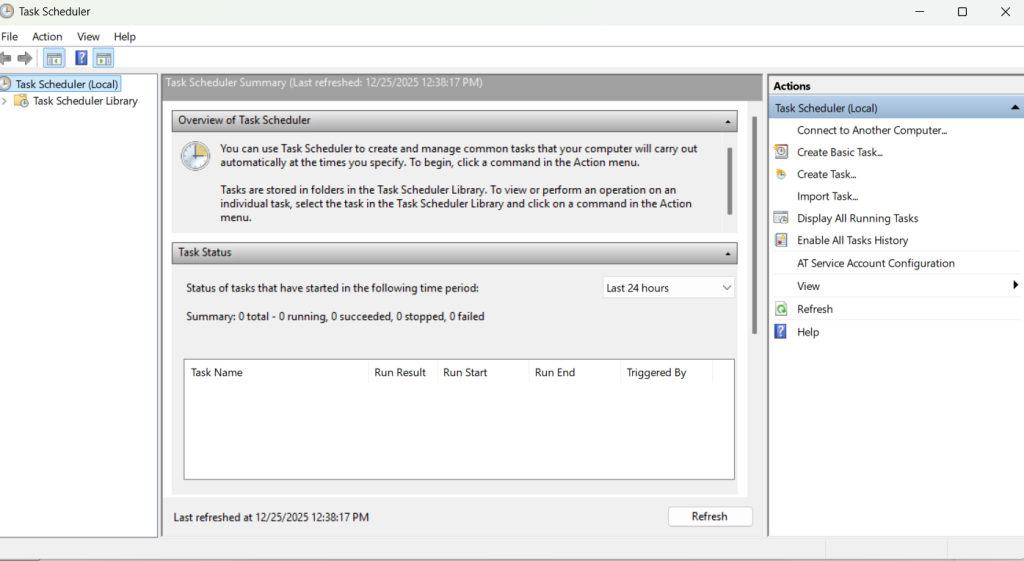
How to Open Task Scheduler in Windows 11
There are multiple ways to open Task Scheduler. Here are the easiest ones:
Method 1: Using Search
- Click the Start button
- Type Task Scheduler
- Click Task Scheduler from the results
Method 2: Using Run
- Press Windows + R
- Type
taskschd.msc - Press Enter
Both methods open the same tool.
Understanding the Task Scheduler Interface
Before creating a task, it helps to understand the layout:
- Task Scheduler Library: Shows all scheduled tasks
- Actions panel: Create, delete, or manage tasks
- Triggers: When the task starts
- Actions: What the task does
- Conditions: Optional rules (like only run on AC power)
- Settings: Advanced behavior options
Do not worry if this looks complex at first. We will go step by step.
How to Schedule a Task Using Task Scheduler Windows 11 (Step-by-Step)
Now let’s get to the main part.
Step 1: Create a Basic Task
- Open Task Scheduler
- Click Create Basic Task from the right panel
- Enter a Name (example: Open Notepad)
- Add a Description (optional)
- Click Next
Step 2: Choose a Trigger
A trigger defines when the task runs.
Available triggers include:
- Daily
- Weekly
- Monthly
- One time
- When I log on
- When the computer starts
Choose the option that fits your goal, then click Next.
Example:
- Select Daily to run a task every day
Set the date and time, then continue.
Step 3: Choose an Action
Now choose what the task will do.
Options include:
- Start a program
- Send an email (deprecated)
- Display a message (deprecated)
Select Start a program, then click Next.
Step 4: Select the Program
- Click Browse
- Choose the program you want to run
Example:notepad.exechrome.exe
- Click Open
- Click Next
You can also add:
- Arguments (optional)
- Start in folder (optional)
Step 5: Finish the Task
Review your settings and click Finish.
Congratulations! You just learned how to schedule a task using Task Scheduler Windows 11.
Advanced Task Creation (Optional but Powerful)
If you want more control, use Create Task instead of Create Basic Task.
This allows you to:
- Run tasks with admin privileges
- Use multiple triggers
- Add multiple actions
- Set advanced conditions
Run Task as Administrator
- Check Run with highest privileges
- Useful for system scripts or admin tools
Common Examples of Scheduled Tasks
Open an App at Startup
- Trigger: When I log on
- Action: Start a program
Automatic Shutdown at Night
- Trigger: Daily at a specific time
- Action:
shutdown.exe /s /f
Weekly Cleanup Script
- Trigger: Weekly
- Action: Run a
.bator.ps1file
Editing or Deleting a Scheduled Task
To modify a task:
- Open Task Scheduler Library
- Find your task
- Right-click and select:
- Properties
- Disable
- Delete
You can always change triggers, actions, or settings later.
Common Problems and Solutions
Task Does Not Run
- Check if the trigger is correct
- Ensure the program path is valid
- Run Task Scheduler as admin
Task Runs Only When Logged In
- Enable Run whether user is logged on or not
Permission Errors
- Enable Run with highest privileges
Is Task Scheduler Safe?
Yes, Task Scheduler is a built-in Windows tool and completely safe to use. However:
- Avoid scheduling unknown scripts
- Only automate trusted programs
- Double-check commands like shutdown or delete
Final Thoughts
Learning how to schedule a task using Task Scheduler Windows 11 is one of the most useful skills for any Windows user. It allows your system to work for you, even when you are away.
With just a few clicks, you can automate daily tasks, improve productivity, and keep your computer running smoothly. Start with simple tasks, then slowly explore advanced options as you gain confidence.
Once you get used to Task Scheduler, you will wonder how you ever lived without it.
