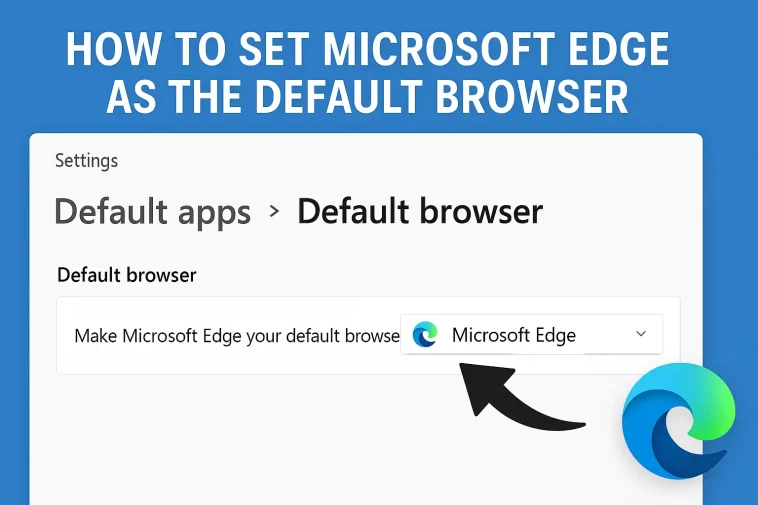
Changing your default browser is one of those small digital housecleaning tasks that can make a huge difference in your daily workflow. Whether you’ve recently bought a new PC or you’re just tired of links opening in an app you don’t use, knowing how to set Microsoft Edge as the default browser is a useful skill.
Why Choose Microsoft Edge in 2026?
Before we dive into the “how,” let’s talk about the “why.” For a long time, Internet Explorer gave Microsoft browsers a bit of a bad reputation. However, the modern Microsoft Edge is a completely different beast.
1. Speed and Performance
Edge is known for its “Sleeping Tabs” feature. If you’re someone who keeps fifty tabs open at once, Edge automatically puts inactive tabs to sleep, freeing up your RAM and CPU for the things you’re actually working on.
2. Built-in AI Features
With the integration of Microsoft Copilot, Edge has become an AI-powered workstation. You can summarize long PDFs, generate images, or draft emails directly from the sidebar without leaving your current page.
3. Better Battery Life
Since it’s deeply integrated with the Windows operating system, Edge is often more battery-efficient on laptops compared to third-party browsers.
How to Set Microsoft Edge as the Default Browser on Windows 11
Windows 11 is beautiful, but Microsoft changed the way default apps are handled compared to older versions. Here is the most straightforward way to get it done.
Step 1: Open the Settings Menu
Click on the Start icon (the four squares) on your taskbar and select the Settings gear icon. Alternatively, you can press Windows Key + I on your keyboard to jump there instantly.
Step 2: Navigate to Apps
On the left-hand sidebar, click on Apps. From the list of options that appears on the right, click on Default apps.
Step 3: Find Microsoft Edge
In the search bar under “Set defaults for applications,” type “Edge.” When Microsoft Edge appears in the results, click on it.
Step 4: Make it Default
At the very top of the page, you’ll see a button that says Set default. Click this. Windows will automatically change the file associations for common web formats like .html and .htm to open with Edge.
Pro Tip: While you’re there, scroll down and check if PDF files are set to Edge. Edge has one of the best built-in PDF readers, allowing you to draw, highlight, and even have documents read aloud to you.
How to Set Microsoft Edge as the Default Browser on Windows 10
If you are still using Windows 10, the process is slightly different but arguably a bit faster.
- Click the Start button and select the Settings gear.
- Go to Apps and then click Default apps on the left side.
- Look for the section labeled Web browser.
- Click on your current browser (it might be Chrome or Firefox).
- A list of installed browsers will pop up. Select Microsoft Edge from the list.
Setting Edge as Default on macOS
Yes, Microsoft Edge is available on Mac, and many users prefer it because it uses less memory than Chrome. If you want to make it your primary gateway to the web on a Mac, follow these steps:
- Open Microsoft Edge.
- Click the three dots (…) in the top right corner and go to Settings.
- On the left-hand menu, click Default browser.
- Click the button that says Make default.
- A macOS system prompt will appear asking if you want to change your browser. Confirm by clicking Use Microsoft Edge.
Making the Switch on Mobile (iOS and Android)
We spend more time on our phones than our computers these days. If you use Edge on your PC, it makes sense to use it on your phone so your history, passwords, and favorites stay synced.
On iPhone (iOS)
- Go to your iPhone Settings.
- Scroll down until you find Edge in your list of apps.
- Tap on Default Browser App.
- Select Edge from the list.
On Android
- Open Settings on your phone.
- Go to Apps (or Apps & Notifications).
- Tap on Default apps (you might need to tap “Choose default apps” or look under “General”).
- Tap on Browser app and select Edge.
Troubleshooting Common Issues
Sometimes, Windows is a bit stubborn. You might click “Set Default,” but certain links still open in other programs.
Why does my search bar still use Bing/Edge?
The Windows search bar (the one next to the Start button) is hard-coded to use Microsoft Edge. While you can change your default browser for links you click in emails or documents, the Windows Search results will usually stick to Edge.
“Set Default” button is missing
If you don’t see the option, make sure your version of Microsoft Edge is up to date. Open Edge, go to Settings > About Microsoft Edge, and it will automatically check for updates.
Getting the Most Out of Edge After Switching
Once you have figured out how to set Microsoft Edge as the default browser, you should take five minutes to customize it.
- Import your Data: When you first open Edge, it will ask if you want to import your bookmarks and passwords from Chrome. Say yes! It makes the transition seamless.
- Vertical Tabs: If you hate how tab titles get squished at the top, click the icon in the top left to turn on Vertical Tabs. It’s a game-changer for organization.
- Collections: Use the “Collections” feature to save groups of websites for projects, shopping trips, or vacation planning. It’s much more powerful than a standard bookmark folder.
Final Thoughts
Making Microsoft Edge your default browser is a quick process that can lead to better performance and a more integrated experience, especially if you are a Windows user. By following the steps above for your specific device, you’ll be up and running in less than two minutes.
