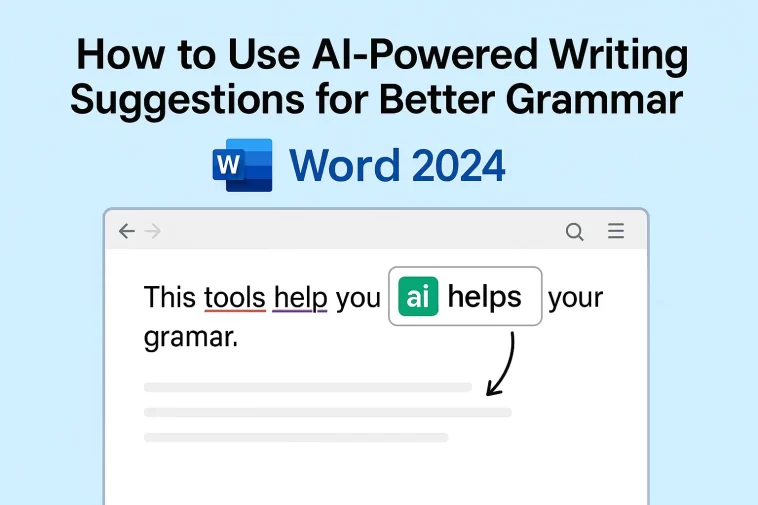
Writing can be a messy process, but how to use AI-powered writing suggestions for better grammar in the latest Office 2024 suite is a game-changer for anyone who wants to look more professional. We’ve all been there: staring at a red underline and wondering if the computer is right, or worse, sending an email and realizing five minutes later that you used “there” instead of “their.”
With the release of Office 2024, Microsoft has moved beyond simple spell-check. The suite now uses deep learning and AI to understand the intent behind your words. In this post, I’ll show you how to harness these tools to polish your prose without losing your personal voice.
What are AI-Powered Writing Suggestions?
In Office 2024, the old “Spelling & Grammar” tool has evolved into something called Microsoft Editor. While traditional checkers look for fixed rules, AI-powered suggestions look at:
- Context: It knows the difference between “affect” and “effect” based on the rest of your sentence.
- Tone: It can tell if you’re being too casual for a business report.
- Clarity: It identifies “wordy” sentences and suggests ways to make them punchier.
- Inclusivity: It can flag language that might be unintentionally biased.
Step 1: Enabling the “Editor” in Word 2024
To get started, you need to make sure the AI engine is actually running. Usually, it’s on by default, but here is how you verify it:
- Open Microsoft Word 2024.
- Go to the Home tab on the top ribbon.
- Look for the Editor icon (it looks like a small pencil with three lines) on the far right.
- Click it. A sidebar will open that gives you an “Editor Score.” This score goes up as you fix the AI’s suggestions.
Step 2: Customizing Your Writing Goals
One of the coolest parts of knowing how to use AI-powered writing suggestions for better grammar is that you can tell the AI who you are writing for. You shouldn’t write a blog post the same way you write a legal contract.
- In the Editor pane, look for Settings.
- Under “Writing Style,” you can choose between Formal, Professional, or Casual.
- The AI will adjust its suggestions based on this. For example, in “Formal” mode, it will flag contractions like “don’t” or “can’t” as errors, but in “Casual” mode, it will leave them alone.
Step 3: Using “Rewrite Suggestions” for Better Flow
Sometimes your grammar is technically correct, but the sentence just feels… clunky. Office 2024 has a hidden AI feature just for this.
- Highlight a sentence that you’re unhappy with.
- Right-click it.
- Look for “Rewrite Suggestions” in the menu.
- The AI will provide 3-4 different ways to say the same thing—some shorter, some more descriptive, and some more formal. Just click the one you like, and it replaces your text instantly.
Method 4: AI in Outlook and PowerPoint
The best part about the 2024 update is that these AI tools aren’t just for Word.
- In Outlook: As you type an email, the AI provides Text Predictions. If you see a grayed-out word that fits what you were going to say, just hit the Tab key to accept it. It saves a massive amount of time on repetitive phrases like “Looking forward to hearing from you.”
- In PowerPoint: The AI checks your slide notes and text boxes to ensure your presentation doesn’t have embarrassing typos magnified on a 100-inch screen.
Troubleshooting: AI Suggestions Not Showing Up?
If you’re trying to figure out how to use AI-powered writing suggestions for better grammar but the Editor button is grayed out, check these three things:
- Privacy Settings: Go to File > Account > Account Privacy. Ensure “Connected Experiences” is turned on. The AI processing happens in the Microsoft cloud, so it needs permission to “talk” to the server.
- Language Proofing: Make sure your document language is set correctly (e.g., English U.S.). The AI won’t give grammar tips if it thinks you’re writing in a language it hasn’t downloaded yet.
- Internet Connection: Since Office 2024 uses Azure AI for the heavy lifting, these advanced features work best when you are online.
Why Human Input Still Matters
Even the best AI can be “confidently wrong.” If you’re writing technical jargon or creative poetry, the AI might suggest a “fix” that actually ruins the meaning.
My rule of thumb: Treat the AI like a very helpful, slightly over-eager intern. They’ll catch the typos you missed because you’re tired, but you’re still the boss. If a suggestion feels wrong, ignore it.
Quick Summary Table
| Feature | What it does | How to find it |
| Editor Score | Overall health of your writing | Home > Editor |
| Rewrite | Offers better-phrased versions | Right-click any sentence |
| Text Predictions | Guesses your next word | Type in Word/Outlook + Tab |
| Tone Check | Keeps your voice consistent | Editor Settings > Writing Style |
