Learning how to use Narrator (screen reader) in Windows 11 is one of the most impactful things you can do to make your computer more accessible. Whether you have low vision, are blind, or just prefer to hear your documents read aloud while you multitask, Windows 11 has built-in tools that are surprisingly powerful.
In the past, screen readers often felt clunky or robotic. However, with the latest updates to Windows 11, Microsoft has introduced “Natural Voices” that sound remarkably human. In this guide, we will walk through everything from the basic keyboard shortcuts to the advanced settings that let you customize your experience.
What is Windows Narrator?
Before we dive into the “how-to,” let’s quickly cover what it actually is. Narrator is a screen-reading app built directly into Windows 11. It simplifies the computing experience by reading aloud text, buttons, and other elements on your screen. It also provides audio descriptions for things like images and links, allowing you to navigate your PC without needing a mouse.
Why Use It?
- Accessibility: Essential for users with visual impairments.
- Proofreading: Great for hearing your own writing read back to you to catch errors.
- Multitasking: You can listen to an article while doing chores or resting your eyes.
1. How to Start and Stop Narrator
The most important thing to know is how to turn the feature on and off quickly. You don’t want to be stuck with a voice talking to you if you don’t need it!
The Keyboard Shortcut
The fastest way to toggle Narrator is by pressing:
Windows Logo Key + Ctrl + Enter
Pressing this combination once will launch the Narrator Home screen. Pressing it again will immediately turn it off.
Using Windows Settings
If you prefer using your mouse, you can find it in the menus:
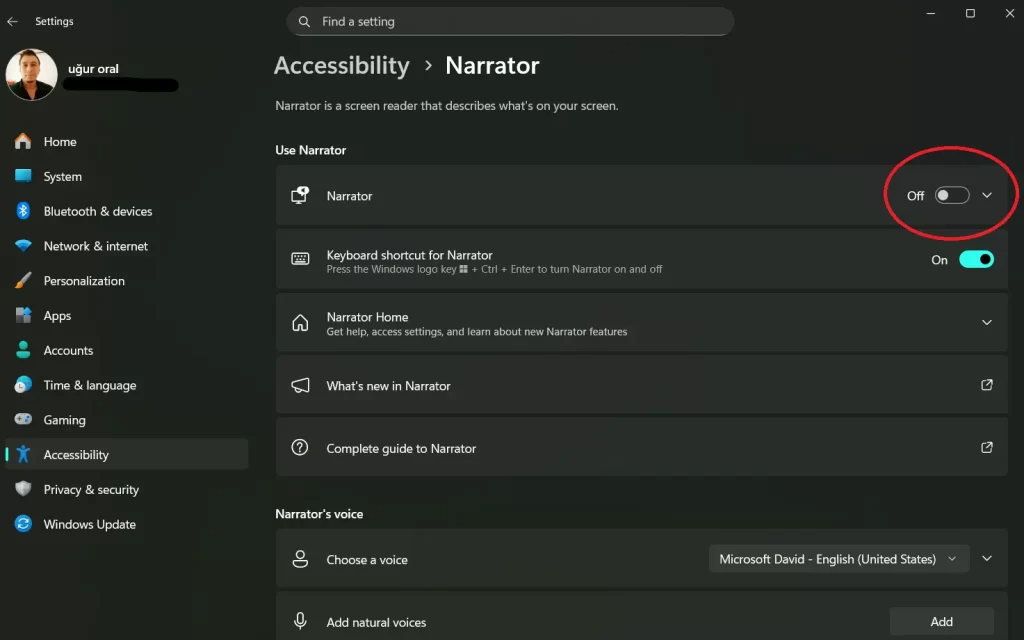
- Click the Start button and select Settings (the gear icon).
- On the left-hand sidebar, click Accessibility.
- Under the “Vision” section, click on Narrator.
- Toggle the switch to On.
2. Navigating with the “Narrator Key”
Once Narrator is on, most of its commands rely on what is called the Narrator Key. By default, both the Caps Lock and Insert keys act as this “master key.”
If you see a shortcut listed as Narrator + Right Arrow, it means you should hold down Caps Lock and press the Right Arrow key.
Basic Navigation Commands
- Narrator + Right/Left Arrow: Move to the next or previous item on the screen.
- Narrator + Enter: Perform the primary action (like clicking a button).
- Narrator + Tab: Hear the name of the item you are currently focused on.
- Ctrl: If Narrator is talking too much and you want it to stop immediately, just hit the Ctrl key.
3. Customizing the Voice (Making it Sound Human)
One of the best parts of how to use Narrator (screen reader) in Windows 11 is the ability to use Natural Voices. These are much smoother than the old “robotic” voices we used to have.
How to Change the Voice:
- Go to Settings > Accessibility > Narrator.
- Look for the section titled Narrator’s voice.
- Click the dropdown menu next to Choose a voice to see your current options (like David, Mark, or Zira).
- To get the better ones, click Add next to Add natural voices.
- Browse the list and download voices like “Aria” or “Guy.” These sound much more pleasant for long reading sessions.
Adjusting Speed and Pitch
Inside the same settings menu, you can use sliders to:
- Speed: Make the voice talk faster if you’re a power user.
- Pitch: Make the voice deeper or higher.
- Volume: Adjust the loudness specifically for the screen reader.
4. Master the “Scan Mode”
Scan Mode is a special feature that lets you navigate apps and webpages using just the arrow keys, similar to how you would move through a document.
- Turn Scan Mode On/Off: Press Narrator + Spacebar.
- Move through headings: Press H (Next heading) or Shift + H (Previous heading).
- Move through links: Press K.
- Move through tables: Press T.
This is incredibly useful when you are on a busy website and don’t want to “Tab” through fifty different menu items just to get to the main article.
5. Advanced Features You Should Know
Reading Text in Detail
Sometimes you need to hear exactly how a word is spelled or check the punctuation in a legal document.
- Read current line: Narrator + I
- Read current word: Narrator + K (Press twice to spell it out)
- Read current character: Narrator + Comma (,)
Image Descriptions
Windows 11 can now use AI to describe what is inside an image. If you land on a picture without “Alt-text,” press Narrator + Ctrl + D. Windows will analyze the image and tell you what it sees (e.g., “A person sitting on a bench in a park”).
Starting Narrator Automatically
If you rely on Narrator every time you use your PC, you can set it to start as soon as you turn the computer on:
- In Narrator Settings, expand the Narrator toggle.
- Check the box for Start Narrator after sign-in for me.
- You can also check Start Narrator before sign-in for everyone if you need help with the login screen itself.
6. Helpful Tips for Beginners
Learning how to use Narrator (screen reader) in Windows 11 takes a bit of practice. Here are a few “pro tips” to make the transition easier:
- Use the QuickStart: When you first open Narrator, there is a “QuickStart” guide. It’s a hands-on tutorial that lets you practice commands in a safe environment.
- Minimize the Window: You don’t need the Narrator Home window open on your taskbar. You can set it to “Minimize to System Tray” in the settings so it stays out of your way.
- Feedback is Key: If Narrator isn’t reading a specific app correctly, you can press Narrator + Alt + F to send feedback to Microsoft. They actually use this data to improve the software.
Summary Table of Common Shortcuts
| Action | Shortcut |
| Start/Stop Narrator | Windows + Ctrl + Enter |
| Stop Speech | Ctrl |
| Read Window Title | Narrator + T |
| Read Entire Window | Narrator + W |
| Toggle Scan Mode | Narrator + Spacebar |
| Open Commands List | Narrator + F1 |
Conclusion
Windows 11 has made massive strides in accessibility. By taking the time to learn these shortcuts and installing the Natural Voices, you can transform your PC into a much more communicative and helpful tool. Whether it’s for work or leisure, knowing how to navigate your system with your ears instead of just your eyes opens up a whole new world of productivity.
