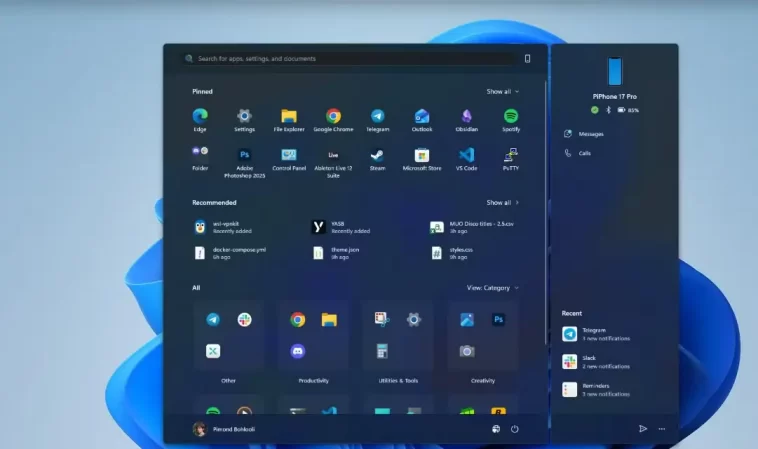
Windows 11 Start menu update is finally addressing one of the operating system’s most criticized features. After years of complaints about wasted space, sluggish performance, and unnecessary clutter, Microsoft has quietly introduced the most meaningful Start menu redesign since Windows 11 launched.
Although the update has not yet reached all users through the standard rollout process, there is a simple and safe way to activate it immediately. And no, it does not require editing the Windows Registry or installing risky third-party software.
This latest change signals that Microsoft may finally be listening to long-standing user feedback—and for many Windows fans, it could be the update that restores confidence in the platform.
Why the Windows 11 Start Menu Needed a Redesign
From the moment Windows 11 debuted, the Start menu became a lightning rod for criticism. Compared to earlier versions like Windows 7 or even Windows XP, it felt restrictive and underpowered.
Many users complained that:
- The menu was too small for modern screens
- Large portions of the interface were wasted space
- App discovery felt slower than before
- Sponsored content reduced usability
For some, these issues were frustrating enough to consider alternatives, including third-party Start menu replacements—or even switching operating systems entirely.
Microsoft made minor tweaks over time, but nothing that fundamentally changed how the Start menu worked. That has now changed.
Windows 11 Start Menu Update Introduces a Bigger, Smarter Layout
The new Windows 11 Start menu update expands the interface significantly, allowing users to see more apps and information at a glance. Instead of feeling like a cramped pop-up, the Start menu now functions more like a control hub for your system.
The expanded layout makes better use of modern high-resolution displays and reduces the number of clicks needed to access commonly used applications.
This update also introduces intelligent app grouping, which automatically organizes pinned apps into categories such as:
- Productivity
- Social
- Utilities
- Creativity
These categories are generated locally using app metadata, not cloud tracking, and only appear when enough apps fit a category.
How to Enable the New Windows 11 Start Menu Today
While Microsoft is rolling out the update gradually, advanced users can unlock it immediately using a free open-source tool called ViVeTool.
What Is ViVeTool?
ViVeTool is a lightweight command-line utility that allows users to enable hidden Windows features that already exist in the system files. Microsoft often includes unfinished or experimental features in updates but keeps them disabled using internal feature flags.
ViVeTool simply toggles those flags—nothing more.
Steps to Enable the New Start Menu
- Visit the ViVeTool GitHub repository
- Download the latest release and extract the ZIP file
- Open Command Prompt as Administrator
- Navigate to the folder where ViVeTool is extracted
- Run the following command:
ViVeTool.exe /enable /id:57048231,47205210,56328729,4843371
- Restart your PC
Once your system reboots, press the Windows key and the new Start menu should appear.
Important: You must be running Windows 11 version 24H2 or newer for this feature to work.
If you don’t like the new design, you can revert it by running the same command with /disable instead of /enable.
Windows 11 Start Menu Update Brings Back User Choice
One of the most welcome aspects of the new Start menu is flexibility. Microsoft has not forced users into a single layout.
You can choose between:
- Category View – apps grouped automatically
- Grid View – a dense layout showing all apps
- List View – a classic vertical list reminiscent of Windows 7
This approach respects different workflows and avoids repeating the mistakes of the Windows 8 era, where Microsoft aggressively pushed a single interface style.
Design Improvements That Actually Matter
Visually, the Start menu still uses Microsoft’s signature Acrylic design language, but this time it feels purposeful rather than empty.
Key improvements include:
- Reduced dead space
- Better spacing between app icons
- Clearer visual hierarchy
- Faster animation performance
The menu no longer feels like an afterthought. Instead, it feels integrated into the system as a central navigation tool.
Why This Update Feels Different From Past Changes
What makes this update stand out is that it solves real usability problems instead of introducing cosmetic tweaks. Many Windows 11 updates in the past focused on visual polish without addressing workflow issues.
This Start menu update:
- Improves efficiency
- Reduces friction
- Respects user preferences
- Feels built for power users and casual users alike
For once, the feedback loop between users and Microsoft appears to have worked.
The Biggest Downside: Slow Rollout
The only real criticism of the Windows 11 Start menu update is how it’s being distributed. Like many Windows features, it’s being rolled out gradually, meaning some users may wait weeks or months to receive it officially.
This staged approach helps Microsoft monitor stability but frustrates users who read about new features yet can’t access them.
Thankfully, tools like ViVeTool offer a workaround for those willing to take control.
Is the New Windows 11 Start Menu Worth Enabling?
In short: yes.
This is one of the rare Windows 11 updates that delivers meaningful improvement rather than incremental change. It makes everyday tasks easier, improves navigation, and restores some of the efficiency lost in earlier redesigns.
If Microsoft continues refining Windows 11 with updates like this, the operating system may finally reach its full potential.
Final Thoughts
The Windows 11 Start menu update proves that Microsoft can still evolve its operating system in smart, user-focused ways. While it took longer than many hoped, the result is a Start menu that finally feels modern, flexible, and useful.
If you’ve been frustrated with Windows 11 since launch, this update might be the change that wins you back.
