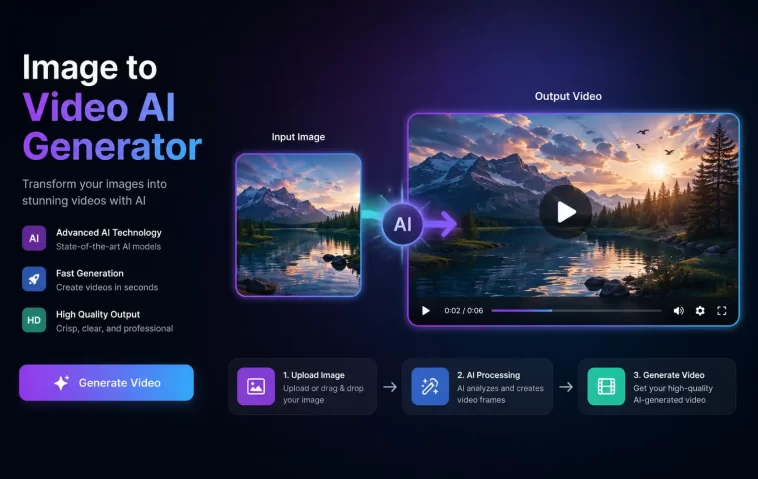
I still remember the first time I turned a plain product photo into a moving video clip. I uploaded one image, typed a short prompt, waited two minutes, and watched my static photo come alive with a slow camera pan and soft wind moving through the background. That moment is when I got hooked on free image to video AI generators, and I have been testing them ever since.
Over the past few months I tried more than a dozen tools on the market. Some were polished and genuinely free. Others called themselves “free” but locked the real features behind a paywall. So I put together this list of the 12 best free image to video AI generators that are actually worth your time in 2026.
If you make content for social media, run an online store, or just like turning old photos into something fun, this guide will save you hours of trial and error.
What Is An Image To Video AI Generator?
An image to video AI generator takes a single still photo and turns it into a short moving clip. The AI studies the image, predicts how things like hair, clothes, water, or clouds should move, and then renders a few seconds of motion around it.
Some tools add cinematic camera movement. Others focus on making a person in a photo talk and blink naturally. Either way, you get a video without filming anything yourself.
How To Turn An Image Into A Video (Step By Step)
You don’t need any editing skills to do this. Here is the basic process that works across almost every tool on this list.
Step 1: Choose A Clear Source Image
Pick a photo with good lighting and a clear subject. Busy backgrounds or blurry shots usually confuse the AI and give you messy results.
Step 2: Upload The Image To The Tool
Most platforms let you drag and drop the file directly into the browser. You don’t need an account for some tools, but signing up usually unlocks more free credits.
Step 3: Write A Short Motion Prompt
Describe what should move and how. A prompt like “camera slowly zooms in while clouds drift across the sky” gives the AI clear direction instead of guessing.
Step 4: Generate And Review The Clip
Click generate and wait. Free tiers usually take longer than paid ones, so don’t be surprised by a short queue.
Step 5: Download Or Regenerate
If the motion looks off, tweak your prompt and try again. Most free plans give you several attempts per day, so use them.
The 12 Best Free Image To Video AI Generators
Here is the full list, broken down by what each tool is actually good at.
1. Kling AI
Kling AI is one of the strongest free options for realistic human motion. It handles things like blinking, breathing, and natural head turns better than most competitors.
- Free tier: daily refreshing credits, enough for several short clips a day
- Best for: portrait animation and lifestyle photos
- Limitation: free generations can enter a slower queue during busy hours
2. Pika
Pika offers one of the more generous free tiers for general motion and animation work. Its monthly credit pool refreshes regularly, which makes it easy to keep creating without paying.
- Free tier: a few hundred credits per month
- Best for: social media clips and stylized animation
- Limitation: commercial use often requires a paid plan
3. Luma Dream Machine
Luma treats every photo like a movie frame. The camera movement it adds feels intentional rather than random, which gives clips a more cinematic look.
- Free tier: a small number of generations per month
- Best for: landscape and artistic shots
- Limitation: monthly cap runs out quickly if you create often
4. Runway
Runway is a favorite among filmmakers because of how much control it gives you over camera behavior. The free plan is limited, but it’s a good way to test the tool before committing.
- Free tier: one-time credits, not refreshing
- Best for: filmmakers and creative experimentation
- Limitation: hard to fully evaluate without upgrading
5. Hailuo AI (by MiniMax)
Hailuo is built for speed. In my testing, clips finished generating in under two minutes most of the time, which is rare for a free tier.
- Free tier: several free generations daily, varies by region
- Best for: quick iterations and fast turnaround
- Limitation: shorter max clip length than some rivals
6. Google Veo (via Gemini and Google Labs)
Veo gives you a daily free quota with surprisingly clean output. There’s no visible watermark on the frame itself, though some metadata branding remains.
- Free tier: daily credits through Google’s free tools
- Best for: cinematic b-roll and atmospheric shots
- Limitation: daily cap resets but doesn’t roll over
7. Seedance 2.0 (via Dreamina/Jimeng)
Seedance has become a serious contender for free, watermark-light video generation. It’s especially strong with character consistency across multiple shots.
- Free tier: daily refreshing credits, often 60 to 80 per day
- Best for: story-driven clips with recurring characters
- Limitation: output sometimes carries a small visible watermark
8. Canva Magic Studio
Canva’s image to video tool is the easiest one on this list for beginners. You don’t need any prompt skills since it works directly inside the design editor you may already use.
- Free tier: available on the free Canva plan
- Best for: marketing graphics and quick social posts
- Limitation: clips are short and less customizable than dedicated AI video tools
9. Stable Video Diffusion
This is the open-source option, and it’s the only truly unlimited free tool on this list if you have the right hardware. You run it yourself instead of relying on a company’s servers.
- Free tier: unlimited, but requires your own GPU
- Best for: technical users who want full control
- Limitation: needs a strong graphics card and some setup knowledge
10. LTX Studio
LTX Studio gives you a full production environment rather than just a single generation box. The free trial credits let you build out a small project before paying.
- Free tier: a one-time batch of trial credits
- Best for: structured projects with multiple scenes
- Limitation: credits don’t refresh once they’re used
11. HeyGen
HeyGen specializes in turning a portrait photo into a talking video with lip sync. It’s less about scenery motion and more about making a photo “speak.”
- Free tier: limited monthly video, usually watermarked
- Best for: talking head content and presentations
- Limitation: the free plan feels more like a demo than a full tool
12. D-ID
D-ID is similar to HeyGen but focuses heavily on quick trial access. It’s a good way to test talking photo technology before deciding if you need it long-term.
- Free tier: a handful of trial videos
- Best for: testing talking avatar technology
- Limitation: trial runs out fast, so plan your tests carefully
Talking Photo vs Motion Animation: Know The Difference
Before you pick a tool, understand that these 12 generators fall into two different categories.
- Talking photo tools (HeyGen, D-ID) animate a face to speak a script with matching lip movement.
- Motion and animation tools (Kling, Pika, Luma, Runway, Hailuo, Veo, Seedance, LTX Studio, Stable Video Diffusion) add cinematic or natural movement to a still scene.
Confusing the two is the most common mistake people make. If you want a person talking in your video, go with a talking photo tool. If you want a landscape, product, or scene to move, pick a motion tool instead.
Tips To Get Better Results From Free Tools
- Use simple, specific prompts instead of vague descriptions
- Test the same image across two or three tools before settling on one
- Save your best prompts so you can reuse them later
- Generate during off-peak hours to avoid long free-tier queues
- Always check the commercial use terms before publishing client work
FAQ
Are free image to video AI generators actually free?
Yes, most of the tools on this list offer a genuine free tier with daily or monthly credits. Some add a watermark on free exports, while others don’t.
Which free image to video AI generator has no watermark?
Veo and Seedance currently offer the cleanest free exports without an on-frame watermark, though branding may still appear in file metadata.
Can I use free AI video clips for business or ads?
It depends on the platform. Hailuo and some other tools allow commercial use on free plans, while Runway and Pika usually require a paid plan for commercial rights.
How long are the videos from free plans?
Most free tiers cap clips between four and ten seconds. You can combine several clips together if you need a longer video.
Do I need design or editing skills to use these tools?
No. Most platforms only need an image upload and a short text prompt. Canva is the easiest option if you’ve never used an AI video tool before.
Editor’s Opinion
honestly i didnt expect free ai video tools to be this good in 2026. i tryed like 8 of these myself and kling and veo suprised me the most, the motion just looks real. canva is still my go to when im lazy and dont wanna write a prompt lol. just dont expect free plans to last forever tho, credits run out fast if your posting everyday. still, for anyone starting out, these tools are more then enough to get going without spending a dime.
