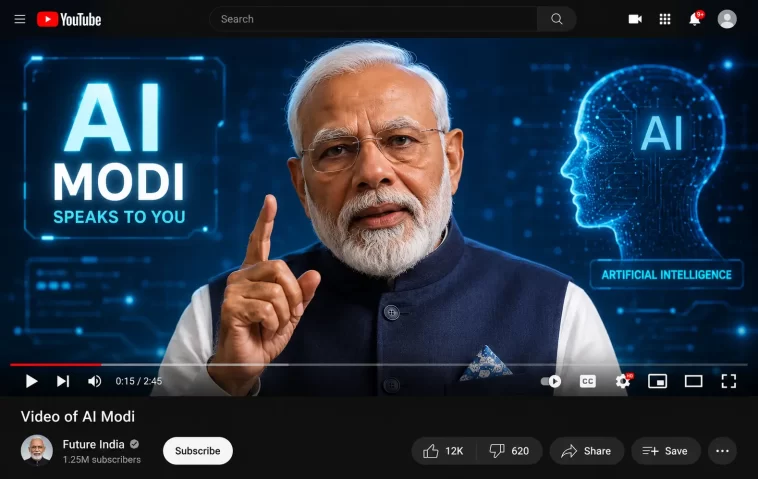
If you want to create video of ai modi for a meme or a presentation, you’ve probably run into a wall of distorted audio and weird lip-sync artifacts. Most online tools promise quick results but deliver a blurry mess that looks like an old video game bug. I spent all of last night wrestling with different open-source setups and web apps to get this working cleanly without making the face look plastic.
Why Avatar Generation Glitches Out
When you try to generate an AI avatar of a well-known public figure, the algorithms often struggle with consistency. Here are three technical reasons why your generations keep failing.
First, low-resolution source files cause face-tracking to slip. If the template image or base video clip isn’t sharp, the facial landmark detector loses track of the chin and mouth boundaries.
Second, audio-to-lip models struggle with specific non-English speech patterns or rapid pacing. If your cloned voice script doesn’t match the standard phonetic spacing the model expects, the mouth movements look completely detached from the sound. And that’s exactly why most automated tools fail.
Third, aggressive temporal smoothing can wipe out natural micro-expressions. Well, sort of—it’s actually more like the model tries so hard to blend frames that it turns the lower half of the face into a smooth mask.
Quick Technical Breakdown
| Method | Lip Accuracy | Visual Quality | Common Error |
| Wav2Lip Local | High | Low (Blurry mouth) | FFmpeg codec mismatch |
| SadTalker Extension | Medium | High | Head posture distortion |
| Web Creation Suites | High | High | Strict content filters |
Step-by-Step Generation Guide
Step 1: Prep the Audio Track
Get a clean voice sample. If you clone the voice using an AI speech tool, don’t feed it noisy background audio. Keep the final output format as a mono WAV file at 16kHz because most lip-sync scripts throw an error if you pass a stereo MP3.
Step 2: Extract a High-Res Base Photo
Find a high-quality, front-facing image of Modi. Avoid photos where a hand covers the chin or where the lighting is heavily uneven. If the facial alignment tool can’t find both eyes clearly, the script will crash or warp the mouth onto the cheek.
Step 3: Run the Processing Script
If you’re using a local automatic1111 setup or a Python script, load your models and run the command line execution tool. I hate how poorly documented the padding parameters are in these repositories, by the way. You’ll need to manually adjust the mouth mask dilation if the teeth look like they are floating outside the lips.
What Actually Worked For Me
I tried using three different web-based generators first, but they all kept triggering automatic content blocks or generating something nightmare-inducing. So I fell back on an old workflow using a local Gradio interface for SadTalker combined with a face-restoration model.
From what I’ve seen, web apps are too restrictive for historical or political figures, while the raw local code gives you actual control over the frame processing. I got lucky on my fourth try after changing the resize factor to 1.0 to stop the chin from clipping out of the bounding box. Your mileage may vary depending on your GPU, though.
Advanced Sync Fixes and Log Checking
When your output video has a delayed mouth movement, check your terminal logs. An out-of-sync generation usually points to a sample rate mismatch between the video container and the audio file. You can fix this via CLI using FFmpeg to force a 25fps video output matched with a 44.1kHz audio track.
Another issue is the dreaded black block artifact under the lip. This happens when the face bounding box shifts out of bounds during a head tilt. To fix it, change your source video padding values in the configuration file to add extra space around the lower jaw before hitting generate.
FAQ
Why does the voice sound robotic?
The source audio needs more training data with consistent pitch, or the text-to-speech model is choking on Indian English pronunciation accents.
Can I fix a blurry mouth area?
Yes, use a post-processing upscaler like CodeFormer or GFPGAN to enhance the face area after generating the raw video clip.
Why does the script crash halfway through?
You’re likely running out of VRAM, so lower your video resize factor parameter before processing to ease the load on your graphics card.
Editor’s Opinion
Honestly, making these talking videos is a massive pain when you use local scripts. The documentation is usually terrible and you spend hours hunting down random Python dependency errors. But when it works, the results are pretty wild. Just don’t expect a perfect solution without tweaking settings for an hour.
