Windows 11 Password and PIN Settings are absolutely crucial for keeping your data safe and your machine secure. You’ve got to start taking security seriously, and on your PC, that begins right at the log-in screen. You might think a simple password is enough, but with Windows 11, Microsoft has made the PIN and other “Windows Hello” options the preferred, and often faster, way to sign in. The great news is that managing these sign-in methods is surprisingly easy once you know where to look.
This guide will walk you through every step of setting up, changing, or removing your password and PIN settings in Windows 11, ensuring you can log into your PC securely and with maximum efficiency. Don’t worry about being a tech expert—we’ll keep it simple and straightforward, just like a chat with a friend who happens to know a lot about computers.
Why You Should Use a PIN (And How It Differs from Your Password)
Before diving into the “how-to,” let’s clear up a common confusion: what’s the difference between your PIN and your main Microsoft account password?
Your Microsoft Account Password is your master key. It’s used across all Microsoft services (Outlook, OneDrive, Xbox, etc.) and is the primary defense for your entire digital life connected to Microsoft. Because it’s a long, complex string of characters used online, it’s also the one you should never use to log into your PC daily. Why? Because if a keylogger or local malware sniffs it out, your entire Microsoft account is compromised.
The Windows Hello PIN is different. It’s a short, device-specific code (usually 4-10 digits, but it can include letters and symbols) that is only stored locally on your PC, protected by the Trusted Platform Module (TPM) chip on your hardware. If a hacker gets your PIN, it’s useless to them on any other machine. It’s simply a faster, more secure, and more convenient way to unlock your specific PC. Think of it as a house key versus a key to a safe deposit box—the PIN is the quick, everyday key for your local device.
In short, using a PIN is a powerful security move because it separates your local device access from your main, all-powerful Microsoft account password.
Changing or Setting Up Your Windows 11 Password
Even though the PIN is preferred, you still need your master password for account changes and to set up other sign-in options.
🔑 Steps to Set or Change Your Password
- Open Settings: The quickest way is to press the Windows Key + I. Alternatively, you can right-click the Start button and select Settings.
- Navigate to Accounts: In the left-hand column, click on Accounts.
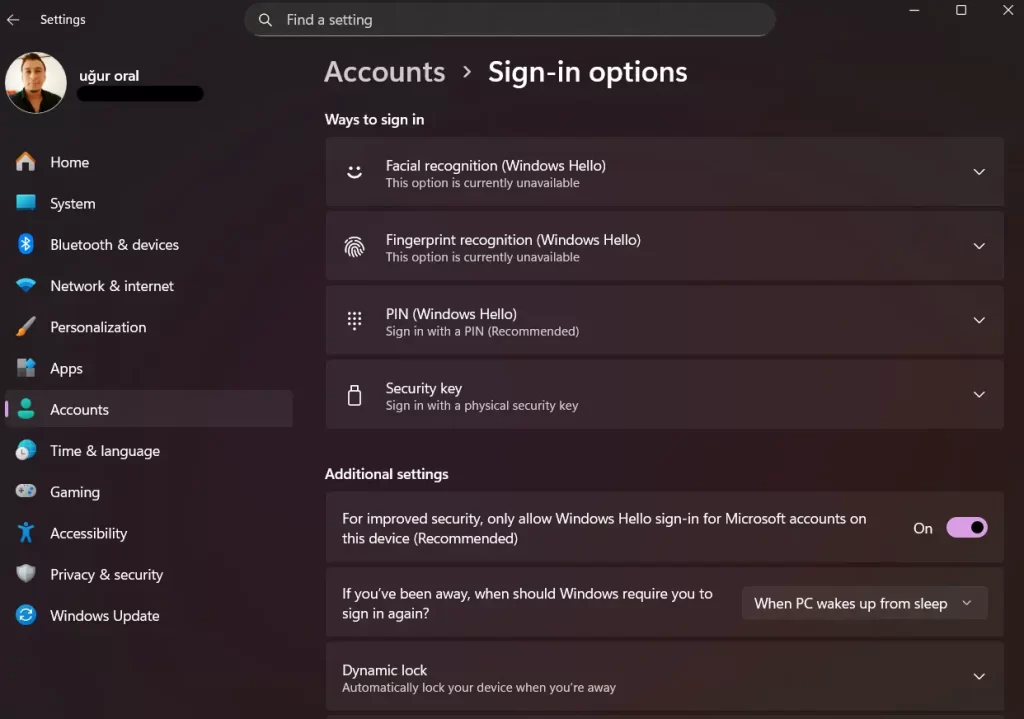
- Go to Sign-in options: In the right-hand panel, click on Sign-in options.
- Find the Password Option: Look for the Password entry under “Ways to sign in” and click it to expand the section.
- Change Your Password:
- Click the Change button.
- A new window will pop up. You’ll first need to enter your Current password to verify your identity, then click Next.
- On the next screen, enter your New password, confirm it, and add a Password hint.
- Click Next, and then Finish.
And that’s it! Your master account password is now updated. Remember to make it strong—a mix of uppercase, lowercase, numbers, and symbols—and ideally, something you haven’t used anywhere else.
Managing Your Windows 11 PIN Settings
The PIN is the workhorse of Windows 11 sign-in. It’s fast, convenient, and you should definitely have one set up.
📌 Steps to Set Up or Change Your PIN
- Open Settings: Press Windows Key + I.
- Navigate to Accounts: Click on Accounts in the left-hand column.
- Go to Sign-in options: Click on Sign-in options.
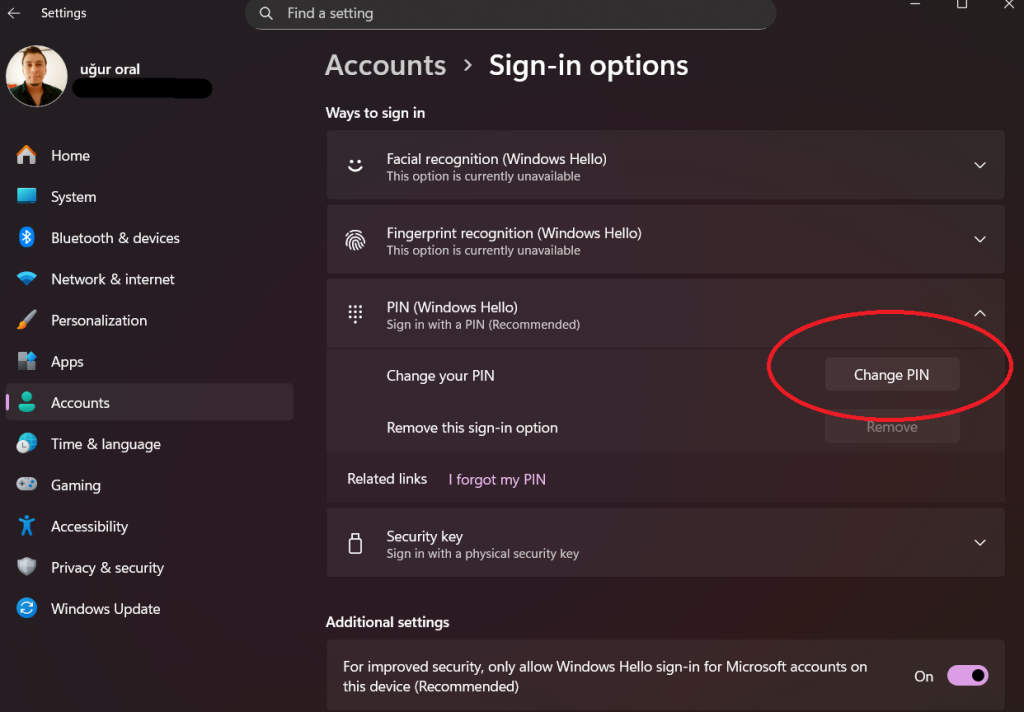
- Select PIN (Windows Hello): Click on the PIN (Windows Hello) option to expand it.
- Set Up (If new) or Change (If existing):
- If you haven’t set a PIN: Click Set up. You’ll be prompted to enter your Microsoft account password first. Then, enter your new PIN and confirm it.
- If you already have a PIN: Click the Change PIN button. You will be asked for your old PIN first, and then you can enter and confirm your new one.
- Add Complexity (Optional but Recommended): In the PIN setup/change window, you can check the box that says Include letters and symbols. This turns your PIN into more of a short, easy-to-type password, making it even more secure while still offering the speed of a PIN.
🗑️ How to Remove Your PIN
Sometimes you might want to remove the PIN entirely. Just follow steps 1-4 above, and instead of clicking “Change PIN,” you’ll click the Remove button. Windows will warn you about the security implications, and you’ll have to enter your Microsoft account password to confirm the removal.
Other Advanced Sign-in Options (Windows Hello)
Windows Hello isn’t just about the PIN; it’s the blanket term for all the biometric sign-in methods that are faster and more secure than a traditional password.
- Fingerprint Recognition (Windows Hello Fingerprint): If your laptop or PC has a fingerprint sensor, you can set it up here. This is arguably the fastest way to log in.
- Facial Recognition (Windows Hello Face): For devices with compatible infrared cameras, you can set up facial recognition. It works incredibly fast—just sit down in front of your PC, and it unlocks!
- Security Key: This is for those who want physical hardware security. A USB security key can be set up here to require a physical item for login.
To manage any of these, just go to Settings > Accounts > Sign-in options, and click on the relevant method to set it up or manage it.
Troubleshooting Common Issues
- “I forgot my PIN!” Don’t panic! On the log-in screen, there’s usually an option that says “I forgot my PIN” or “Sign-in options.” Select that and follow the prompts. You’ll need to verify your identity using your Microsoft account password to reset your PIN.
- The system keeps asking for my password, not my PIN. Check the “Sign-in options” section again. There is a setting called “For improved security, only allow Windows Hello sign-in for Microsoft accounts on this device.” If this is switched OFF, your PC may default back to password login in certain situations. Make sure this is enabled if you want to go “passwordless.”
- My PIN Change button is grayed out. This usually means you’re either logged into a local account (not a Microsoft account) or there’s a group policy setting blocking the change. For a standard home user, ensure you are logged in as the Administrator.
Wrapping Up Your Security Check
By mastering your Windows 11 Password and PIN Settings, you take a critical step in protecting your digital life. Remember: use your PIN for day-to-day login because it’s local and safe, and keep your main Microsoft account password long, complex, and only use it when required for security changes.
Stay secure, and enjoy the convenience of a fast, safe sign-in process!
Disclaimer: This post provides general guidance. Security features can be updated by Microsoft, and individual PC configurations may vary.
