Adding page numbers might seem like one of those “it should be easy” tasks that somehow turns into a headache the moment you try to do it. We’ve all been there: you’re finishing up a thesis, a business report, or a creative project, and suddenly the page numbers are starting on the wrong page or disappearing entirely.
If you are wondering, how can I add page numbers to a document? Microsoft Word makes it relatively straightforward once you know where the buttons are hidden. In this guide, we are going to walk through every scenario—from the simple “click and go” method to the more annoying “start numbering on page three” trick.
The Quick Start: Adding Basic Page Numbers
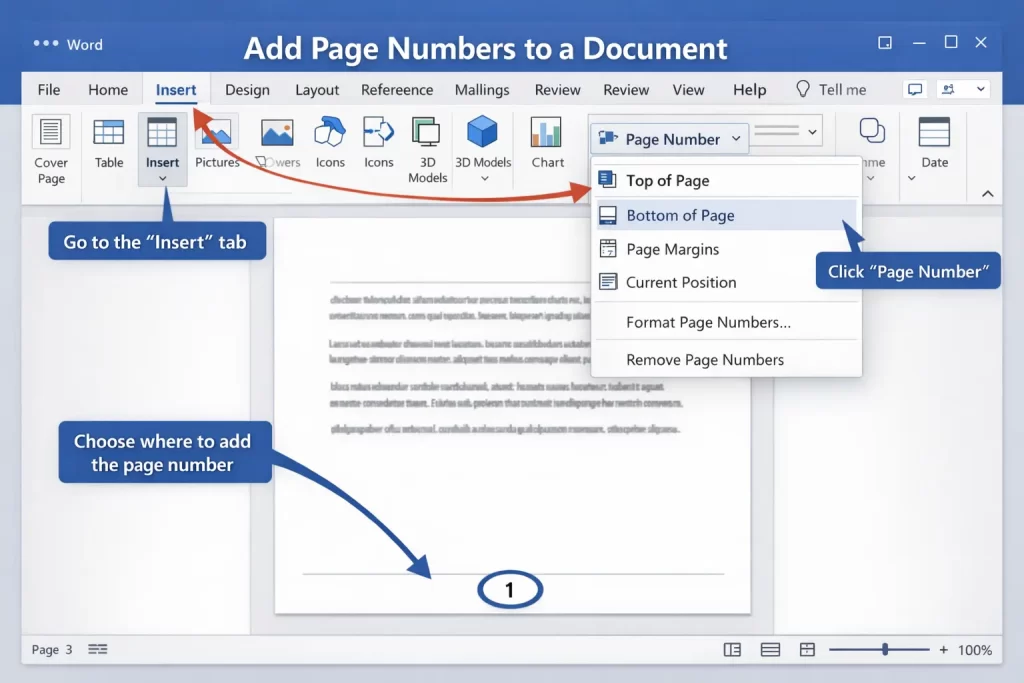
If you just need numbers on every page and you aren’t picky about fancy formatting, Word can do this in about three clicks.
- Open your document in Microsoft Word.
- Go to the Insert tab on the top ribbon.
- In the “Header & Footer” group, click on Page Number.
- Choose where you want the numbers (Top, Bottom, or Page Margins).
- Pick a style from the gallery.
Once you click a style, Word will automatically populate every page with a number. To get back to editing your text, just double-click anywhere in the middle of the page or hit the Close Header and Footer button on the ribbon.
Why Do We Even Need Page Numbers?
It sounds like a silly question, but in a digital world, we often forget the utility of a physical or structured document. Page numbers are the “GPS” of your writing.
- Professionalism: A document without page numbers looks like a draft.
- Navigation: If you’re in a meeting and say, “Look at the section on marketing,” everyone will spend two minutes scrolling. If you say “Look at page 12,” they’re there in seconds.
- Academic Standards: APA, MLA, and Chicago styles all have strict rules about where that little number lives.
How to Start Page Numbering on a Specific Page
This is the most common “How can I add page numbers to a document?” question. Most people don’t want a big “1” sitting right in the middle of their beautiful cover page.
Step 1: Skip the Cover Page
If you just want to hide the number on the first page, Word has a built-in “Easy Button” for that:
- Double-click the header or footer area where the number is.
- In the Header & Footer tab that appears, check the box that says Different First Page.
- The number on page one will vanish, but page two will still show “2.”
Step 2: Start “1” on the Second or Third Page
This is a bit trickier because it involves Section Breaks. Think of Section Breaks as walls that tell Word, “The rules for the first part of the book don’t apply to the second part.”
- Click at the very end of the page before you want your numbering to start.
- Go to the Layout tab.
- Click Breaks and select Next Page under Section Breaks.
- Now, go to the page where you want the “1” to appear and double-click the footer.
- Crucial Step: In the toolbar, you’ll see a button highlighted called Link to Previous. Click it to turn it off. This unlinks the footers.
- Now, go to Insert > Page Number > Format Page Numbers.
- Select Start at: and type “1”.
Formatting Your Page Numbers
Sometimes “1, 2, 3” isn’t what the boss ordered. You might need Roman numerals (i, ii, iii) for an introduction or “Page X of Y” for a legal contract.
Changing the Number Format
To change the look, go back to Insert > Page Number > Format Page Numbers. In the dropdown menu for “Number format,” you can choose:
- Standard digits (1, 2, 3)
- Roman numerals (i, ii, iii)
- Letters (a, b, c)
- Dash-enclosed numbers (- 1 -)
Adding “Page X of Y”
If you want the reader to know exactly how long the document is, don’t type “Page 1 of 50” manually (because if you add a page, it won’t update!).
Instead, go to Insert > Page Number > Bottom of Page and scroll down until you see the Bold Numbers category. There, you will find the “Page X of Y” template.
Removing Page Numbers
If you’ve made a mess of things and want to start over, or if you simply don’t need them anymore, removing them is the easiest part of the process.
- Go to the Insert tab.
- Click Page Number.
- At the very bottom of the menu, click Remove Page Numbers.
This clears the slate across the entire document (unless you have multiple sections, in which case you might need to repeat it for each section).
Common Troubleshooting Tips
My numbers are grayed out!
That’s normal. When you’re editing the main text of your document, the header and footer (where the numbers live) look faded. When you print or save as a PDF, they will be full black.
The numbers are missing on some pages but not others
This usually happens because a Section Break was inserted by accident. To see where these “invisible walls” are, go to the Home tab and click the Show/Hide ¶ symbol. It looks like a backward P. This will show you exactly where your breaks are, and you can delete them like regular text.
The number is overlapping with my text
This means your footer margin is too small. You can adjust this in the Header & Footer tab by changing the “Footer from Bottom” measurement. Usually, 0.5″ (1.27 cm) is the sweet spot.
Summary Table: Quick Commands
| Goal | Action |
| Add basic numbers | Insert > Page Number |
| Start at Page 2 | Design Tab > Different First Page |
| Change to i, ii, iii | Page Number > Format Page Numbers |
| Clear all numbers | Page Number > Remove Page Numbers |
Final Thoughts
Knowing how to manage your document structure is a skill that saves hours of frustration. Whether you’re writing a simple letter or a 200-page manual, mastering the “Insert” tab is your first step toward document Zen.
The next time you find yourself asking, “How can I add page numbers to a document?” just remember that Section Breaks are your friends, and the Link to Previous button is usually the culprit when things go wrong.
