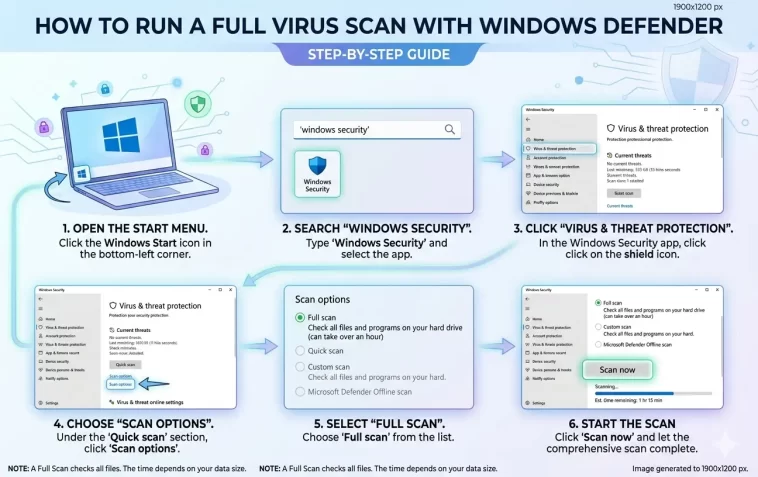
How to run a full virus scan with Windows Defender is something every Windows user should know. It’s free, built right into Windows, and surprisingly powerful — yet most people have never actually used it beyond the default background scanning.
Whether your PC is acting strange, you downloaded something suspicious, or you just want peace of mind, running a full scan is one of the best things you can do. And it takes just a few clicks.
This guide walks you through every method — step by step, no technical experience needed.
What Is Windows Defender?
Windows Defender — officially called Microsoft Defender Antivirus — is the built-in security software that comes with Windows 10 and Windows 11. It’s free, always on, and automatically updated through Windows Update.
For most home users, it provides solid baseline protection against viruses, ransomware, spyware, and other threats. Independent testing labs like AV-TEST and AV-Comparatives consistently rate it as a respectable antivirus — not the best, but far from useless.
The key thing to understand: Windows Defender runs a Quick Scan in the background automatically. But a Quick Scan only checks the most common locations where malware hides. A Full Scan checks every single file on your computer — which takes longer but is far more thorough.
Types of Scans in Windows Defender
Before you start, it helps to know what your options are:
- Quick Scan — Checks folders and files where malware is most commonly found. Takes 5–15 minutes. Good for routine checks.
- Full Scan — Scans every file and running program on your entire hard drive. Takes 30 minutes to several hours depending on your storage size. Best for deep cleaning.
- Custom Scan — Lets you choose specific folders or drives to scan. Useful if you want to check a specific file or external drive.
- Microsoft Defender Offline Scan — Restarts your PC and scans before Windows fully loads. Best for catching rootkits and stubborn malware that hides from normal scans.
For a thorough check, you want the Full Scan — or the Offline Scan if you suspect a serious infection.
Method 1: Run a Full Scan from Windows Security (Easiest)
This is the most straightforward way and works on both Windows 10 and Windows 11.
Step 1: Open Windows Security
Click the Start Menu and type “Windows Security”, then press Enter.
You can also find it by clicking the shield icon in your taskbar (bottom-right corner near the clock).
Step 2: Go to Virus & Threat Protection
In the Windows Security window, click “Virus & threat protection”. It’s usually the first option on the left menu.
Step 3: Start a Full Scan
Under the “Current threats” section, you’ll see a “Quick scan” button. Don’t click that yet.
Instead, click “Scan options” just below it.
You’ll see four options:
- Quick scan
- Full scan
- Custom scan
- Microsoft Defender Offline scan
Select “Full scan” and then click the “Scan now” button at the bottom.
Step 4: Wait for the Scan to Complete
The scan will begin immediately. You’ll see a progress bar and a count of files scanned.
You can continue using your computer during this time, but the scan will run faster if you leave the PC alone. Avoid running other heavy programs like video editing or gaming while the scan is active.
Step 5: Review the Results
When the scan finishes, Windows Defender will show you:
- How many threats were found (if any)
- What action was taken (quarantined, removed, etc.)
If threats were found, click “See full history” or “Actions” to review what was detected and confirm the action taken.
If no threats were found, you’ll see a clean bill of health — and you’re done.
Method 2: Run a Full Scan from the Taskbar Icon
If you prefer not to dig through menus, the taskbar shortcut is even quicker.
- Look for the shield icon in the bottom-right corner of your taskbar. If you don’t see it, click the small upward arrow (^) to show hidden icons.
- Right-click the shield icon.
- Select “View security dashboard”.
- From here, follow Steps 2–5 from Method 1 above.
Method 3: Run a Full Scan Using Command Prompt
If you’re comfortable with the command line — or want to schedule scans — you can trigger a full scan directly from Command Prompt.
Step 1: Open Command Prompt as Administrator
Click Start, type “cmd”, right-click Command Prompt, and select “Run as administrator”.
Click Yes if prompted by User Account Control.
Step 2: Navigate to the Defender Folder
Type the following command and press Enter:
cd "C:\Program Files\Windows Defender"Step 3: Start the Full Scan
Type this command and press Enter:
MpCmdRun.exe -Scan -ScanType 2The number 2 tells Defender to run a Full Scan. (1 = Quick Scan, 3 = Custom Scan.)
The scan will run silently in the background. You can check progress in the Windows Security app.
Method 4: Run Microsoft Defender Offline Scan
This is for more serious situations — when you suspect a deep infection, rootkit, or malware that loads before Windows does.
Important: This method restarts your computer. Save all open work before starting.
Step 1: Open Windows Security
Go to Start → Windows Security → Virus & threat protection → Scan options.
Step 2: Select Offline Scan
Choose “Microsoft Defender Offline scan” and click “Scan now”.
Step 3: Confirm the Restart
Windows will ask you to confirm. Click “Scan”. Your computer will restart automatically.
Step 4: The Scan Runs Before Windows Loads
After restarting, Defender runs its scan at the system level — before Windows fully boots. This allows it to detect malware that normally hides from standard scans.
The process takes 15–20 minutes. Your PC will restart again automatically when it’s done, and you’ll boot back into Windows normally. Results will be waiting in the Protection history.
How Long Does a Full Scan Take?
It depends on how much data you have stored:
| Storage Size | Approximate Scan Time |
|---|---|
| 128 GB SSD (half full) | 20–40 minutes |
| 256 GB SSD (half full) | 40–70 minutes |
| 500 GB HDD | 1–2 hours |
| 1 TB HDD | 2–4 hours |
| 2 TB+ | 4+ hours |
SSDs scan significantly faster than traditional hard drives. If your scan seems to be taking forever, that’s normal for large HDDs — let it finish.
What to Do If Windows Defender Finds a Threat
Don’t panic. Finding a threat doesn’t mean your data is compromised.
When Defender detects something, it will:
- Quarantine the file — this moves it to a safe, isolated location where it can’t cause harm
- Show you the threat name and severity
- Recommend an action — usually “Remove” or “Quarantine”
Your options:
- Remove — Permanently deletes the file. Choose this for confirmed malware.
- Quarantine — Isolates the file. Good if you’re unsure — you can restore it later if it turns out to be a false positive.
- Allow — Only choose this if you’re 100% certain it’s a safe file that was flagged incorrectly.
After taking action, restart your PC and run another Full Scan to confirm the threat is gone.
How to Schedule Automatic Full Scans
Windows Defender runs quick scans automatically, but you can schedule full scans using Task Scheduler.
Step 1: Open Task Scheduler
Press Windows + R, type “taskschd.msc”, and press Enter.
Step 2: Navigate to Defender Tasks
In the left panel, go to: Task Scheduler Library → Microsoft → Windows → Windows Defender
Step 3: Open the Scan Task
Double-click “Windows Defender Scheduled Scan”.
Step 4: Set Your Schedule
Click the “Triggers” tab → “New”.
Choose your preferred schedule — weekly is a good balance. Set the day and time, then click OK.
Step 5: Set the Scan Type to Full
Click the “Actions” tab. You’ll see the scan command already configured. To force a full scan, add -ScanType 2 to the arguments field.
Click OK to save. Your full scan will now run automatically on schedule.
Tips to Get the Most Out of Windows Defender
- Update before scanning — Go to Virus & threat protection → Check for updates. Running a scan with outdated definitions is less effective.
- Close other programs — The scan runs faster when your PC isn’t busy with other tasks.
- Don’t interrupt the scan — If you need to stop mid-scan, Defender saves progress and you can resume later.
- Check Protection History regularly — Even if no threats are found during a manual scan, background detections may be logged here.
- Don’t install two antivirus programs — Running Defender alongside another real-time antivirus can cause conflicts and actually reduce protection.
Is Windows Defender Good Enough?
For most everyday users — yes. Microsoft Defender Antivirus provides real-time protection, cloud-based threat detection, ransomware protection, and regular automatic updates. It passes major independent lab tests and catches the vast majority of threats.
Where it falls short compared to paid antivirus products:
- No built-in VPN
- No password manager
- Weaker phishing protection
- No dedicated banking browser
- Fewer customization options
If you do online banking, work with sensitive files, or simply want an extra layer of security, a paid antivirus like Bitdefender or Malwarebytes is worth considering alongside Defender.
But for basic, everyday protection? Windows Defender is solid — and running a full scan regularly makes it even more effective.
FAQ: Running a Full Virus Scan with Windows Defender
How do I run a full virus scan with Windows Defender?
Open Windows Security from the Start Menu, go to Virus & threat protection, click Scan options, select Full scan, and click Scan now. The scan will check every file on your computer and report any threats when it’s done.
How long does a Windows Defender full scan take?
It depends on your storage. On a modern SSD with 200–300 GB of data, expect 30–60 minutes. On a large traditional hard drive, it can take 2–4 hours or more. You can continue using your PC during the scan, but it will go faster if you leave it alone.
Can I use my computer during a full scan?
Yes. Windows Defender runs in the background and won’t lock your screen. However, the scan will take longer if your CPU is busy with other tasks. For the fastest results, start the scan and step away for an hour.
What’s the difference between a quick scan and a full scan?
A Quick Scan checks only the most common locations where malware hides — your startup files, active processes, and system folders. It takes 5–15 minutes. A Full Scan checks every file on your entire hard drive. It takes much longer but is far more thorough.
What should I do if Windows Defender finds a virus?
Click the notification or go to Protection History to review the detected threat. Select Remove to permanently delete it, or Quarantine to isolate it first. After taking action, restart your PC and run another full scan to confirm the threat is gone.
Can Windows Defender remove all viruses?
Windows Defender removes most common viruses and malware. For deeply embedded rootkits or persistent threats, use the Microsoft Defender Offline Scan, which runs before Windows loads and can catch threats that hide from normal scans.
Should I run a full scan regularly?
Yes. Running a full scan once a week or at least once a month is a good habit — especially after downloading files from the internet, installing new software, or connecting an external USB drive.
Is Windows Defender enough, or do I need another antivirus?
For most home users, Windows Defender is sufficient for everyday protection. If you want additional features like a VPN, password manager, stronger phishing protection, or banking-specific security, a paid antivirus provides meaningful extras. But you should never run two real-time antivirus programs at the same time.
Final Thoughts
Running a full virus scan with Windows Defender takes just a few minutes to set up and works on every Windows 10 and Windows 11 computer — no downloads, no subscriptions required.
Make it a habit. Update your definitions, run a full scan once a week, and check your Protection History regularly. It’s one of the simplest things you can do to keep your computer safe.
If you’ve never run a full scan before, now is a good time to start.
