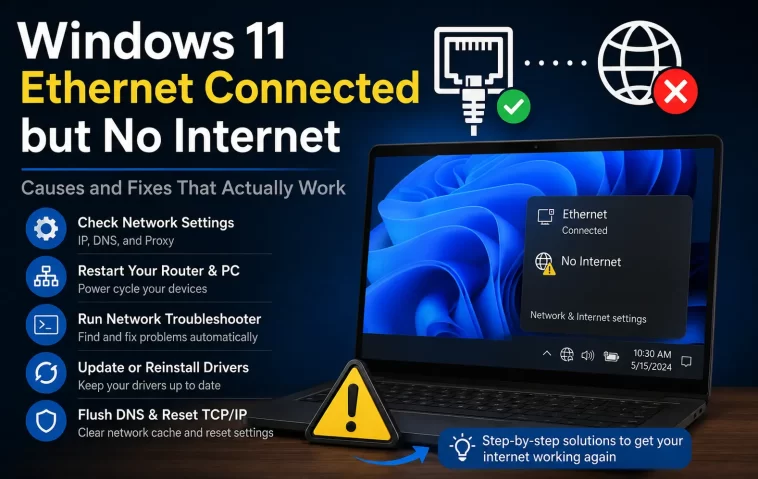
Plugged the cable in, Windows showed “Connected” right in the taskbar, and yet nothing loaded — no websites, no updates, nothing. Windows 11 Ethernet connected but no internet almost always comes down to a bad IP address assignment, a DNS problem, or a driver that’s technically working but not passing traffic correctly, and most of the time you can fix it in a few minutes without touching your router. I’ve run into this on a desktop that had worked fine for months and then just stopped for no obvious reason.
So let’s figure out what’s actually broken and get you back online.
Quick Answer
- Check your IP address in Command Prompt with
ipconfig— if it starts with 169.254, that’s your problem - Release and renew your IP with
ipconfig /releasethenipconfig /renew - Flush DNS with
ipconfig /flushdnsand try switching to a public DNS server like 8.8.8.8 - Update or roll back your network adapter driver
- Restart your router and modem, not just your PC
Most cases get solved somewhere in that list. The stuff further down covers what to do when none of it works.
Why Ethernet Shows Connected But Has No Internet
Windows checking “connected” only really confirms there’s a physical link between your PC and whatever it’s plugged into — it doesn’t mean that link actually leads anywhere useful. There are a handful of separate things that can break here.
No valid IP address (APIPA). When your PC can’t reach a DHCP server to get a proper IP address, Windows assigns itself a fallback address starting with 169.254.x.x. This lets your PC talk to other devices on the same local network sometimes, but it can’t route to the internet at all. This is probably the single most common cause of this exact symptom.
DNS resolution failure. Your internet connection itself might be totally fine, but if DNS isn’t resolving domain names to IP addresses, every website will just fail to load, even though the underlying connection works. This one’s sneaky because pinging a raw IP address will still succeed while pinging a website name fails.
Driver issues. A network adapter driver can be technically “working” — Device Manager shows no errors — while still failing to pass traffic correctly. This happens more after Windows Updates than people expect, especially with certain Realtek and Intel Ethernet chipsets.
Router or modem-side problems. Sometimes it’s not your PC at all. A router that’s lost its own internet connection but is still handing out local IP addresses will make your PC think everything’s fine on its end while nothing actually reaches the internet.
Duplicate IP address conflicts. If another device on your network somehow grabbed the same IP address, your PC’s traffic can get silently dropped or misrouted. Not super common on home networks but it happens, especially with static IPs set manually and forgotten about.
Proxy or VPN settings left misconfigured. A proxy setting that got left on from a previous VPN install, or a VPN client that didn’t fully disconnect, can block regular internet traffic even though Ethernet itself shows connected.
Where This Shows Up Most
This tends to happen after specific triggers rather than randomly. Right after a Windows Update is common — driver resets or network stack changes can knock things out of alignment. It also shows up a lot after router firmware updates, or after a power outage where the modem and router came back online in the wrong order (modem needs to fully connect before the router does, and a lot of people don’t realize that).
Desktop PCs with onboard Ethernet seem to hit driver-related versions of this more than laptops, from what I’ve seen, maybe because onboard chipsets get less frequent driver attention than dedicated USB or laptop adapters. And it happens more in networks with a lot of connected devices, where DHCP lease conflicts are more likely.
Common Causes Compared
| Cause | Symptom | Fix Difficulty | Notes |
|---|---|---|---|
| APIPA address (169.254.x.x) | No internet, limited local access | Easy | Release/renew usually fixes it |
| DNS failure | Websites fail, IP addresses work | Easy | Flush DNS or switch DNS servers |
| Driver issue | Intermittent or total failure, no clear error | Medium | Often follows a Windows Update |
| Router/modem issue | Multiple devices affected, not just one PC | Medium | Restart modem before router |
| IP conflict | Works sometimes, drops randomly | Medium | Check for static IPs on network |
| Leftover proxy/VPN config | Certain sites/services blocked, others fine | Easy once found | Check Settings > Network > Proxy |
Step-by-Step Fixes
Step 1: Check Your IP Address
Open Command Prompt and run ipconfig. Look at the IPv4 address for your Ethernet adapter. If it starts with 169.254, your PC isn’t getting a real address from your router, and that’s your main lead.
Step 2: Release and Renew Your IP
In the same Command Prompt window, run ipconfig /release, wait a few seconds, then run ipconfig /renew. This forces your PC to request a fresh IP address from the router’s DHCP server.
Step 3: Flush DNS and Try a Public DNS Server
Run ipconfig /flushdns to clear out any bad cached DNS entries. If that doesn’t help, go to Settings > Network & internet > Ethernet, click your connection, and manually set DNS to 8.8.8.8 (Google) or 1.1.1.1 (Cloudflare) instead of using whatever your router assigns automatically.
Step 4: Restart Your Modem and Router (In the Right Order)
Unplug the modem first, wait about 30 seconds, plug it back in and let it fully reconnect before plugging the router back in if it’s separate. Doing this out of order is a common reason people think the restart didn’t work.
Step 5: Update or Roll Back the Network Adapter Driver
Open Device Manager, expand Network adapters, right-click your Ethernet adapter, and choose Update driver. If the problem started right after a recent update, try Roll Back Driver instead, if that option’s available under the driver’s Properties.
Step 6: Check for Leftover Proxy or VPN Settings
Go to Settings > Network & internet > Proxy and make sure “Use a proxy server” is off unless you specifically need it. Also fully quit any VPN software rather than just disconnecting it, since some VPN clients leave network adapters behind that interfere with normal traffic.
What Actually Worked For Me
Honestly this one took longer than it should have because I assumed it was my router first, since that’s usually the culprit in my experience. Restarted the router, no change. Restarted the modem too, still nothing. At that point I was fairly annoyed since two other devices on the same network were working completely fine, which ruled out the ISP.
Ran ipconfig out of habit more than any real plan, and there it was — a 169.254 address, plain as day. Released and renewed the IP and it grabbed a proper address immediately, internet came right back. Felt a little silly for not checking that first, but sometimes you go straight for the more “interesting” possibility instead of the boring obvious one.
Not every case is this clean, though. And in a couple other instances I’ve dealt with, it turned out to be a driver that needed a rollback after an update, which took a lot more digging to actually pin down.
Advanced Fixes and Edge Cases
Run the Windows Network Reset. Settings > Network & internet > Advanced network settings > Network reset. This removes and reinstalls all network adapters and resets networking components to default. It’s a bit of a sledgehammer fix, but it works for stubborn cases where nothing else has helped, and you’ll need to reconnect to any saved networks afterward.
Check for a static IP conflict. Run arp -a in Command Prompt to see other devices on the network, and compare against your router’s connected devices list if it shows one. A duplicate IP will usually show inconsistent connectivity rather than a clean total failure.
Reset TCP/IP stack manually. Run netsh int ip reset and netsh winsock reset in an elevated Command Prompt, then restart. This resets deeper networking components than a basic release/renew and can fix corruption that survives a normal reset.
Check Event Viewer for adapter errors. Under Windows Logs > System, filter for Source “e1dexpress,” “RTL8xxx,” or similar adapter-specific driver names depending on your hardware, and look for repeated warnings or errors tied to adapter resets or link failures.
MTU mismatch issues. Less common, but a misconfigured MTU setting (usually only relevant if you’ve manually changed network settings before, or you’re behind certain VPN/PPPoE setups) can cause partial connectivity where small requests work but larger page loads fail or time out.
Prevention Tips
- Avoid setting static IP addresses on home networks unless you actually need to and know what you’re doing
- Restart your modem and router occasionally, not just when something breaks
- Keep network adapter drivers updated, especially after major Windows Updates
- Fully uninstall VPN software you’re not using instead of leaving it installed and disconnected
FAQ
Why does Windows say “Connected, no internet” instead of just showing disconnected? Because the physical Ethernet link is genuinely up — your PC just isn’t successfully routing traffic past your local network, which Windows detects and labels separately.
Can a bad Ethernet cable cause this exact issue? Usually a bad cable causes a fully disconnected status, not “connected, no internet,” but a partially damaged cable can sometimes cause this in-between state. Worth testing with a different cable if nothing else works.
Does restarting my PC fix this? Sometimes, if the issue is a temporary DHCP or driver hiccup, but it’s not reliable. Release/renew tends to fix the same category of problem more consistently.
Why do other devices on WiFi work fine while my Ethernet PC has no internet? That points to something specific to the Ethernet connection or that one device, not your router or ISP, since other devices are reaching the internet successfully.
Is a network reset safe to do? Yeah, it’s safe, it just removes saved WiFi passwords and network adapter configurations, so you’ll need to reconnect to WiFi networks and re-enter passwords afterward.
Editor’s Opinion
should not have taken me twenty minutes honestly, ipconfig was right there the whole time and i went for the router first out of habit. if your connected but nothing loads just run ipconfig before you touch anything else, its the fastest way to actually know whats wrong instead of guessing
