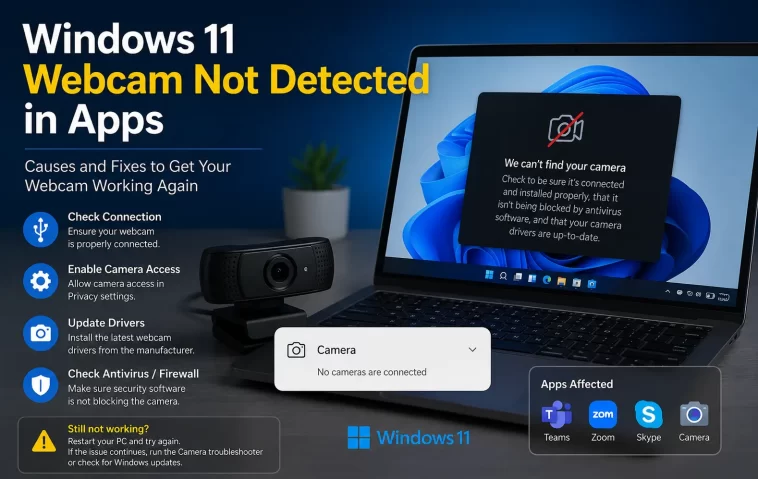
Had a client call start in five minutes and Teams just showed a black box where my camera preview should’ve been — no error, no warning, just nothing. Windows 11 webcam not detected in apps is almost always a privacy permission blocking access, another app already holding the camera, or a driver that got confused after an update, and it’s fixable in most cases without reinstalling anything. I’ve hit this on two different laptops now, once right before a call and once for no reason at all after a random Tuesday update.
So let’s sort out why it’s happening and how to get your camera back.
Quick Answer
- Check Settings > Privacy & security > Camera and make sure both the global toggle and the specific app’s toggle are on
- Close any other app that might be using the camera (Zoom, OBS, another browser tab)
- Restart the Windows Camera Frame Server service
- Update or roll back your camera driver in Device Manager
- Check for a physical privacy shutter or a function key that disables the camera
That list covers the majority of cases. If you’re still stuck after those, the advanced section further down covers the messier stuff.
Why Windows 11 Doesn’t Detect Your Webcam
There isn’t usually one single cause here — it’s more like Windows 11 has several different ways to block a webcam, and any one of them can be the culprit.
Privacy settings blocking access. Windows 11 has a global camera toggle and then a per-app toggle underneath it. And this is the one that trips people up most, honestly — you can have the global setting on but the specific app you’re using still switched off, and the app will just silently fail to see the camera instead of telling you why.
Camera already in use. Windows only lets one application access the camera stream at a time in most cases. If you’ve got Zoom minimized in the background, or a browser tab with a video call site still open, whatever app you’re trying to use next just won’t see the camera at all.
Driver conflicts after updates. This is a big one on laptops especially. A Windows Update sometimes replaces a working manufacturer camera driver with a generic one, or vice versa, and the swap can leave the camera in a broken state until you manually reinstall the correct driver.
Frame Server service not running. Windows 11 uses a background service called Windows Camera Frame Server to manage access between apps and the camera hardware. If that service crashes or gets stuck, apps can’t get a camera feed even though the hardware itself is fine.
Third-party security software. Some antivirus suites (Norton, Bitdefender, and similar ones with dedicated “webcam protection” features) block camera access by default and don’t always make it obvious that’s what’s happening.
Physical hardware issues. Not every cause is software. A lot of laptops have a physical privacy shutter that slides over the lens, and it’s easy to forget it’s closed. Some also have a function key (often paired with F-keys) that toggles the camera off entirely at a hardware level.
Where This Shows Up Most
This tends to happen in a few predictable situations. Right after a major Windows update is probably the most common — something about the update process seems to reset driver assignments or camera permissions more often than it should. External USB webcams also run into this more than built-in laptop cameras, especially with USB hubs or docking stations where power delivery to the port isn’t consistent.
It also shows up a lot right after installing new video conferencing software, since some of these apps request camera permissions in a way that doesn’t always register cleanly with Windows’ permission system. And I’ve seen it happen after just closing a laptop lid mid-call and reopening it — the camera doesn’t always reinitialize properly from sleep.
Common Causes Compared
| Cause | How It Shows Up | Fix Difficulty | Notes |
|---|---|---|---|
| Privacy toggle off | Camera works in one app, not another | Easy | Most common, most overlooked |
| Camera in use elsewhere | “Camera in use” error or black screen | Easy | Close background apps first |
| Outdated/broken driver | Camera missing from device list entirely | Medium | Often follows a Windows Update |
| Frame Server service stopped | Works in one app, fails randomly in others | Medium | Restart via Services app |
| Antivirus webcam blocking | Camera works after disabling protection | Easy once found | Not always clearly labeled |
| Physical shutter/hardware key | Camera not detected at all, no software fix works | Trivial once noticed | Easy to overlook |
Step-by-Step Fixes
Step 1: Check Privacy Settings for Both Levels
Go to Settings > Privacy & security > Camera. Make sure “Camera access” is on at the top. Then scroll down and check the specific app you’re trying to use — Teams, Zoom, your browser, whatever it is — and make sure its individual toggle is also on. Both need to be enabled, not just one.
Step 2: Close Everything Else Using the Camera
Check your taskbar and any minimized windows for other apps that might have grabbed the camera first. Browsers are a sneaky one here — a tab you forgot was open with an active video call site can hold onto the camera even if you’re not looking at it.
Step 3: Restart the Frame Server Service
Press Windows key, type “services,” open the Services app, scroll down to “Windows Camera Frame Server,” right-click it, and select Restart. If it’s not running at all, right-click and select Start instead.
Step 4: Update or Reinstall the Camera Driver
Open Device Manager, expand Cameras (or Imaging Devices on older setups), right-click your webcam, and choose Update driver. If that doesn’t help, try uninstalling the device entirely and restarting your computer — Windows will usually reinstall a fresh driver automatically on boot.
Step 5: Check Third-Party Antivirus Settings
If you’re running Norton, Bitdefender, McAfee, or similar software, look for a webcam or camera protection feature in its settings and temporarily disable it to test. If that fixes it, you’ll need to allow specific apps through that feature rather than leaving it off permanently.
Step 6: Check for Physical Blocks
Look at the camera itself for a slider or shutter. Check your keyboard for a camera toggle key, usually somewhere in the F1-F12 row with a camera icon, and make sure it hasn’t been accidentally pressed.
What Actually Worked For Me
So in my case, I went through the privacy settings first since that’s the obvious one, and everything looked fine — toggles were all on. Tried restarting the Frame Server service too, no change. At that point I was getting a little annoyed since none of the “easy” fixes were doing anything.
Turned out Device Manager showed my camera with a small warning icon I’d completely missed the first two times I looked, because I was scrolling past it too fast. Updated the driver from there, and it worked immediately after a restart. Kind of embarrassing it took three passes through Device Manager to actually notice the warning icon was there the whole time.
Not a dramatic fix, honestly, and not much of a story — just a case of not looking closely enough the first couple times. Your mileage may vary depending on what’s actually broken, but checking Device Manager carefully, not just glancing at it, is worth doing early rather than last.
Advanced Fixes and Edge Cases
Check Event Viewer for camera errors. Under Applications and Services Logs > Microsoft > Windows > Sensors, or sometimes under the general Application log, you can find errors tied to camera initialization failures. These sometimes point to a specific driver or service crash that’s easy to miss otherwise.
Reset the Windows Camera app itself. Go to Settings > Apps > Installed apps, find Camera, click the three dots, and choose Advanced options, then Reset. This clears cached permissions and settings specifically for the built-in Camera app and can resolve conflicts that don’t show up anywhere else.
Check for conflicting virtual camera software. OBS, Snap Camera, and similar tools install virtual camera drivers that sometimes get prioritized over your real camera, especially after installing or updating them. If your app is picking up a “virtual” camera option instead of your actual hardware, that’s usually why.
USB power management on external webcams. For USB webcams specifically, check Device Manager > Universal Serial Bus controllers > right-click the relevant USB Root Hub > Power Management tab, and uncheck “Allow the computer to turn off this device to save power.” This is the same kind of power-saving interference that causes Bluetooth issues, just on the USB side instead.
Prevention Tips
- Check Device Manager for warning icons periodically, not just when something breaks
- Close video call apps fully instead of just minimizing them when you’re done
- Keep camera drivers updated through your manufacturer’s site after major Windows updates
- Avoid installing virtual camera software you don’t actively use
FAQ
Why does my camera work in Windows Camera app but not in Zoom or Teams? That’s almost always a per-app privacy permission issue — the global toggle is on but the specific app hasn’t been granted access.
Can a Windows Update actually break webcam drivers? Yes, this happens more than it should. Driver replacements during updates are a known source of these issues.
Why did my external webcam stop being detected after using a docking station? Probably power delivery on the USB port, especially if the dock is handling multiple devices at once. Try plugging directly into the laptop to test.
Does resetting the Camera app delete my settings in other apps? No, it only resets the built-in Windows Camera app itself, not permissions or settings in Zoom, Teams, or other third-party software.
Is it normal for the camera to just randomly stop working with no error message? Unfortunately yeah, that’s pretty common with this particular issue. Windows isn’t great about surfacing a clear error when the Frame Server service is the actual problem.
Editor’s Opinion
this one wasnt even a hard fix, i just wasted like fifteen minutes not actually reading device manager properly. windows really needs to just tell you when a driver has an issue instead of a tiny yellow icon you can miss if youre scrolling fast. check that first honestly before anything else on this list, couldve saved myself the whole detour
