Basic approval flows in Power Automate are easy — pick a template, add an approver, done. But the moment you need multi-stage approvals, conditional routing, or anything that has to post back into a specific Teams channel instead of just sending an email, the whole thing gets a lot messier than Microsoft’s documentation makes it look. I built one of these for a client’s purchase order process last year and hit about four separate walls before it actually worked the way they wanted.
Quick Answer
- Sequential and parallel approvals need different action types — “Start and wait for an approval” behaves differently depending on which you pick
- Multi-stage approvals (manager, then finance, then director) require chaining separate approval actions, not one action with multiple approvers
- Posting results back to a specific Teams channel needs the “Post adaptive card in a chat or channel” action, not the built-in approval notification
- Conditional routing (different approvers based on amount, department, etc.) means building Condition branches before the approval step, not after
- Adaptive Cards give you far more control over the approval UI than the default Teams approval template, but they take more setup time
Why Basic Templates Fall Apart at Scale
The default “Approve/Reject” template works fine for a single approver making a single decision. But real approval processes almost never stay that simple, and there are a few specific reasons the standard approach breaks down once you add complexity:
1. “Start and wait for an approval” only supports one approval type per action. You can’t mix “first to respond” and “everyone must approve” logic within a single action — if your process needs manager approval first, then unanimous finance approval second, that’s two separate actions, not one with fancy settings.
2. The built-in Teams notification doesn’t let you customize the message per approval stage. Once you’re past step one, most people want later approvers to see context from earlier decisions — who approved, when, any comments. The default action doesn’t surface that automatically; you have to pass it through manually using output variables from the previous approval step.
3. Channel posting and personal approval notifications use completely different actions. This trips people up constantly. “Start and wait for an approval” sends a personal notification to the approver’s Teams activity feed — it does NOT post into a channel. If you want visibility in a shared channel (which most teams actually want for audit purposes), you need a separate “Post adaptive card in a chat or channel” action running in parallel or after the approval resolves.
There’s also a less obvious cause: approval flows that reference SharePoint list items by internal ID can break silently if the list gets recreated or migrated. Not super common, but if you’re building this on top of an existing SharePoint approval tracking list, worth keeping in mind before you scale it up.
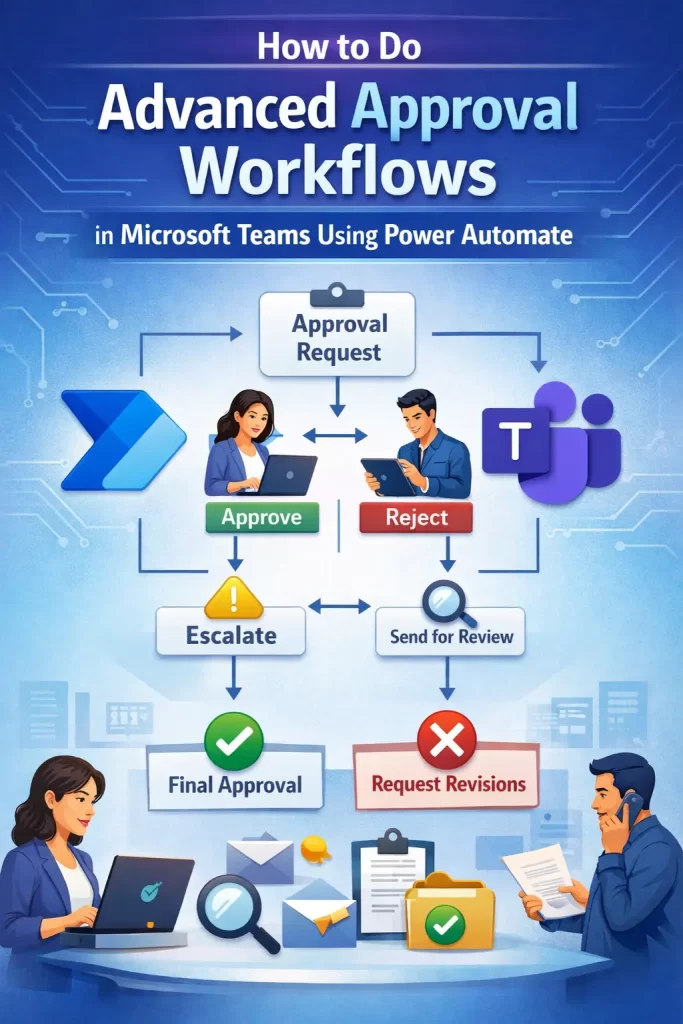
Common Scenarios
- Purchase order approvals — usually need conditional routing by dollar amount, with different approvers per threshold
- HR time-off requests — often sequential: manager first, then HR only if the request exceeds a certain number of days
- IT access requests — frequently need parallel approval from both a security team and a department head, where both must approve, not just one
- Content/document sign-off — typically simplest, often just one approver, but benefits most from adaptive card customization for review comments
Step-by-Step: Building a Multi-Stage Conditional Approval
Step 1: Map Out the Approval Logic Before Touching Power Automate
Seriously, sketch this out first. Draw the actual decision tree — who approves, in what order, under what conditions, and what happens on rejection at each stage. Skipping this step is the single biggest reason these flows end up needing a rebuild halfway through.
Step 2: Set Up the Trigger and Initial Variables
Use whatever trigger fits your source (SharePoint item created, Forms response submitted, or a manual trigger for testing). Right after the trigger, add “Initialize variable” actions for anything you’ll need to reference later — approver names, amounts, current stage status. This saves you from digging through dynamic content pickers three actions deep later on.
Step 3: Add Your Condition Branch for Routing
Add a Condition action that checks whatever determines the approval path — dollar amount, department, request type. Each branch (Yes/No, or use a Switch action for more than two paths) should lead to its own approval sequence.
Step 4: Configure the First Approval Stage
- Add “Start and wait for an approval”
- Choose approval type — “Approve/Reject – First to respond” for single-decision-maker scenarios, “Approve/Reject – Everyone must approve” for group sign-off
- Set the assigned approver dynamically if possible (e.g., the requester’s manager, pulled from Office 365 Users “Get manager” action) rather than hardcoding an email
Step 5: Chain the Second Stage With a Condition on the First Outcome
Add a Condition checking the outcome of Step 4 (Approve vs Reject). Inside the “Approve” branch, add your second “Start and wait for an approval” action for the next stage. This is the part people usually miss — you cannot just add multiple approvers to one action and expect sequential behavior.
Step 6: Post Results to a Teams Channel
Add “Post adaptive card in a chat or channel,” pointed at your target Team and Channel. Build the adaptive card using the Adaptive Card Designer (there’s a free web version) so you can include approval status, approver name, comments, and timestamp in a clean layout instead of a wall of plain text.
What Actually Worked For Me
I’ll be honest, my first version of this flow used a single “Everyone must approve” action with three people on it, thinking that would give me the manager-then-finance-then-director sequence the client wanted. It didn’t — that setting sends notifications to all three simultaneously, and any of them can technically respond in any order, which completely defeated the point of having a sequence at all.
So I rebuilt it as three chained approval actions, each inside the Approve branch of the one before it. That part worked. But then the Teams channel posting showed every approval stage as a separate, disconnected message with no context linking them, which the client didn’t love. And rather than solving that cleanly, I ended up finding the fix almost by accident — I was scrolling through a Power Automate community forum thread about something unrelated and noticed someone passing prior-stage outputs into a single “compose” action before the final channel post, which let me build one consolidated adaptive card showing the full approval chain instead of three separate messages. Wasn’t systematic at all, honestly, just a lucky forum find at the right time.
Advanced Fixes and Edge Cases
Handling timeouts and reminders. Power Automate approvals don’t time out automatically — if an approver ignores it forever, the flow just sits there. Add a “Delay” action in parallel with the approval (using a Scope and a race-condition pattern), and if the delay finishes first, send a reminder or auto-escalate to a backup approver.
Debugging failed adaptive card posts. If your channel post fails silently, check the flow run history for the actual JSON payload error — usually it’s a schema mismatch between what the Adaptive Card Designer generated and what the Teams action expects. Copy the card JSON directly from the Designer’s “Automation” tab (there’s a Power Automate-specific export option) rather than the general JSON export, which sometimes uses unsupported card elements.
Concurrent approval conflicts on SharePoint-backed flows. If two people can theoretically update the same SharePoint item that triggers this flow, you can get duplicate flow runs firing on the same record. Add a “Get item” check at the start of the flow to confirm the status hasn’t already changed before proceeding — cheap insurance against double-processing.
Testing sequential flows without waiting on real people. Use the “Run test” flow in Power Automate with a hardcoded test approver (yourself), and manually approve/reject through the Teams activity feed as each stage triggers. Tedious, but it’s the only reliable way to verify sequencing logic before rolling out to real approvers.
Prevention Tips
- Document your approval logic outside of Power Automate (a simple flowchart works) so future edits don’t require reverse-engineering the flow itself
- Use “Get manager” or a lookup table for dynamic approver assignment instead of hardcoded emails — people change roles, and hardcoded flows quietly become wrong
- Build in timeout/escalation handling from the start rather than adding it after someone complains about a stuck approval
- Test the rejection path as thoroughly as the approval path — it’s usually left half-built and forgotten
FAQ
Can I have more than three approval stages? Yes, there’s no hard limit — just chain more conditional approval actions. It gets harder to maintain past four or five stages, though.
Does the approver need the Power Automate license to approve requests? No. Approvers just need a Microsoft 365 account with Teams access; they respond through their Teams activity feed or email, no license required on their end.
Why did my flow post to the wrong Teams channel? Double check you selected Channel, not Team, in the dynamic content — it’s a two-step picker and it’s easy to leave the channel field on a default value without noticing.
Can rejected requests restart the approval process automatically? Not natively. You’d need to build a loop back to the start of your relevant condition branch, which works but adds real complexity — most people just let rejections end the flow and have the requester resubmit.
Is Power Automate the best tool for this, or should I look at Power Apps instead? For approval logic specifically, Power Automate is the right tool. Power Apps comes in if you need a custom front-end form for requesters, which pairs fine with the same underlying flow.
Editor’s Opinion
honestly this stuff is more powerfull then people give it credit for but the docs really dont prepare you for the multi stage part. everyone builds the single approver version first and then gets suprised when the real ask is way more complicated. sketch the logic on paper before you open power automate, it’ll save you a rebuild later, trust me on that one.
