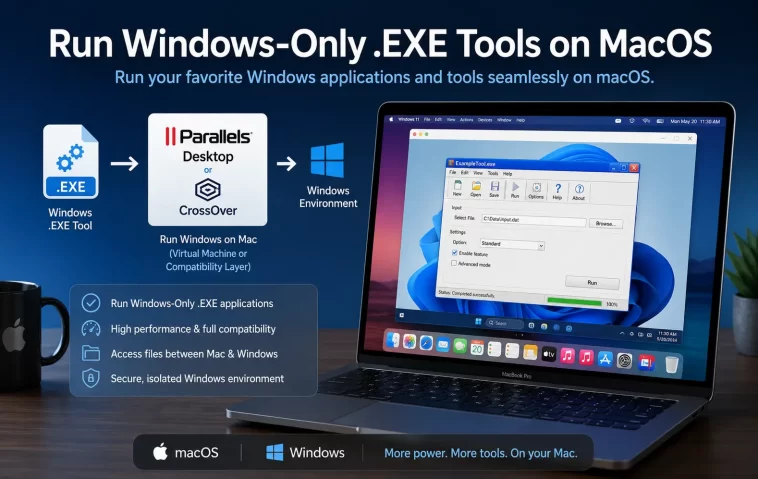
Spinning up an entire virtual machine just to run one small .exe utility always felt like massive overkill to me — that’s basically dedicating gigabytes of RAM and disk space to boot an entire second operating system for a tool that probably weighs a few megabytes. Wine skips all that by translating Windows API calls directly on macOS, no VM required. I’ve been using it on and off for a couple of years now for random Windows-only utilities, and it’s come a long way, though it’s still not magic.
Quick Answer
- Wine translates Windows system calls to macOS equivalents on the fly, so there’s no separate OS to boot or manage
- CrossOver (paid, built on Wine) and standalone Wine (free, via Homebrew) are the two realistic install paths on Mac
- Apple Silicon Macs need Rosetta 2 installed alongside Wine, since most Windows .exe files are still x86, not ARM
- Not every .exe will run — compatibility varies wildly by application, and some just won’t work no matter what you try
- Wine isn’t emulation, which is why it’s faster and lighter than a VM, but also why compatibility isn’t guaranteed
Why This Works (and Why It Sometimes Doesn’t)
Wine stands for “Wine Is Not an Emulator,” and that acronym is doing real work — it’s not simulating a Windows machine, it’s reimplementing the Windows API on macOS so .exe files can call functions that actually exist on your Mac instead of needing a full Windows environment underneath. This is why it’s lighter than a VM, but it’s also exactly why compatibility isn’t universal.
1. Wine only implements what’s been reverse-engineered and rebuilt. Windows has decades of APIs, and Wine’s development team (and community) has covered an enormous amount of it, but not all of it. Applications relying on obscure or newer Windows-specific features can fail even if simpler apps run fine.
2. Apple Silicon adds a translation layer on top of a translation layer. On M-series Macs, you’re running x86 Windows binaries through Wine, which itself may need Rosetta 2 to translate x86 instructions to ARM. It’s two layers of translation stacked together, which is honestly impressive it works at all, but it does mean somewhat higher overhead than Wine on an Intel Mac, where there’s only one translation layer.
3. Graphics-heavy or driver-dependent tools struggle the most. Wine handles a lot of standard Windows GUI applications reasonably well, but tools that need direct hardware access, specific graphics drivers, or kernel-level features basically can’t work through Wine’s translation approach — that’s not a Wine limitation you can configure around, it’s architectural.
Comparison: Wine Install Options on Mac
| Method | Cost | Ease of Setup | Best For |
|---|---|---|---|
| Homebrew Wine (wine-stable) | Free | Moderate, command-line based | Simple utilities, users comfortable with Terminal |
| CrossOver | Paid (~$74, has trial) | Easy, GUI-based | Users wanting official support and easier troubleshooting |
| Wine via Wineskin | Free | Moderate | Packaging individual .exe tools into standalone Mac apps |
| Full VM (Parallels/VMware) | Paid | Easy but resource-heavy | Full Windows compatibility, not what this guide covers |
Step-by-Step Setup
Step 1: Install Homebrew (If You Don’t Have It Already)
Open Terminal and run:
/bin/bash -c "$(curl -fsSL https://raw.githubusercontent.com/Homebrew/install/HEAD/install.sh)"Skip this if Homebrew’s already installed — check with brew --version first.
Step 2: Install Rosetta 2 (Apple Silicon Only)
If you’re on an M1/M2/M3/M4 Mac:
softwareupdate --install-rosettaIntel Mac users can skip this step entirely.
Step 3: Install Wine via Homebrew
brew install --cask wine-stableThis pulls in the stable Wine build, which is generally the better choice for reliability over the “devel” or “staging” branches unless you specifically need a bleeding-edge feature for a particular app.
Step 4: Run Your First .EXE
From Terminal, navigate to wherever your .exe file lives and run:
wine yourprogram.exeThe first run takes a bit longer since Wine sets up its virtual Windows-like environment (called a “prefix”) in the background. Subsequent runs are faster.
Step 5: Configure Wine Settings If Needed
Run winecfg to open Wine’s configuration GUI, where you can adjust the Windows version Wine pretends to be (some apps behave better set to Windows 7 compatibility mode rather than the default), manage installed fonts, and handle drive mappings between your Mac filesystem and Wine’s virtual C: drive.
What Actually Worked For Me
The first tool I tried running was a small Windows-only registry-cleaning-adjacent utility a client needed for a legacy internal tool audit. Installed Wine via Homebrew, ran the .exe directly, and it just worked — no configuration needed, first try. That was a little suspicious given Wine’s reputation, and sure enough, the next tool I tried (a somewhat older Windows utility for reading proprietary log file formats) crashed immediately with a missing DLL error.
I spent a while trying various winecfg adjustments, switching the simulated Windows version between XP, 7, and 10 compatibility modes, assuming that was the fix. It wasn’t. The actual solution came from a half-remembered thing I’d read on a Wine forum ages ago about installing specific Windows DLLs manually using a tool called Winetricks, which isn’t part of base Wine but is commonly installed alongside it. Running winetricks and installing the specific Visual C++ redistributable the tool needed fixed the crash immediately. So the real lesson here — Wine alone often isn’t the whole story, Winetricks fills in a lot of gaps for apps that need common runtime dependencies Wine doesn’t bundle by default.
Advanced Fixes and Edge Cases
Using Winetricks for missing dependencies. Install it via Homebrew (brew install winetricks), then run winetricks to get a menu of common Windows runtime components (Visual C++ redistributables, .NET Framework versions, DirectX components) you can install into your Wine prefix. A large chunk of “this .exe won’t run” problems trace back to a missing dependency Winetricks can just install for you.
Multiple Wine prefixes for conflicting apps. If you’re running several different Windows tools that need different simulated environments or conflicting DLL versions, create separate Wine prefixes rather than cramming everything into the default one:
WINEPREFIX=~/wine-tool2 wine installer.exeThis keeps environments isolated so one app’s configuration doesn’t break another’s.
Debugging with Wine’s built-in logging. If an .exe fails silently or crashes without a clear error, run it with debug output:
WINEDEBUG=+all wine yourprogram.exe > wine_log.txt 2>&1The output is verbose and honestly kind of overwhelming at first, but searching the log for “err:” lines usually narrows down what’s actually failing rather than guessing.
Checking WineHQ’s Application Database before investing time. Before spending an hour troubleshooting a specific tool, check appdb.winehq.org — it’s a community-maintained database rating how well specific Windows applications run under Wine, and it’ll save you the trouble if a tool is known to be fundamentally broken under Wine rather than just needing a tweak.
Prevention Tips
- Check WineHQ’s AppDB before assuming a given .exe will work at all — some categories of software (heavy DRM, kernel drivers, certain antivirus tools) are known non-starters
- Keep Winetricks installed alongside Wine from the start, since dependency issues are common enough that you’ll likely need it eventually
- Use separate Wine prefixes per tool if you’re running more than one or two Windows utilities regularly, rather than one shared environment
- Update Wine periodically via Homebrew, since compatibility genuinely improves release over release for specific applications
FAQ
Is Wine legal to use? Yes, Wine itself is free and open source and doesn’t require a Windows license, since it’s not distributing any Microsoft code, just reimplementing the API independently.
Will Wine run Windows games as well as it runs utilities? Sometimes, but gaming compatibility is its own more complicated topic since games often need DirectX translation and GPU driver support that adds more variables than a simple utility does.
Do I need Rosetta 2 on an Intel Mac? No, Rosetta 2 is only needed on Apple Silicon Macs since Intel Macs already run x86 code natively.
What’s the difference between Wine and CrossOver if CrossOver is just built on Wine? CrossOver adds a proper GUI installer, official support, and pre-configured profiles for specific popular applications, which can save time over configuring things manually through base Wine, at the cost of a purchase price.
Can I run 64-bit Windows .exe files, or only 32-bit? Modern Wine handles both, though older Wine installations sometimes defaulted to 32-bit only prefixes — check your Wine version and prefix architecture with wine --version and winecfg if a 64-bit tool won’t launch.
Editor’s Opinion
wine has genuinely gotten way better then i expected over the last couple years, but its still very much a “try it and see” situation depending on the specific tool. winetricks is the thing nobody mentions enough, install it right alongside wine from the start and save yourself some debugging later, thats basically the whole tip.
