Mid-match controller disconnects are one of those problems that feel random until you actually dig into them — and then you realize it’s almost never random at all. I went through a stretch last winter where my controller dropped out constantly on PC, right in the middle of Warzone matches, and it turned out to be something almost embarrassingly simple. Console users get a different flavor of this problem, so I’ll cover both.
Quick Answer
- On Windows 11, USB power management settings are the single most common cause of wireless controller drops
- Bluetooth interference from other 2.4GHz devices (routers, other Bluetooth peripherals) causes a huge chunk of disconnects on both PC and console
- Low or degraded batteries cause intermittent drops before they cause total shutdown — don’t rule this out just because the controller “still has some charge”
- Outdated controller firmware is an overlooked cause, especially after a recent Windows or Xbox system update
- Console disconnects are more often about controller-to-console line of sight and interference than PC-side driver issues
Why This Happens
Controllers disconnect for genuinely different reasons depending on whether you’re troubleshooting Windows or the console itself, so it’s worth separating the two rather than treating this as one universal problem.
1. USB selective suspend is quietly killing your wireless adapter’s power on PC. Windows 11 aggressively manages power to USB devices to save battery, and this includes the Xbox Wireless Adapter or your controller’s Bluetooth connection. If the system decides the device has been idle (even for a few seconds during a lull in gameplay), it can cut power and cause a visible disconnect.
2. 2.4GHz spectrum congestion. Xbox wireless (both the proprietary Xbox Wireless protocol and Bluetooth) operates in the same crowded frequency range as most home Wi-Fi routers, microwaves, and other Bluetooth accessories. And if your router or a wireless mouse/keyboard is sitting right next to your setup, that’s a real, physical interference source — not just theoretical.
3. Battery degradation causing brownout-style drops. This one surprises people. A controller doesn’t need to be fully dead to disconnect — as battery voltage drops below a certain threshold, some controllers will disconnect and reconnect repeatedly rather than just shutting off cleanly. From what I’ve seen, this is especially common with rechargeable battery packs that are a year or two old and holding less charge than they used to.
4. Firmware mismatches after a system update. Xbox controllers, both on PC and console, run their own firmware separate from the Windows or Xbox OS version. After a major Windows or Xbox system update, controller firmware sometimes doesn’t get pushed automatically, and running mismatched firmware against a newer OS can cause exactly this kind of unstable connection behavior.
Common Scenarios
- PC gaming with the Xbox Wireless Adapter — most sensitive to USB power management settings and physical distance/obstruction from the adapter
- PC gaming over Bluetooth directly (no adapter) — more prone to interference from other Bluetooth peripherals sharing the same USB controller chipset
- Xbox Series X|S wired via USB-C cable — usually a cable or port issue rather than wireless interference, worth ruling out separately
- Xbox Series X|S wireless with multiple controllers paired — can experience drops from bandwidth contention if several controllers are actively connected at once
Step-by-Step Fixes
Step 1: Rule Out the Battery First
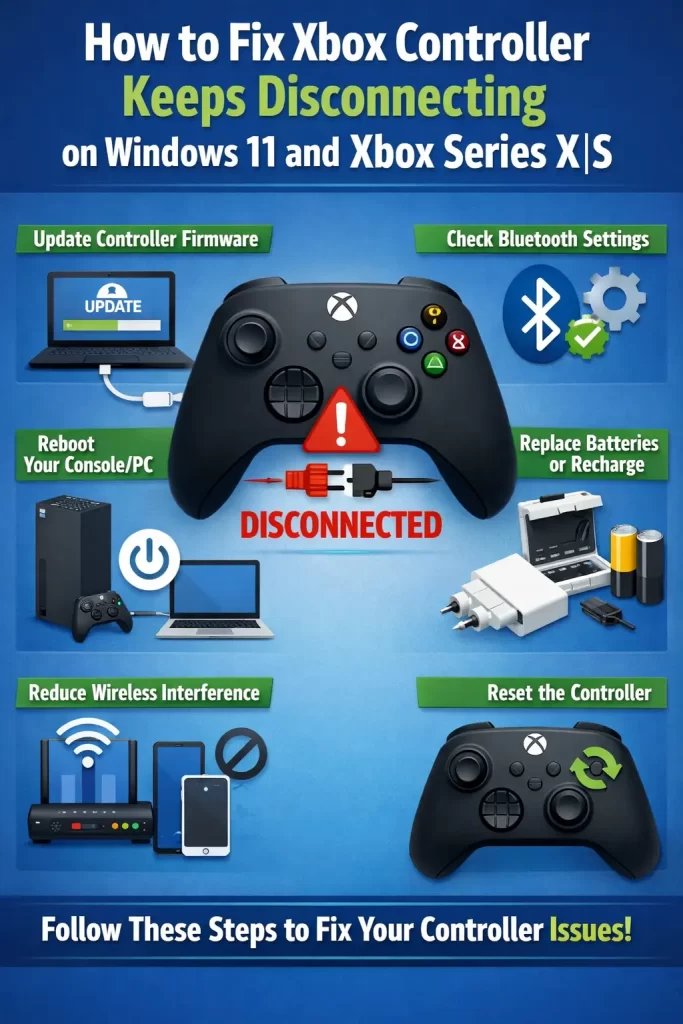
Swap in a fresh set of batteries (or a fully charged rechargeable pack) before troubleshooting anything else. It sounds too obvious to matter, but a decent chunk of “random” disconnects trace back to this, and it costs you nothing to check.
Step 2: Fix USB Power Management (Windows 11 Only)
- Open Device Manager
- Expand “Bluetooth” (or “Xbox Peripherals” if you’re using the wireless adapter) and find your controller or the adapter itself
- Right-click → Properties → Power Management tab
- Uncheck “Allow the computer to turn off this device to save power”
- Repeat for any USB Root Hub entries under “Universal Serial Bus controllers” if you’re using the wireless adapter, since power management can apply at the hub level too
This single fix resolves a surprisingly large share of PC-side disconnects, and it’s the fix that worked for me, more on that below.
Step 3: Move the Adapter or Console Away From Interference Sources
Physically relocate your Wi-Fi router, wireless mouse dongle, or any other 2.4GHz device away from your Xbox Wireless Adapter or console. Even a foot or two of extra distance can make a measurable difference. A USB extension cable to bring the adapter closer to you (and further from your PC’s rear ports, which are often shielded by the case itself) helps more than people expect.
Step 4: Update Controller Firmware
On PC: Open the Xbox Accessories app, select your controller, and check for a firmware update under the device settings. It won’t always prompt you automatically.
On console: Go to Settings → Devices & connections → Accessories, select your controller, and check for updates from there.
Step 5: Try a Direct Wired Connection to Isolate the Problem
Connect the controller via USB-C cable temporarily. If disconnects stop completely, you’ve confirmed it’s a wireless-layer issue (interference, power management, or Bluetooth stack problems) rather than a hardware fault in the controller itself.
What Actually Worked For Me
I assumed mine was a hardware problem at first, since the controller was maybe two years old at that point, and I’d already been through one battery pack replacement. I tried the obvious stuff — new batteries, re-pairing the controller, moving my router — and got maybe a slight improvement, but the drops kept happening every 10 or 15 minutes.
The actual fix turned out to be the USB power management setting, which I only found because I was troubleshooting an unrelated USB headset issue and stumbled onto the same Device Manager tab. I hadn’t even connected the two problems — I went in looking for a totally different fix and found this one by accident. Unchecked “allow the computer to turn off this device,” and the disconnects just stopped, completely, that same session. In hindsight it makes sense — Windows 11 is more aggressive about USB power saving than previous versions, and I’d upgraded from Windows 10 not long before the problem started, which I hadn’t connected at the time either.
Advanced Fixes and Edge Cases
Checking Event Viewer for disconnect patterns. On PC, Windows Event Viewer (under Windows Logs → System) will log Bluetooth or USB disconnect events with timestamps. If you see a consistent pattern — say, disconnects exactly every 10 minutes — that’s a strong signal it’s power management or a scheduled task rather than random interference, which tends to be irregular.
Wireless adapter driver conflicts. If you’re running third-party Bluetooth management software (some motherboard manufacturers bundle their own), it can conflict with the Xbox Wireless Adapter’s driver stack. Try disabling third-party Bluetooth utilities temporarily and let Windows manage the adapter natively to see if stability improves.
Console-side network congestion from other devices. On Xbox Series X|S, if you’ve got a lot of other 2.4GHz devices actively transmitting near the console — smart home hubs, other consoles’ controllers, etc. — try a factory reset of just the controller pairing (hold the Xbox button + View button for a few seconds) and re-pair fresh, since accumulated pairing data across many devices can occasionally cause connection instability.
USB hub or extension cable quality on PC. Cheap or poorly shielded USB extension cables and hubs can introduce enough signal degradation to cause intermittent Bluetooth/wireless adapter drops, especially in setups with a lot of other USB devices nearby. Not the most common cause, but worth ruling out if you’ve tried everything else.
Prevention Tips
- Disable USB selective suspend for your controller or wireless adapter right after any fresh Windows install or major update — it resets easily
- Keep controller firmware updated proactively rather than waiting for problems to start
- Position your Xbox Wireless Adapter with some physical distance from routers and other wireless peripherals from the start
- Replace rechargeable battery packs every year or two even if they still technically hold a charge — degraded capacity causes instability before it causes total failure
FAQ
Does using a wireless adapter work better than Bluetooth for PC gaming? Generally yes — the Xbox Wireless protocol used by the adapter is more stable and lower-latency than standard Bluetooth, which is really designed more for audio devices than fast input polling.
Why does my controller only disconnect during intense gameplay moments? This points toward interference or power management rather than battery, since heavy input activity shouldn’t itself cause a drop — it’s more likely other background system activity ramping up around the same time.
Can a bad USB port cause wireless adapter disconnects? Yes, especially rear-panel ports on some motherboards that have weaker power delivery or worse shielding. Try a different port, ideally a rear I/O port directly on the motherboard rather than a front panel header.
Is this more common with third-party controllers than official Xbox ones? Not necessarily more common, but third-party controllers sometimes have less consistent firmware update support, which can make firmware-related disconnect causes harder to rule out.
Should I just buy a new controller if none of this works? If you’ve ruled out battery, power management, interference, and firmware, and it’s still happening consistently, that’s a reasonable point to suspect actual hardware failure in the controller’s wireless module — not something you can fix at home.
Editor’s Opinion
the usb power managment thing is one of those fixes that feels almost too dumb to be the actual answer but it really is the culprit more often then not on windows 11 specifically. check that before you blame the controller or buy anything new, it costs you two minutes and it fixed mine completely after weeks of random dropouts.
