If you’ve just installed the May 2026 update for Windows 11, you might be feeling a bit overwhelmed. Between the rebranding of AI tools, the new gaming features, and the looming security deadlines in June, there’s a lot to configure.
A “stock” installation of Windows is rarely optimized for what you actually do. Whether you’re a hardcore gamer, a privacy-conscious professional, or someone who just wants their laptop battery to last longer, this guide will walk you through the essential steps to make Windows 11 work for you.
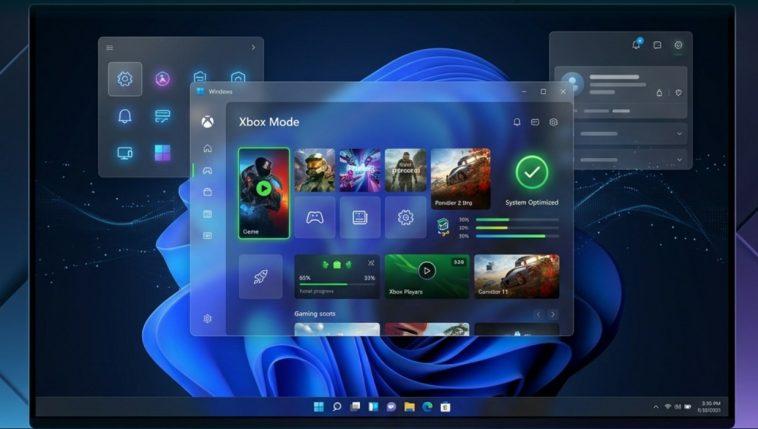
Phase 1: How to Enable and Customize “Xbox Mode”
For the first time, Windows 11 has a native way to turn your PC into a console-like experience. This is a must-have for handheld users and couch gamers.
How to set it up:
- Open Settings: Press
Win + I. - Navigate to Gaming: Select the “Gaming” tab on the left sidebar.
- Toggle Xbox Mode: You will see a new option called “Xbox Shell Interface.” Switch this to On.
- Configure the Launch: You can choose to have Windows boot directly into Xbox Mode. This is ideal if you have a dedicated “living room” PC.
- Performance Tuning: Under the Xbox Mode settings, ensure “Background Resource Suspension” is enabled. This will “freeze” apps like Chrome or Teams while you’re in a game, giving all your CPU/GPU power to the frame rate.
Pro Tip: If you’re using a controller, press the Xbox button (or the Home button) twice to quickly toggle between your standard desktop and the Xbox Mode UI.
Phase 2: Reclaiming Your Privacy (The AI “Kill Switches”)
Microsoft’s AI features like “Recall” and “Copilot Vision” can be helpful, but many users find them intrusive. In the 2026 update, Microsoft finally gave us the tools to shut them down completely.
How to disable AI tracking:
- Go to Privacy & Security: In the Settings menu, click on “Privacy & Security.”
- Find “Intelligent Features”: Scroll down to the new “AI & Interaction” section.
- The Master Kill Switch: Look for “Global AI Consent.” Turning this Off will disable the system-level permissions for Copilot to “see” your screen or “remember” your actions.
- Cleaning the Cache: If you’ve used Recall in the past, click on “Delete All Snapshots” to wipe the local AI database from your hard drive.
Why do this? Beyond privacy, disabling these features can save up to 1GB of RAM and reduce background disk usage, which is a massive win for older laptops.
Phase 3: How to Speed Up the “New” File Explorer
Even with the May 2026 speed patches, the File Explorer can still feel “heavy.” Here is how to strip it down for maximum velocity.
The Optimization Steps:
- Open File Explorer Options: Click the three dots
...in any folder and select “Options.” - Privacy Settings: Uncheck “Show recently used files” and “Show frequently used folders.” This prevents Windows from scanning your drive every time you open a window.
- Launch to “This PC”: Change the “Open File Explorer to” setting from “Home” to “This PC.” It loads significantly faster because it doesn’t have to fetch cloud data from OneDrive.
- Disable Web Search: (Advanced) If you find the search bar in File Explorer is slow, it’s often because it’s trying to search the web via Bing. You can disable this by going to
Settings > Search > Permissionsand turning off “Cloud Content Search.”
Phase 4: Preparing for the June 2026 Secure Boot Update
This is the most critical “How-To” for this month. If your PC isn’t prepared for the June certificate expiration, you might run into boot errors.
How to check your status:
- System Information: Press
Win + R, typemsinfo32, and hit Enter. - Check BIOS Mode: Ensure “BIOS Mode” says UEFI and “Secure Boot State” says On. If these are off, you need to enable them in your BIOS/UEFI menu (usually by hitting F2 or Del during startup).
- Update Windows: Go to
Settings > Windows Updateand click “Check for updates.” Look for any “Optional Updates” that mention “DBX Variable Update” or “Secure Boot Revocation.” - Firmware Updates: If you have a pre-built PC (like a Surface, Dell, or Lenovo), open their dedicated update app (e.g., “Dell SupportAssist”) and check for “BIOS/Firmware” updates specifically.
Phase 5: How to Use the New “Writing Tools” in Notepad
Notepad isn’t just for quick notes anymore. The rebranded Copilot features make it a powerful drafting tool.
How to use them effectively:
- Highlight Text: Open any text file and highlight a paragraph.
- Right-Click “Writing Tools”: You will see options like Summarize, Rewrite, and Change Tone.
- Local vs. Cloud: In the settings of Notepad, you can choose “Local Processing.” If your PC has an NPU (Neural Processing Unit), Notepad will do the rewriting on your device without sending your data to the cloud.
- Formatting: Use the “Auto-Markdown” feature to instantly convert plain text into a structured document with headers and lists.
Phase 6: Boosting Battery Life on Snapdragon & Intel Chips
With the 2026 update, the “Power & Battery” settings have been overhauled to give you more control over the “Efficiency Cores” on your processor.
The Battery Workflow:
- Battery Saver 2.0: Set your “Energy Saver” to turn on at 30% instead of 20%.
- App Resource Limits: Go to
System > Power & Battery > Battery Usage. Identify “Energy Hogs.” Click the three dots next to them and select “Manage Background Activity” to set them to “Power Optimized.” - Dynamic Refresh Rate: If you have a high-refresh-rate screen (120Hz+), make sure “Dynamic” is selected under
Display > Advanced Display. This allows Windows to drop to 60Hz when you’re just reading text, saving a huge amount of power.
Conclusion: Your PC, Your Rules
The May 2026 update is all about choice. For the first time in a long time, Microsoft is giving us the “keys” to the OS again. By taking 15 minutes to follow this guide, you can transform Windows 11 from a “service-heavy” platform into a lean, mean, gaming and productivity machine.
Don’t forget to restart! Many of these changes (especially the Xbox Mode and BIOS updates) require a full system reboot to take effect.
