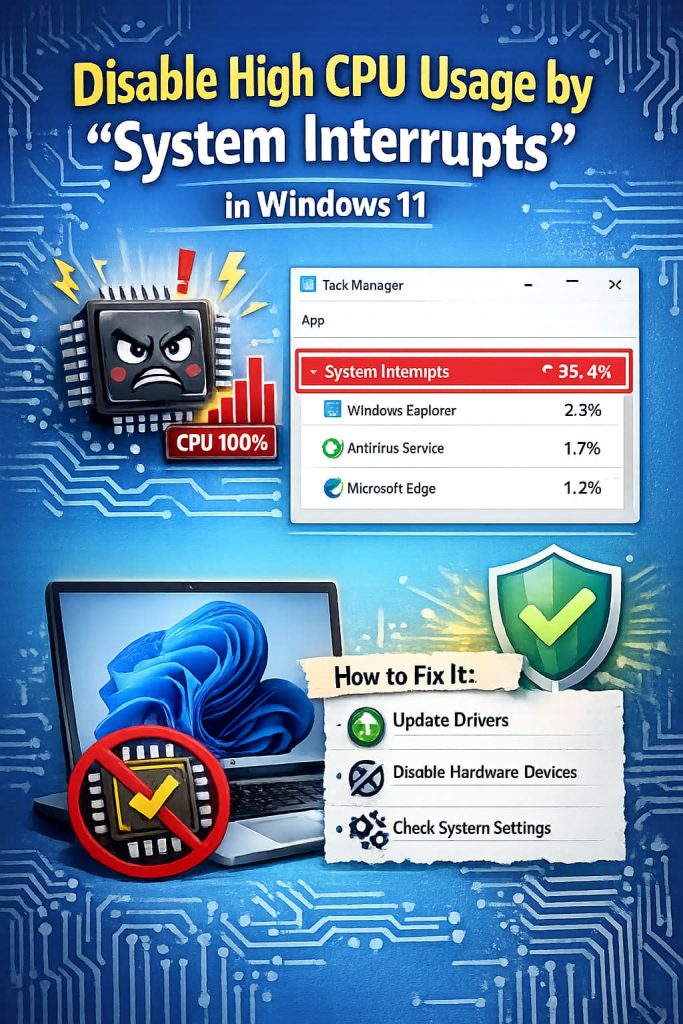
You can’t actually disable “System Interrupts” — it’s not a real process, it’s a placeholder Task Manager uses to represent hardware interrupt handling. But if it’s sitting at 15-30% CPU usage or higher, that’s a genuine symptom pointing to a real driver or hardware problem underneath it. I chased this one down on my own desktop a while back, and the actual cause had nothing to do with what I initially suspected.
Quick Answer
- System Interrupts can’t be disabled or ended in Task Manager — it represents CPU time spent handling hardware interrupts, not a killable process
- High usage almost always traces back to a specific faulty or outdated driver, not the interrupts process itself
- USB devices, audio drivers, and network adapters are the most common culprits
- Driver Verifier and Event Viewer are the two most reliable diagnostic tools for pinpointing which driver is responsible
- A small baseline (1-3%) is completely normal; anything sustained above 5-10% deserves investigation
Why System Interrupts Shows High CPU Usage
System Interrupts represents the cumulative CPU time spent servicing hardware interrupt requests (IRQs) — every time a piece of hardware needs the CPU’s attention (a mouse click, a network packet arriving, an audio buffer needing to be filled), it triggers an interrupt. Normally, this adds up to almost nothing. When it spikes, something’s generating way more interrupts than it should, or handling them inefficiently.
1. A malfunctioning or outdated driver stuck in an interrupt loop. This is the most common cause. A driver bug can cause a device to repeatedly signal the CPU even when nothing meaningful is happening, and Task Manager attributes that overhead to System Interrupts since it’s not tied to a specific user-mode process.
2. USB device conflicts, especially with cheap or poorly-made peripherals. USB hubs, webcams, and some wireless mice/keyboards are frequent offenders. A device with a flaky driver or a marginal hardware connection can flood the system with interrupt requests, particularly if it’s intermittently losing and re-establishing connection.
3. Audio driver issues, particularly with certain Realtek or third-party audio chipsets. This has been a long-running, semi-notorious cause across multiple Windows versions. Certain audio driver versions cause excessive interrupt activity, especially when combined with specific USB audio devices or Bluetooth audio.
4. Network adapter driver problems, especially with some Wi-Fi chipsets after a Windows update. A driver that hasn’t been updated to match a recent Windows 11 feature update can start misbehaving in ways that specifically manifest as interrupt overhead rather than a more obvious network failure.
There’s a less common but real cause worth knowing: BIOS/firmware-level power management settings (specifically things like C-State configuration) can occasionally cause interrupt storms on certain motherboard chipsets, which is a firmware issue rather than a Windows driver issue at all.
Common Scenarios
- Right after a fresh Windows 11 install — often points to a generic Microsoft driver being used instead of the manufacturer’s proper driver for network or audio hardware
- After plugging in a new USB device — points pretty directly at that specific device or its driver
- Laptops specifically, more than desktops — often tied to touchpad drivers or power management chipsets unique to laptop hardware
- After a Windows Update — frequently a driver compatibility gap that resolves once the hardware manufacturer releases an updated driver
Step-by-Step Diagnosis and Fix
Step 1: Confirm It’s Actually a Problem, Not Just Normal Fluctuation
Open Task Manager, sort by CPU, and watch System Interrupts for a few minutes during normal use. Brief spikes to 5-10% during heavy disk or network activity are normal. Sustained usage above that, especially when the system is otherwise idle, is the real signal.
Step 2: Isolate USB Devices First
Unplug every non-essential USB device — external drives, webcams, secondary mice, hubs — leaving only your primary keyboard and mouse. Watch System Interrupts for a few minutes. If it drops, plug devices back in one at a time until it spikes again, which identifies the specific culprit.
Step 3: Update Chipset, Audio, and Network Drivers Directly From the Manufacturer
Don’t rely solely on Windows Update for this — go to your motherboard or laptop manufacturer’s support page and download the current chipset, audio, and network drivers directly. Windows Update drivers are sometimes generic and not the actual cause of the fix, even when they’re technically “up to date” according to Windows.
Step 4: Check Audio Enhancements and Exclusive Mode Settings
Right-click the speaker icon → Sound settings → find your output device → disable any audio enhancements. Some audio enhancement features (especially third-party ones bundled with certain motherboards) are known contributors to interrupt overhead.
Step 5: Update or Roll Back the Most Recent Driver Change
If the problem started right after a specific driver update, roll it back: Device Manager → find the device → Properties → Driver tab → “Roll Back Driver” if the option’s available. If it’s not available, that means Windows didn’t keep the previous driver package, and you’ll need to reinstall an older version manually from the manufacturer’s site instead.
What Actually Worked For Me
My first guess was a USB peripheral, since that’s the most commonly cited cause online, and I have a fairly cluttered USB setup with a hub, a webcam, and a couple of other accessories. Unplugged everything down to just keyboard and mouse, and System Interrupts was still sitting around 12-15%, so that ruled out USB pretty quickly, which was a little annoying since I was hoping for an easy answer.
Checked Device Manager for anything with a warning icon, nothing obvious. So I went digging in Event Viewer, filtering for Kernel-Power and Kernel-PnP events around the same timeframe, and noticed a pattern of repeated warnings tied to my network adapter driver, which I hadn’t touched or updated recently and honestly wouldn’t have suspected. Downloaded the current driver directly from the network card manufacturer’s website instead of relying on the generic one Windows Update had installed, and System Interrupts dropped back down to a baseline 1-2% almost immediately after reinstalling. Not the cause I expected going in, and I probably would’ve spent a lot longer on this if I hadn’t checked Event Viewer specifically.
Advanced Fixes and Edge Cases
Using Driver Verifier to force-crash a suspect driver for analysis. This is a genuinely advanced step and can cause blue screens intentionally, so only use it if you’re comfortable troubleshooting afterward. Run verifier.exe, select specific unsigned or suspect drivers, and reboot — if a driver is misbehaving badly enough, Driver Verifier will often force a crash that names the exact driver file in the resulting BSOD, which is far more definitive than guessing.
Checking IRQ sharing conflicts in Device Manager. Under Device Manager → View → “Resources by connection,” you can see which devices share the same IRQ. In rare cases, especially on older hardware or certain BIOS configurations, two unrelated devices sharing an IRQ can cause interrupt overhead that looks like it’s coming from one device when it’s really a conflict between two.
BIOS/UEFI power management settings. For desktop PCs, checking BIOS settings related to C-States, ASPM (Active State Power Management), and PCIe power saving can help in cases where the issue is firmware-level rather than a Windows driver problem. Disabling aggressive PCIe power management specifically has resolved this for some users with certain motherboard chipsets, though it comes with a minor power consumption tradeoff.
Checking for malware as a last resort. Not the most common cause by any means, but certain malware types can generate abnormal hardware polling behavior. If you’ve ruled out drivers and hardware entirely, a full scan with Windows Defender or a dedicated scanner is worth doing before assuming it’s an unfixable hardware issue.
Prevention Tips
- Get driver updates directly from hardware manufacturers rather than relying solely on Windows Update, especially for audio, network, and chipset drivers
- Avoid installing unnecessary bundled software from device manufacturers (extra audio “enhancement” suites, for example) that sometimes introduce more overhead than they’re worth
- Check Event Viewer periodically if you notice performance dips, rather than waiting until it becomes a serious problem
- Keep BIOS/UEFI firmware reasonably current, since chipset-level bugs affecting power management do get patched over time
FAQ
Can I just end the System Interrupts process in Task Manager? No, there’s no option to end it because it’s not an actual process — it’s a virtual representation of interrupt handling time, and Windows won’t let you terminate it.
Is a small percentage of System Interrupts usage always fine? Yes, 1-3% baseline is completely normal and expected on basically any Windows system. It’s sustained high usage, especially at idle, that indicates a real problem.
Does reinstalling Windows fix this permanently? It can temporarily, since a fresh install often defaults back to generic drivers, but if the same third-party driver gets reinstalled afterward, the problem usually comes right back.
Why did this start right after a Windows Update and not before? Windows Updates sometimes replace manufacturer-specific drivers with generic Microsoft ones, or push a driver update that’s incompatible with your specific hardware revision — checking Device Manager driver dates against the timing of your update issue usually confirms this.
Is this more common on laptops or desktops? Laptops see it slightly more often in practice, mostly because of touchpad and integrated power management drivers, but desktops aren’t immune, especially with certain motherboard audio chipsets.
Editor’s Opinion
people always assume its a usb device first since thats what most forum posts say, but honestly check event viewer earlier then i did, it’ll point you at the actual driver way faster then unplugging stuff one at a time. saved me a bunch of guessing once i actually looked there instead of last.
