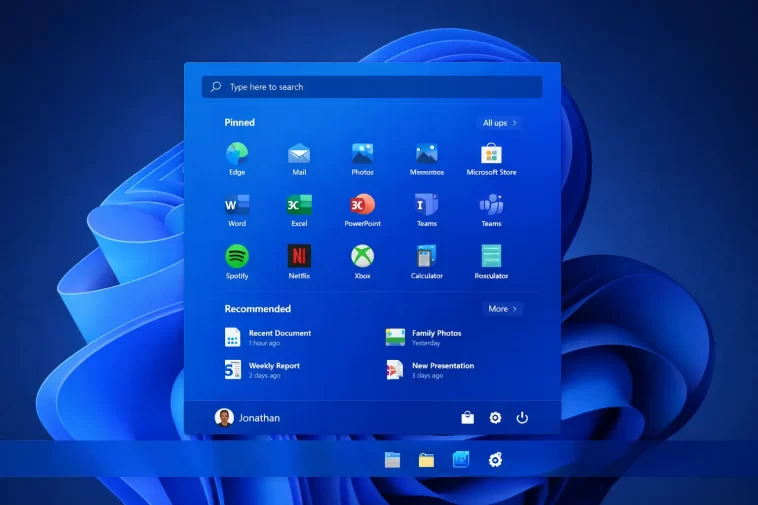
Changing the Start menu color in Windows 11 isn’t as obvious as it should be — the option is buried inside the Personalization settings, and there’s a specific toggle you have to enable before the accent color actually applies to the Start menu and taskbar. A lot of people enable an accent color and wonder why nothing changed. Here’s exactly how it works.
Quick Answer
- Right-click desktop → Personalize
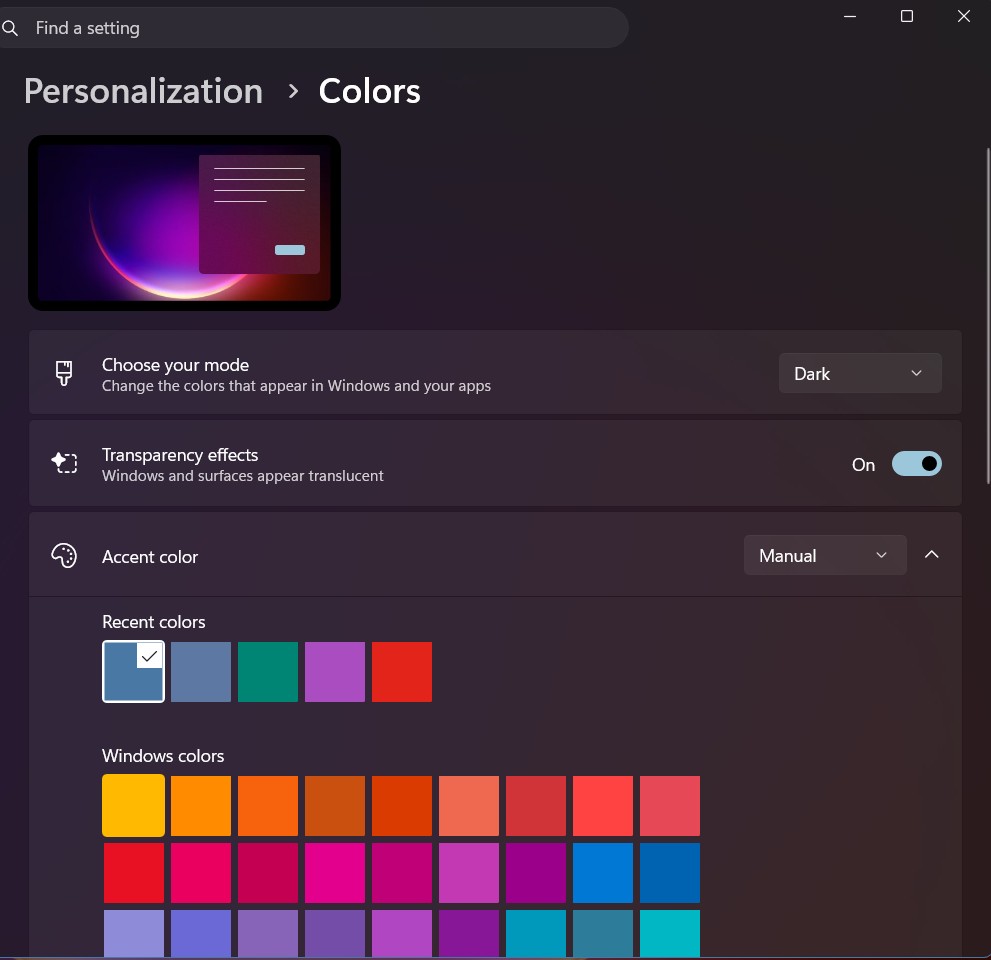
- Go to Colors
- Set Choose your mode to Dark (accent color on Start requires Dark or Custom mode)
- Pick an accent color (manual or automatic)
- Enable Show accent color on Start and taskbar
That last toggle is what most people miss.
Why the Color Doesn’t Change After You Pick One
This is the thing that trips up almost everyone. You go into Personalization, you pick a nice accent color, and… the Start menu stays black or white. Nothing changes.
The reason: the “Show accent color on Start and taskbar” toggle is off by default. And — this is the part that’s genuinely annoying — that toggle is completely grayed out if your system is set to Light mode. You can only apply accent colors to the Start menu and taskbar when you’re using Dark mode or a Custom mode with Dark window colors.
Microsoft’s reasoning, as far as I can tell, is that accent colors on a light background look messy. Maybe. But it means that if you’re a Light mode user, your Start menu color options are basically: white, or white. You can’t change it through any built-in setting.
Step-by-Step: Change the Start Menu Color
Step 1: Open Personalization Settings
Right-click anywhere on the desktop and select Personalize. Or press Win + I to open Settings, then go to Personalization.
Step 2: Go to Colors
Click Colors in the Personalization menu. This is where all the accent color and mode settings live.
Step 3: Set Your Mode
At the top you’ll see Choose your mode with three options: Light, Dark, Custom.
- If you want to keep Light mode for apps but still get a colored Start menu and taskbar, select Custom — it lets you independently set the mode for Windows (Start menu, taskbar, etc.) and for apps.
- Set “Choose your default Windows mode” to Dark.
- Your app mode can stay Light if you prefer.
Step 4: Pick an Accent Color
Scroll down to the Accent color section. Two options:
- Automatic — Windows picks a color from your current wallpaper. It updates automatically when you change your background. From what I’ve seen, the automatic color tends to pick something muted rather than vivid — your mileage may vary.
- Manual — choose from the color grid, or click View colors for a full color picker with hex code input.
If you want a very specific color, click View colors, then click the + button to open the custom color picker. You can enter a hex code directly. This is the only way to get an exact match to a brand color or a specific shade.
Step 5: Enable the Toggle
Scroll down past the color picker to find “Show accent color on Start and taskbar.” Toggle it on.
The Start menu and taskbar will update immediately. No restart required.
What You Can and Can’t Change
It’s worth being clear about what this setting actually controls, because Windows 11 limits it more than you might expect.
What changes:
- The Start menu background color
- The taskbar background color
- Certain UI elements like the search bar highlight
What doesn’t change:
- The color of individual Start menu tiles or app icons
- The color of the Start button itself (it’s always white or black depending on mode)
- Window title bar colors (controlled separately — see below)
- The color of right-click context menus
So the Start menu becomes the accent color as a solid background, and everything else stays the same. It’s a fairly blunt tool.
Also: Changing Window Title Bar Color
If you want app windows to show your accent color in their title bars, that’s a separate toggle.
In Settings → Personalization → Colors, scroll down and look for “Show accent color on title bars and window borders.” Toggle it on.
This works independently of the Start menu color setting. You can have a colored taskbar without colored title bars, or vice versa.
Custom Colors via Hex Code
The built-in color grid only has around 48 preset colors. If none of them match what you want, here’s how to get a specific shade:
- In Personalization → Colors, under Accent color, click View colors
- Click the + button (Custom color)
- In the dialog that opens, you’ll see fields for RGB values and a hex input field
- Enter your hex code (without the
#) and press Enter - Click Done
The custom color will appear as the selected accent color and apply to the Start menu and taskbar. One thing I noticed: very light colors tend to look washed out on the taskbar and can make white icons hard to see. Dark or saturated colors tend to work better.
What Actually Worked For Me
I was helping someone set up a new laptop and they wanted the Start menu to match a specific shade of blue from their company branding. We went into Colors, picked the closest preset, toggled the option on — looked fine. Then they asked if we could get the exact hex code in there.
Turns out the View colors → + (custom color) path isn’t obvious at all. The button is small and easy to miss. We found it after clicking around for a minute. Once we entered the hex code, it applied perfectly. The title bar toggle was a bonus — they didn’t know it existed.
Light Mode Users: Your Options Are Limited
If you don’t want to switch to Dark mode at all, the built-in options basically stop here. The Start menu in Light mode is white, and there’s no supported way to change that through Settings.
That said, if you’re okay with third-party tools, StartAllBack and ExplorerPatcher are two apps that give you more control over the Start menu appearance — including color options in Light mode. Both require some setup and there’s a small compatibility risk with Windows updates, but they’re reasonably well-maintained. Not 100% sure how they behave on every system, so test before committing.
Common Problems
The “Show accent color on Start and taskbar” toggle is grayed out
You’re in Light mode. Switch to Dark mode (or Custom mode with Windows mode set to Dark) and the toggle will become available.
I changed the accent color but the taskbar is still black
Double-check the toggle mentioned above — it’s off by default and easy to miss. Also make sure you’re not in Light mode.
The automatic color looks wrong or keeps changing
Automatic color pulls from your wallpaper. If your wallpaper changes (slideshow mode or a dynamic wallpaper), the accent color updates with it. Switch to manual if you want it stable.
The hex code I entered looks slightly different on screen
Windows may round or adjust certain hex values slightly depending on your display’s color profile. HDR displays in particular can look different. Not a bug exactly — just how color rendering works. Your mileage may vary.
Comparison: Start Menu Color Options
| Method | Works in Light Mode? | Exact Color? | Requires Third-Party App? |
|---|---|---|---|
| Accent color (preset) | No | No | No |
| Accent color (custom hex) | No | Yes | No |
| Automatic from wallpaper | No | No | No |
| StartAllBack / ExplorerPatcher | Yes | Yes | Yes |
FAQ
Can I make the Start menu a completely different color from the taskbar? No, not through built-in settings. The accent color applies to both simultaneously. If you want them independent, you’d need a third-party tool.
Does changing the Start menu color affect performance? No. It’s purely cosmetic. No impact on RAM, CPU, or battery.
Why is the toggle grayed out on my PC? You’re in Light mode. The accent color on Start and taskbar feature only works in Dark mode or Custom mode with Dark Windows mode selected.
Can I make the Start menu transparent instead of a solid color? Sort of. Windows 11 has a transparency effect toggle in Settings → Personalization → Colors → “Transparency effects.” It adds a slight blur/transparency to the Start menu and taskbar, but it applies on top of whatever accent color (or dark background) is set. It doesn’t make it fully transparent.
Will this change reset after a Windows update? It shouldn’t. Personalization settings persist through normal Windows updates. But major feature updates (like going from 23H2 to 24H2) have occasionally reset these — not common, but worth knowing.
Can I change the Start menu color on Windows 11 Home? Yes, same steps. The Colors settings are identical across Home, Pro, and Enterprise editions.
Editor’s Opinion
Honestly this feature feels half-finished. The fact that it doesn’t work in Light mode at all is annoying — plenty of people want a colored taskbar without switching their whole UI to dark. Microsoft’s been slow to address this. The hex color picker is a nice touch but buried. For most people the presets are fine, but if you want real control, StartAllBack is worth looking into. Just know that it’s a third-party app and treat updates with a little caution.
