Taking a screenshot on Windows 11 sounds like a one-liner topic, but there are at least six different ways to do it — and they don’t all behave the same way. Some save to a file, some copy to clipboard, some open an editor, and one of them quietly fails depending on your keyboard layout. Here’s what actually works, and when to use each method.
The Quick Answer
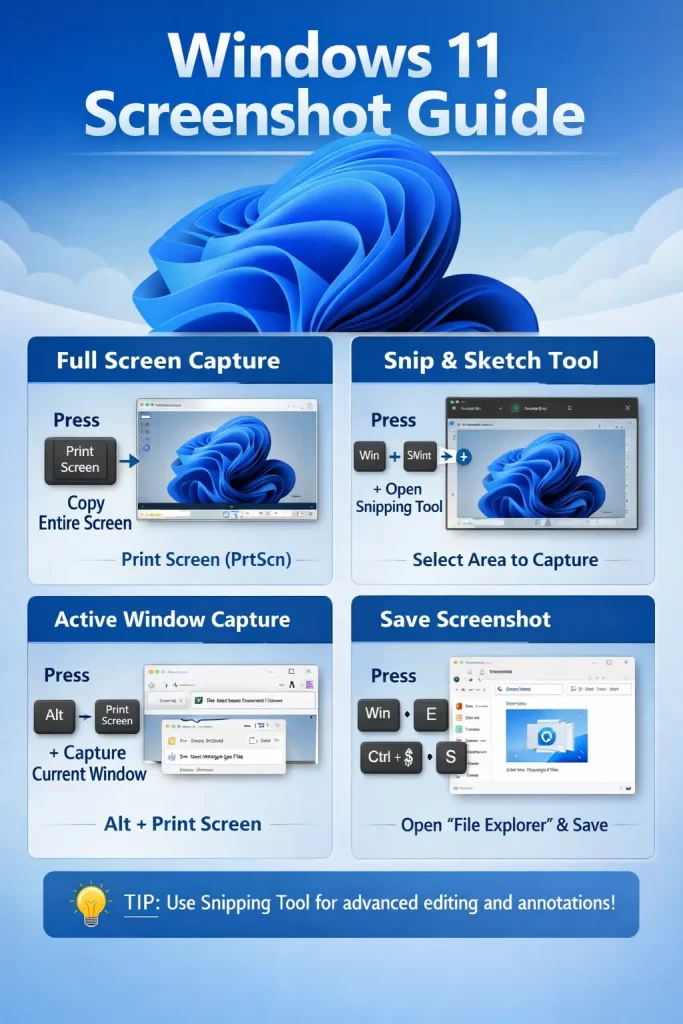
- Win + Shift + S → opens Snipping Tool overlay, lets you select a region, copies to clipboard
- PrtScn → captures full screen to clipboard (no file saved)
- Win + PrtScn → saves full screenshot directly to
Pictures > Screenshots - Alt + PrtScn → captures only the active window, copies to clipboard
- Snipping Tool app → best for delayed or annotated screenshots
- Xbox Game Bar (Win + G) → mainly for games, but captures app windows too
Why Windows Has Six Screenshot Methods in 2026
Honestly, it’s a bit of a mess — but it’s because different features were added at different times and never consolidated into one. PrtScn is ancient. The Snipping Tool replaced Snipping Tool (the old one, which was removed, then kind of brought back). Game Bar was bolted on for Xbox integration. And Win + Shift + S is the current recommended shortcut that Microsoft quietly started defaulting to in Windows 10 and kept in 11.
The result: they overlap, and each one has a different default behavior. Knowing which does what saves you from wondering why your screenshot “disappeared.”
Method 1: Win + Shift + S (The One You’ll Use Most)
Press Windows key + Shift + S and the screen dims slightly. A small toolbar appears at the top with four options:
- Rectangle — drag to select an area
- Freeform — draw any shape
- Window — click a specific window to capture it
- Full screen — grabs everything
After you select, the screenshot is copied to your clipboard. A notification pops in the bottom-right — click it to open the Snipping Tool editor where you can annotate, crop, or save.
And here’s where people get tripped up: if you don’t click that notification and dismiss it, the image is still on your clipboard. You can paste it directly into an email, Teams message, or photo editor. It doesn’t automatically save as a file anywhere.
If you want it saved, open the Snipping Tool from the notification, then hit Ctrl+S or use File > Save.
Method 2: PrtScn (Print Screen) — the Old Reliable
Press PrtScn alone and Windows copies your entire screen to the clipboard. That’s it. No notification, no file, no editor. You have to paste it somewhere yourself.
This is the method that causes the most confusion for people switching from older Windows versions — on Windows XP/7, PrtScn did the same thing, but users expected a file to appear. It doesn’t.
Win + PrtScn is the variation that actually saves a file. It captures the full screen and drops it into C:\Users\[YourName]\Pictures\Screenshots as a PNG, auto-numbered (Screenshot (1).png, Screenshot (2).png, etc.). No clipboard, no notification — it just saves.
I’ve used this one in situations where I need to capture a bunch of screens quickly without stopping to save each one. Works well for that.
Method 3: Alt + PrtScn — Active Window Only
Alt + PrtScn captures just the active window — whatever app is in focus — and puts it on the clipboard. No file, no editor, same deal as regular PrtScn.
This is underused, honestly. If you’re documenting a specific app and don’t want to crop out the rest of the screen manually, this saves a step.
One thing to be aware of: if your keyboard doesn’t have a dedicated PrtScn key (some laptops put it on a Fn layer), Alt + PrtScn might not work as expected. You may need to hold Fn + Alt + the labeled key. Your mileage may vary depending on the laptop manufacturer.
Method 4: Snipping Tool App (For More Control)
The Snipping Tool is an actual app now — search it in Start and pin it if you use it often. It’s been rebuilt in Windows 11 and is actually decent.
What it offers that shortcuts don’t:
- Delay timer — you can set a 3 or 10 second delay before capture. Useful when you need to screenshot a dropdown menu or tooltip that disappears when you press a key.
- Annotation tools — pen, highlighter, crop, before you save
- Screen recording — yes, it can record your screen too. Not just screenshots. It’s tucked behind the camera icon in the toolbar.
The delay feature alone makes it worth knowing. I’ve spent more time than I’d like to admit trying to screenshot a right-click context menu using keyboard shortcuts, only to have it close the moment I pressed Win+Shift+S. The Snipping Tool delay is the actual fix for that.
Method 5: Xbox Game Bar (Win + G)
Press Win + G and a Game Bar overlay appears. There’s a capture widget with a camera icon — click it or press Win + Alt + PrtScn to screenshot.
Screenshots taken here are saved to C:\Users\[YourName]\Videos\Captures as PNG files. And yes, Videos folder — not Pictures. That’s not a typo, that’s just where it puts them.
This method is useful if you’re already using Game Bar for recording gameplay. But for normal use, it’s slower than any of the other methods. The overlay takes a second to load, and the default save location is confusing. So from what I’ve seen, most people never use this unless they’re already in a game.
Comparison Table
| Method | Where It Saves | Full Screen | Partial | File Auto-Saved? |
|---|---|---|---|---|
| Win + Shift + S | Clipboard (+ editor) | ✓ | ✓ | No |
| PrtScn | Clipboard | ✓ | — | No |
| Win + PrtScn | Pictures > Screenshots | ✓ | — | Yes |
| Alt + PrtScn | Clipboard | Active window | — | No |
| Snipping Tool app | You choose | ✓ | ✓ | No (manual save) |
| Xbox Game Bar | Videos > Captures | ✓ | — | Yes |
What Actually Worked For Me
I used to default to PrtScn out of habit from older Windows, then paste into Paint to save. That’s… fine, but slow. When I started using Win + Shift + S properly, I kept missing screenshots because I didn’t realize nothing saves automatically until you interact with the notification.
The fix was simple: I pinned Snipping Tool to my taskbar and now use Win + Shift + S for quick clipboard grabs and the Snipping Tool directly when I need to annotate or save. That combination covers about 95% of what I need.
The one that tripped me up longest was the delay capture situation. I didn’t figure out the Snipping Tool timer trick until I saw someone mention it offhand in a Reddit thread. Before that I was doing genuinely stupid things like taking a photo of my monitor with my phone.
A Few Things People Overlook
Screenshots with HDR displays: If you’re on a monitor with HDR enabled, some screenshot methods can produce washed-out or overexposed images. Win + Shift + S tends to handle this better than Win + PrtScn in my experience, but it’s not 100% consistent. If your screenshots look wrong, try toggling HDR off temporarily.
Multiple monitors: Win + PrtScn captures all monitors combined into one wide image. If you only want one screen, Alt + PrtScn (for the active window) or Win + Shift + S with a manual selection will be more accurate.
Screenshots of the lock screen or login screen: Most of these methods won’t work before you’re logged in. You can’t screenshot the login screen from within Windows — that’s by design.
FAQ
Why does PrtScn not take a screenshot on my laptop? On many laptops, PrtScn requires the Fn key. Look for “PrtSc” or “PrSc” printed in a different color on the keyboard. Pressing Fn + that key should work. Some manufacturers also let you toggle this in BIOS or a keyboard utility app.
Where do Windows 11 screenshots save? Depends on the method. Win + PrtScn saves to Pictures > Screenshots. Game Bar saves to Videos > Captures. Win + Shift + S and plain PrtScn don’t save a file at all — they copy to clipboard only.
Can I change where screenshots are saved? Yes. Right-click the Screenshots folder in File Explorer, go to Properties > Location, and set a new path. That changes where Win + PrtScn saves. Game Bar has its own save location in Xbox Game Bar settings.
Why is my Win + Shift + S not working? A few possible reasons. First, check that notifications are enabled — if Windows notifications are fully off, the shortcut might still work but nothing visible happens. Second, Snipping Tool needs to be installed; in some stripped-down Windows images it’s missing. Check Settings > Apps and search for Snipping Tool to verify. Third, some third-party clipboard managers or screenshot tools (Lightshot, ShareX, Greenshot) override this shortcut.
Is there a way to screenshot just one window without using Alt + PrtScn? Yes. In the Win + Shift + S overlay, choose the “Window” mode (third icon in the toolbar). Then click the window you want. It captures cleanly with the window border included.
What’s the fastest way to screenshot and share on Windows 11? Win + Shift + S → select area → the image is immediately on clipboard → paste into Slack, Teams, email, or whatever. No intermediate steps required. That’s the fastest workflow from what I’ve seen.
Does Snipping Tool record audio with screen recordings? No. Snipping Tool’s screen recorder captures video only, no audio. If you need audio, Xbox Game Bar can capture system audio and microphone, or you’d need a third-party tool like OBS.
Editor’s Opinion
Honestly Windows 11’s screenshot situation is fine once you know it, but the naming is confusing — “Snipping Tool” used to be a different app, and now its replaced by… also called Snipping Tool. And the fact that PrtScn alone still doesn’t save a file in 2026 is kind of wild. Win + Shift + S is what everyone should use by default but Microsoft doesn’t really tell you that. Anyway. Once you get used to it, it works.
