My Bluetooth headphones just stopped showing up one day, no warning, no error message, just gone from the list. How to reinstall the Bluetooth driver on Windows 11 turned out to be the actual fix, and it’s a quick one once you know where to look — no need to dig through BIOS settings or mess with registry stuff for this.
Quick Answer
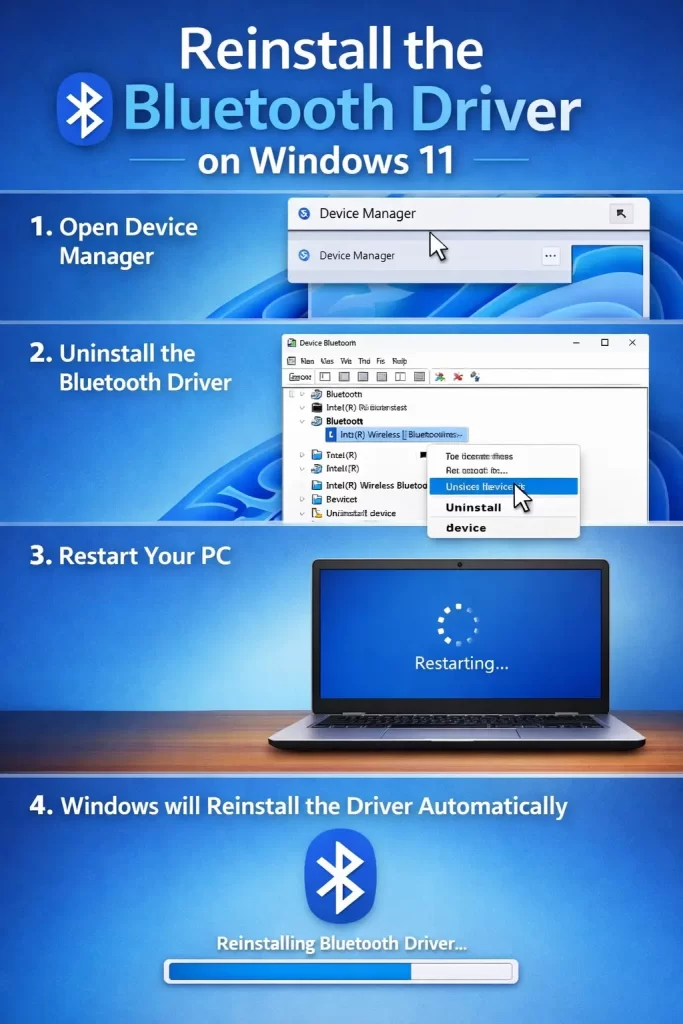
- Open Device Manager, find your Bluetooth adapter under “Bluetooth”
- Right-click it and choose Uninstall device
- Check the box for Attempt to remove the driver if it appears
- Restart your PC — Windows reinstalls the driver automatically on boot
- If that doesn’t bring Bluetooth back, grab the driver manually from your manufacturer’s site
Why You’d Need to Do This
Reinstalling the Bluetooth driver fixes a handful of different problems, and it’s worth knowing which one you’re actually dealing with before you start.
A driver that’s gotten corrupted or stuck. This happens more after Windows updates than people expect — a feature update sometimes overwrites part of the driver without fully completing the swap, leaving Bluetooth in a half-broken state where it shows up but doesn’t actually connect to anything.
Bluetooth not appearing at all. If the device vanished from Device Manager entirely, or you don’t even have a “Bluetooth” category showing up anymore, a clean reinstall is usually the fastest way to get Windows to redetect the hardware properly.
Pairing failures that started suddenly. If your devices were working fine and then just stopped pairing or kept disconnecting, that’s often a driver-level glitch rather than anything wrong with the headphones, mouse, or whatever you’re trying to connect.
Step-by-Step: Reinstalling the Bluetooth Driver
Step 1: Open Device Manager
Right-click the Start button and select Device Manager, or just search for it in the Start menu.
Step 2: Find Your Bluetooth Adapter
Expand the Bluetooth category. You’ll usually see something like “Intel Wireless Bluetooth” or “Realtek Bluetooth Adapter,” depending on your hardware. If you don’t see a Bluetooth category at all, check under Other devices — sometimes a broken driver shows up there instead, listed with a warning icon.
Step 3: Uninstall the Device
Right-click the Bluetooth adapter and choose Uninstall device. A checkbox may appear asking if you want to delete the driver software — check it if you want a fully clean reinstall, leave it unchecked if you just want to reset the current driver instance.
Step 4: Restart Your PC
This part matters — don’t skip it. Windows detects the missing driver on boot and reinstalls a fresh copy automatically. In most cases, this alone fixes the problem.
Step 5: Manually Install the Driver If It Doesn’t Auto-Reinstall
If Bluetooth still isn’t working after the restart, go to your laptop or motherboard manufacturer’s support page, search for your exact model, and download the Bluetooth driver listed there directly — not just whatever generic one Windows offers through Device Manager’s “Update driver” search. Manufacturer-specific drivers tend to be more reliable for Bluetooth than the generic Microsoft ones, especially on laptops.
What Actually Worked For Me
The first time this happened to me, I went straight to “Update driver” inside Device Manager and let Windows search automatically. It said the driver was already up to date, which obviously wasn’t true given that Bluetooth wasn’t working at all.
Full uninstall and restart fixed it instead — took about two minutes total. I’m not totally sure why “update driver” didn’t catch the issue when a straight uninstall did, but that’s just how it played out.
A Few Things Worth Knowing
If reinstalling the driver doesn’t fix it, check Settings > Bluetooth & devices and confirm Bluetooth itself is toggled on — sounds obvious, but it’s easy to accidentally switch off, especially on laptops with a physical Airplane Mode key.
Also worth a quick check: open Services (services.msc) and make sure the Bluetooth Support Service is set to running. If it’s stopped, your adapter can look fine in Device Manager but still refuse to connect to anything.
FAQ
Will I lose my paired devices after reinstalling the driver? No, your paired device list stays intact. You might need to reconnect once, but you won’t have to re-pair from scratch in most cases.
Does this work the same on a desktop with a USB Bluetooth dongle? Yes, the process is identical — just look for the dongle’s name instead of a built-in adapter in Device Manager.
What if there’s no Bluetooth option in Device Manager at all? That usually means Windows can’t detect the hardware. Check that Bluetooth is enabled in BIOS (some laptops have a separate toggle there) before assuming the hardware’s dead.
Editor’s Opinion
Honestly this is one of the easier Windows fixes out there — uninstall, restart, done, most of the time. If it doesn’t work after that, go get the driver straight from the manufacturer instead of trusting Windows to find it on its own.
