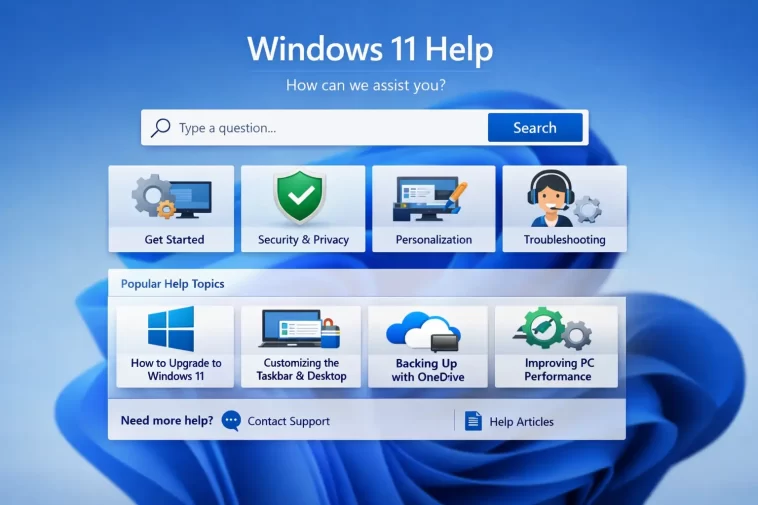
Windows 11 has more ways to get help than most people realize, and most of them are buried or weirdly labeled. If you’ve typed “how to get help in Windows 11” into a search bar, you’ve probably already tried pressing F1 and gotten nothing useful — or worse, a browser tab opened instead of anything relevant. Here’s what actually works, and when to use each option.
The Quick Answer
- F1 — opens the Get Help app or a browser search, depending on where you press it
- Get Help app — Microsoft’s built-in support tool with AI assistant and human chat
- Windows Search (Win + S) — fastest way to find settings and features
- Settings → [any page] → Learn More — context-sensitive Microsoft docs
- Feedback Hub — for reporting bugs, not getting immediate help
- Microsoft Support website — most complete resource, opens in browser
- Quick Assist — remote help from another person on your PC
F1: The Key That Mostly Doesn’t Work
Let’s get this out of the way. F1 is the universal “help” key going back decades, and in Windows 11 it’s… inconsistent.
Press F1 on the desktop and Windows opens the Get Help app. Press it inside most Microsoft apps like File Explorer or Settings and you’ll get a browser tab pointing to Microsoft’s support docs. Press it inside a third-party app and it either does nothing or opens that app’s own help system.
So F1 isn’t broken, it’s just context-dependent in ways that aren’t obvious. Don’t rely on it as a consistent entry point.
The Get Help App
This is Microsoft’s primary built-in support tool. You can open it a few ways:
- Press Win + S, type Get Help, press Enter
- Press F1 on the desktop
- Go to Settings → scroll to the bottom → click Get Help
The app has changed a fair bit over time. As of 2026 it’s essentially a chat interface — you type your problem and an AI assistant tries to answer it or walk you through a fix. If that doesn’t resolve it, there’s an option to connect to a Microsoft support agent (a real person) via chat or phone callback.
From what I’ve seen, the AI side of it is decent for common issues — things like “my printer isn’t showing up” or “how do I reset my PIN.” It pulls from Microsoft’s support database and often links you directly to the relevant Settings page. For anything obscure or hardware-specific, it tends to give generic answers and you’ll want to escalate to a human agent.
One thing that trips people up: the Get Help app requires an internet connection. If you’re trying to get help because your network is down, this is obviously useless. Keep that in mind.
Windows Search: Underused for Help
Win + S isn’t just for launching apps — it’s also surprisingly good for finding settings you can’t locate through the normal Settings hierarchy.
Type something like “Bluetooth,” “notifications,” or “display resolution” and Windows Search returns direct links to the relevant Settings pages. This is faster than digging through Settings manually, and honestly the approach I default to before trying anything else.
And if you type a question — like “why is my battery draining fast” — it’ll sometimes surface a direct link to the Get Help app with that query pre-filled. Not always reliable, but worth trying.
Settings → Help Links
Inside almost every page in the Windows 11 Settings app, there’s a Learn More or Get Help link, usually at the bottom or in a small sidebar. These are context-sensitive — they take you to the Microsoft documentation specific to whatever setting you’re looking at.
For example:
- Settings → System → Display → scroll down → “Learn more about display settings”
- Settings → Windows Update → “Get help with Windows Update”
- Settings → Troubleshoot → “Get help” shows relevant online resources
This is one of the more underrated ways to get accurate help because the link goes directly to the relevant page instead of a generic search. Worth checking before you start Googling.
Built-In Troubleshooters
Windows 11 has a bunch of automated troubleshooters that diagnose and sometimes fix common problems. They’re not magic — from what I’ve seen they solve maybe 40% of issues they’re designed for — but they’re worth running before going deeper.
To access them:
- Open Settings
- Go to System → Troubleshoot
- Select Other troubleshooters
You’ll see a list including:
- Internet Connections
- Playing Audio
- Printer
- Bluetooth
- Windows Update
- Camera
- Keyboard
Click Run next to the relevant one. The troubleshooter scans for the issue, reports what it finds, and tries to apply a fix. Sometimes it’ll tell you exactly what’s wrong even if it can’t fix it automatically — which is useful as a diagnostic even when the fix itself fails.
There’s also a separate Windows Update troubleshooter under Settings → Windows Update → Troubleshoot, which is worth running specifically for update-related failures.
Quick Assist: Remote Help from Someone You Trust
Quick Assist lets someone else remotely view or control your PC to help you fix a problem. It’s built into Windows 11 — no third-party software needed.
To open it:
- Press Win + S, type Quick Assist, open the app
- Or go to Start → All Apps → Quick Assist
There are two roles:
- Give assistance — the helper enters a 6-digit code so you can connect to their screen
- Get assistance — you share a code with the helper; they connect to your screen
The helper can either view your screen only, or request full control. You can revoke access at any time using the toolbar that appears at the top of the screen.
This is genuinely useful if you have a family member or friend who’s good with computers and willing to help remotely. It’s also what Microsoft support agents sometimes use if you escalate to a human — they’ll walk you through opening Quick Assist and share a code.
But Quick Assist also requires both sides to be connected to the internet, and Microsoft’s session relay can sometimes be slow. Your mileage may vary on connection quality.
Feedback Hub: Not Really for Getting Help
The Feedback Hub (Win + S → Feedback Hub) is for submitting bug reports and feature suggestions to Microsoft. It’s not a support tool — submitting feedback there doesn’t connect you with anyone, and you won’t get a response.
That said, it’s worth knowing about. If you’ve hit a genuine Windows bug, submitting through Feedback Hub (especially with a screen recording or diagnostic logs attached) is the right channel. Microsoft engineers actually look at high-upvote reports.
But if you need help right now, Feedback Hub isn’t the place.
Comparison: Windows 11 Help Options
| Method | Best For | Requires Internet? | Human Support? |
|---|---|---|---|
| Get Help app | Common issues, guided fixes | Yes | Yes (chat/phone) |
| Windows Search | Finding settings fast | No | No |
| Troubleshooters | Specific system problems | No (mostly) | No |
| Settings → Learn More | Documentation for a specific setting | Yes | No |
| Quick Assist | Remote help from someone you trust | Yes | Yes (human helper) |
| Feedback Hub | Bug reports | Yes | No |
| F1 | Context-dependent | Depends | No |
What Actually Worked For Me
I spent an embarrassing amount of time trying to find where Microsoft moved the “Repair” option for apps in Windows 11 — it used to be in Control Panel, and now it’s somewhere in Settings but the path is different than Windows 10. Tried F1 from the Settings screen, got a browser tab with a generic article that wasn’t quite right.
What actually found it: typed “repair apps” into Windows Search (Win + S). Came up instantly — direct link to Settings → Apps → Installed Apps, where there’s a three-dot menu next to each app with a “Repair” option. Took about 10 seconds once I stopped trying F1.
That’s the pattern I’d suggest: F1 as a first instinct, Windows Search if F1 is useless, Get Help app if you need guided troubleshooting, and Microsoft’s support site if everything else fails.
Advanced: Event Viewer and System Logs
If you’re dealing with a crash, freeze, or error you can’t reproduce, the built-in logs are often more useful than any help tool.
Event Viewer keeps a log of system events, warnings, and errors:
- Press Win + X → select Event Viewer
- Go to Windows Logs → System or Application
- Look for red Error entries around the time the problem occurred
The error messages can be cryptic, but copying the exact error code or message text into a web search is usually faster than any built-in help tool for diagnosing specific issues.
Reliability Monitor is a more accessible version of the same data:
- Win + S → type Reliability Monitor → open “View reliability history”
- Shows a timeline of events, crashes, and updates in a visual chart
- Click any event to see details
It’s one of the least-known Windows tools and genuinely useful. If something started breaking after a specific date, Reliability Monitor can usually tell you what changed on that day.
Prevention: How to Find Help Faster Next Time
A few habits that save time:
- Bookmark the Microsoft Support site (
support.microsoft.com) — it’s more complete than any in-app help system and has better search - Note your Windows version (Win + R → type
winver) before contacting support — you’ll always be asked for it - Write down exact error codes when they appear — searching the exact code is almost always faster than describing the problem in plain language
- Check Windows Update first — a lot of bugs people search for help on are already fixed in a pending update
FAQ
What is the Get Help shortcut in Windows 11? There’s no single dedicated shortcut. F1 opens the Get Help app from the desktop. From anywhere else, press Win + S and type “Get Help” — it opens in a couple of seconds. You can also pin the Get Help app to your taskbar if you use it frequently.
Can I get free support from Microsoft for Windows 11? Yes, but with limits. The Get Help app’s AI assistant is free and unlimited. Human chat support is also free for Windows issues, though wait times vary. Phone callback is free for basic Windows support but some advanced or product-specific issues may require a paid support plan.
F1 isn’t doing anything when I press it — what’s wrong? Nothing’s wrong. F1’s behavior depends entirely on which window is in focus. If you’re inside a third-party app, F1 triggers that app’s help (or does nothing). Click on the desktop first, then press F1 to open the Get Help app.
How do I contact a real person at Microsoft support? Open the Get Help app → type your issue → when the AI assistant’s suggestions don’t help, look for “Contact Support” or “Chat with an agent” at the bottom of the response. You can also go directly to support.microsoft.com and use the “Contact Us” option there.
Is Quick Assist safe to use? Yes, when used with someone you trust. But be careful — tech support scammers sometimes ask victims to open Quick Assist and hand over access. Microsoft will never cold-call you and ask for Quick Assist access. If anyone you didn’t contact first asks you to open Quick Assist, don’t do it.
What’s the fastest way to find a Windows 11 setting? Win + S, type what you’re looking for. For most settings this is faster than clicking through the Settings menus. Works for things like “Bluetooth,” “night light,” “default apps,” “startup programs,” and so on.
Windows Troubleshooter ran but didn’t fix anything — what now? Check what error or finding the troubleshooter reported — sometimes it identifies the problem even if it can’t fix it. Copy that exact message into a web search or into the Get Help app. The troubleshooter’s diagnosis is often more useful than its attempted fix.
Editor’s Opinion
The Get Help app is actually better than it used to be — the AI side is pretty decent for common stuff. But the fact that F1 does different things in different contexts is still annoying and should’ve been sorted out years ago. For most problems though, Win+S and typing what you’re looking for gets you there faster than any formal help flow. That’s probably the one thing worth remembering from all of this.
