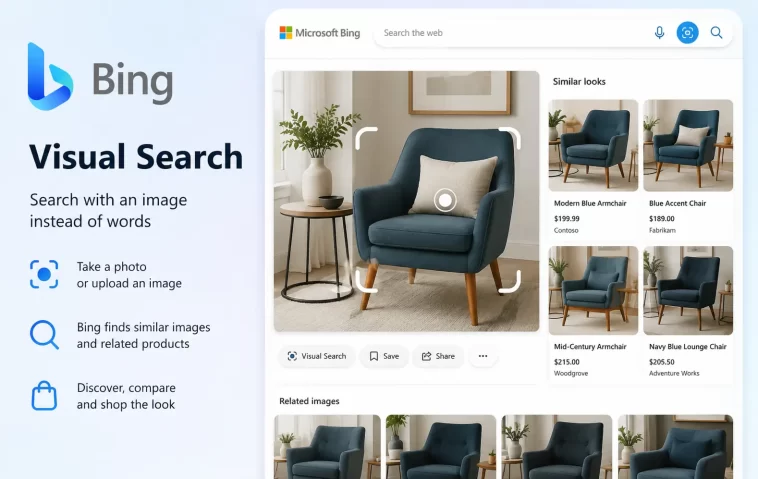
I dropped a photo into Bing Images last week hoping to find where a chair in the picture came from, and got nothing back — no results, no error, just an empty box like it never received the image. Bing Visual Search not working is apparently a lot more common than I assumed, based on how many threads about it I found once I started digging. Here’s what’s actually causing it and what got mine working again.
Before anything else: if you’re on a laptop with no webcam, some Visual Search entry points just won’t show up. That one catches people off guard more than you’d think.
Quick Answer
- Try the search again once or twice — Bing’s backend visual search service has had intermittent outages where retrying simply works
- Test in an InPrivate/Incognito window to rule out a corrupted profile or a conflicting extension
- Check the VisualSearchEnabled setting in Edge if the feature is missing entirely rather than just failing
- Disable antivirus or security software temporarily if you’re seeing a transport security error — some AV tools interfere with Bing’s connection specifically
- Confirm your device has a webcam if the camera-based visual search option isn’t appearing at all
Why It Fails
There’s no single cause for this, and that’s honestly the most frustrating part. A few different things tend to be responsible, depending on which symptom you’re actually seeing.
Backend server issues on Bing’s end. Microsoft’s own support staff have acknowledged, after testing camera capture, local image upload, URL-based image search, and text search side by side, that all of them failed to return results in the same way users were reporting — which points to a server configuration issue rather than anything wrong on the user’s machine. So sometimes this genuinely isn’t fixable from your end at all, and the honest answer is to wait it out or retry later.
Browser-level conflicts that look like a Visual Search bug but aren’t. A corrupted Edge profile, a misbehaving extension, or leftover cached data can all block the scripts Visual Search depends on without throwing any obvious error.
Security software interfering with Bing’s connection specifically. This one’s weird, but real — some users have hit an ERR_HTTP2_INADEQUATE_TRANSPORT_SECURITY error that only affects Bing, with other search engines working fine in the same browser. Disabling antivirus software made it work again for at least one person, though nobody seems to fully understand why a specific AV product would single out Bing’s connection like that.
The feature being toggled off or restricted via policy. Visual Search in Edge runs on a setting called VisualSearchEnabled, and on managed devices or after certain Edge updates, that toggle can end up off without anyone touching it directly. If Visual Search doesn’t appear at all — not “doesn’t work,” but actually missing from the right-click menu or image hover — this is usually it.
And one cause people overlook entirely: hardware. Visual Search’s camera capture mode needs an actual webcam on the device. If you’re testing this on a desktop with no camera attached, the camera-based entry point won’t show, and it’s easy to mistake that for a bug instead of a missing piece of hardware.
Step-by-Step Fixes
Step 1: Just try again
This sounds too simple to write down, but given that Microsoft’s own engineers have confirmed intermittent server-side failures, a second or third attempt resolves more cases than people expect. Don’t skip straight to resetting your browser.
Step 2: Test in InPrivate mode
Open an InPrivate window in Edge and try Visual Search there. If it works in InPrivate but not in your regular profile, the problem is a corrupted profile, cached data, or an extension — not Bing itself.
Step 3: Disable extensions one at a time, or all at once
Go to edge://extensions and disable everything temporarily. If Visual Search starts working, re-enable extensions one by one until you find the culprit.
Step 4: Update Edge and Windows fully
Go to Settings, then Windows Update, and install everything pending. In Edge, check Help & Feedback, then About Microsoft Edge, to confirm you’re on the latest version. Visual Search issues show up disproportionately often right after major Windows or Edge updates change how the feature integrates with the browser.
Step 5: Check the VisualSearchEnabled setting
In Edge, open Settings, go to Appearance, then look under “Browser behavior and features” for the Visual Search toggle. Confirm it’s set to On. On a managed or work device, this setting might be locked by IT policy, in which case you’ll need to ask whoever manages the device rather than fixing it yourself.
Step 6: Reset Edge if nothing else has worked
Go to Settings, then Reset settings, then Restore settings to their default values. This clears out a lot of accumulated cruft that can interfere with scripts Visual Search relies on, though it’ll also reset other browser preferences, so know that going in.
Step 7: Rule out security software
If you’re seeing a transport security error specifically, or Visual Search fails while everything else in the browser works fine, try temporarily disabling your antivirus and testing again. If that fixes it, check your AV software for a setting related to HTTPS scanning or connection filtering — that’s usually the actual culprit, not the AV being “broken.”
What Actually Worked For Me
My first instinct was that I’d done something wrong — wrong image format, wrong browser, something. So I tried a different image, then a different browser, then cleared my cache. None of it changed anything; the result box just stayed empty every time.
What actually fixed it was almost embarrassingly simple: I closed Edge completely, waited about ten minutes doing something else, and tried again later that evening. It worked on the first try. So in my case, this was the backend server issue Microsoft support has acknowledged elsewhere — not local at all, and every troubleshooting step I’d taken up to that point was solving a problem that didn’t exist on my end.
That’s a little unsatisfying as an answer, I’ll admit. But it matches what other users have reported, and it’s worth knowing that “wait and retry” is a legitimate fix here, not just a cop-out.
Advanced Fixes and Edge Cases
Check Edge’s policy settings via the REG file method if you manage multiple machines. For organizations or anyone managing several devices, the VisualSearchEnabled policy can be set directly through the registry at HKEY_LOCAL_MACHINE\SOFTWARE\Policies\Microsoft\Edge, which is faster than walking through Settings on each machine individually.
Use the Feedback tool to report failed searches with a screenshot. Microsoft’s support team has specifically asked affected users to use the Feedback option (bottom-right corner of Bing results, or through Edge’s Help & Feedback menu) and attach a screenshot of the failed search. This actually feeds into the engineering team’s bug tracking, unlike a lot of feedback buttons that seem to go nowhere.
Test with a different default search engine temporarily. If Bing fails across the board — not just Visual Search, but regular text search too — and the issue persists after every browser-level fix, switching your default search engine in Edge under Settings, Privacy, search, and services is a workaround that keeps you functional while waiting for Microsoft’s fix.
Watch for DNS or network filtering if Bing fails consistently across multiple browsers. Bing’s services rely on specific Microsoft endpoints. If a DNS filter, corporate firewall, or security software is blocking those endpoints specifically, the symptom looks identical to a Bing-side outage but is actually a network configuration problem on your end.
Prevention Tips
Keep Edge updated, since a meaningful share of Visual Search breakage shows up right after major updates change how the feature hooks into the browser. Avoid installing browser extensions that modify search behavior or inject scripts into Bing pages unless you trust them completely — they’re a disproportionately common cause of “it just stopped working” reports. And if Visual Search fails, check whether it’s a Bing-wide outage before assuming it’s your machine; a quick search for other recent reports usually answers that in under a minute.
FAQ
Why does Bing Visual Search work on one device but not another? Usually a webcam requirement, a VisualSearchEnabled setting difference, or a browser version mismatch between the two devices.
Is Visual Search only available in Microsoft Edge? The camera and hover-based entry points are Edge-specific. Image upload and URL-based visual search work through Bing Images in most modern browsers.
Does antivirus software commonly block Bing? Not commonly, but it happens, and the transport security errors some users report do trace back to AV interference in at least some cases.
Can I disable Visual Search if I don’t want it? Yes, through Edge Settings under Appearance, or via the VisualSearchEnabled registry policy if you’re managing multiple devices.
Why did Visual Search suddenly stop working with no error message at all? That’s the most common symptom of the backend server issue Microsoft has acknowledged. No error, just empty results. Frustrating, but not something a local fix will resolve.
Editor’s Opinion
honestly the “just wait and try again later” fix felt like a non-answer when i first found it, but it actually worked for me so i can’t really argue with it. if you’ve gone through cache clearing, extensions, and a browser reset and nothing’s changed, it’s probably not you — it’s bing’s backend having a bad day. save yourself the time and just come back to it in an hour.
