
I was deep into research — about a dozen tabs open, three of them half-filled forms — when I accidentally hit the keyboard shortcut that closed the entire Edge window. That sinking feeling is immediate.
The good news is Microsoft Edge has multiple ways to bring those tabs back. Some work in seconds. Others are a bit more involved but can recover tabs even after a crash or a Windows restart.
This guide walks you through every method, starting with the fastest and working toward the more technical options for tougher situations.
Method 1: Use the Keyboard Shortcut (Fastest Option)
This is the first thing you should try, and it works most of the time.
Press Ctrl + Shift + T on Windows (or Cmd + Shift + T on Mac).
Each time you press this shortcut, Edge reopens the most recently closed tab — one at a time, in reverse order. Keep pressing it to keep restoring tabs.
If you closed an entire window with many tabs at once, pressing this shortcut repeatedly will eventually reopen the full window with all its tabs together.
Important: This works best if you try it immediately after closing the tab or window, before opening many new pages. The more browsing you do afterward, the fewer recently closed tabs Edge can retrieve this way.
Method 2: Right-Click the Tab Bar
This is just as fast as the keyboard shortcut — no memorizing keys needed.
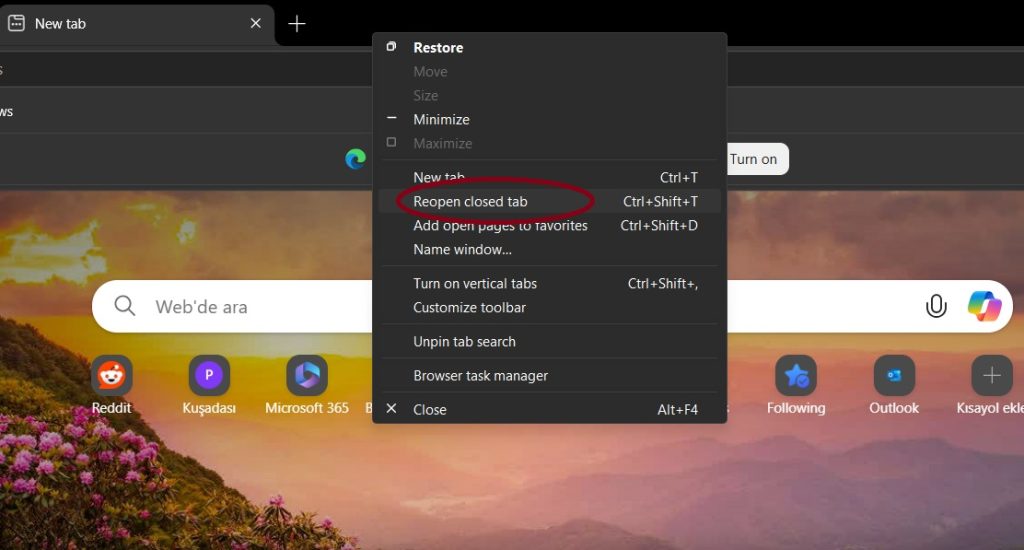
Right-click on any blank space in the tab bar at the top of the Edge window. A small context menu will appear. Click “Reopen closed tab” to bring back the most recently closed tab.
You can right-click and select this option multiple times to keep restoring more recently closed tabs, one by one.
Method 3: Use the History Menu — Recently Closed
If you closed multiple tabs or windows across a longer session, the History menu gives you more control.
Here’s how to use it:
- Click the three-dot menu (⋯) in the top-right corner of Edge
- Hover over “History” in the dropdown
- Look for the “Recently closed” section
- You’ll see individual tabs and entire closed windows listed there
- Click any tab to reopen it individually, or click a window entry to restore all tabs from that window at once
You can also open History directly with the keyboard shortcut Ctrl + H, which opens the full history panel where you can search for any page you visited recently.
Community feedback shows that using the Recently Closed section helps more than 40% of users recover multiple tabs at once, making it one of the most reliable built-in options.
Method 4: Restore the Entire Previous Session
If Edge closed unexpectedly — due to a crash, a Windows update, or a restart — you may see a “Restore pages” prompt when you reopen Edge. Simply click it, and Edge will reload all the tabs from your previous session.
If that prompt doesn’t appear, you can still restore your session manually:
- Click the three-dot menu (⋯) → History
- Look for “Recently closed” — your previous session will often appear grouped there (for example, “YourSiteName and 6 more”)
- Click the group entry to restore all those tabs together in a new window
This works best if you closed all your Edge windows at once using File → Close Microsoft Edge (or the standard X button). If you closed windows one at a time, only the last one gets the full session restore treatment.
Method 5: Enable “Continue Where You Left Off” (Prevent Future Loss)
This setting is the single best thing you can do to protect your tabs going forward — and it also helps right now if Edge is reopening to a blank page.
To enable it:
- Click the three-dot menu (⋯) → Settings
- In the left sidebar, click “Start, home, and new tabs” (sometimes labeled “On startup”)
- Under “When Edge starts,” select “Continue where you left off”
From now on, every time you open Edge — whether after a normal close or an unexpected restart — it will automatically reload all tabs from your last session. You never have to think about tab recovery again.
If you’ve just lost tabs and this setting wasn’t enabled before, turn it on now, then check your History for the recently closed entries as described in Method 3.
Method 6: Check Browsing History Manually
If your recently closed tabs aren’t showing up in the History menu or the session restore prompt didn’t appear, your full browsing history is the next place to look.
- Press
Ctrl + Hto open the History panel - Use the search box at the top to search for a keyword, topic, or site name you remember from those lost tabs
- Click any result to reopen that page
This is especially useful when you know roughly what you were looking at but can’t remember the exact URL. Searching history for “project name” or a topic keyword often surfaces exactly what you need.
Note: This method only works if you haven’t cleared your browsing history. If you did clear it recently, skip to Method 7.
Method 7: Recover Tabs from the Edge Session File (Advanced)
This is the most technical method and should be treated as a last resort. It works around 60% of the time and requires comfort with File Explorer and system folders.
Microsoft Edge stores your session data in a folder on your computer. Here’s where to find it:
Open File Explorer and navigate to:
C:\Users\YourUsername\AppData\Local\Microsoft\Edge\User Data\Default\SessionsYou can also paste this path directly into the address bar of File Explorer:
%localappdata%\Microsoft\Edge\User Data\Default\SessionsInside, you’ll see files named things like Session_XXXXX or Tabs_XXXXX. These files store your open tab information.
To attempt a recovery:
- Copy those session files to a separate folder as a backup
- Fully close Microsoft Edge (including from the system tray)
- End the Edge process completely via Task Manager if needed
- Delete the current session files from the Sessions folder
- Copy your backed-up session files back into the Sessions folder
- Reopen Microsoft Edge — it should prompt you to restore your session
This is a more involved process and isn’t guaranteed. If you’re not comfortable editing system files, stick to Methods 1–6.
Method 8: Use “Tabs from Other Devices” via Edge Sync
If you had those tabs open on a different device — say, your work PC — and you’re now on your laptop, Edge can surface them through its sync feature.
You need to be signed into the same Microsoft account on both devices with sync enabled.
- Click the three-dot menu (⋯) → History
- Look for “Tabs from other devices”
- Find the device and session you want, and open the tabs from there
This is also useful if you accidentally closed Edge on your phone and want to reopen those tabs on your desktop.
How to Prevent Losing Tabs in Microsoft Edge
Once you’ve recovered your tabs, take a few minutes to set up these protections so it doesn’t happen again.
Turn on “Continue where you left off” (Method 5 above). This is the single most effective prevention step.
Save important tabs to Favorites. Right-click any tab and select “Add all tabs to favorites.” Create a dated folder like “Session – June 2026” as a manual checkpoint before a known restart, like a Windows update.
Use Tab Groups. Group related tabs by project or topic. Named groups are much easier to rebuild if you ever do lose a session.
Use Collections. Edge’s Collections feature (the icon in the toolbar) lets you save a set of tabs and notes as a named collection. Think of it as a bookmark folder that’s faster to rebuild from.
Keep Edge updated. Edge 2026 (version 145+) has improved memory management and crash recovery. An outdated version is more prone to unexpected closures and failed session restores.
FAQ: Restoring Closed Tabs in Microsoft Edge
Can I restore tabs after restarting my computer?
Yes, in most cases. If “Continue where you left off” was already enabled in your startup settings, Edge will restore your previous tabs automatically when you reopen it. If that setting wasn’t on, check the History menu for “Recently closed” entries — your session tabs are often still there.
What if Ctrl + Shift + T isn’t working?
This shortcut only works if Edge has a record of recently closed tabs. If you’ve done a lot of browsing since closing the tab, started a new session, or cleared your history, the shortcut may not be able to go back far enough. In that case, use the History menu or check your browsing history with Ctrl + H.
Can I recover tabs after clearing my browsing history?
Unfortunately, clearing your history also removes the recently closed tab data that Edge relies on. Your only remaining option at that point is the session file recovery method (Method 7), which may or may not work depending on the timing.
Does Microsoft Edge save tabs automatically?
Yes, if you have “Continue where you left off” enabled. Edge saves your session data continuously, so even if it crashes or Windows forces a restart, it can usually restore your tabs the next time you open the browser.
How many closed tabs can Edge remember?
Edge can typically store a full session’s worth of recently closed tabs during your current browsing session. The exact limit isn’t publicly documented, but practically speaking, it remembers dozens of closed tabs from a single session. Once you fully close Edge and reopen it without the “Continue where you left off” setting, the list resets.
Will this work on Edge for Mac?
Yes. The keyboard shortcut becomes Cmd + Shift + T on Mac, but all other methods — the History menu, session restore, startup settings — work the same way on Edge for macOS.
Can I restore a tab I closed days ago?
You can check your full browsing history (Ctrl + H) for pages you visited in recent days. Edge keeps browsing history for a configurable period, usually 90 days by default. Searching your history for a keyword related to the page is the fastest way to find it.
Quick Reference: All Methods at a Glance
| Method | Best For | Speed |
|---|---|---|
Ctrl + Shift + T | One or a few recently closed tabs | Instant |
| Right-click tab bar → Reopen | Single tab, no keyboard | Instant |
| History → Recently Closed | Multiple tabs/windows from current session | Fast |
| Restore Pages prompt | Full session after crash or restart | Fast |
| Continue Where You Left Off setting | Automatic future protection | One-time setup |
Browse History (Ctrl + H) | Finding a specific page you visited | Medium |
| Session file recovery | Last resort after all else fails | Technical |
| Tabs from Other Devices | Tabs from a different synced device | Medium |
Editor’s Opinion
honestly the ctrl+shift+t shortcut alone has saved me so many times i lost count. i only found out about the “continue where you left off” setting like a year in and wish someone had told me sooner lol. if ur always losing tabs just turn that setting on now and ur done. the session file method is a bit scary but ive actually used it once and it worked, so good to know its there. edge is actually pretty good at this stuff, most people just dont know where to look.
