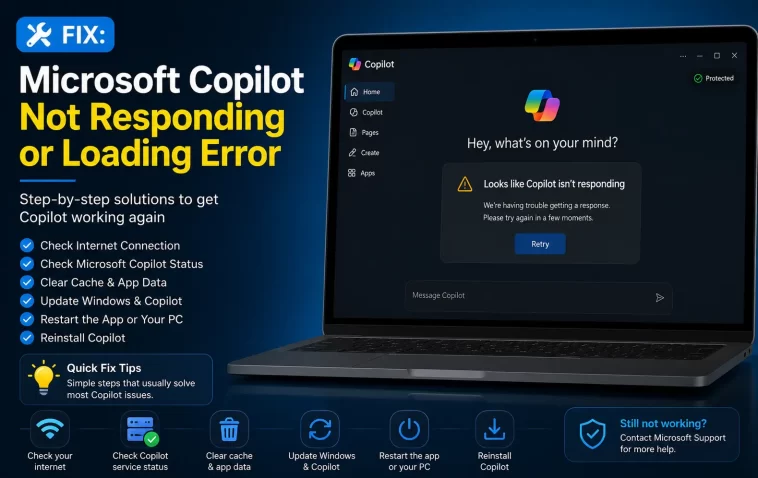
I hit the Copilot key on a new laptop last week expecting the usual chat window. Instead I got a spinning loader that just… spun. For minutes. If Copilot not responding is the problem you’re dealing with right now, there’s a good chance it’s not your PC that’s broken — it’s usually something narrower than that.
Let’s go through what actually causes this and which fixes are worth your time.
Quick Answer
- End the Copilot process in Task Manager and relaunch it
- Run the Copilot connectivity troubleshooter through the Get Help app
- Repair (not reset, not yet) the app under Settings > Apps > Installed Apps
- Check your license status if you’re on a work or school account
- Clear the Microsoft Store cache with
wsreset.exeif the app won’t even open
Why Copilot Freezes, Won’t Load, or Says “Coming Soon”
There isn’t one root cause, and honestly a lot of the advice floating around treats it like there is. From what I’ve seen, it usually comes down to a handful of overlapping issues:
Connectivity that looks fine but isn’t. Copilot needs a stable connection to Microsoft’s backend, and it’s picky about it. A connection that’s fine for browsing can still cause Copilot to hang on “thinking” indefinitely.
License or account eligibility. If you’re on a work or school account, Copilot depends on a license being assigned to you specifically. No license, no response — and the app usually won’t tell you that’s the reason.
Corrupted app cache. This is the boring one, but it’s common. Cached data from a previous crash or update can leave the app stuck in a broken state that just… keeps loading and never resolves.
Store or update conflicts. If Windows Update or the Microsoft Store didn’t finish installing an update properly, Copilot can end up half-updated. It opens, it just doesn’t do anything.
Third-party cookie blocking, for the web version. If you’re hitting this in Edge or through a Microsoft 365 web app, blocked third-party cookies will break license validation silently. This one gets missed constantly because people assume the issue is Windows-side when it’s actually a browser setting.
One cause people rarely think to check: background processes from a previous Copilot session that never fully closed. You relaunch the app, but it’s actually trying to talk to a zombie process still running from before. Task Manager fixes this in about ten seconds, but almost nobody thinks to look there first.
Causes and Their Symptoms
| Symptom | Likely Cause | Fix |
|---|---|---|
| Spins forever, never loads | Corrupted cache or stuck process | End task + repair app |
| Opens, closes immediately | Half-installed update | Update via Microsoft Store, restart |
| “Coming soon” message | Regional or licensing restriction | Check license / eligibility |
| Works in app, fails on web | Blocked third-party cookies | Adjust Edge cookie settings |
| Works, then crashes after typing | Driver or system resource conflict | Check Event Viewer, update drivers |
Step-by-Step Fixes
Step 1: Kill the stuck process first
Press Ctrl+Shift+Esc, find any process named Copilot or Windows Copilot, and end it. Then relaunch. This alone fixes it more often than it probably should — and it costs you ten seconds, so do it before anything more involved.
Step 2: Run the Copilot troubleshooters
Open the Get Help app and search for “Copilot connectivity troubleshooter.” It checks for firewall rules and network blockers that cause the generic server errors people report as “not responding.” There’s also a separate Copilot license troubleshooter worth running if you suspect an eligibility issue.
Step 3: Repair, then reset if needed
Go to Settings > Apps > Installed Apps, find Copilot, click the three dots, and choose Advanced options. Try Repair first — it keeps your data intact. If that doesn’t help, Reset clears local app data entirely, which fixes most cache-related freezes but does mean starting fresh.
Step 4: Clear the Microsoft Store cache
Press Win+R, type wsreset.exe, and hit Enter. No window opens immediately — that’s normal, give it a minute. This fixes cases where Copilot won’t even launch because the Store component behind it is corrupted.
Step 5: Check cookies if you’re using the web version
In Edge, go to Settings > Cookies and site permissions > Manage and delete cookies and site data, and make sure third-party cookies aren’t fully blocked. Copilot’s license check depends on them for web-based sessions specifically.
Step 6: Confirm your license (work/school accounts)
If Copilot is intermittently failing or just not appearing at all despite being installed, check with your admin or run the license troubleshooter. This is one of those things that looks like a bug but is actually working exactly as configured.
What Actually Worked For Me
So on that laptop I mentioned, I went through the usual list — end task, repair, cache reset — and none of it stuck. It’d load for a session, then go back to spinning the next time I opened it. That’s not entirely accurate actually, it worked fine once and then broke again within the hour, which made me think it was intermittent rather than fully broken.
Turned out to be a pending Windows Update that had been sitting there for two weeks because the auto-restart kept getting postponed. Installed it, restarted properly instead of just letting it defer again, and Copilot came back and stayed working. I hadn’t even connected the two — the update had nothing to do with Copilot specifically in the changelog, but whatever component it touched apparently did.
The repair/reset step gets recommended the most online, but in my experience it’s the pending update or the stuck background process that’s actually behind most of these. Reset is more of a last resort than a first move, even though guides treat it as step one.
Advanced Fixes and Edge Cases
Event Viewer check: If Copilot crashes rather than hanging, check Event Viewer > Windows Logs > Application for entries tied to the Copilot package. Repeated crash entries around the same timestamp usually point to a corrupted install rather than a connectivity problem.
Driver conflicts: On some systems, outdated GPU or network drivers cause Copilot’s UI to freeze mid-render, especially on hybrid graphics laptops. Updating both is worth doing before you write it off as unfixable.
DNS-level blocking: Corporate networks and some third-party firewalls block the specific endpoints Copilot needs, even when general internet access works fine. If you’re on a managed network and nothing else fixes it, this is worth raising with IT directly rather than troubleshooting further on your end.
Command-line diagnostics: Running Get-AppxPackage *Copilot* in PowerShell shows you the exact package version and install state, which is useful if Repair and Reset both silently fail without telling you why.
Prevention Tips
- Don’t defer restarts indefinitely after Windows Update — that pending update thing bit me once, it’ll bite you too
- Check Task Manager before assuming a fresh Copilot launch is actually fresh
- Keep GPU and network drivers current, particularly on laptops with switchable graphics
- If you’re on a managed device, loop in IT early instead of burning an hour on local fixes that were never going to work
FAQ
Is Copilot not responding the same as Copilot not showing up at all? No — different problem. Not showing up is usually a taskbar or eligibility issue; not responding means the app opens but doesn’t function.
Does reinstalling Windows fix this? Almost never necessary. This is an app-level issue in the overwhelming majority of cases, not an OS-level one.
Why does Copilot work on my phone but not my PC? Different app, different backend path, different account/license logic. It’s not the same troubleshooting process at all, even though it feels like it should be.
Can antivirus software cause this? Yes, occasionally — some aggressive firewall or antivirus configurations block the endpoints Copilot needs. Worth a temporary disable test if nothing else works.
Is there a way to check if it’s a Microsoft-side outage instead of my PC? Check the Microsoft 365 admin status page if you have access, or just wait 20 minutes and try again. Outages happen more than people assume.
Editor’s Opinion
this one’s annoying because half the fixes online are just “restart your pc” dressed up in different words. and sometimes that IS the fix, which is almost more frustrating. but if restarting and repairing both do nothing, check for a pending update before you nuke the app data with a reset — thats the one people skip and its the one that actually got mine working. copilot still feels a bit half baked honestly, your mileage will vary a lot depending on your setup.
