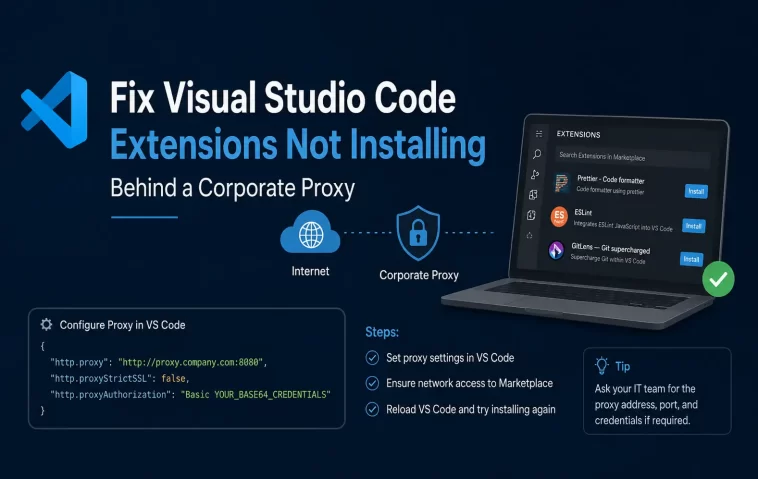
The error just said “Unable to download extension” with no real explanation, and my first move was to double-check my internet connection like that was somehow the problem. It wasn’t — it was our corporate proxy silently swapping in its own SSL certificate to inspect traffic, and VS Code simply didn’t trust it. Once I understood that’s what was actually happening, the fix took about ten minutes instead of the hour I’d already burned guessing.
Quick Answer
- VS Code runs on Chromium’s networking stack and should pick up your OS proxy settings automatically in most cases
- “Self-signed certificate in certificate chain” errors mean your proxy is intercepting HTTPS traffic, and VS Code doesn’t trust its certificate yet
- The proper fix is adding your proxy’s certificate to your OS trust store, not disabling SSL verification
- If installs still fail, manually downloading the .vsix file through a browser and installing it directly bypasses the marketplace connection entirely
- The
code --install-extensionCLI command doesn’t fully support proxy settings — install through the GUI Extensions panel instead when behind a proxy
Why Extensions Fail to Install Behind Corporate Proxies
This isn’t really a VS Code bug most of the time — it’s a mismatch between how corporate networks inspect traffic and how VS Code decides what to trust.
HTTPS interception is the root cause in most corporate environments. Many corporate proxies perform what’s called SSL inspection — they intercept the HTTPS connection, decrypt it to scan the content, then re-encrypt it using their own certificate before passing it along. VS Code, being built on Electron and Chromium, validates certificates against a list of trusted root authorities, and your company’s internal proxy certificate isn’t on that list by default. So the connection gets rejected as untrusted, and the extension download fails.
VS Code’s CLI doesn’t fully support proxy networking yet. If you’re trying to install extensions via code --install-extension from a terminal, this specific interface has known limitations with proxy support that the GUI-based Extensions panel doesn’t share. This is a real, acknowledged gap in how VS Code currently handles networking, not a configuration mistake on your end.
Firewall allowlists sometimes miss specific extension hosting domains. VS Code’s core functionality needs several specific domains reachable — including the update server and marketplace-related endpoints — and some extensions load resources from additional domains like *.vscode-unpkg.net for web extensions specifically. If your IT department’s allowlist covers the main marketplace domain but not these supporting ones, certain extensions fail while others install fine.
There’s a less commonly known cause too: VS Code actually inherits most of its proxy handling directly from the same underlying stack as Google Chrome, since it’s built on Chromium. If Chrome works fine on your network but VS Code doesn’t, the difference usually comes down to certificate trust specifically, not proxy detection itself.
Where This Shows Up Most
New employee laptops hit this constantly during initial setup, since the proxy certificate often isn’t yet in the OS trust store on a freshly imaged machine, even though the network policy itself hasn’t changed.
Specific extensions failing while others succeed points toward an allowlist gap rather than a certificate issue — if npm Intellisense fails but ESLint installs fine, for example, that’s a strong sign the two extensions pull resources from different domains and only one is blocked.
Remote or VPN-connected setups sometimes behave differently than the same machine on the office network directly, since the proxy path itself can change based on connection type.
Cause Comparison Table
| Symptom | Likely Cause | Fix |
|---|---|---|
| “Self-signed certificate in certificate chain” | Proxy SSL interception, untrusted cert | Add proxy cert to OS trust store |
| Some extensions install, others don’t | Firewall allowlist missing specific domains | Check with IT which domains are blocked |
| CLI install fails, GUI install works | CLI proxy support limitation | Use Extensions panel instead of terminal |
| Nothing installs at all, spinning forever | Proxy settings not detected correctly | Manually set http.proxy in VS Code settings |
| Works on office network, fails remotely | Different proxy path per connection type | Confirm proxy settings for each network context |
Step-by-Step Fixes
Step 1: Confirm whether this is a certificate trust issue. Open the Output panel (View > Output) and check for any mention of “self-signed certificate” or SSL-related errors during a failed extension install. This single detail tells you which fix path to pursue.
Step 2: Export your proxy’s certificate. Ask your IT team for the proxy’s root certificate, usually in .pem, .cer, or .crt format, if you don’t already have access to it.
Step 3: Add the certificate to your OS trust store. On Windows, this generally means importing it into the Trusted Root Certification Authorities store. On Ubuntu/Debian, copy it to /usr/local/share/ca-certificates/ and run sudo update-ca-certificates. On RHEL/CentOS/Fedora, use sudo trust anchor --store <certificate-file> or place it in /etc/pki/ca-trust/source/anchors/ and run sudo update-ca-trust.
Step 4: Restart VS Code completely after adding the certificate. A simple window reload sometimes isn’t enough — fully quit and reopen the application so it picks up the updated OS trust store.
Step 5: Check your VS Code proxy settings if the certificate fix alone doesn’t work. Go to File > Preferences > Settings and search for “proxy.” Set http.proxy to your proxy address explicitly if it’s not being auto-detected, something like http://proxy.company.com:8080.
Step 6: Avoid disabling SSL verification as your primary fix. Setting http.proxyStrictSSL to false will often make the error disappear, but it does so by skipping certificate validation entirely, which weakens security rather than solving the actual trust problem. Use this only as a last-resort diagnostic step, not a permanent fix.
Step 7: Install manually via .vsix if all else fails. Download the extension’s .vsix file directly from the Marketplace website using a browser (which may have different proxy exceptions than VS Code itself), then use the Extensions panel’s “Install from VSIX” option to install it without needing a live marketplace connection at all.
What Actually Worked For Me
I went straight for disabling strict SSL, since it was the fastest thing I found in a forum search, and it did technically fix the install. But it nagged at me that I’d just turned off a security check rather than actually understanding what was broken, so I asked our IT team directly what proxy solution we were running. Turned out it was a standard SSL-inspecting proxy, and they had the root certificate readily available — I just hadn’t thought to ask before reaching for workarounds.
Once I imported that certificate into Windows’ trust store and fully restarted VS Code, extensions installed normally without needing the strict SSL bypass at all. It was a more “correct” fix than my first instinct, and it also quietly fixed a couple of other tools on my machine that had been silently failing for the same underlying reason without me realizing they were related.
Advanced Fixes and Edge Cases
Node-based tools inside VS Code may need a separate certificate reference. Some integrations run their own Node.js processes that don’t automatically inherit the OS certificate trust store the way Chromium-based VS Code itself does. Setting the NODE_EXTRA_CA_CERTS environment variable to point at your proxy’s certificate PEM file can resolve failures specific to these Node-based components even after the main VS Code certificate issue is fixed.
IPv6 connectivity can silently break some enterprise extension integrations. A few enterprise-focused extensions and their backing services don’t support IPv6, so if your network prefers IPv6 by default, forcing an IPv4 connection can resolve otherwise unexplained connection failures specific to those tools.
Check extension-specific and global logs for real error detail. Use the Command Palette (Ctrl+Shift+P) and run “Developer: Open Extension Logs Folder” to get more specific error text than what the GUI notification shows, which helps a lot when escalating to IT or searching for a more specific fix.
Prevention Tips
Ask your IT or network team proactively about the proxy’s certificate and whether SSL inspection is in place, rather than discovering it reactively through a string of failed installs. Keep a short list of the domains VS Code needs reachable and share it with whoever manages your firewall allowlist, since gaps here cause the confusing “some extensions work, others don’t” pattern. And avoid making proxyStrictSSL: false a permanent setting in your configuration — treat it strictly as a temporary diagnostic step on the way to the actual certificate trust fix.
FAQ
Is it safe to just turn off SSL verification permanently? Not really recommended. It resolves the symptom but removes a real security check, and the underlying certificate trust issue is usually fixable properly without that trade-off.
Why does one extension install fine while another fails on the same network? Different extensions sometimes pull resources from different domains, so a firewall allowlist gap can block one specific extension’s dependencies while leaving others unaffected.
Does VS Code automatically detect my system proxy settings? Generally yes, since it uses the same networking stack as Chromium, which reads OS-level proxy configuration. Certificate trust issues are a separate problem from proxy detection itself.
Can I install extensions without any marketplace connection at all? Yes, downloading the .vsix file manually through a browser and using “Install from VSIX” in the Extensions panel works entirely independent of a live marketplace connection.
Editor’s Opinion
disabling strict ssl felt like the fast answer and technically it was, but it bugged me enough that i went and found the actual cause instead of just living with a workaround that quietly weakens security. turns out asking IT one direct question saved more time than an hour of forum searching, which is a very obvious lesson in hindsight that i somehow still needed to relearn.
