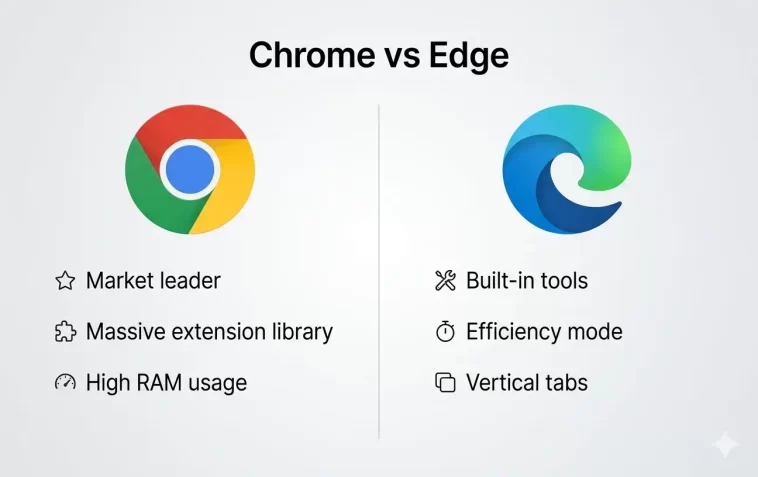
Chrome vs Edge — it’s one of the most common questions people ask when setting up a new computer or looking to speed things up. Both browsers are fast, modern, and built on the same Chromium engine. But they’re not the same, and the right choice depends on how you use your browser every day.
In this guide, we break down the real differences between Google Chrome and Microsoft Edge so you can make an informed decision — no technical background needed.
What Are Chrome and Edge, Really?
Google Chrome launched in 2008 and quickly became the world’s most popular browser. It’s built by Google and tightly connected to the Google ecosystem — Gmail, Google Drive, Google Search, and so on.
Microsoft Edge was originally released in 2015 as the default Windows browser, replacing Internet Explorer. In 2020, Microsoft rebuilt it from the ground up using Chromium — the same open-source engine that powers Chrome.
So yes, both browsers share a foundation. But Microsoft and Google have taken them in very different directions.
Chrome vs Edge: Performance
Performance is usually the first thing people care about. No one wants a browser that slows their computer to a crawl.
Speed
Both browsers are fast. In most benchmark tests, the difference in raw page-loading speed is small — often just milliseconds. For everyday browsing, you won’t notice a significant gap.
RAM Usage
This is where things get interesting. Chrome has a well-known reputation for eating up memory, especially if you open many tabs. Edge handles RAM more efficiently in most scenarios.
Microsoft Edge includes a feature called Sleeping Tabs, which automatically puts inactive tabs to sleep to save memory and CPU usage. Chrome doesn’t have a built-in equivalent, though there are extensions that do something similar.
If you’re working on a laptop with 8GB of RAM or less, Edge often runs noticeably lighter than Chrome.
Battery Life
Edge also has a built-in Efficiency Mode that reduces resource usage when your laptop is on battery power. Independent tests have shown Edge can provide meaningfully better battery life compared to Chrome during browsing sessions. For people who work away from a charger, this matters.
Chrome vs Edge: Features
Extensions and Add-ons
Chrome’s extension library is the largest in the world. Virtually every browser extension you’ve heard of is on the Chrome Web Store.
Here’s the good news for Edge users: since Edge is Chromium-based, it can install Chrome extensions directly. Edge users get access to both the Microsoft Add-ons store and the Chrome Web Store. In terms of extensions, Edge actually has a slight edge (no pun intended).
Built-in Tools
Edge comes packed with tools that Chrome doesn’t include by default:
- Copilot sidebar — AI assistant built directly into the browser
- Immersive Reader — strips away clutter for distraction-free reading
- Collections — a visual bookmarking tool for saving and organizing content
- Drop — lets you send files or notes between your devices
- PDF editor — annotate, sign, and edit PDFs without extra software
Chrome keeps things simpler. It focuses on core browsing and lets Google’s web apps handle the rest.
Reading Experience
If you read a lot online, Edge’s Immersive Reader is a standout feature. It removes ads, navigation menus, and other distractions so you can focus on the text. You can also adjust font size, spacing, and even have the text read aloud.
Chrome doesn’t have anything comparable built in.
Chrome vs Edge: Privacy and Security
Data Collection
This is an important consideration that many users overlook.
Chrome is made by Google, an advertising company. Chrome collects browsing data to improve ad targeting across Google’s ecosystem. While you can limit some of this in settings, the data collection is baked into Chrome’s business model.
Edge is made by Microsoft, which makes most of its money from software and enterprise services, not advertising. Edge’s privacy defaults are generally less aggressive than Chrome’s.
Edge offers three privacy levels you can choose from:
- Basic — minimal blocking
- Balanced (default) — blocks trackers from sites you haven’t visited
- Strict — blocks most trackers
Security
Both browsers receive frequent security updates and are considered secure. Google and Microsoft both have strong track records here.
One advantage Edge has: it’s deeply integrated with Microsoft Defender SmartScreen, which provides real-time protection against phishing and malicious downloads on Windows systems.
Chrome vs Edge: Ecosystem and Integration
Google Ecosystem
If you use Gmail, Google Calendar, Google Docs, Google Drive, or YouTube heavily, Chrome feels more natural. Google services are built with Chrome in mind, and features like Google Lens, instant search suggestions from your Google account, and seamless Google Meet integration work best in Chrome.
Microsoft Ecosystem
If you use Microsoft 365 — Outlook, Word, Excel, Teams, OneDrive — Edge integrates beautifully. You get single sign-on with your Microsoft account, easy access to SharePoint files, and Teams notifications built right into the browser.
For people using Windows in a work or school setting, Edge is often the more practical choice.
Cross-Platform Availability
- Chrome is available on Windows, macOS, Linux, Android, and iOS.
- Edge is available on Windows, macOS, Linux, Android, and iOS.
Both are fully cross-platform, so you can sync your bookmarks, passwords, and settings across all your devices regardless of which you choose.
Chrome vs Edge: Customization
Chrome offers a clean, minimal design with decent customization options — themes, custom colors, and new tab page backgrounds.
Edge has improved its customization significantly. The new tab page in Edge is more feature-rich, with a news feed, weather, and a customizable layout. Some users love this; others find it distracting. The good news is that Edge lets you simplify it to a clean blank page if you prefer.
Both browsers support dark mode and sync preferences across devices.
Side-by-Side Comparison
| Feature | Chrome | Edge |
|---|---|---|
| Engine | Chromium | Chromium |
| RAM Usage | Higher | Lower |
| Battery Efficiency | Standard | Better (Efficiency Mode) |
| Extension Support | Chrome Web Store | Chrome + Microsoft stores |
| Built-in AI | Google Gemini | Microsoft Copilot |
| Privacy Controls | Basic | Three-level system |
| Best For | Google ecosystem | Microsoft ecosystem |
| PDF Editing | No | Yes (built-in) |
| Reading Mode | No | Yes (Immersive Reader) |
| Platform | All major | All major |
Which Browser Should You Choose?
There’s no universally “better” browser. It depends on your situation.
Choose Chrome if:
- You’re deeply invested in Google services (Gmail, Drive, Meet)
- You need a specific extension that isn’t available for Edge
- You prefer a simpler, no-frills browsing experience
- You use Linux and want the most widely supported browser
Choose Edge if:
- You use Microsoft 365 or work in a Windows-heavy environment
- Battery life and RAM usage are important to you
- You want built-in AI tools without installing extensions
- You read a lot online and want Immersive Reader
- You want stronger default privacy settings
For most Windows users — especially those in professional or educational settings — Edge is actually the smarter default in 2026. It’s lighter, more feature-rich, and more privacy-conscious out of the box.
That said, Chrome remains the dominant browser globally for a reason. Its speed, reliability, and deep Google integration make it the go-to for millions of users.
FAQ: Chrome vs Edge
Is Edge faster than Chrome?
In most real-world tests, Edge and Chrome perform similarly in terms of page loading speed. However, Edge uses less RAM and CPU, which can make it feel faster on older or lower-spec devices — especially when you have many tabs open.
Can Edge use Chrome extensions?
Yes. Because Edge is built on Chromium, it can install extensions directly from the Chrome Web Store. Edge users can also use the Microsoft Add-ons store, giving them access to two extension libraries.
Is Edge safer than Chrome?
Both are considered secure browsers with regular updates. Edge has stricter default privacy settings and integrates with Microsoft Defender SmartScreen on Windows, which gives it a slight security advantage for Windows users. Chrome collects more browsing data due to Google’s advertising business model.
Does Edge drain battery faster than Chrome?
No — it’s the opposite. Edge has a built-in Efficiency Mode that reduces power consumption when your laptop is on battery. Multiple tests have shown Edge provides better battery life compared to Chrome during typical browsing sessions.
Should I switch from Chrome to Edge?
If you’re a Windows user who doesn’t rely heavily on Google services, switching to Edge is worth trying. It’s faster in terms of resource use, has more built-in features, and respects your privacy better by default. You can import all your Chrome bookmarks, passwords, and settings in a few clicks.
Can I use both Chrome and Edge?
Absolutely. Many people keep both installed and use each one for different purposes — Chrome for Google services and Edge for everything else, for example. Both browsers can run independently without interfering with each other.
Which browser is better for gaming?
For most browser-based games or streaming (Twitch, YouTube Gaming), performance will be similar. However, Edge has a Efficiency Mode that can help reduce throttling during long sessions. Chrome’s wider extension support might give it an edge for platforms like Discord or Parsec that have browser integrations.
Final Thoughts
Chrome and Edge are both excellent browsers in 2026. The gap between them has narrowed considerably, and you honestly can’t go wrong with either.
That said, if you’re on Windows and haven’t tried Edge recently, it’s worth a second look. The 2020 rebuild transformed it into a genuinely competitive browser — one that in many ways outperforms Chrome for everyday users.
Try both. Import your settings. Use whichever one feels right for how you work.
