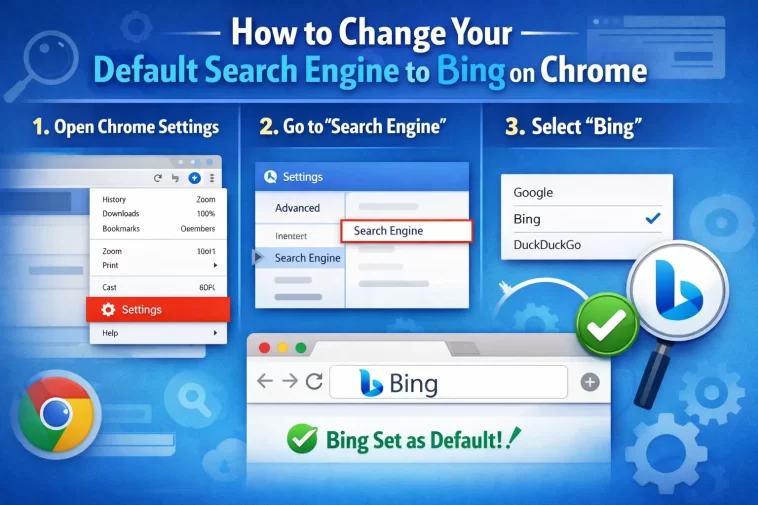
Changing your default search engine to Bing on Chrome is easier than most people think. Whether you prefer Bing’s visual search results, its AI-powered answers, or just want a change from Google, this guide walks you through every step clearly and quickly.
If your Chrome searches keep going to Google and you want Bing instead, you’re in the right place.
Why Switch to Bing as Your Default Search Engine?
Before we get into the steps, it’s worth knowing why people make the switch.
Bing has improved a lot in recent years. Here are a few reasons users prefer it:
- Microsoft Rewards – You earn points just for searching, which you can redeem for gift cards and more.
- AI-powered answers – Bing is integrated with Microsoft’s AI, giving you smarter, conversational results.
- Rich visual search – Bing’s image and video search is clean and easy to use.
- Daily wallpapers – Bing’s homepage features stunning daily photos that many users love.
If any of those appeal to you, follow the steps below.
How to Change Your Default Search Engine to Bing on Chrome
Step 1: Open Google Chrome
Launch Chrome on your computer. Make sure it’s updated to the latest version. Using an outdated version of Chrome can sometimes cause settings menus to look different or behave unexpectedly.
You can check for updates by clicking the three-dot menu in the top-right corner, going to Help, and selecting About Google Chrome.
Step 2: Go to Chrome Settings
Click the three-dot menu (⋮) in the top-right corner of the browser window.
From the dropdown menu, click Settings. This opens Chrome’s main settings page.
Alternatively, you can type chrome://settings directly in the address bar and press Enter.
Step 3: Open the “Search Engine” Section
In the left-hand sidebar, click on Search engine.
You’ll see two options:
- Search engine used in the address bar – a dropdown to choose your default
- Manage search engines and site search – for advanced options
Step 4: Select Bing from the Dropdown
Click the dropdown next to “Search engine used in the address bar.”
A list of available search engines will appear. Click on Bing.
That’s it — Chrome will now use Bing whenever you type a search in the address bar.
Step 5: Verify the Change
Close the settings tab and type any word or phrase into Chrome’s address bar.
Press Enter. Your results should now load on Bing.com instead of Google.
If they still go to Google, try restarting Chrome and repeating the steps above.
Step 6: Set Bing as Default on Chrome Mobile (Optional)
If you also use Chrome on your phone, the process is slightly different.
On Android:
- Open Chrome and tap the three-dot menu in the top-right corner.
- Tap Settings.
- Tap Search engine.
- Select Bing from the list.
On iPhone/iPad:
- Open Chrome and tap the three-dot menu at the bottom.
- Tap Settings.
- Tap Search engine.
- Select Bing.
Once done, your Chrome searches on mobile will also go to Bing.
Step 7: Make Chrome Your Default Browser (Bonus Step)
If you want a fully Bing-integrated experience across Windows, consider also setting Chrome as your default browser — and then signing into your Microsoft account on Bing.
This way, your Microsoft Rewards points sync up, and you get personalized results across devices.
To set Chrome as your default browser on Windows:
- Go to Settings > Apps > Default apps.
- Search for Chrome and set it as the default for web browsing.
What If Bing Is Not Showing Up in the List?
Sometimes Bing may not appear in Chrome’s default search engine list — especially on a fresh browser install or after certain extensions have changed your settings.
Here’s how to add Bing manually:
- Go to Settings > Search engine > Manage search engines and site search.
- Scroll to the “Other search engines” section and click Add.
- Fill in:
- Search engine: Bing
- Shortcut: bing.com
- URL with %s in place of query:
https://www.bing.com/search?q=%s
- Click Add, then return to the main search engine settings and set Bing as the default.
This method works on all versions of Chrome.
Common Issues After Switching to Bing
Even after making the change, a few things might still send you back to Google. Here’s what to check:
- Browser extensions – Some ad blockers or toolbar extensions override your default search engine. Disable any suspicious extensions under
chrome://extensions. - Chrome policies – If you’re on a work or school computer, your IT admin may have locked the search engine setting.
- Synced settings – If Chrome sync is on, an old setting from another device might overwrite your change. Sign out of sync, make the change, then sign back in.
FAQ
Can I switch back to Google after setting Bing as my default?
Yes, absolutely. Just go back to Settings > Search engine and select Google from the dropdown. The switch takes effect immediately.
Does changing the default search engine in Chrome affect other browsers?
No. Chrome’s search engine settings only apply to Chrome. Other browsers like Edge, Firefox, or Safari have their own separate settings.
Will Bing remember my search history in Chrome?
Bing stores your search history on Microsoft’s servers if you’re signed into a Microsoft account. If you’re not signed in, searches are not saved to a personal account but may still be logged for anonymous analytics. You can manage or delete your Bing search history at bing.com/profile/history.
Is Bing safe to use as a default search engine?
Yes. Bing is a reputable search engine owned by Microsoft. It has strong privacy settings, and you can use it with Microsoft’s SafeSearch filter for an extra layer of safety, especially useful for families.
Why does Chrome keep reverting to Google?
This usually happens because of a synced profile, a Chrome extension, or because Google is set as the default via a browser policy. Check for extensions that manage search settings, and make sure Chrome sync isn’t overriding your preferences.
Can I use Bing only for certain searches and Google for others?
Chrome doesn’t support per-query search engine switching natively, but you can use the site search shortcut feature. In Chrome, type bing.com in the address bar, press Tab, and then type your search — this will search Bing even if Google is your default.
Final Thoughts
Switching your default search engine to Bing on Chrome is a simple, two-minute task. Once it’s set, every search from Chrome’s address bar will go straight to Bing.
Whether you’re after better AI answers, rewards points, or just want to try something new, Bing is a solid alternative. And if you ever change your mind, switching back takes just a few seconds.
Give it a try — you might end up sticking with it.
