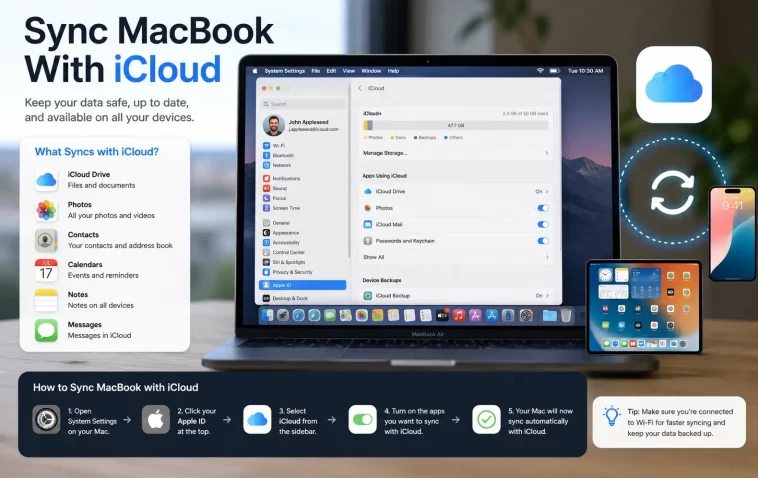
The first time I set up a new MacBook and watched my Photos library, Desktop files, and Notes all just… show up without me doing anything, it felt a little like magic. So here’s how to sync MacBook with iCloud properly, plus what to do when that “magic” quietly stops working, which happens more often than Apple’s marketing would have you believe.
Quick Answer
- Go to Apple menu > System Settings > [your name] at the top, then iCloud.
- Turn on iCloud Drive, and toggle on the specific apps you want synced (Photos, Notes, Mail, Contacts, Calendars, etc.)
- Enable Desktop & Documents Folders if you want those synced too, under iCloud Drive options.
- Make sure you’re signed into the same Apple ID on every device you want synced together.
- If sync stalls, check your available iCloud storage first — this is the most common cause by a wide margin.
Setting It Up: Step-by-Step
Step 1: Sign in to your Apple ID
Open System Settings (System Preferences on older macOS versions) and click your name at the top. If you’re not signed in, you’ll be prompted to enter your Apple ID and password here first.
Step 2: Open iCloud settings
Click “iCloud” from the sidebar. You’ll see a list of every app and service Apple can sync, each with its own on/off toggle.
Step 3: Turn on iCloud Drive
This is the core one — without it, most other syncing features either won’t work fully or will behave inconsistently. Click the toggle next to iCloud Drive.
Step 4: Choose what syncs
Click into iCloud Drive’s options and you’ll see Desktop & Documents Folders as a separate toggle. Turning this on means anything saved to your Desktop or Documents folder automatically uploads and becomes available on your other Macs and iCloud.com. It’s genuinely useful, but heads up — it also means those folders now count against your iCloud storage, which surprises people who weren’t expecting a jump in storage usage right after enabling it.
Step 5: Enable individual apps as needed
Below iCloud Drive, you’ll find toggles for Photos, Notes, Mail, Contacts, Calendars, Reminders, Safari, and more. Turn on whichever ones you actually want synced. And you don’t need to turn all of them on just because they’re there — Safari sync, for instance, is only worth it if you actually use bookmarks/tabs across devices.
Step 6: Repeat on your other devices
Sync only works between devices signed into the same Apple ID with the matching toggles enabled. So if Photos sync is on your MacBook but off on your iPhone, you’ll only get a partial, confusing sync experience.
Why iCloud Sync Stops Working (Common Causes)
Cause 1: You’re out of iCloud storage. This is, from what I’ve seen, the single most common reason sync just quietly stalls. Apple gives you 5GB free, which fills up fast once Photos and Desktop/Documents syncing are both on. Check Apple menu > System Settings > [your name] > iCloud, and look at the storage bar near the top.
Cause 2: You’re signed into different Apple IDs across devices. Sounds obvious, but it happens more than you’d think — especially with families sharing devices, or after a factory reset where the wrong account got signed back in.
Cause 3: Network restrictions. Some corporate or school Wi-Fi networks block the ports iCloud needs. If sync works on home Wi-Fi but not at work, this is probably it.
Cause 4 (the one people miss): Date and time settings are wrong. iCloud sync relies on accurate system time for its authentication tokens. If your Mac’s clock has drifted, sync can fail silently without any obvious error message pointing to the actual cause.
Cause 5: Background sync got paused after a system update. Occasionally after a macOS update, iCloud sync services need to be manually kicked back into gear — toggling iCloud Drive off and back on tends to do this.
What Actually Worked For Me
I had a stretch where Desktop syncing just… stopped. Files I saved on my MacBook weren’t showing up on my other Mac, and there was no error message, no warning, nothing. Just silence.
My first instinct was the obvious one — sign out of iCloud completely and sign back in. Didn’t help, and honestly made things a little worse for a few minutes because it temporarily removed local copies of files while it figured out what to re-download. So that wasn’t it.
Next I checked storage, assuming that was the culprit since it usually is. Nope, I had plenty of room left. That’s not entirely what I expected going in, so I kept digging.
Turned out to be the date and time thing — my Mac had somehow ended up with “Set time zone automatically” turned off after a location change, and the clock had drifted by a few minutes. I only found this because of a half-remembered forum post from ages ago about NTP sync and iCloud auth tokens being time-sensitive. Fixed the time zone setting, restarted, and syncing picked back up within about ten minutes on its own.
Advanced Fixes and Edge Cases
Checking sync status via Terminal: Running brctl status in Terminal shows the current status of iCloud’s file sync daemon (bird), including whether it’s actively syncing, paused, or stuck. It’s not the friendliest output to read, but if it shows repeated errors for the same file, that file is likely the specific thing jamming up the queue.
One stuck file blocking everything else: Sometimes it’s not a broad iCloud problem at all — it’s one specific file with a weird character in its name or a permissions issue that’s stuck at the front of the sync queue and blocking everything behind it. Check iCloud Drive in Finder for any file showing a sync icon that never resolves, and try moving it out of iCloud Drive temporarily.
Resetting sync entirely (last resort): Signing out of iCloud, waiting a couple minutes, and signing back in forces a fresh sync handshake. This is disruptive though — local copies of iCloud-only files can temporarily disappear until re-download finishes, so don’t do this on a slow connection or right before you need a file urgently.
Checking storage breakdown: System Settings > [your name] > iCloud > Manage Account Storage shows exactly what’s eating your 5GB (or paid tier). Old device backups and large Photos libraries are usually the biggest offenders, and cleaning those up is often faster than paying for more storage.
Prevention Tips
- Keep at least a small buffer of free iCloud storage — sync tends to behave worse the closer you get to the limit, not just after you hit it.
- Double-check you’re on the same Apple ID across all devices, especially after any account changes.
- Leave “Set time zone automatically” enabled unless you have a specific reason not to.
- After major macOS updates, give iCloud sync a few minutes before assuming something’s broken — background services sometimes need to restart on their own.
FAQ
Do I need to pay for iCloud+ to sync my MacBook? No, the free 5GB tier syncs fine — it just fills up fast if you’re also syncing Photos and Desktop/Documents.
Why is my Desktop folder using so much iCloud storage? Because Desktop & Documents Folders syncing uploads everything in those two folders, including large files people forget are sitting there.
Can I sync only some files instead of my whole Desktop? Not directly through the toggle — it’s all or nothing for that folder. Moving specific files to a regular non-synced folder is the workaround.
Will turning off iCloud Drive delete my files? It shouldn’t delete files that are already downloaded locally, but files that exist only in iCloud (not yet downloaded to that Mac) may become inaccessible until you turn it back on.
Is there a way to sync without using iCloud at all? Yes, third-party options like Dropbox or Google Drive can handle file syncing instead, though you’d lose the tighter integration iCloud has with Photos, Notes, and other built-in Apple apps.
Editor’s Opinion
honestly icloud sync mostly just works until it doesnt, and when it doesnt the error messages are basically useless. the storage bar thing catches so many people off guard bc apple doesnt warn you clearly before things start failing. my only real advice is check storage first, then time zone, in that order, before assuming somethings seriously broken.
