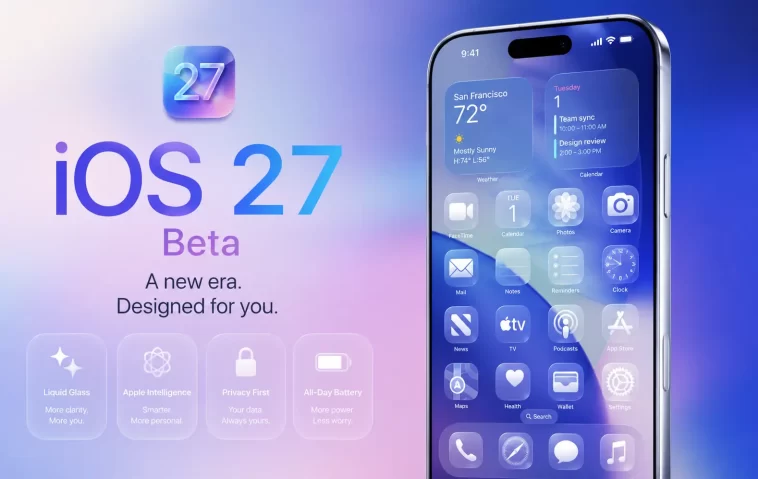
How to Install iOS 27 Beta is one of the most common questions among iPhone users right now. I always enjoy testing new iOS versions before their official release because it gives me an early look at upcoming features, performance improvements, and design changes.
With iOS 27, Apple has introduced several new enhancements, including improvements to Siri AI, better performance, refinements to the interface, and new productivity features. While installing a beta version can be exciting, it also comes with risks such as bugs, app compatibility issues, and reduced battery life.
In this guide, you’ll learn exactly how to install iOS 27 Beta safely and correctly. Whether you’re planning to install the Developer Beta or wait for the Public Beta, this tutorial covers everything you need to know.
What Is iOS 27 Beta?
iOS 27 Beta is a pre-release version of Apple’s upcoming mobile operating system. Apple releases beta versions before the final public launch to allow developers and testers to identify bugs and provide feedback.
There are usually two beta channels:
- Developer Beta
- Public Beta
The Developer Beta becomes available first, while the Public Beta arrives later and is generally more stable.
Should You Install iOS 27 Beta?
Before installing iOS 27 Beta, it’s important to understand both the benefits and the risks.
Benefits
- Access new features early
- Test upcoming Apple technologies
- Experience new design improvements
- Explore Siri AI enhancements
- Provide feedback to Apple
Risks
- Unexpected bugs
- App crashes
- Battery drain
- Performance issues
- Potential data loss
If your iPhone is your primary device for work or important daily tasks, you may want to wait for the Public Beta or the final release.
Check If Your iPhone Is Compatible
Before you begin, make sure your iPhone supports iOS 27.
Compatible models generally include:
- iPhone 11 series
- iPhone 12 series
- iPhone 13 series
- iPhone 14 series
- iPhone 15 series
- iPhone 16 series
- iPhone 17 series
- Newer supported devices
Apple may update the compatibility list, so verify support before proceeding.
Requirements Before Installing iOS 27 Beta
Preparation is essential.
Before installing the beta, make sure you have:
- A supported iPhone
- A stable Wi-Fi connection
- At least 10–15 GB of free storage
- A fully charged battery or power connection
- An Apple ID
- A recent backup
Creating a backup is the most important step.
Back Up Your iPhone
You should never install beta software without backing up your device first.
Back Up Using iCloud
- Open Settings.
- Tap your Apple ID.
- Select iCloud.
- Tap iCloud Backup.
- Choose Back Up Now.
Back Up Using a Computer
- Connect your iPhone to your Mac or PC.
- Open Finder or Apple Devices.
- Select your iPhone.
- Click Back Up Now.
A backup ensures you can restore your data if something goes wrong.
How to Install iOS 27 Developer Beta
The Developer Beta is available before the Public Beta.
Follow these steps carefully.
Step 1: Join Apple’s Developer Program
You need to sign in with your Apple ID through Apple’s developer platform.
Once registered, your Apple ID becomes eligible for beta updates.
Step 2: Restart Your iPhone
After enrollment, restart your device.
This helps the beta update option appear correctly.
Step 3: Open Software Update
Navigate to:
Settings → General → Software Update
Wait for the page to load completely.
Step 4: Select Beta Updates
Tap:
Beta Updates
You should see available beta options.
Step 5: Choose iOS 27 Developer Beta
Select:
iOS 27 Developer Beta
Return to the previous screen.
Step 6: Download and Install
Tap:
Download and Install
Accept Apple’s terms and conditions.
The update will begin downloading.
Step 7: Complete Installation
After downloading:
- Tap Install Now.
- Enter your passcode if requested.
- Allow the device to restart.
The installation process may take several minutes.
Once complete, your iPhone will boot into iOS 27 Beta.
How to Install iOS 27 Public Beta
If you prefer a more stable experience, waiting for the Public Beta is recommended.
Step 1: Join Apple’s Beta Software Program
Enroll your Apple ID in Apple’s public beta testing program.
Step 2: Open Software Update
Go to:
Settings → General → Software Update
Step 3: Select Beta Updates
Tap Beta Updates.
Step 4: Choose iOS 27 Public Beta
Select the Public Beta option.
Step 5: Download and Install
Tap Download and Install.
Follow the on-screen instructions until the installation is complete.
New Features in iOS 27
Apple has introduced several notable improvements in iOS 27.
Siri AI Enhancements
Siri becomes more conversational and context-aware.
Users can interact with Siri in a more natural way while receiving more relevant responses.
Faster Performance
Apple claims significant speed improvements in:
- App launches
- File transfers
- Search functions
- System responsiveness
Improved User Interface
The interface includes refinements designed to improve readability and usability.
Several visual elements have been adjusted to provide a cleaner experience.
Better Apple Intelligence Integration
Apple Intelligence features continue expanding throughout the operating system.
Users can expect smarter suggestions and automation capabilities.
Enhanced Privacy Features
Apple continues its focus on privacy with additional controls and transparency tools.
Common iOS 27 Beta Problems
Beta software is rarely perfect.
Here are common issues users experience.
Battery Drain
Background indexing often causes higher battery usage during the first few days.
Possible fixes:
- Restart your device
- Reduce background activity
- Wait for indexing to complete
App Compatibility Issues
Some third-party apps may not work correctly.
Developers often need time to update their applications.
Performance Bugs
You may experience:
- Lagging animations
- Random freezes
- Unexpected restarts
These issues are common in early beta releases.
How to Downgrade from iOS 27 Beta
If the beta becomes too unstable, you may want to return to a previous iOS version.
The general process involves:
- Connecting your iPhone to a computer.
- Entering Recovery Mode.
- Restoring your device.
- Recovering your backup.
Always verify that a compatible backup exists before attempting a downgrade.
Tips for a Better Beta Experience
Follow these recommendations:
- Install on a secondary device if possible.
- Keep a current backup.
- Update apps regularly.
- Report bugs through Feedback Assistant.
- Avoid installing beta software before important events or travel.
These practices can help reduce frustration while testing new software.
Final Thoughts
Installing iOS 27 Beta is a great way to explore Apple’s newest features before the official release. However, beta software always involves some risk. By creating a backup, ensuring compatibility, and following the correct installation process, you can safely experience everything iOS 27 has to offer.
If stability is your top priority, waiting for the Public Beta is usually the better option. If you’re excited about testing new features immediately, the Developer Beta provides early access to Apple’s latest innovations.
FAQ
Is iOS 27 Beta free?
Yes. Apple allows eligible users to access beta versions through its developer and public beta programs.
Is iOS 27 Beta safe to install?
Generally yes, but beta software may contain bugs, crashes, and performance issues.
Will installing iOS 27 Beta delete my data?
Normally no, but creating a backup beforehand is strongly recommended.
Can I return to a previous iOS version?
Yes. You can downgrade using a computer and a compatible backup.
Should I install iOS 27 Beta on my main iPhone?
It is usually safer to install beta software on a secondary device.
When will the iOS 27 Public Beta be available?
Apple typically releases the Public Beta several weeks after the Developer Beta.
Does iOS 27 Beta improve performance?
Many users report faster performance, but results can vary depending on the device and beta version.
Why is my battery draining faster after installing iOS 27 Beta?
This is common during the first few days as the system performs indexing and optimization tasks.
