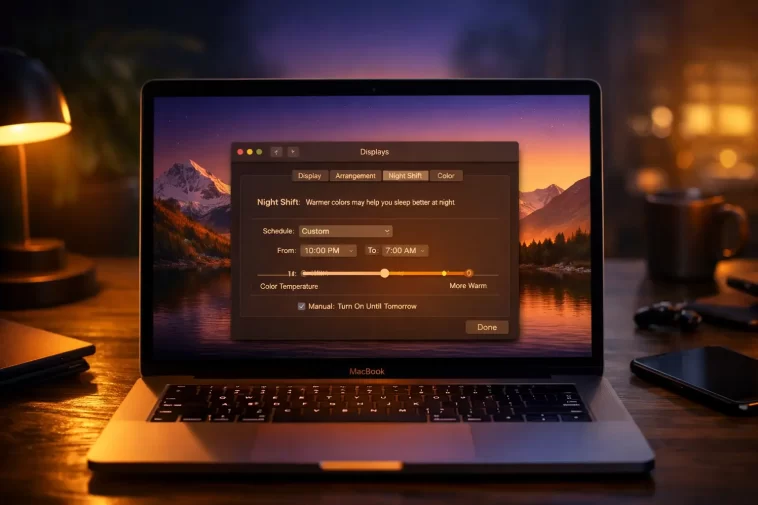
I used to think eye strain from my MacBook was just part of the job. Late nights writing, coding, or scrolling through tabs — my eyes would burn by midnight, and falling asleep afterward felt impossible. Then I enabled Night Shift, and the difference was immediate. The screen felt softer, warmer, and far less aggressive on my eyes. If you’ve never used it, you’re missing one of macOS’s most underrated built-in features.
Night Shift on MacBook shifts your display colors toward the warmer end of the spectrum after dark, reducing the amount of blue light your eyes absorb. It’s subtle but effective — and it takes less than a minute to set up.
What Is Night Shift on MacBook?
Night Shift is a built-in macOS feature that adjusts the color temperature of your display based on the time of day. During the day, your screen stays at its normal, cooler tone. After sunset — or at whatever time you choose — Night Shift gradually warms the colors, cutting down on the harsh blue light that modern displays emit.
This isn’t just about comfort. Research has linked exposure to blue light in the evening to disrupted sleep patterns. Your body uses light signals to regulate its internal clock, and staring at a bright, cool-toned screen at 11 PM essentially tells your brain it’s midday. Night Shift helps fix that without requiring you to do anything after the initial setup.
It’s also worth knowing that Night Shift is not the same as Dark Mode. Dark Mode changes the look of your interface — menus, windows, and backgrounds go dark. Night Shift only adjusts the color temperature of your display. You can use both at the same time, and many people do.
Which MacBooks Support Night Shift?
Before diving in, it’s worth confirming your Mac can actually run Night Shift. The feature requires macOS Sierra 10.12.4 or later and is available on Mac computers introduced in 2012 or later. Mac Pro models from 2013 onward are also supported.
If you’re running a relatively recent MacBook, MacBook Air, or MacBook Pro, you almost certainly have it. If you’re on a much older machine, you may need to update macOS first.
How to Enable Night Shift on MacBook
There are several ways to turn on Night Shift, depending on how much control you want. Here’s a breakdown of each method.
Method 1: Via System Settings (macOS Ventura and Later)
This is the main way to set up and manage Night Shift with full scheduling options.
- Click the Apple menu in the top-left corner of your screen.
- Select System Settings.
- In the left sidebar, click Displays.
- On the right side of the screen, click the Night Shift button.
- From the Schedule dropdown, choose one of the following options:
- Off — Night Shift won’t turn on automatically.
- Sunset to Sunrise — Night Shift activates at sunset and turns off at sunrise based on your location.
- Custom — You set specific start and end times.
If you choose Sunset to Sunrise, your Mac will use Location Services to determine your local sunset and sunrise times. You’ll need to make sure Location Services is enabled for this to work accurately.
Method 2: Via System Preferences (macOS Monterey and Earlier)
If you’re on an older version of macOS, the steps are slightly different.
- Click the Apple menu.
- Open System Preferences.
- Click Displays.
- Select the Night Shift tab at the top.
- Use the Schedule dropdown to set your preferred option.
- Adjust the color temperature slider if you want more or less warmth.
The process is essentially the same — just a different interface layout.
Method 3: Turn Night Shift On Manually (Without a Schedule)
If you don’t want to set a schedule and just want Night Shift on right now, you can toggle it manually.
- Go to Apple menu > System Settings > Displays > Night Shift.
- Toggle on Turn on until tomorrow.
This will keep Night Shift active until the following morning, at which point it turns off automatically. You can repeat this each evening if you prefer manual control over scheduling.
Method 4: Using Control Center
This is the fastest way to toggle Night Shift without digging into settings.
- Click the Control Center icon in the top-right menu bar (it looks like two sliders).
- Click Display.
- Click the Night Shift button to turn it on or off.
That’s it — two or three clicks and you’re done. This method is great when you want to quickly switch Night Shift on during an unexpected late-night session.
Method 5: Ask Siri
If you use Siri, you can simply say:
- “Hey Siri, turn on Night Shift.”
- “Turn off Night Shift.”
It works instantly and hands-free, which is handy if you’re across the room or just don’t feel like clicking around.
How to Adjust Night Shift Color Temperature
Once Night Shift is enabled, you can control how warm you want the screen to look. Inside the Night Shift settings panel, you’ll find a Color Temperature slider.
- Sliding toward Less Warm keeps the effect subtle — the screen will look only slightly different from normal.
- Sliding toward More Warm gives you a noticeably orange or amber tone, which is better for very late-night use.
Most people find a setting around the middle or slightly toward the warmer side to be the sweet spot. It filters enough blue light to make a difference without making colors look too distorted for everyday tasks.
If you’re doing any color-sensitive work — like photo editing or graphic design — you may want to turn Night Shift off temporarily, since it does affect how colors appear on screen.
Setting a Custom Night Shift Schedule
The custom schedule option gives you the most control. Here’s how to set it up.
- Open System Settings > Displays > Night Shift.
- From the Schedule dropdown, select Custom.
- Enter your preferred start time (for example, 9:00 PM) and end time (for example, 7:00 AM).
Your Mac will then automatically turn Night Shift on and off every day at those exact times. This is useful if you have a consistent daily routine and prefer not to rely on location data for sunset calculations.
Some people even set a near-permanent schedule — for example, from 2:00 AM to 1:59 AM — to keep Night Shift on almost all the time. This leaves just a one-minute gap but effectively means the warm tones are always active.
How to Enable Location Services for Sunset to Sunrise
If you want Night Shift to sync with your actual local sunset and sunrise times, your Mac needs permission to access your location. Here’s how to enable that:
- Go to Apple menu > System Settings > Privacy & Security.
- Click Location Services.
- Make sure Location Services is turned on.
- Scroll down to System Services and click Details.
- Enable Setting time zone.
- Click Done.
Once this is active, Night Shift will automatically adjust based on where you are — useful if you travel across time zones.
Night Shift vs. Dark Mode: What’s the Difference?
A lot of people confuse these two, so it’s worth spelling it out clearly.
- Night Shift changes the color temperature of your display. The interface looks the same, just warmer.
- Dark Mode changes the entire visual theme of macOS — backgrounds go dark, menus turn black or gray, and text inverts for readability.
You can — and should — use both together. Dark Mode reduces the overall brightness of the interface, while Night Shift reduces the blue light from whatever brightness level you’re at. Combined, they create a much more comfortable late-night experience.
Tips for Getting the Most Out of Night Shift
- Pair Night Shift with reduced screen brightness. Night Shift warms the colors, but brightness still affects eye strain. Try lowering your display brightness in the evening too.
- Use the Sunset to Sunrise schedule. It adjusts automatically year-round, so you never have to think about it.
- Don’t rely on Night Shift alone for sleep. It helps, but also try to avoid screens for 30 minutes before bed if you’re struggling with sleep quality.
- Disable it for design work. If you’re editing photos or matching colors, turn Night Shift off to get accurate color representation.
- Try Control Center for quick access. It’s faster than going through System Settings every time you want to toggle it.
FAQ: Night Shift on MacBook
Does Night Shift actually help with sleep?
Research suggests that blue light exposure in the evening can interfere with melatonin production and make it harder to fall asleep. Night Shift reduces blue light from your display, which may help — though results vary by person. It’s not a cure-all, but it’s a low-effort improvement.
Why is Night Shift grayed out on my Mac?
Night Shift requires macOS Sierra 10.12.4 or later and a compatible Mac (2012 or newer for most models). If your Mac doesn’t meet these requirements, the option will be unavailable. Try updating your macOS first if you’re running an older version.
Can I use Night Shift and True Tone at the same time?
Yes. True Tone adjusts your display to match ambient light conditions, while Night Shift adjusts color temperature based on time. They serve different purposes and work fine together.
Does Night Shift affect battery life?
No. Night Shift only changes the color temperature of your display — it doesn’t use extra processing power or drain your battery.
Is Night Shift the same on all MacBooks?
The feature works the same way across supported Mac models. However, performance on external displays may vary depending on the display itself.
Can I turn Night Shift on during the day?
Yes. The manual “Turn on until tomorrow” option works at any time of day. Just go to System Settings > Displays > Night Shift and toggle it on manually.
Does Night Shift work on external monitors connected to my Mac?
Night Shift does apply to external displays, but the quality of the effect depends on the monitor’s hardware and capabilities.
Night Shift is one of those features that quietly makes a big difference once you start using it. Setting it up takes under a minute, and once you have a schedule in place, it just works in the background without any effort on your part. If you spend any significant time on your MacBook after dark, turning it on is genuinely worth it.
