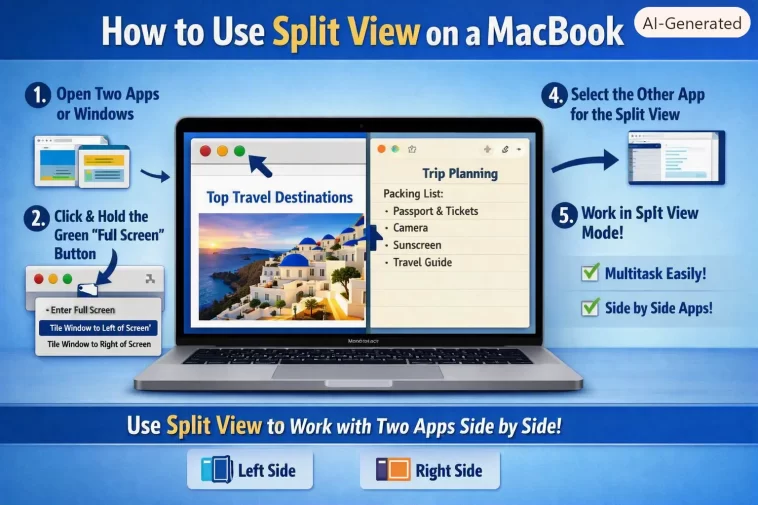
I write in one window and keep reference tabs open in another, and for the longest time I just resized both windows by hand every single time — dragging edges, eyeballing the middle, never quite even. Split View on a MacBook does that automatically, and once you know where the trigger is, it takes about three seconds to set up two apps side by side.
Quick Answer
- Hover over the green button in the top-left corner of any window (don’t click, just hover)
- Choose Tile Window to Left of Screen or Tile Window to Right of Screen
- Click a second window from the thumbnails shown on the empty side
- Drag the center divider left or right to adjust how much space each app gets
- To exit, move your cursor to the top of the screen and click the green button again
Turning On Split View
- Open the two apps or windows you want to use side by side.
- Make sure neither window is already in full-screen mode — Split View won’t trigger correctly from full screen.
- Hover your pointer over the green button in the top-left corner of the first window (next to the red and yellow buttons). Don’t click it — just hold the pointer over it until a menu appears.
- Choose Tile Window to Left of Screen or Tile Window to Right of Screen (on some macOS versions this shows as Full Screen > Left of Screen / Right of Screen — same thing, slightly different wording).
- The screen fills with your first app on that side, and thumbnails of your other open windows appear on the empty side.
- Click the window you want as the second app.
Both apps now sit side by side, filling the full screen. macOS creates this as its own dedicated Space, so it’s separate from your regular desktop.
Adjusting the Split
Between the two windows, there’s a thin divider bar in the middle.
- Resize: hover over the divider and drag it left or right to give one app more room than the other.
- Reset to even: double-click the divider bar to snap both windows back to a 50/50 split.
- Swap sides: click and drag a window’s title bar over to the other side to switch which app is on the left versus the right.
Exiting Split View
- Move your cursor toward the top of the screen — the window controls will reappear.
- Click the green button again on either window.
That closes Split View and returns you to normal desktop mode, with the other app either staying open full screen in its own Space, or returning to a regular window, depending on which button you clicked.
Starting Split View From an App That’s Already Full Screen
If one app is already running full screen and you want to pull in a second app without starting over:
- Press Control + Up Arrow (or swipe up with three or four fingers) to open Mission Control.
- Drag a window from the window thumbnails in the middle onto the full-screen app’s thumbnail in the Spaces bar at the top.
- Click the newly created Split View thumbnail to enter it.
This works the same as starting fresh, it’s just a shortcut for when you don’t want to back out of full screen first.
Using Split View With Multiple Displays
If you’ve got an external monitor connected and want Split View available on each screen independently, there’s one setting to check first: go to System Settings > Desktop & Dock, and make sure Displays have separate Spaces is turned on. Without it, Split View arrangements on a second display won’t behave independently from your main screen.
What Split View Can’t Do
Worth knowing going in, since it trips people up:
- It only works with two windows at a time — there’s no built-in three-way split
- It forces full-screen mode, so your Dock and menu bar stay hidden unless you move the cursor to reveal them
- There’s no native keyboard shortcut to jump straight into Split View — it’s always the green button first
- It doesn’t remember arrangements. Close it and you’re setting it up from scratch next time, there’s no saved layout
If you find yourself wanting more than two windows arranged at once, or you want layouts that don’t take over the whole screen, that’s outside what Split View does natively — third-party window managers cover that gap, but Split View itself is built for exactly two apps, full screen, side by side.
FAQ
Why won’t Split View activate when I hover over the green button? Make sure the window isn’t already in full-screen mode when you start — Split View needs to launch from the normal windowed view, not from inside another full-screen app.
Can I use Split View with more than two apps? No, it’s strictly limited to two windows at once. For more complex multi-window layouts you’d need a third-party tiling tool.
Does Split View work on every Mac? Yes — it’s been part of macOS since El Capitan (10.11), so it works on any Mac running a remotely current version of macOS, MacBook Air and Pro included.
Is there a keyboard shortcut for Split View? Not a direct one. You can press Control + Command + F to enter full screen first, but actually triggering Split View still requires the green button menu.
Editor’s Opinion
split view is one of those features that’s genuinely useful but the trigger (hovering, not clicking, on a tiny green dot) isn’t obvious at all the first time. once you’ve done it a couple times it’s muscle memory though. wish apple would just add a keyboard shortcut for it already, feels like an easy miss.
