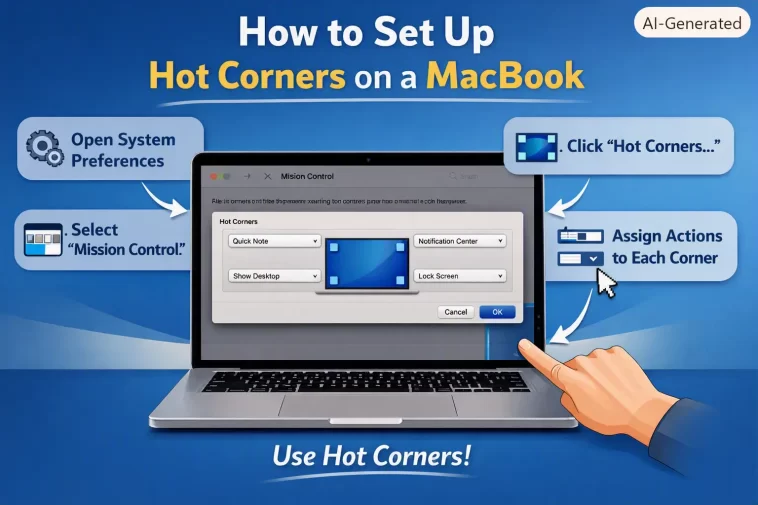
I didn’t touch Hot Corners for years, honestly thought it was a leftover feature from an older macOS nobody used anymore. Then I set the top-left corner to lock my screen and realized it’s genuinely one of the fastest things on the whole OS — no keyboard shortcut, no clicking a menu, just shove the cursor into a corner and it’s done. Setting up Hot Corners on a MacBook takes under a minute once you know which menu it’s hiding in.
Quick Answer
- Open System Settings from the Apple menu
- Click Desktop & Dock in the sidebar
- Scroll down and click Hot Corners
- Choose an action from the dropdown for each corner you want to use
- Click Done to save
Setting Up Hot Corners
- Click the Apple menu in the top-left corner of the screen.
- Select System Settings.
- In the sidebar, click Desktop & Dock. You’ll likely need to scroll down to find it.
- Scroll to the bottom of the right-hand panel and click Hot Corners.
- A small window pops up showing four corners, each with its own dropdown menu. Click the menu next to any corner and pick an action — Mission Control, Notification Center, Launchpad, Lock Screen, Show Desktop, and a handful of others.
- Click Done.
That’s it. Each corner works independently, so you can assign four completely different actions, leave some blank, or set two corners to the same thing if you’d rather.
One default worth knowing: the bottom-right corner is usually already set to Quick Note, so if you move your cursor there and a note window pops open unexpectedly, that’s why. You can leave it, reassign it, or set it to the dash/none option if it gets in your way.
Adding a Modifier Key
If a Hot Corner keeps triggering by accident — cursor drifts into the corner while you’re just trying to close a window, for instance — you can require a modifier key to hold it back from firing every time.
- Open the Hot Corners panel the same way as above.
- Click into the dropdown for the corner you want to adjust.
- While the dropdown is open, hold down Command, Shift, Option, or Control (or a combination), then select the action.
Now that corner only activates when you’re touching it with the modifier key held down, not on an accidental brush past.
Useful Hot Corner Combinations
There’s no single “best” setup since it depends on how you work, but a few combinations come up a lot:
- Top-left → Mission Control, so you can jump to an overview of every window and Space instantly
- Top-right → Lock Screen, useful if you step away from your desk often
- Bottom-left → Show Desktop, for quickly clearing everything to grab a file
- Bottom-right → Notification Center or Quick Note, depending on which one you actually use
I ended up keeping Quick Note on the bottom-right since I use it constantly, and set Lock Screen on the top-right with the Control key held down so it doesn’t trigger by accident while I’m working near the edge of the screen.
Pairing Hot Corners With the Screen Saver
If you want a corner to act like a quick privacy lock rather than an instant one, pair the Start Screen Saver Hot Corner with the password requirement:
- Set one corner’s action to Start Screen Saver.
- Go to System Settings > Lock Screen.
- Turn on the option requiring a password after the screen saver starts, and set the delay — anywhere from immediately to a few minutes.
That way, moving your cursor to that corner starts the screen saver right away, and the password requirement kicks in after whatever delay you picked.
FAQ
Why did my Hot Corners options disappear? This usually happens after a macOS update moved the setting from an old location (Desktop & Screen Saver on older versions) into Desktop & Dock on newer ones. If you’re looking in the old spot and it’s gone, check under System Settings > Desktop & Dock instead.
Can I disable a Hot Corner without removing all of them? Yes, each corner has its own menu — just set the one you don’t want to the blank/dash option and leave the others as they are.
Does using Hot Corners cancel out trackpad gestures for the same action? No, they work independently. You can have a three-finger swipe open Mission Control and also have a Hot Corner do the same thing — they don’t conflict.
Why does my Hot Corner keep triggering by accident? Your cursor is probably drifting into the corner during normal use. Adding a modifier key (Command, Shift, Option, or Control) to that corner fixes it, since it’ll only fire when you’re holding the key down.
Editor’s Opinion
set the modifier key thing up immediately if you’re going to use more than one corner, otherwise you’ll trigger mission control or lock your screen by accident constantly while just trying to close a window near the edge. quick note on the bottom right is actually pretty handy once you get used to it, wasn’t expecting to like that one.
