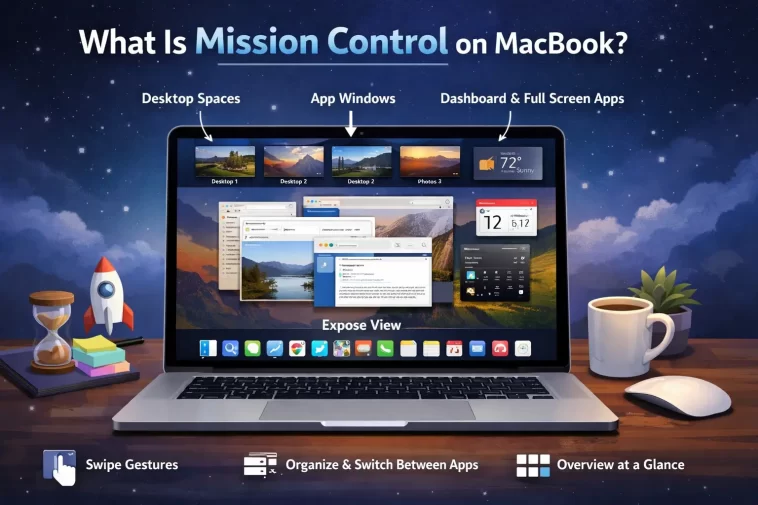
Mission Control on MacBook is Apple’s built-in way to see every open window, desktop, and full-screen app at once, instead of digging through Cmd+Tab one app at a time. I didn’t actually use it properly for the first year I owned a Mac — just Cmd+Tab’d everywhere like a Windows habit I never dropped. Once it clicked, it changed how I manage windows entirely, and it’s simpler to use than most people expect.
Quick Answer
- Open it with a three or four-finger swipe up on the trackpad, or press F3 / the Mission Control key
- Switch between desktops by swiping left/right with three fingers, or clicking a desktop at the top
- Create a new desktop by hovering near the top of Mission Control and clicking the “+”
- Assign an app to a specific desktop via its Dock icon right-click menu
- Customize the trigger gesture in System Settings > Trackpad or Keyboard
What Mission Control Actually Does
It’s easy to confuse Mission Control with a few other things — Launchpad, Exposé, Spaces — since Apple’s folded them all together over the years. So here’s the actual breakdown.
Mission Control shows three things at once: all your open windows spread out so none overlap, a strip of your virtual desktops (called Spaces) along the top, and any full-screen apps as separate thumbnails in that same strip. It’s less a single feature and more a control panel for everything related to window and desktop management on macOS.
And that matters because a lot of people think Mission Control is just “the thing that spreads out windows,” when it’s really the hub for creating extra desktops too — which is arguably the more useful part once you’re juggling more than a few projects.
How to Open Mission Control
There are four ways to trigger it, and which one feels natural depends a lot on your setup.
- Trackpad gesture — swipe up with three or four fingers (depending on your System Settings configuration)
- Keyboard shortcut — press F3, or Control+Up Arrow if F3 isn’t mapped to it on your keyboard
- Magic Mouse gesture — double-tap the top of the mouse with two fingers
- Click the Mission Control icon in Launchpad, if you’d rather avoid gestures entirely
From what I’ve seen, most people settle on the trackpad swipe within a day or two and stop using anything else. But if you’re on a keyboard-heavy workflow, F3 works exactly the same way, no learning curve involved.
Using Spaces (Virtual Desktops)
This is the part that actually saves time once you’re used to it.
Creating a New Desktop
Open Mission Control, move your cursor to the very top of the screen, and a “+” button appears on the right side of the desktop strip. Click it, and you’ve got a second desktop — completely separate windows, completely separate layout.
Moving Between Desktops
- Swipe left or right with three fingers on the trackpad
- Press Control+Left Arrow or Control+Right Arrow
- Click directly on a desktop thumbnail while in Mission Control
Assigning Apps to Specific Desktops
Right-click (or Control-click) an app’s Dock icon, hover over “Options,” and choose “Assign To” — then pick “This Desktop,” “All Desktops,” or “None.” This is genuinely the feature that makes Mission Control worth setting up properly, since it means Slack always opens on Desktop 2 and your browser always lands on Desktop 1, no manual dragging required.
Working With Full-Screen Apps
When you full-screen an app (click the green button, or drag a window to the top of the screen), macOS treats it as its own separate Space. It shows up in the Mission Control strip right alongside your regular desktops, and you can swipe to it the same way.
Not everyone likes this — full-screening something removes it from your normal desktop and turns it into a dedicated Space, which some people find disorienting at first. It’s fine once you’re used to it, but it’s worth knowing before you accidentally full-screen a window and can’t figure out where it went.
Customizing Mission Control
Go to System Settings > Desktop & Dock and scroll down to the Mission Control section. Here’s what’s adjustable:
| Setting | What It Controls |
|---|---|
| Automatically rearrange Spaces | Turn off if you want desktops to stay in a fixed order instead of reordering by recent use |
| Displays have separate Spaces | Relevant if you use an external monitor — controls whether each screen gets its own set of desktops |
| Group windows by application | Changes whether Mission Control clusters all windows from one app together or spreads everything out flat |
| When switching to an app, switch to a Space with open windows | Determines whether Cmd+Tab jumps you to a different desktop automatically |
I’d recommend turning off “Automatically rearrange Spaces” pretty early on. Having desktops shuffle order based on which you used most recently sounds convenient, but in practice it’s disorienting — you build muscle memory for “Desktop 2 is my browser” and then it isn’t anymore.
Common Issues With Mission Control
Gesture stops working after a macOS update. This happens occasionally — the trackpad gesture setting sometimes resets to a different finger count after an update. Check System Settings > Trackpad > More Gestures and confirm “Mission Control” is still set correctly.
Desktops keep reordering unexpectedly. That’s the “Automatically rearrange Spaces” setting mentioned above — turn it off if it’s bothering you.
Full-screen apps missing from the Mission Control strip. Usually means the app isn’t actually full-screen, just maximized within its window — check for the green button state, since those behave differently.
Mission Control feels slow or laggy on older Macs. Not super common, but on machines with limited RAM, having a lot of windows and Spaces open at once can make the animation stutter. Closing unused desktops helps more than people expect.
FAQ
What’s the difference between Mission Control and Launchpad? Launchpad shows your installed apps, like a phone home screen. Mission Control shows your open windows and desktops. They’re triggered differently and do completely different jobs.
Can I use Mission Control without a trackpad? Yes — F3 or Control+Up Arrow work on any Mac, trackpad or not.
How many desktops can I create? There’s no hard published limit, but performance and usability both get rough well before you’d realistically need that many. Most people land somewhere between 3 and 6.
Does Mission Control work the same on Apple Silicon and Intel Macs? Yes, functionally identical. The only difference is occasional gesture sensitivity, which varies slightly by trackpad hardware generation, not chip.
Can I disable Mission Control entirely? Not fully — it’s baked into macOS — but you can turn off all the gesture and hot corner triggers if you never want it popping up accidentally.
Editor’s Opinion
Mission Control’s one of those features that’s genuinely underused, probably because Apple never explains it well in Setup Assistant. Assigning apps to specific desktops is the part that actually changes your workflow, not just the swipe-to-see-everything gesture people already know about. Took me way too long to turn off the auto-rearrange setting, honestly — do that first.
