If you’re dealing with Windows 11 mouse stuttering on 4K displays, it’s usually not your mouse and it’s usually not your GPU dying — it’s almost always something in the rendering pipeline between the cursor and the actual pixels, and 4K just exposes it more than 1080p ever did. I’ve had this happen on two different machines after upgrading monitors, and both times I assumed it was a hardware problem before it turned out to be a setting.
This one’s particularly annoying because it’s inconsistent — smooth in some apps, stuttery in others, sometimes fine until you touch a second monitor. That inconsistency is actually useful for narrowing down the cause, so let’s use it.
Quick Answer
- Disable hardware-accelerated GPU scheduling if you’re on an older driver version, or update if you’re on a newer one that’s known to fix it
- Check for mixed refresh rates or mixed DPI scaling across multiple monitors
- Turn off “Enhance pointer precision” and test again, since it interacts oddly with high-DPI scaling
- Update your GPU driver specifically — this is a known regression in some driver branches
- Check your mouse’s polling rate against your monitor’s refresh rate for mismatches
Why Mouse Stuttering Happens Specifically on 4K
This isn’t really a 4K-exclusive bug so much as 4K making existing issues more visible, mostly because of how much more the GPU and compositor have to push per frame.
The cursor is rendered separately from the rest of the screen, and that separation can break. Windows uses a hardware cursor plane on most modern GPUs — meaning the cursor is composited independently of your desktop content for performance reasons. On 4K, if that hardware cursor plane falls back to software rendering (which happens more often than people realize, especially with scaling enabled), the cursor gets tied to your actual frame rate instead of moving independently, and stutter becomes obvious immediately.
Mixed DPI scaling across multiple monitors confuses the compositor. If you’ve got a 4K monitor at 150% scaling next to a 1080p monitor at 100%, Windows has to recalculate cursor position and rendering scale every time it crosses that boundary. This is one of the most common causes I’ve seen reported, and it’s also one of the least intuitive to diagnose if you’re only testing on a single monitor.
GPU driver regressions around hardware-accelerated GPU scheduling (HAGS). This feature is supposed to help, but for a while, several driver versions on both NVIDIA and AMD had specific bugs where enabling HAGS caused input stutter on high-resolution displays. It’s inconsistent across driver versions, so what fixed it for you might not fix it for someone one driver version behind.
Refresh rate mismatch between mouse polling rate and monitor Hz. A high polling rate mouse (1000Hz) on a 60Hz display isn’t usually a problem on its own, but combined with certain scaling or vsync settings, it can create a visible stutter that looks like it’s the monitor’s fault when it’s really a sync mismatch.
And an overlooked one: background apps with overlay rendering (Discord, GeForce Experience, RGB software) drawing on top of the cursor layer. These overlays sometimes force the cursor into software rendering mode without any obvious indication that’s what happened.
Common Scenarios
- Single 4K monitor, stutter only in certain apps (usually browsers or Electron apps) — often a hardware acceleration setting within that specific app
- 4K monitor paired with a lower-resolution second monitor — almost always a mixed DPI/refresh rate issue
- Stutter appeared right after a GPU driver update — likely a HAGS-related regression, worth rolling back to test
- Stutter only during full-screen video or gaming — different issue entirely, usually vsync/G-Sync/FreeSync related rather than cursor rendering
- High refresh rate 4K monitor (120Hz+) with stutter that wasn’t there on a 60Hz 1080p setup — check cable bandwidth, since some cables can’t sustain 4K at higher refresh rates reliably
Technical Comparison: Common Causes and Fixes
| Cause | Fixes with driver update | Fixes with scaling change | Fixes with HAGS toggle |
|---|---|---|---|
| Hardware cursor falling back to software | Sometimes | Sometimes | Yes, often |
| Mixed DPI multi-monitor setup | No | Yes | No |
| HAGS driver regression | Yes | No | Yes |
| Overlay software forcing software cursor | No | No | No — close/disable the overlay instead |
| Cable bandwidth limitation at high refresh | No | No | No — try a different cable/port |
Step-by-Step Fixes
Step 1: Toggle Hardware-Accelerated GPU Scheduling
- Settings > System > Display > Graphics > Advanced graphics settings (or Default graphics settings, depending on your build)
- Find “Hardware-accelerated GPU scheduling” and toggle it
- Restart, and test both states — on and off — since which one helps depends entirely on your specific driver version
I know that’s an unsatisfying instruction, but from what I’ve seen, this genuinely flips depending on driver branch. Don’t assume “off” is always the fix.
Step 2: Match Refresh Rates and Scaling Across Monitors
- Settings > System > Display, select each monitor individually
- Check the refresh rate for each — try setting them to match if reasonably possible
- Check scaling percentages — if you can tolerate it, testing with all monitors at 100% scaling temporarily helps confirm whether scaling is the cause before you commit to a permanent scaling setup
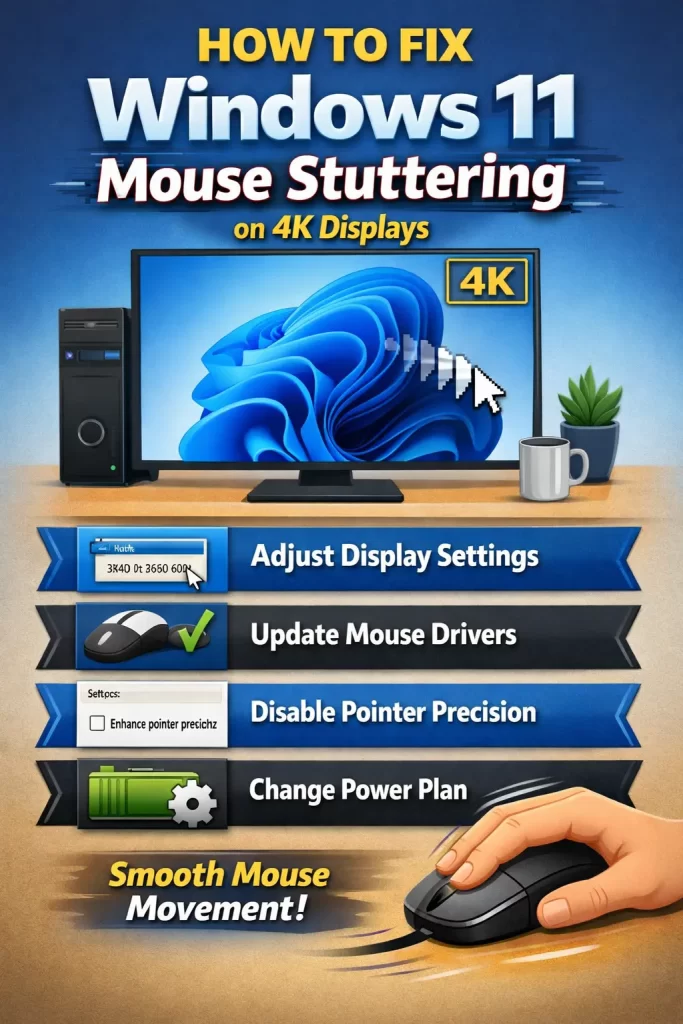
Step 3: Disable Enhance Pointer Precision
- Control Panel > Mouse (yes, still the old Control Panel panel for this one)
- Pointer Options tab, uncheck “Enhance pointer precision”
This doesn’t fix everything, but it removes one variable, and on high-DPI setups this setting sometimes interacts with cursor smoothing in ways that look like stutter.
Step 4: Update GPU Drivers (and Try a Rollback If the Issue Is New)
- Download the current driver directly from NVIDIA or AMD’s site rather than relying solely on Windows Update
- If the stutter started right after a driver update, use DDU (Display Driver Uninstaller) in safe mode to fully remove the current driver, then install the previous known-good version
Step 5: Rule Out Overlay Software
- Close Discord, GeForce Experience overlay, RGB control software, and anything else that draws on-screen elements
- Test cursor movement again
If it’s smooth with everything closed, reintroduce apps one at a time to find the actual culprit rather than assuming it’s all of them.
What Actually Worked For Me
My first instinct was that it was a GPU driver issue, so I spent a while rolling drivers back and forth without much change. That wasn’t the actual problem — the real issue was that I had my 4K monitor set to 150% scaling and a second older monitor at 100%, and I hadn’t even considered that combination as the cause since the stutter seemed to happen even when I was only using the 4K screen.
Turned out the compositor was still accounting for the second monitor’s different scale even when my cursor wasn’t near it, just because both monitors were active. Not something I’d have guessed. Setting both monitors to matching scale percentages fixed it immediately — didn’t even need a driver change in the end, which made all that earlier rollback testing a bit of a waste of an evening, honestly.
Advanced Fixes and Edge Cases
Check for software cursor fallback via GPU vendor tools. NVIDIA’s control panel and AMD Software both have hidden diagnostics in some versions that show whether hardware cursor compositing is active. If it’s not, and you’re on 4K with scaling enabled, that’s very possibly your root cause.
Event Viewer for display driver timeout/reset events. Under Windows Logs > System, look for “Display driver stopped responding and has recovered” entries (TDR events). Frequent resets point to a driver stability issue rather than a pure cursor rendering problem, and stuttering might just be a side effect of the driver crashing and recovering repeatedly.
Cable and port bandwidth for high refresh 4K. 4K at 60Hz works over most modern HDMI/DisplayPort cables, but 4K at 120Hz or higher needs specific cable bandwidth (DisplayPort 1.4 or HDMI 2.1 minimum). An underspecced cable can cause dropped frames that look like cursor stutter but are actually signal issues.
Prevention Tips
- Keep scaling percentages consistent across monitors when possible, especially if one is 4K and another isn’t
- Test new GPU drivers before fully committing — keep a known-good driver installer handy in case a new version regresses
- Avoid running multiple overlay-drawing apps simultaneously if you don’t need all of them active
- Use manufacturer-rated cables for high refresh rate 4K setups rather than whatever cable happened to be in the box
FAQ
Does this happen on both NVIDIA and AMD GPUs? Yes, both have had driver versions with similar HAGS-related stutter issues at various points. It’s not exclusive to one vendor.
Is a high polling rate mouse making this worse? Not usually on its own, but combined with certain scaling or vsync settings it can contribute. Try dropping polling rate temporarily as a diagnostic step, not necessarily a permanent fix.
Why is the stutter worse in Chrome than other apps? Chrome and other Chromium-based apps have their own hardware acceleration settings that sometimes conflict with system-level GPU scheduling. Check chrome://settings for hardware acceleration toggles.
Will a new mouse fix this? Unlikely, unless your current mouse is having an actual hardware issue unrelated to the display. This is almost always a rendering/scaling problem, not a mouse problem.
Does this affect gaming performance too, or just cursor movement in desktop use? Usually just cursor movement outside of games, since games handle their own cursor rendering differently. In-game stutter is a separate issue with its own set of causes.
Editor’s Opinion
the mixed scaling thing genuinely surprised me, i didnt expect a second monitor i wasnt even using to be part of the problem. anyway if youve got a 4k and a non-4k monitor together, thats where id look first before touching drivers at all. saves a lot of pointless driver rollback testing that probably wont fix anything if scaling is the actual cause.
