If your Windows 11 NVMe SSD not showing in Disk Management has you wondering whether the drive is dead, take a breath first — in a lot of cases it’s not the drive, it’s Windows just not seeing it correctly. I’ve had this happen with a brand new drive straight out of the box, which was a fun way to spend an evening second-guessing a purchase that turned out to be completely fine.
The fix depends heavily on where in the chain things are breaking down — BIOS, controller mode, drive initialization, or something else entirely. So let’s go through it in that order instead of jumping straight to the scary stuff.
Quick Answer
- Check BIOS/UEFI first — if it’s not detected there, it’s not a Windows problem
- Confirm your storage controller mode (AHCI vs RAID/Intel VMD) matches what Windows expects
- Check Disk Management for an uninitialized disk rather than a missing one — these look different but get confused constantly
- Update the chipset and NVMe drivers, not just the GPU or generic Windows Update drivers
- Test the drive in a different M.2 slot if your motherboard shares bandwidth between slots
Why NVMe Drives Go Missing in Windows
There’s a real chain of things that has to work here, and a failure at any link looks the same from the Windows side: “drive’s just not there.”
BIOS detection failure means Windows never had a chance. If the drive isn’t listed in BIOS/UEFI, Windows can’t see it either, full stop. This usually points to a seating issue, a dead M.2 slot, or in rare cases, a genuinely faulty drive.
Shared PCIe lanes between M.2 slots and SATA ports. A lot of motherboards, especially mid-range ones, disable certain SATA ports or a secondary M.2 slot when a drive is installed in a specific primary slot. This is in the manual, but almost nobody reads that page until they’re troubleshooting a missing drive at 11pm.
Storage controller mode mismatch (AHCI, RAID, Intel VMD/Optane). If your BIOS storage mode doesn’t match what Windows was installed under, NVMe drives can vanish from Disk Management even though the drive itself is completely fine. This one’s sneaky because it usually shows up after a BIOS update resets your storage settings without warning.
Drive not initialized, not actually missing. This one causes a lot of unnecessary panic. An uninitialized new drive won’t get a drive letter and won’t show up in File Explorer, but it does still appear in Disk Management — just as unallocated space. People see “no drive letter” and assume it’s not showing at all, when really it’s right there waiting to be initialized.
Outdated or missing NVMe/chipset drivers. Generic Windows drivers usually work fine for basic detection, but on some chipsets — particular older AMD boards, from what I’ve seen — a missing chipset driver package causes intermittent NVMe detection, especially after sleep or a driver update.
And the one that’s easy to miss entirely: a loose or bent connection at the M.2 slot itself, or a heatsink screw torqued down unevenly. NVMe drives are notoriously sensitive to seating in a way SATA drives just aren’t.
Common Scenarios
- New build, drive never appears anywhere — usually BIOS detection or seating, check there first
- Drive worked fine, then disappeared after a Windows update — usually driver related, sometimes controller mode getting reset
- Drive shows in BIOS but not Disk Management — driver or initialization issue, not a hardware problem
- Drive disappears intermittently, especially after sleep — power management settings or chipset driver issue
- Secondary M.2 drive missing after adding a third storage device — check your motherboard manual for shared lane conflicts
Step-by-Step Fixes
Step 1: Confirm BIOS Detection
- Restart, enter BIOS/UEFI (Del or F2 on most boards)
- Check the storage or boot device list for your NVMe drive by name
If it’s not there, skip everything else in this guide for now — go check the physical seating, try a different M.2 slot, and confirm you’re not running into a shared-lane conflict per your motherboard’s manual. No software fix helps if BIOS itself can’t see the drive.
Step 2: Check Disk Management for Uninitialized Disk
- Right-click Start, choose Disk Management
- Look for a disk listed as “Unknown” and “Not Initialized” with unallocated space
If you see this, your drive is fine — it just needs initializing:
- Right-click the disk, choose Initialize Disk
- Select GPT (unless you have a specific reason to use MBR, which is rare for modern NVMe drives)
- Right-click the unallocated space, New Simple Volume, follow the wizard
Step 3: Check Storage Controller Mode
- In BIOS, look for SATA/NVMe Mode or similar (varies a lot by manufacturer — could be under Advanced, Chipset, or Storage Configuration)
- Confirm it matches whatever mode Windows was installed under (usually AHCI for most consumer setups, RAID/Intel VMD if you set that up specifically)
Switching this after the fact without matching drivers already installed can actually cause a boot failure on your main drive, so be careful here if your NVMe drive is your boot drive rather than a secondary one.
Step 4: Update Chipset and NVMe Drivers
- Go to your motherboard manufacturer’s support page (not just Windows Update)
- Download the current chipset driver package
- For the NVMe drive itself, check if the manufacturer (Samsung, WD, Crucial, etc.) has a dedicated NVMe driver — this isn’t always necessary, but on some setups it resolves detection issues the generic Microsoft driver doesn’t
Step 5: Check Device Manager for Hidden Errors
- Open Device Manager, expand Disk drives and Storage controllers
- Look for any yellow warning icons
- Right-click any flagged device, check Properties > Events tab for specific error codes
What Actually Worked For Me
My case was the shared M.2 lane issue, and I only figured it out because I happened to add a second NVMe drive around the same time my first one “disappeared” — I initially assumed the first drive had just failed. Spent a good chunk of time in Device Manager and Disk Management finding nothing, assuming worst case.
Turned out my motherboard disables the secondary M.2 slot’s neighboring SATA ports when both M.2 slots are populated, which was buried on page 34 of a manual I’d never actually opened. Not a driver issue, not a Windows issue, not even really a bug — just a documented hardware limitation I hadn’t accounted for. Moved one drive to a different slot, everything showed up immediately.
So sometimes the fix genuinely has nothing to do with Windows at all, and no amount of driver updates or Disk Management poking would’ve solved it.
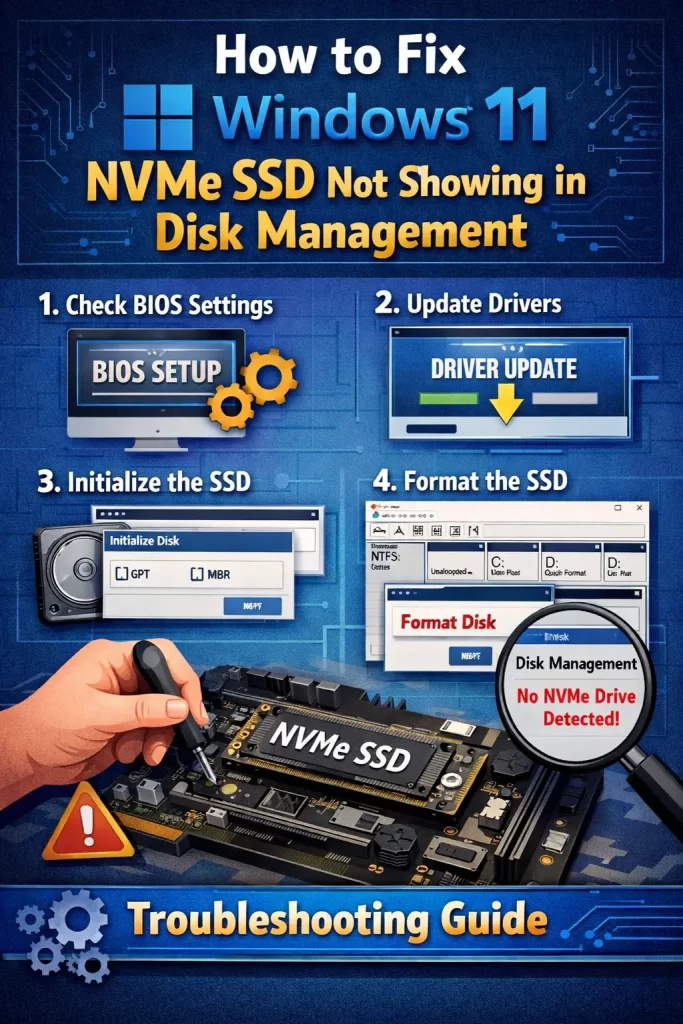
Advanced Fixes and Edge Cases
Check Event Viewer for disk-related errors. Under Windows Logs > System, filter for Disk or storahci/stornvme source errors. Repeated disconnect/reconnect events point to a power or cabling issue rather than a software one.
DiskPart for a deeper check when Disk Management shows nothing at all. Open Command Prompt as admin, run diskpart, then list disk. If the drive doesn’t appear here either, that confirms it’s not a Disk Management display quirk — something further down the chain isn’t seeing it.
Power management settings disabling the drive during sleep. In Device Manager, under the NVMe controller’s Properties > Power Management tab, uncheck “Allow the computer to turn off this device to save power” if the drive vanishes specifically after sleep or hibernation.
Secure Boot and CSM conflicts (rare, but it happens). On some boards, having Compatibility Support Module enabled alongside Secure Boot causes inconsistent NVMe detection. Worth checking if you’ve recently changed either setting.
Prevention Tips
- Read the specific M.2 slot bandwidth-sharing section of your motherboard manual before adding a second or third storage drive
- Keep chipset drivers updated, not just GPU and generic Windows drivers
- Avoid switching AHCI/RAID mode after Windows is already installed unless you know what you’re doing, or you’re prepared to reinstall
- Reseat NVMe drives carefully — heatsink screws especially, since overtightening can affect the connection
FAQ
Is my drive dead if it’s not showing in BIOS at all? Not necessarily, but it’s more likely than if it’s just missing from Windows specifically. Try a different slot before assuming failure.
Why did my NVMe drive disappear after a BIOS update? BIOS updates sometimes reset storage controller mode to a default that doesn’t match your Windows installation. Check that setting first.
Can a bent M.2 connector cause this? Yes, and it’s more common than people think, especially with drives that get reseated frequently or heatsinks that weren’t tightened evenly.
Does initializing a disk erase existing data? Initializing itself doesn’t erase data on a drive that already has a filesystem — but if Disk Management is prompting you to initialize a drive you expected to already have data on, stop and investigate further before proceeding, since that’s not normal behavior for a drive that was previously working.
Will reinstalling Windows fix a missing NVMe drive? Rarely helps, and it’s a lot of effort for what’s usually a BIOS, driver, or controller mode issue. Save it as an absolute last resort.
Editor’s Opinion
the shared m.2 lane thing gets me every time, feels like something that shouldve been way more obvious in the bios or at least flagged somewhere. anyway if your drive shows up in bios but not windows, its not dead, dont panic and dont reinstall windows over it. check disk management for an uninitialized disk before you do anything drastic, thats the most common “fix” and it takes like 30 seconds.
