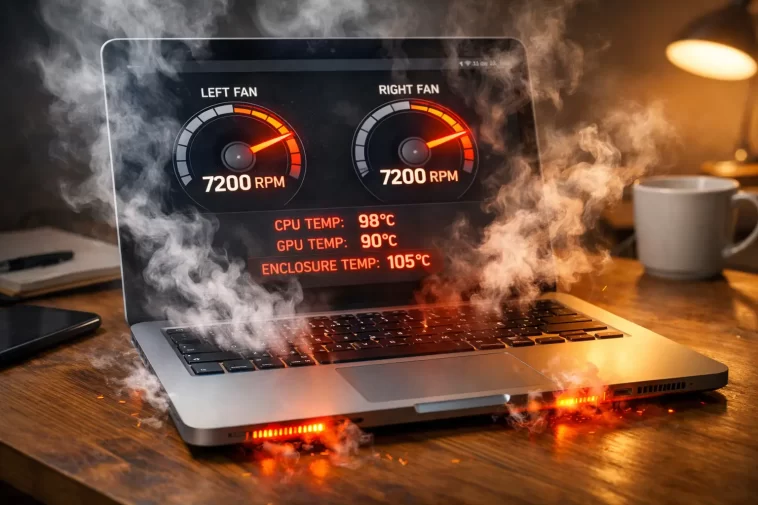
MacBook fans running constantly usually means something’s pinning your CPU, not that your Mac is broken. I’ve had a MacBook Pro sound like it was about to take off just from a browser tab I forgot was open, and an M2 Air that ran hot for days because of one background process I never would’ve guessed. If your fans won’t quiet down even when the laptop’s just sitting there, here’s what’s actually going on.
Quick Answer
- Check Activity Monitor sorted by CPU — one runaway process is the most common cause
- Close browser tabs with video or ads — Chrome and Safari are frequent offenders
- Check for macOS updates and re-indexing tasks (Spotlight, Photos) running in the background
- Clean the vents if the Mac is older or used in dusty environments
- Check Activity Monitor’s “Energy” tab for apps with high energy impact even at idle
Why It Fails
There’s rarely just one reason for this, and that’s part of what makes it annoying to track down. So let’s go through the actual causes, not the generic “your Mac needs a restart” line you’ll see everywhere.
A single process pinned at high CPU. This is the most common cause by a wide margin. Browser tabs with autoplay video, a stuck Adobe background helper, or a runaway Spotlight index can keep the CPU busy enough that fans ramp to full speed and stay there.
Thermal paste degradation on older machines. On MacBooks past the 4-5 year mark, the thermal paste between the CPU and heatsink dries out. The chip runs hotter for the same workload, so fans spin harder just to keep up. This one’s genuinely a hardware issue, not something a software fix touches.
Dust buildup in the fan and vents. Not glamorous, but it’s real. A MacBook used on a bed, couch, or carpeted floor pulls in more dust and lint than one used on a desk, and clogged vents trap heat that has nowhere to go.
Background re-indexing after a big change. Spotlight re-indexing after a large file transfer, or Photos re-analyzing a merged library, can run fans hard for hours without any visible window open. And this is the one people miss most often, because there’s genuinely nothing on screen to blame.
External display or dock strain. Driving a 4K or higher display, especially two of them, pushes the GPU harder than most people expect from a laptop chip. If the fans kick in specifically when a monitor’s connected, that’s your answer already.
Common Scenarios
- Fans loud right after unboxing/setup — usually Spotlight indexing the whole drive for the first time, this is normal and temporary
- Fans loud during video calls — GPU and camera processing combined, worse on older Intel MacBooks
- Fans loud with the lid closed (clamshell mode with external monitor) — normal to a degree, but check airflow isn’t blocked
- Fans loud while idle, no apps open — points toward a background process or hardware issue, not usage
- Fans loud only on battery — sometimes a sign of battery health issues, worth checking separately
Step-by-Step Fixes
Step 1: Open Activity Monitor and sort by CPU
Applications > Utilities > Activity Monitor. Click the CPU column to sort high to low. Anything sitting above 50-70% for more than a minute or two while you’re not actively using it is worth investigating.
Step 2: Check the Energy tab too
CPU% doesn’t always tell the full story — some background tasks show more clearly under “Energy Impact.” I’ve caught more silent offenders here than in the CPU tab, honestly.
Step 3: Quit browser tabs one at a time (or just check Chrome’s task manager)
Chrome has its own Task Manager under the three-dot menu > More Tools. It’ll show you exactly which tab or extension is eating resources, which is faster than guessing.
Step 4: Let Spotlight and Photos finish indexing
If you just set up a new Mac, migrated data, or merged a Photos library, give it a few hours. Check progress in System Settings > Siri & Spotlight, or just wait — interrupting it usually makes it start over anyway.
Step 5: Reset the SMC
Shut down, then hold Shift+Control+Option+Power for 10 seconds (Intel Macs). On Apple Silicon, just shut down completely and let it sit for 30 seconds before restarting — there’s no manual SMC reset key combo on M-series chips since the controller works differently.
Step 6: Check for stuck update installers
An update that failed silently in the background (softwareupdated) can keep the CPU busy indefinitely. Check for pending updates in System Settings and either finish or cancel them properly instead of leaving them half-done.
What Actually Worked For Me
So my situation was the fans-at-idle kind, which is the most frustrating version because there’s nothing obvious running. I closed every app, checked Activity Monitor, and CPU usage looked completely normal — under 10%. That threw me off for a while, because everything I’d read said high CPU was the cause.
Turned out the fans weren’t reacting to CPU load at all — the SMC was just stuck reporting a wrong temperature reading, not entirely unlike a sensor glitch. I tried an SMC reset first, which didn’t help. Restarted twice, still nothing.
What actually fixed it was a coworker mentioning, almost as an aside, that a full shutdown (not restart, not sleep) for a few minutes sometimes clears a stuck thermal sensor state on Intel Macs. I hadn’t done a real shutdown in weeks, just closed the lid every night like most people do. Full shutdown, waited five minutes, powered back on — fans went quiet immediately. Not 100% sure why it works this way, but it’s happened again since then, so I trust it now.
Advanced Fixes and Edge Cases
Use powermetrics in Terminal to check thermal pressure directly. Run sudo powermetrics --samplers smc -i1 -n1 to see real-time CPU die temperature and fan speed reported by the SMC itself. This tells you whether the fans are responding to actual heat or something’s misreporting.
Check Console.app for thermal throttling logs. Search for “thermal” in the last few hours of system logs. If you see repeated thermal pressure warnings, that’s a sign of a real cooling issue — dust, dried thermal paste, or a failing fan — not just a busy app.
Reset NVRAM if fan behavior seems inconsistent with actual load. Shut down, hold Cmd+Option+P+R while powering on until you hear two startup chimes (Intel Macs). This occasionally clears a corrupted fan-curve setting stored in NVRAM.
Physically inspect and clean the vents. On models with removable bottom panels (older MacBook Pros, mainly), compressed air through the intake vents can clear years of buildup. On sealed models, a service visit is the only real option, since there’s no user-accessible way in.
What Rarely Works
Killing random background apps one by one without checking Activity Monitor first almost never solves this — you’re guessing, and there’s a much faster way to know for sure. Reinstalling macOS is also thrown around a lot as a fix, but if the cause is dust, thermal paste, or a hardware sensor issue, a fresh OS install changes nothing.
Prevention Tips
- Use your MacBook on a hard, flat surface instead of soft furniture, which blocks vents
- Do a full shutdown occasionally instead of sleeping every night for weeks straight
- Keep macOS updated, since Apple does patch background process bugs that cause fan issues
- Get vents cleaned every year or two on machines you plan to keep long-term
- Watch Activity Monitor’s Energy tab periodically, even when nothing seems wrong
FAQ
Is it normal for MacBook fans to run during video calls? Yes, to some degree — camera processing plus video encoding adds real load, especially on Intel chips. Constant max-speed fan noise for a simple audio-only call isn’t normal, though.
Will fan running constantly damage my MacBook? Not directly — the fans are doing their job protecting the hardware from heat. But constant high load over long periods can shorten battery lifespan and, on older machines, degrade thermal paste faster.
Why are my fans loud even in Safe Mode? That usually points toward a hardware cause (dust, thermal paste, sensor issue) rather than software, since Safe Mode disables most third-party processes.
Can a MacBook fan get physically stuck? Yes, rarely — dust or a small object can jam the fan blade, causing a grinding sound instead of normal fan noise. That’s a repair issue, not a software one.
Does closing the lid stop the fans? Not always — if you’re using clamshell mode with an external display, the Mac stays fully awake and fans keep running normally.
Editor’s Opinion
Most of the time it’s just one tab or one background task, nothing dramatic. Check Activity Monitor before you assume it’s hardware failure, that’s the honest first step every time. Full shutdown instead of sleep fixed it for me once in a way I still can’t fully explain, so don’t rule out the weird fixes either.
