WindowServer high CPU usage is one of those macOS problems that sends people straight to Activity Monitor in a panic, because the process name sounds like something you should never touch. I had it eat close to 90% of a CPU core on my own Mac after connecting an ultrawide monitor last year, and fans were spinning up like the machine was rendering a movie. It wasn’t doing anything close to that.
Quick Answer
- WindowServer manages everything you see on screen, so high CPU usage is almost always tied to displays, animations, or rendering — not malware.
- External monitors, especially at non-native resolutions, are the single most common trigger.
- Reducing transparency in Accessibility settings fixes a surprising number of cases in under a minute.
- If usage stays high after a restart with nothing else open, a corrupted preference file or a stuck app window is likely the cause.
- Multiple displays, extra desktops (Spaces), and Stage Manager all add real overhead — you don’t need malware to explain this one.
Why WindowServer Spikes
WindowServer is a core macOS process, not something malicious, and it’s responsible for literally every pixel and window animation on your screen. So when it spikes, the cause is almost always something visual, not something sinister.
Non-native external display resolutions. This is the big one. If you’re running an external monitor at a scaled resolution instead of its native one, macOS has to do real-time scaling calculations constantly, and that work falls on WindowServer. I’ve seen this alone push CPU usage from 5% to 60% on otherwise idle Macs.
Multiple displays with different refresh rates. Mixing a 60Hz external monitor with a 120Hz MacBook display forces WindowServer to manage two separate render timings simultaneously, which adds overhead that a single-display setup never has to deal with.
Transparency and blur effects. macOS renders a lot of translucent UI — menu bars, Control Center, window backgrounds — and on older or thermally throttled Macs, that constant blur calculation adds up fast.
A stuck or corrupted app window. Sometimes a single app, often something with custom UI rendering like a video editor or a browser with too many tabs, gets stuck in a rendering loop and WindowServer ends up doing repeated work trying to keep up with it.
Corrupted Dock or WindowServer preference files. Not super common, but it happens — a damaged plist file can cause WindowServer to recalculate layouts over and over instead of caching them normally.
Mission Control and Spaces overhead. Having a lot of desktops or full-screen apps active at once means WindowServer is tracking and pre-rendering more than it would with a simpler setup.
Common Scenarios
This shows up differently depending on your setup, which is worth knowing before you start troubleshooting blind.
On MacBooks connected to external monitors, it’s almost always the scaled-resolution issue. On Mac minis or Mac Studios driving multiple 4K or 5K displays, it’s more often a refresh-rate mismatch or one display running scaled while another runs native. And on older Intel Macs specifically, I’ve seen WindowServer struggle just from Control Center transparency alone — something M-series Macs handle without breaking a sweat.
Step-by-Step Fixes
Step 1: Check Activity Monitor First
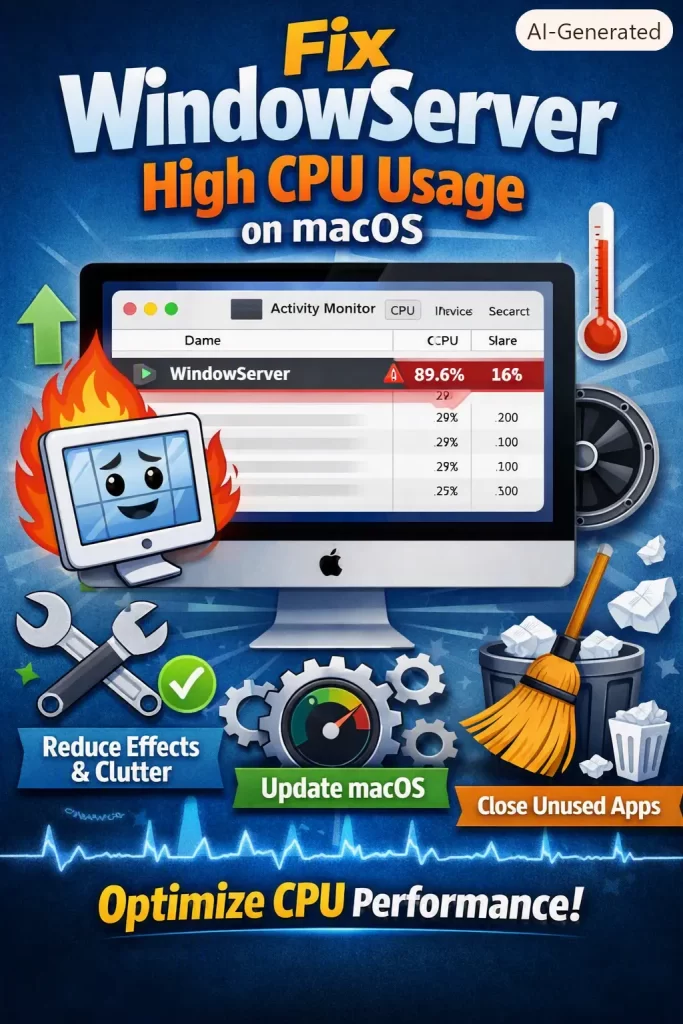
Open Activity Monitor, sort by CPU, and note WindowServer’s actual percentage. Anything under 20% while actively using your Mac is normal. Anything sustained above 40-50% while mostly idle is worth investigating further.
Step 2: Switch External Displays to Native Resolution
System Settings > Displays > select your external monitor > choose “Default” instead of a scaled option. If you need the extra screen real estate, try one step of scaling rather than the most aggressive one.
Step 3: Reduce Transparency
System Settings > Accessibility > Display > turn on “Reduce Transparency.” This won’t fix everything, but on Intel Macs especially, it often drops WindowServer usage by a noticeable amount within seconds.
Step 4: Close Suspect Apps One at a Time
Quit apps with heavy custom UI — browsers with dozens of tabs, video editors, design software — one by one while watching WindowServer’s usage in Activity Monitor. If it drops sharply after closing something specific, that app is the trigger.
Step 5: Restart WindowServer Directly
You can force WindowServer to restart without rebooting the whole Mac by logging out (Apple menu > Log Out) rather than restarting. This clears its state without the full reboot wait.
Step 6: Check for Pending macOS Updates
Apple has shipped fixes for WindowServer performance bugs tied to specific display configurations before. Software Update in System Settings is worth checking if this started right after a macOS update.
What Actually Worked For Me
When it happened on my own Mac, I went through the obvious stuff first — closed Chrome, quit everything, even restarted. WindowServer usage barely moved, sitting around 70-80%. That’s not what I expected after a clean restart with nothing open.
I almost gave up and just lived with the fan noise for a few days, which, in hindsight, was lazy troubleshooting on my part. What actually fixed it was a coworker mentioning offhand that he’d had the exact same issue with the same ultrawide monitor model, and the fix was switching the display from a scaled resolution to native — something I’d genuinely overlooked because the picture looked fine to me at the scaled setting. Switched it, and CPU usage dropped to single digits within about ten seconds.
So the visual difference between scaled and native resolution can be small enough that you don’t notice it, but the CPU cost behind the scenes is huge.
Advanced Fixes and Edge Cases
Use spindump for a deeper look. Open Terminal and run sudo spindump WindowServer while the issue is happening. It’ll generate a report showing exactly what WindowServer is spending its cycles on, which is far more useful than Activity Monitor’s simple percentage.
Check Console.app for repeated errors. Filter by “WindowServer” and watch for repeated log entries during the spike — repeated compositor errors often point at a specific display or app.
Reset NVRAM. Shut down, then hold Option+Command+P+R while powering on for about 20 seconds. This clears some display-related settings stored outside macOS itself, and it occasionally resolves persistent WindowServer issues tied to display configuration memory.
Boot into Safe Mode to isolate third-party factors. If WindowServer usage is normal in Safe Mode but spikes in normal use, a login item, font, or third-party display utility is likely involved rather than macOS itself.
Check GPU-related kernel panics in Console. On Intel Macs with dedicated GPUs, a failing or overheating GPU can manifest as WindowServer struggling to keep up rather than an obvious crash.
Fixes That Sound Right But Rarely Help
Resetting SMC gets recommended constantly for this and it almost never actually fixes a WindowServer issue tied to display scaling — that’s a software calculation problem, not a power management one. Reinstalling macOS is another overkill suggestion that rarely addresses the real cause, which is usually a display setting sitting in plain sight. And killing random background processes one by one without checking Activity Monitor first just wastes time compared to actually looking at what’s using the CPU.
Prevention Tips
- Stick to native display resolutions whenever possible, especially on Intel Macs or thermally-limited MacBook Airs.
- Match refresh rates across displays when you can, or at least be aware of the overhead mismatched rates add.
- Keep macOS updated, since Apple periodically ships WindowServer performance fixes in point releases.
- Avoid running an excessive number of Spaces or full-screen apps simultaneously if your Mac already runs warm.
- If you use Reduce Transparency and Reduce Motion together, that combination tends to keep WindowServer overhead lowest on older hardware.
FAQ
Is WindowServer a virus? No, it’s a core macOS process that’s always running — high usage means something visual is taxing it, not that you’re infected.
Why does WindowServer spike only when I connect an external monitor? Almost always a scaled resolution setting — switch to native resolution and check again.
Can I force quit WindowServer? You can, but it’ll log you out immediately since it controls your entire display session — logging out normally is safer.
Does Reduce Transparency actually help on Apple Silicon Macs? Less than on Intel Macs, since M-series chips handle blur rendering more efficiently, but it can still shave off a few percentage points.
Why is WindowServer high even with nothing open? Check for stuck background apps, active Spaces, or a scaled external display — “nothing open” doesn’t mean nothing rendering.
Does gaming cause WindowServer spikes? Some games do, especially ones running in windowed mode with transparency effects layered over them, but full-screen games usually don’t.
Will an SMC reset fix WindowServer issues? Rarely — it’s more useful for power and thermal issues than display rendering problems.
Is high WindowServer usage bad for my Mac long-term? Sustained high usage generates more heat and drains battery faster, so it’s worth fixing even if performance still feels okay for now.
Editor’s Opinion
WindowServer scares people because of the name, but 9 times out of 10 it’s just your display setup asking for more than it should. check your external monitor’s resolution setting before you do anything drastic — that one setting has fixed this for basically everyone I’ve helped with it. don’t waste time on SMC resets first, that’s not usually where the problem lives.
